Shopping for a 4K gaming monitor used to mean choosing between resolution and refresh rate — you could have sharp pixels or fast frames, but rarely both without spending well past a thousand dollars. In 2026 that trade-off has largely collapsed. Panel supply has caught up with demand, 160Hz 4K IPS displays have become the mid-range norm, and the sub-$500 bracket is now genuinely competitive rather than a compromise zone. The problem buyers face today isn’t scarcity, it’s noise: dozens of near-identical spec sheets, inflated “1ms” claims, and HDR badges that mean very little in practice.
- Watch: Best 4K Monitor Under $500 — Video Review
- How to Choose 4K Monitor Under $500
- The Best Picks Reviewed
- What to Look For in a Budget 4K Gaming Monitor
- What 4K Asks of Your Graphics Card
- Which One Should You Buy?
- Common Mistakes When Buying a 4K Monitor on a Budget
- First-Day Setup Checklist for a New 4K Monitor
- Frequently Asked Questions
- Final Thoughts
- Related Articles
This guide cuts through that. We’ve focused on displays that realistically land under $500 at typical street pricing, with an emphasis on panel quality, honest motion performance, and connectivity you’ll actually use. Below you’ll find our top picks, a short buying checklist, individual reviews, and answers to the questions we get asked most often about 4K gaming on a budget.
As an Amazon Associate we earn from qualifying purchases at no extra cost to you.




⚡ Save on Your Next PC — Amazon Prime
Prime members get fast free shipping on the systems above, plus early access to Prime Day & Black Friday PC deals. New members get a 30-day free trial.
Watch: Best 4K Monitor Under $500 — Video Review
How to Choose 4K Monitor Under $500
- Refresh rate vs. your GPU: A 160Hz 4K panel is only useful if your graphics card can push those frames. If you’re running mid-tier hardware, a 120Hz panel with strong upscaling support delivers better value than paying extra for headroom you won’t reach.
- Panel type: IPS remains the safest choice at this price for colour accuracy and viewing angles. VA panels offer deeper contrast and suit curved ultrawide-style setups, but watch for smearing in dark scenes.
- Real response time: Ignore marketing “1ms” figures, which are measured under best-case grey-to-grey conditions with aggressive overdrive. Look for reviews that measure overshoot, and check whether the monitor has usable overdrive settings rather than just an on/off toggle.
- Adaptive sync certification: FreeSync Premium or G-SYNC Compatible certification matters more than the logo on the box — it guarantees low framerate compensation, which keeps things smooth when frames dip below the panel’s minimum refresh.
- Ports and daily use: HDMI 2.1 is essential for consoles at 4K120. USB-C with power delivery is a genuine quality-of-life upgrade if you dock a laptop, and it’s increasingly available under $500.
The Best Picks Reviewed
Acer Nitro VG270K V4
The strongest all-rounder in this bracket: a 27-inch 4K IPS panel running at 160Hz natively, with a dual-mode function that drops to 1080p at 320Hz for competitive shooters. That flexibility is rare at this price, and the IPS colour reproduction holds up well for content work between sessions.
ASUS ROG XG27UCSR
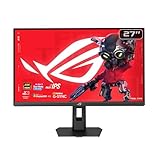
ASUS’s ROG entry pairs a 162Hz 4K panel with USB-C connectivity and G-SYNC compatibility, making it the pick for anyone splitting time between a gaming rig and a work laptop. Build quality and the on-screen menu system are a clear step above the budget competition.
ASUS TUF Gaming VG27UQ1A
A slightly more affordable ROG alternative, the TUF hits 160Hz at 4K with 95% DCI-P3 coverage and ASUS’s Extreme Low Motion Blur Sync for reduced blur at high framerates. The three-year warranty is a meaningful reassurance at this price point.
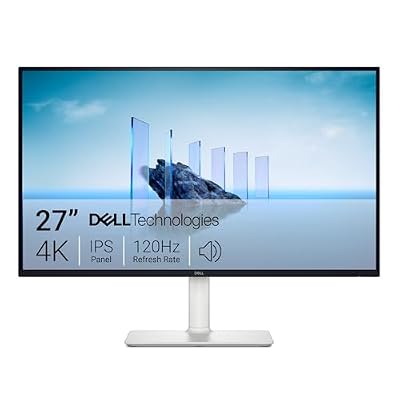
Dell S2725QS
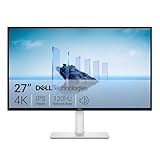
Dell’s 27-inch 4K IPS display tops out at 120Hz rather than 160Hz, but it’s typically the cheapest genuinely good 4K panel on this list and pairs well with consoles or mid-range GPUs. Colour accuracy out of the box is excellent, and the stand is far better than most rivals at this money.
Samsung Odyssey G7 (G75F)
The 37-inch curved 4K G7 is the immersion pick, offering considerably more screen real estate than the 27-inch competition with Samsung’s characteristically strong contrast. It sits at the very top of this budget and can drift above it, so buy on a sale.
What to Look For in a Budget 4K Gaming Monitor
Size and Pixel Density
Pixel density is pixels per inch (PPI), and you can work it out yourself. A 3840 x 2160 panel has a diagonal of about 4,406 pixels. Divide that by the screen size: a 27-inch panel gives roughly 163 PPI, while a 32-inch panel gives roughly 138 PPI. At 27 inches text is very sharp at normal desk distance, while 32 inches looks larger and more cinematic but slightly softer. Dell’s listing for the S2725QS, for instance, gives 163 PPI for its 27-inch panel.
Ports and Bandwidth
Refresh rate at 4K depends on the cable and the ports. DisplayPort 1.4 carries 4K at high refresh rates mostly through Display Stream Compression (DSC), and HDMI 2.1 is needed for 4K at 120Hz from a console such as the PlayStation 5 or Xbox Series X. Listings for the ASUS ROG XG27UCSR, the Acer Nitro VG270K V4, and the Dell S2725QS all show HDMI 2.1 ports, but a few budget monitors use HDMI 2.0, which tops out at 4K 60Hz. Confirm the exact port version on the listing.
Panel Type and Motion
- IPS. Wide viewing angles and accurate color. Contrast is typically around 1,000:1, so blacks look gray in a dark room.
- VA. Deeper blacks and higher contrast, but motion smearing is more common. Large curved models, such as the larger-format Samsung Odyssey G7 variants, commonly use VA panels. Confirm the size and panel type on the listing, since the G75F name has been used on large-format versions.
- Dual-mode. Some newer monitors, including listings for the ROG XG27UCSR and the Acer Nitro VG270K V4, let you switch between 4K at around 160Hz and a lower resolution (1080p) at a much higher refresh rate. This is useful for fast shooters, if you can accept the softer image in that mode.
HDR Reality Check
The entry HDR tier, VESA DisplayHDR 400, requires modest peak brightness and does not demand local dimming. In practice, HDR400 monitors often look only slightly different from SDR. If HDR matters, look for a higher certification or a monitor with local dimming zones, and treat HDR on cheaper models as a bonus.
What 4K Asks of Your Graphics Card
| Resolution | Pixels per frame | Compared with 1080p |
|---|---|---|
| 1920 x 1080 | about 2.07 million | 1x |
| 2560 x 1440 | about 3.69 million | about 1.8x |
| 3840 x 2160 | about 8.29 million | 4x |
Four times the pixels means your graphics card does far more work per frame. Upscalers like DLSS and FSR help: their Quality modes render at about two-thirds of the output resolution on each axis, so a 4K output is rendered internally at roughly 1440p and then reconstructed. A monitor with a 160Hz limit only benefits if your GPU can approach that frame rate, so many players will cap frame rate near 60 to 120 and enjoy the sharpness.
Which One Should You Buy?
| If you… | Choose… |
|---|---|
| Want 4K for gaming and the option to drop to a high-refresh 1080p mode | ASUS ROG XG27UCSR or Acer Nitro VG270K V4 |
| Want a straightforward 27-inch Fast IPS gaming monitor | ASUS TUF Gaming VG27UQ1A |
| Split your time between work, streaming, and console gaming | Dell S2725QS |
| Want a larger, more immersive screen | Samsung Odyssey G7 (G75F), after confirming its size and panel type |
Common Mistakes When Buying a 4K Monitor on a Budget
- Pairing it with a weak graphics card. A mid-range GPU may need upscaling or lowered settings at 4K.
- Using the wrong cable. A basic HDMI cable can force 4K down to 30 or 60Hz. Use the cable included with the monitor or a certified high-speed one.
- Ignoring the stand. Some budget stands only tilt. Check whether height adjustment is included, or plan for a VESA arm.
- Believing response time claims. The 1ms figure is usually measured at the best-case setting. Reviews and motion tests tell more.
- Skipping scaling settings. Windows scaling at 125% to 150% keeps text readable on a 27-inch 4K screen.
First-Day Setup Checklist for a New 4K Monitor
- Connect the monitor to the graphics card, not the motherboard, using DisplayPort or an HDMI 2.1 cable that came with it or is certified for high speed.
- In Windows display settings, confirm the resolution is 3840 x 2160 and set the refresh rate to the highest option in the advanced display menu.
- Turn on the monitor’s HDMI 2.1 or enhanced signal mode in its on-screen menu if the model has one, because some require it for 4K at 120Hz.
- Enable variable refresh rate (G-Sync Compatible or FreeSync) in the graphics driver and in the game.
- Choose a color mode. An sRGB or standard mode usually gives the most natural image for desktop use.
- Check the screen against solid black, white, and colored backgrounds to spot dead pixels or uneven backlighting while the return window is open.
- Set Windows scaling so text is comfortable. Many people choose 125% to 150% on a 27-inch 4K panel.
Console Owners
For 4K at 120Hz on a PlayStation 5 or Xbox Series X, use an HDMI 2.1 port, enable 120Hz output in the console settings, and confirm that the monitor’s HDMI mode is set to its highest bandwidth option.
Frequently Asked Questions
Is 4K worth it for gaming under $500?
Yes, provided your GPU can handle it. With DLSS, FSR and XeSS upscaling now mature, a mid-range card from the last two generations can hit high framerates at 4K in most titles. If you’re on older hardware, a high-refresh 1440p panel like the Samsung Odyssey G5 remains the smarter buy.
Do I need HDMI 2.1?
For PC use, DisplayPort 1.4 with DSC handles 4K at 160Hz without issue. HDMI 2.1 matters primarily for PlayStation 5 and Xbox Series X owners who want 4K at 120Hz — if you plan to connect a console, treat it as non-negotiable.
Is HDR usable on monitors this cheap?
Broadly, no. Most sub-$500 displays carry DisplayHDR 400 certification, which lacks the local dimming and peak brightness needed for real HDR impact. Treat it as a minor bonus rather than a buying reason, and expect SDR to look better in most games.
27 inches or larger?
At 4K, 27 inches gives roughly 163 pixels per inch — extremely sharp, though you may want display scaling for desktop work. Larger panels like the 37-inch Odyssey G7 trade some pixel density for immersion and are best suited to deeper desks where you can sit further back.
Final Thoughts
For most buyers, the Acer Nitro VG270K V4 is the easiest recommendation on this list — 4K at 160Hz with a dual-mode 320Hz option is remarkable value under $500. If you want USB-C docking and a more premium build, the ASUS ROG XG27UCSR justifies its slight premium, while the Dell S2725QS is the sensible budget choice for console players and anyone running mid-range hardware who doesn’t need refresh rates beyond 120Hz.