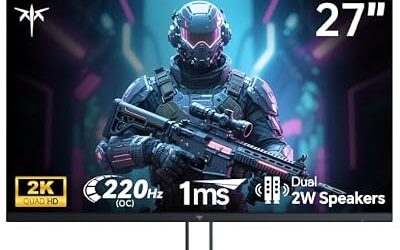
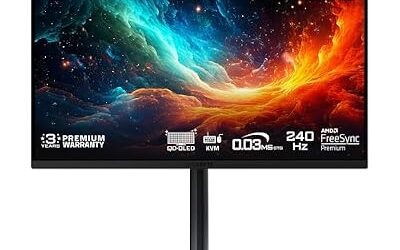
- Top Pick: SANSUI 32 Inch Curved 240Hz Gaming Monitor High Refresh Rate, FHD 1080P
- Best Value: Acer 27 Inch Monitor- KB272-27 Inch FHD IPS (1920 x 1080) Display, Up to 120Hz Refresh Rate, 99% sRGB, Tilt, Adaptive-Sync Support (FreeSync Compatible) 1ms (VRB), sRGB 99% Color, HDMI & VGA Ports
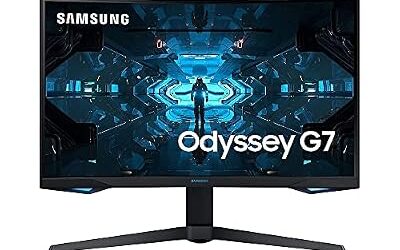
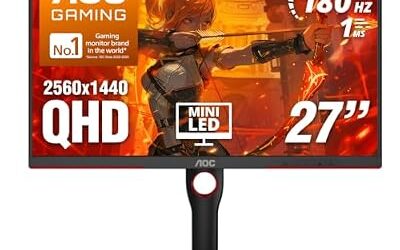
- Premium Choice: Samsung 27" Odyssey G5 (G51F) Series QHD (1440P) Gaming Monitor
Refresh rate is the spec that separates a merely good gaming monitor from one that feels effortless. Measured in hertz, it tells you how many times per second the screen redraws, and higher numbers translate directly into smoother motion, less blur, and a sharper competitive edge.
- Watch: Best Monitor Refresh Rate For Gaming — Video Review
- How to Choose the Right Refresh Rate
- The Best Gaming Monitors Reviewed
- What to Look For Beyond the Hertz Number
- Which Refresh Rate and Monitor Should You Choose?
- Common Mistakes When Choosing a Refresh Rate
- Quick Setup for High Refresh Rates
- How Games Use the Extra Refresh
- Reading a Monitor Spec Sheet Without Getting Misled
- Cables and Ports Set a Hard Ceiling
- Adaptive Sync Ranges and Low Framerate Compensation
- Related Guides
- Frequently Asked Questions
- Final Thoughts
- Related Articles
- Related Guides
But more hertz is not automatically better for everyone. Your GPU, resolution, and the games you play all shape the sweet spot. This guide explains which refresh rate suits your setup, then reviews six monitors spanning 100Hz all the way to a blistering 240Hz.


As an Amazon Associate we earn from qualifying purchases at no extra cost to you.



🎮 Get More From Your Setup — Free
Prime Gaming gives you free PC games every month, in-game loot, and a free Twitch channel sub — plus fast free shipping on all the gear above. New members get a 30-day free trial.
Watch: Best Monitor Refresh Rate For Gaming — Video Review
How to Choose the Right Refresh Rate
- Match your GPU: A 240Hz panel only shines if your graphics card can push those frames. Pair high-refresh screens with capable hardware or you will never see the benefit.
- Genre matters: Competitive shooters reward 165Hz and beyond, while story-driven and slower games feel great at 120Hz or even 100Hz.
- Resolution trade-off: FHD makes hitting high frame rates easy; QHD looks sharper but demands more GPU muscle to stay fast.
- Adaptive sync: FreeSync or G-Sync compatibility eliminates tearing and keeps motion clean when frame rates fluctuate.
- Response time: A low gray-to-gray or MPRT rating prevents ghosting, ensuring that fast refresh actually looks crisp rather than smeared.
The Best Gaming Monitors Reviewed
SANSUI 32″ Curved 240Hz
This 32-inch SANSUI delivers a wraparound 240Hz FHD experience for players who crave maximum speed on a big canvas. The high refresh and curve make fast shooters feel immersive and razor-responsive.
Acer KB272 27″ 120Hz
The Acer KB272 is a value all-rounder with an IPS panel, 99% sRGB coverage, and up to 120Hz. It is ideal for gamers who also care about accurate color for creative work.
Samsung Odyssey G5 (G51F)
Stepping up to QHD, the Samsung Odyssey G5 balances sharp 1440p clarity with high-refresh smoothness. It is the go-to pick for players wanting resolution and speed in one package.
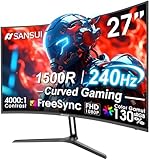
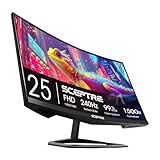
SANSUI 27″ Curved 240Hz
A more compact take on the 240Hz formula, this 27-inch SANSUI adds a 1500R curve, HDR, and strong sRGB coverage. It is a superb esports monitor that does not skimp on picture quality.
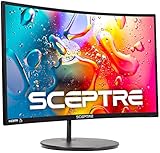
Sceptre C248W 24″ Curved
Budget-focused and beginner-friendly, the Sceptre 24-inch curved model brings built-in speakers and a wallet-pleasing price. It is a fine entry point into smooth 1080p gaming.
Acer Nitro KG251Q 200Hz
The Acer Nitro pairs a 200Hz IPS panel with sub-millisecond response and FreeSync Premium. It hits a sweet spot of speed, color, and affordability for competitive players.
What to Look For Beyond the Hertz Number
Frame Time and Diminishing Returns
Refresh rate converts to time per frame by dividing 1000 by the hertz figure. The table below shows how the gains shrink as the number rises.
| Refresh rate | Time per frame | Saved versus the step before |
|---|---|---|
| 60Hz | 16.7 ms | Baseline |
| 120Hz | 8.3 ms | 8.4 ms |
| 144Hz | 6.9 ms | 1.4 ms |
| 180Hz | 5.6 ms | 1.3 ms |
| 240Hz | 4.2 ms | 1.4 ms |
Going from 60Hz to 144Hz saves nearly 10 milliseconds per frame, while jumping from 144Hz to 240Hz saves only about 2.8. That is why most players notice the first upgrade far more than the second.
Resolution and Pixel Density
Higher refresh rates at higher resolutions demand more from the graphics card. A 27 in 1440p screen has about 109 pixels per inch, a 23.8 in 1080p screen about 93, a 27 in 1080p screen about 82, and a 32 in 1080p screen about 69. Larger 1080p panels look softer, which is worth remembering when you see 240Hz at a big size and low resolution.
Variable Refresh Rate and Frame Limits
Adaptive sync such as FreeSync lets the screen match the frame rate, which removes tearing without the delay of traditional vertical sync. For smooth results, cap the frame rate a few frames below the maximum refresh rate. Low framerate compensation, which duplicates frames when performance dips, generally needs a maximum refresh rate at least double the minimum.
Your System Sets the Ceiling
A 240Hz monitor only shows 240 frames per second if the processor and graphics card can deliver them. In many modern games a mid-range system reaches 100 to 144 frames, so a 144Hz or 180Hz panel may be all you can use.
Which Refresh Rate and Monitor Should You Choose?
| If you… | Choose… |
|---|---|
| Play on a modest PC or console and want a smooth step up from 60Hz | Acer KB272 27 in 120Hz |
| Want an entry-level 1080p screen for esports on a small footprint | Acer Nitro KG241Y Sbiip 23.8 in Full HD |
| Want 1440p sharpness with a high refresh rate | Samsung Odyssey G5 G53F 27 in (200Hz) or Samsung Odyssey G5 G50F (180Hz) |
| Want a straightforward 1440p Samsung option | Samsung Odyssey G5 (G51F) |
| Have a powerful GPU and play fast shooters at 1080p | SANSUI 27 in Curved 240Hz |
| Want the largest 240Hz screen and accept softer text | SANSUI 32 in Curved 240Hz |
Common Mistakes When Choosing a Refresh Rate
- Leaving it at 60Hz. Many monitors default to 60Hz until you change it in the display settings, even when the panel supports more.
- Paying for hertz your system cannot reach. Compare the frame rates you actually get with the panel’s maximum.
- Ignoring resolution. A very high refresh rate on a low-resolution large screen sacrifices sharpness.
- Using the wrong port. Some panels reach their top refresh rate only on DisplayPort, so check the cable.
- Forgetting adaptive sync. Enable it in the monitor menu and the graphics driver.
- Overlooking response time. A fast refresh rate with slow pixel transitions still leaves motion blur, so look at the overdrive options.
Quick Setup for High Refresh Rates
- Use the DisplayPort cable supplied with the monitor, or a certified one.
- Open the Windows advanced display settings and choose the highest refresh rate.
- Enable adaptive sync in the monitor’s menu and in the graphics driver.
- Cap frame rates a few frames below the maximum for smoother results.
- Set the overdrive to a mid-level option and test for trails behind moving objects.
How Games Use the Extra Refresh
Competitive shooters and racing games benefit most because they output very high frame rates on modest graphics settings. Slower story games often run at lower frame rates, where adaptive sync matters more than the hertz figure. Console players on supported consoles can use 120Hz modes, but few can use more than that.
Reading a Monitor Spec Sheet Without Getting Misled
Refresh rate is only one number on the box, and several neighboring figures are easy to misread. Three are worth separating before you compare the monitors above.
- Response time labels. A “1ms” figure may be quoted as MPRT, which describes how long a pixel is visible under a backlight-strobing method, or as GtG, which measures gray-to-gray transitions. The two are not interchangeable, and several listings above use the 1ms wording. Treat it as a ceiling in ideal conditions, not a guarantee across every color change.
- Panel type. VA panels generally deliver stronger contrast, while IPS panels generally show wider viewing angles and more consistent color. The Acer Nitro KG241Y is listed as VA, and the Samsung Odyssey G53F and G50F as IPS, so the trade-off shows up inside this very list.
- HDR10 labels. HDR10 on a spec sheet means the monitor accepts an HDR signal. It does not mean the panel is bright enough to show HDR convincingly, and many budget screens gain little from switching it on.
Cables and Ports Set a Hard Ceiling
A fast panel can still be held back by the connection feeding it. Effective data capacity is roughly 14.4 Gbps for HDMI 2.0, 17.3 Gbps for DisplayPort 1.2, and 25.9 Gbps for DisplayPort 1.4. The table compares those limits with the raw pixel data an uncompressed 8-bit signal carries, using simple arithmetic (width x height x refresh x 24 bits). Blanking intervals add a few percent on top, so treat close calls as tight.
| Mode | Pixel data needed | HDMI 2.0 | DisplayPort 1.2 | DisplayPort 1.4 |
|---|---|---|---|---|
| 1080p at 165Hz | about 8.2 Gbps | Fits | Fits | Fits |
| 1080p at 240Hz | about 11.9 Gbps | Tight | Fits | Fits |
| 1440p at 165Hz | about 14.6 Gbps | Does not fit | Fits | Fits |
| 1440p at 180Hz | about 15.9 Gbps | Does not fit | Tight | Fits |
| 1440p at 200Hz | about 17.7 Gbps | Does not fit | Does not fit | Fits |
| 1440p at 240Hz | about 21.2 Gbps | Does not fit | Does not fit | Fits |
The practical lesson: for a QHD monitor above 165Hz, such as the 200Hz Odyssey G53F, plan on DisplayPort. The Acer Nitro KG241Y lists DisplayPort 1.2 and HDMI 2.0, which is plenty for a 1080p panel at 165Hz. Use the cable that ships in the box, since an older or low-grade cable can silently cap the refresh rate.
Adaptive Sync Ranges and Low Framerate Compensation
FreeSync and G-Sync Compatible match the monitor’s refresh to the frame rate your GPU delivers, but only inside a supported window. When frames drop below the bottom of that window, the benefit disappears unless the monitor supports Low Framerate Compensation, which repeats frames to stay inside the range. AMD’s guidance is that LFC requires the maximum refresh rate to be at least double the minimum, so a wide window matters more than a headline hertz number.
Check three things on the product page: the supported range (not just the maximum), whether G-Sync Compatible is named alongside FreeSync, and whether the setting must be turned on in the on-screen menu. The Odyssey G50F’s listing mentions both G-Sync Compatible and FreeSync, while the G53F lists FreeSync Premium, whose tier is built around LFC support.
Related Guides
- Computer Monitor Clip On Light (2026)
- Monitor Stack Mount (2026)
- Best Gaming Monitors Best Buy (2026)
- PC Watt Usage Monitor (2026)
- Small Side Monitor (2026)
Frequently Asked Questions
Is 240Hz overkill?
Not for competitive shooter players, who notice the extra fluidity. Casual gamers are perfectly happy at 120Hz to 165Hz, and the difference above that becomes subtle.
Do I need a powerful GPU for high refresh?
To fully use 165Hz or 240Hz, yes. If your card cannot sustain high frame rates, a 120Hz monitor offers a better balance of cost and benefit.
FHD or QHD for high refresh?
FHD makes high frame rates easier to reach and costs less. QHD looks noticeably crisper but requires stronger hardware to stay smooth.
Does adaptive sync really matter?
Yes. FreeSync or G-Sync removes screen tearing and stutter, which keeps motion clean especially when your frame rate dips below the monitor’s refresh ceiling.
Final Thoughts
For pure competitive speed, the SANSUI 27″ 240Hz is our top recommendation, while the Samsung Odyssey G5 wins for gamers wanting QHD sharpness alongside high refresh. Budget buyers should look hard at the Acer Nitro KG251Q, which delivers 200Hz performance without breaking the bank.