🛒 Best Price Today on Amazon
Prime members get fast, free shipping on everything above, plus member-only deals. New members get a 30-day free trial — cancel anytime.
- Is the Corsair K100 Air Wireless worth buying?
- How do the switches, keycaps, and slim case feel?
- How do the wired and wireless modes work in games?
- How useful are iCUE, battery life, and the extra controls?
- Where does the K100 Air make the most sense?
- How should you evaluate the keyboard after buying it?
- Conclusion
Buy the K100 Air Wireless if you want a very thin full-size board and like short tactile presses. This Corsair K100 Air Wireless low-profile keyboard review shows where the Cherry switches and desk height justify the premium. Look elsewhere if you want hot-swap switches, ordinary replacement keycaps, or more space for a mouse.
Is the Corsair K100 Air Wireless worth buying?
Buy it for the profile and the specific mechanical feel
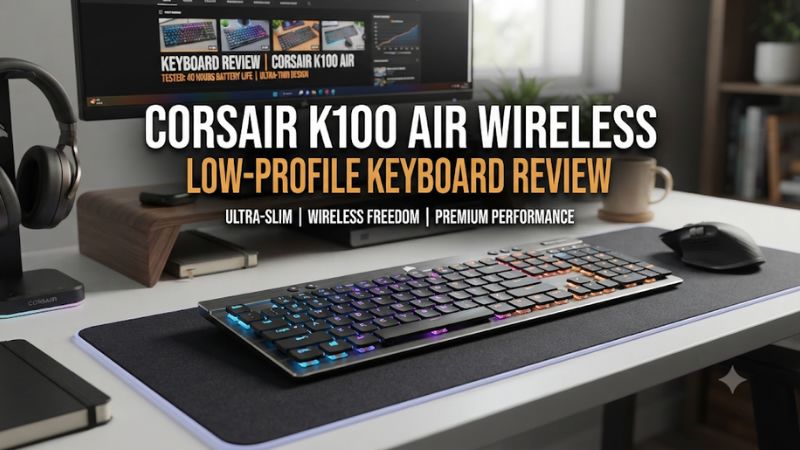
The K100 Air combines a full-size layout with a case that drops to about 11 mm at its thinnest point and Cherry MX Ultra Low Profile Tactile switches. Its clearest use case is a desk where a taller mechanical keyboard feels awkward or someone already enjoys shallow keys and still wants a distinct tactile press.
The layout keeps a number pad, dedicated media controls, and four G keys. Those controls are useful if you play at a desktop that also serves as a work machine. You can keep a familiar set of shortcuts and get a low front edge without switching to a compact layout that removes keys you use.
This is also a capable receiver-based board with optional fast USB reporting. The main buying decision should still start with the way the case sits under your hands.
If you like its thinness and shallow action, the electronics are useful additions. If you dislike those physical traits, changing settings cannot make the board feel like a conventional MX design.
Compare alternatives if you want serviceable keycaps or a smaller layout
Standard mechanical keyboards often make it easy to replace keycaps or switches. The K100 Air’s unusual mechanism is a poor match for that style of ownership. Tom’s Hardware reports that Corsair cautioned against removing the keycaps because the underlying mechanism can be damaged.
Full-size dimensions are a second constraint. The board is thin enough to look unobtrusive from the side and still takes up a full-size footprint.
A broad mousepad and lower game sensitivity can make a 75% or tenkeyless board more appropriate. Measure where the mouse goes before treating a flatter profile as an increase in usable space.
Buy the K100 Air for the finished product as supplied. Do not plan the purchase around aftermarket switches or keycaps. If you want a more adjustable mechanical setup, compare conventional hot-swap alternatives or a low-profile board with compatible replacement parts.
| Feature | Corsair K100 Air Wireless |
|---|---|
| Layout | Full-size with numpad, media controls, and four G keys |
| Case | Brushed aluminum top; about 11 mm at the thinnest point |
| Switches | Cherry MX Ultra Low Profile Tactile |
| Rated actuation | 0.8 mm |
| Stock keycaps | Low-profile laser-etched ABS |
| Connections | Slipstream 2.4 GHz receiver, Bluetooth, or USB |
| Maximum wired report rate | Up to 8,000 Hz with a supported setup |
| Published battery rating | Up to 50 hours with RGB effects or 200 hours with backlighting off |
| Main software | Corsair iCUE, with onboard hardware profiles |
How do the switches, keycaps, and slim case feel?
Expect an unusually short but tactile key stroke
Cherry’s Ultra Low Profile design uses a different geometry from a standard-height MX switch. Corsair specifies actuation at 0.8 mm. You can feel a tactile point while traveling a short distance, so the board can feel like a blend of a laptop-height keyboard and a traditional tactile layout.
If you normally rest your fingers on the movement cluster, test whether you trigger keys accidentally as you shift your grip. Then write a few paragraphs at a normal pace. A shallow press can feel faster to some users and require more care from others, especially if they normally use a deep switch and find keys by their contour.
RTINGS described the switches as stable and tactile with low latency in its testing, while Tom’s Hardware noted a learning curve with the flat caps. These are compatible impressions. Give yourself time to adjust and use ordinary work and gaming as the test of whether the learning pays off.
Check the front edge in your normal seating position
Place the board on the usual desk surface with its feet down. Let your hands rest on the home row or movement keys, then see whether you are reaching up to the key tops.
If you already use a separate wrist rest, compare with and without it. A thick rest can change the angle on a keyboard with such a low front edge.
The same test is useful if you frequently switch between a laptop and a desktop. Familiar height and short travel can make the transition feel natural.
The full-size key spacing and media area still feel different from a laptop keyboard. Judge the hand position separately from the layout.
During play, account for the numpad’s width. If your mouse sits to the right, try your usual sweeping motion around the board. A large case that forces you to aim farther from the center of your body can outweigh how well the thin front edge fits your typing position.
Plan around the original keycaps
The stock keycaps are ABS with shine-through legends. Independent reviews noted usable lighting and also raised questions about the caps’ appearance or feel relative to the premium chassis. If shiny surfaces bother you over time, inspect the used unit or evaluate the stock finish closely before you buy.
For ordinary cleaning, start with the external surface and follow the manufacturer’s guidance. Avoid treating the mechanism like a standard keyboard you can strip and rebuild with a puller. If a key becomes loose or damaged, check warranty or service options rather than experimenting with an incompatible cap.
This is particularly important when shopping used. Check the commonly used keys for even travel and feel, and look for cap damage around the edge. A lower price makes sense only if the board is in the condition you need and any necessary service is realistic.
How do the wired and wireless modes work in games?
Start on Slipstream for ordinary wireless play
Set up the included USB receiver on the primary PC. Confirm it is the active keyboard path by selecting the correct mode, then try a few known movement and modifier combinations. If the board does not reconnect after sleep, test from a direct port before changing firmware, software, or game settings.
Corsair’s product material emphasizes the receiver as the gaming wireless path, while published figures for its wireless reporting are not uniform. Corsair’s current product page describes a 1,000 Hz Slipstream figure, and RTINGS reports up to 2,000 Hz in its review. Check the rate your hardware and firmware expose if the distinction matters to you.
Neither number describes how quickly an entire game responds to a press. Compare normal play from your seat and decide whether the connection is stable and consistent. If a particular rate or profile has a problem, restore a proven setting first and run the same drill.
Enable 8,000 Hz in the wired mode when you want it
Corsair’s guide says to use USB with a suitable host port and choose the supported rate in iCUE’s device settings. Run the board at its ordinary wired rate first and confirm that every key behaves as expected. Then choose the higher setting and compare a game you know.
At 8,000 Hz, the scheduled report interval is 0.125 ms. That number does not include the switch detecting the press, firmware handling, game processing, and your display. A capable PC and stable software matter, especially if you are comparing high reporting modes rather than simply checking whether the keyboard works.
The highest supported rate is a reason to buy only if you intend to use it and if the rest of the keyboard fits. If the board spends most of its time on the wireless receiver, select it for how it works in that mode. Corsair’s console guidance also limits polling above 1,000 Hz on supported consoles, so keep the PC claim in the correct context.
Use Bluetooth for secondary hosts
Bluetooth is useful when the keyboard occasionally controls a secondary laptop or a device that does not have its own receiver attached. Corsair’s manual documents multiple Bluetooth host slots. Pair them deliberately so you know which one is active before you begin typing.
Use the receiver or cable for your baseline gaming setup. If the same key feels delayed only after you change to Bluetooth, verify the mode first. If a device wakes slowly or a game retained an unusual binding, a quick connection check can avoid an unnecessary firmware reset.
Switch back and forth in an ordinary day before assigning shortcuts for each system. Check that the current modifier layout and connection type suit the host. If a keyboard unexpectedly sends commands to another device, confirm the active host slot rather than changing the application that was open when it happened.
How useful are iCUE, battery life, and the extra controls?
Set up one iCUE profile you can reproduce
In iCUE on a supported computer, start with a single profile and a simple light level. Give one G key an ordinary shortcut you will recognize immediately, and confirm the dedicated volume and media controls do what you expect. Avoid setting several unusual bindings before you can identify which profile is active.
Corsair’s manual distinguishes software mode from hardware mode and notes that the number of profiles that fit in onboard storage depends on what they contain. Save the settings you need to carry to another machine and verify them with iCUE closed. A profile change that looks successful in the app can still leave a different action on the keyboard’s current onboard profile.
If you depend on a Windows key lock or other game protection, test it before your first competitive session. Use a noncritical program to confirm which ordinary shortcuts are blocked.
Then write down how you restore the normal behavior. A control that is useful during a match can be confusing later when you are typing or switching apps.
Use battery estimates at the lighting level you prefer
Corsair advertises up to 50 hours with RGB effects and up to 200 hours with the backlight off. These values are upper ratings under different conditions.
Check how much the lighting matters to you in both daylight and evening use. A dimmer setting or a disabled effect may be more practical than always leaving the board bright.
For your first week, note the main connection and your approximate use. If the charge seems unusually short, try a simpler light setting and repeat with the same workload. If it still drains quickly and the board is older or used, factor the battery’s condition into your decision.
With a cable near the desk, switching to wired input lets you continue using the keyboard and charge it in a supported setup. That is a useful fallback. If you purchased it to avoid a cable across the desk, compare battery behavior against the routine you actually want before deciding whether to keep it wireless all the time.
Judge the controls by what you use every week
The full-size number pad can matter as much for games with lots of bindings as it does for spreadsheets. If you use it daily, keeping the wider layout may be worth the mouse distance. If you use it twice a month, a smaller board can give you more space every session.
The dedicated media area is easier to evaluate. Turn the volume while your game and voice app run, skip a track, and confirm the controls are reachable without accidentally affecting your movement hand. Those small habits can justify a premium more often than an extra report-rate setting you only try once.
Take a minute to check how the keyboard looks at your usual angle. Its flat body and backlit legends can be useful in a lower-light room. If the lights bother you or your screen already illuminates the board, there is a practical reason to use a lower brightness and extend the charge interval.
Where does the K100 Air make the most sense?
A laptop-style typing preference is its clearest match
Cherry lists about 1.8 mm of total travel for the Ultra Low Profile Tactile switch. Total travel describes the motion before bottoming, whereas the 0.8 mm actuation specification describes where the press registers.
That combination explains why the board can feel shallow even if the tactile feedback is noticeable. Compare how it feels to rest on the keys and how it feels to press through them.
If you mainly use thin laptop keycaps, try a paragraph with repeated punctuation, backspaces, and navigation. These are often the first movements that change when you use a new key top.
A short test of only the letter keys can miss the differences you notice in everyday editing. Give your hands time to learn the case’s size as well as the stroke.
Someone who prefers a deeper press should compare another low-profile keyboard before paying for the K100 Air. A low case can be useful even when the very shortest switches are unnecessary. In that situation, look at how the front edge, keycap texture, and availability of alternative switch versions compare.
A fixed work and game desk can take advantage of the full layout
Put the left edge where your movement hand falls and make sure the mouse fits around the numpad side. Then use the number pad for a task you actually perform. If you can maintain a good mouse position and use the extended layout daily, the combination justifies more of the board’s size.
If the desk sometimes holds a laptop next to the keyboard, check the host and cable position with both present. A low chassis can fit under certain monitor stands more easily.
Measure the clearance with the volume controls and cable attached. A thin case does little for a stand that blocks access to the keys you need.
When the board doubles as a work peripheral, a reachable profile button and muted lighting can be useful during the day. Use an ordinary work profile before adding game-specific controls. Switching to a known baseline after a match can be simpler than remembering why a particular key behaved differently the next morning.
A purchase centered on the fastest mode needs a repeatable check
If fast wired reporting matters to you, compare 1,000 Hz and the highest mode in the same game and USB port. Keep the frame rate target and other accessories fixed.
Test a short game action where you can spot a missed press more easily than you could feel a fraction of a millisecond. If both are consistent, choose the mode that keeps the setup steady.
Check whether iCUE is using the setting you expect after a restart. An available option in a device menu and an active setting are different things. If the interface does not expose the high rate, verify the physical connection and the supported setup before resorting to a different firmware.
Ask what you would gain if you used it primarily wirelessly. A user who seldom plugs in will get more value from the short switches, low case, and media controls than from the cable specification. If those features do not appeal, switch to a design better suited to your routine.
How should you evaluate the keyboard after buying it?
Run a desk, game, and maintenance check
- Confirm the layout and accessories. Verify the regional keyboard, matching receiver, and data cable. A used board without the receiver may not deliver the feature you wanted.
- Type at a normal pace. Check frequent letters, modifiers, and large keys. Record whether mistakes disappear after a few sessions or follow a particular key.
- Check the mouse position. Play a movement drill at your usual sensitivity. Make sure the wide case does not needlessly reduce the area you can sweep.
- Verify each intended mode. Try receiver, cable, and any secondary Bluetooth host. Check that the software reports the mode you expect when you enable a higher USB setting.
- Inspect the caps without pulling them. Look for marks or looseness and check that every key behaves consistently. Refer a mechanism problem to the manufacturer or seller.
Compare the board with what you already own by changing one variable at a time. Keep the same seat, game profile, and mouse settings. If the biggest improvement is that you can type comfortably with your hands lower, the K100 Air is solving its most distinctive problem.
If it feels too wide or its shallow action causes repeated mistakes after the first few sessions, a different low-profile layout may be better. If you like the feel but need different keycap options, compare boards designed for that support. The premium makes the most sense when you already like the keyboard in its original form.
Conclusion
The Corsair K100 Air Wireless is worth buying for a very thin full-size case, short Cherry tactile switches, and a choice of receiver, Bluetooth, and fast wired input. Its keycap and switch design offers little room for ordinary replacement or customizing. Choose it for the out-of-box feel and desk height, and consider a different board if mouse room or long-term access to parts matters more.