🛒 Best Price Today on Amazon
Prime members get fast, free shipping on everything above, plus member-only deals. New members get a 30-day free trial — cancel anytime.
- Is the Razer DeathStalker V2 Pro TKL worth buying?
- How do its optical switches and low case feel?
- Do the wireless modes and battery make the premium worthwhile?
- How useful are the controls and software every day?
- Where does the DeathStalker fit better than a conventional TKL?
- What should you test before keeping it?
- Conclusion
Buy the DeathStalker V2 Pro TKL if you want a low front edge, wireless gaming, and dedicated arrows and function keys. This Razer DeathStalker V2 Pro TKL keyboard review explains why those features still matter. Choose a different board if you want adjustable actuation, easy switch changes, or a numpad in the main case.
Is the Razer DeathStalker V2 Pro TKL worth buying?
Buy it to keep a familiar layout at a lower height
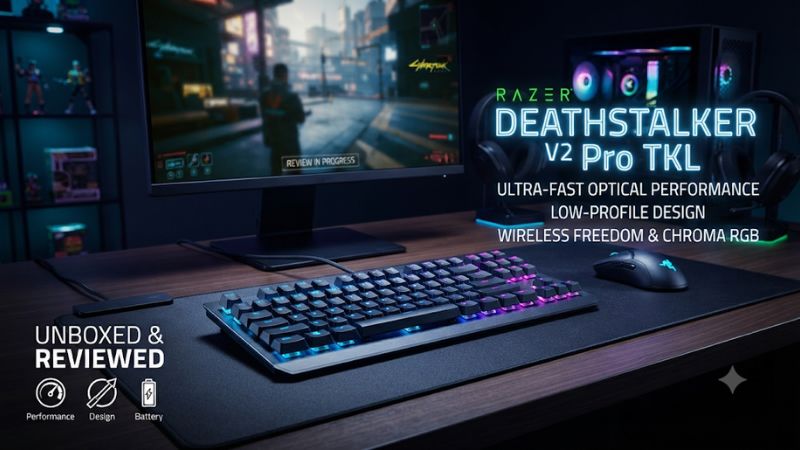
The DeathStalker V2 Pro TKL combines a low-profile case with the function row, arrow keys, and navigation cluster people expect on a tenkeyless keyboard. It suits a desktop that needs more mouse space than a full-size board allows. It also works for someone who moves from a short-travel laptop keyboard to a desktop and prefers a similarly low approach to the keys.
The value is in getting that form factor with a dedicated 2.4 GHz receiver. Bluetooth is available for secondary hosts, and a USB cable is available for wired operation and charging. These options let a single keyboard handle a gaming PC, a compatible laptop, and a direct connection when the battery needs attention.
The premium is harder to justify if the shape of the case makes little difference to you. A conventional TKL can provide the same main keys and mouse clearance.
If you want a familiar raised mechanical feel or need to change switches easily, look at boards designed for that use. Buy the DeathStalker for its own stock feel and its wireless flexibility.
Verify the exact edition before comparing it with another model
Look for DeathStalker V2 Pro Tenkeyless, from the RZ03-0437 family. The full-size DeathStalker V2 Pro and the wired DeathStalker V2 belong to the same product family.
Their footprint, supplied connections, and battery relevance differ. Compare the small model with the specific switch and regional layout you actually intend to order.
Check a used listing for the receiver and a compatible data cable. A seller may show that the keyboard lights up over USB while omitting the part that makes 2.4 GHz play possible. If the wireless mode matters, confirm it before paying and test it after a normal reconnect.
The TKL omits the number pad. Anyone who enters long numbers every day should weigh the gap in the layout against extra mouse room. An external numpad can restore those keys for work if the desk has space to move it aside for gaming.
| Feature | DeathStalker V2 Pro Tenkeyless |
|---|---|
| Layout | TKL with arrows, function row, and navigation keys |
| Switches | Fixed-actuation low-profile optical, linear or clicky depending on version |
| Main game connection | Razer HyperSpeed 2.4 GHz receiver or USB |
| Secondary connection | Bluetooth with supported host switching |
| Charging | USB-C connection, with wired play supported |
| Lighting | Per-key RGB and documented onboard presets |
| Media controls | Roller and multifunction media button |
| Stock caps | Low-profile laser-etched caps with protective coating |
| Configuration | Supported Razer Synapse version, plus onboard functions |
How do its optical switches and low case feel?
The linear version is light, and the clicky option changes the decision
Razer sells the TKL with low-profile optical switches. Optical describes how the press is sensed.
It does not mean the device offers adjustable actuation or Rapid Trigger. The switch fitted to the specific listing is the starting point for judging the feel.
TechRadar’s TKL review describes the linear press as light and cites a 1.2 mm actuation point. A light action can be useful when you alternate movement keys quickly or dislike a prominent bump. Check whether your fingers tend to rest heavily on the movement cluster, since a shallow linear mechanism can trigger sooner than you are accustomed to.
A clicky version is also documented in Razer’s catalog. Choose it if noticeable sound and feedback are welcome in your room.
If you are on a call or share the desk area, verify that the sound is acceptable to people nearby. Buying one variant with the intention of converting it later is a poor way to approach this keyboard.
Judge comfort with the chair and desk you already use
Start with the keyboard flat and position the movement cluster under your natural left-hand reach. Compare your current board without changing the chair. A lower front edge may make it easier to approach the keys when a taller case made you lift your fingers or wrist.
Try your usual typing and game session before adding a palm rest or lifting the feet. A thick rest can undo part of the height difference if it raises your hands higher than the board requires. Use a normal desk posture and pay attention to where you rest when you are waiting between rounds.
The TKL also changes the right edge of the arrangement. Bring the mouse into the space that a full-size number pad would have occupied.
Run one normal turn and one large sweep with your regular sensitivity. If you gain a useful amount of travel while keeping the keyboard centered on the keys you use, the layout is solving a practical problem.
Inspect the coated keycaps and large keys
The stock caps use a protective coating on a low-profile design. Their legend readability and feel are worth checking directly. A used board that looks clean overall can still show more wear on WASD, Space, and the keys a previous owner used every day.
Try Backspace, Space, and both Shifts separately. The size of a cap and its stabilizer can change its sound or feel compared with a letter. A slight difference is ordinary, while sticking or inconsistent return is worth investigating on the exact unit.
Check compatibility before buying replacement caps. The low-profile construction and stabilized keys can impose requirements beyond the appearance of the stem. If you want a large selection of readily compatible peripherals and replacement parts, make that a primary buying criterion rather than expecting an ordinary keycap set to suit the board.
Do the wireless modes and battery make the premium worthwhile?
Use the receiver for the main gaming PC
Set up the HyperSpeed receiver directly on the computer for a first test. Try several quick changes in direction and check that held keys release normally.
Then repeat from the position and port you will actually use. A desk where the receiver sits behind a metal case or in a troublesome dock may require different placement.
The model also supports sharing a receiver with certain compatible Razer devices through the documented pairing process. Treat that as an optional convenience.
Verify both models and the pairing requirements first. If the keyboard works with its own receiver and stops being dependable in a shared arrangement, restore the direct setup and test again.
Use USB as a separate baseline if the 2.4 GHz connection seems unreliable. A working cable path and a failing receiver give a more precise result than a general impression that the keyboard is slow. Check the data cable and game mapping before changing the wireless configuration or firmware.
Reserve Bluetooth for the hosts that benefit from it
Use Bluetooth when a secondary laptop, tablet, or other supported device needs a keyboard and does not need the receiver. Pair one device first and note its selection. After typing a short line, return to the gaming receiver and confirm that both machines receive input only when intended.
On a shared desk, test what happens when both hosts are awake. If keypresses appear on the wrong computer, check the selected mode and Bluetooth host before editing a shortcut. An unexpected sleep or connection change can look like a failed key when the input is simply going elsewhere.
If you play primarily in one place, the benefit of three connection types depends on your habits. A stable receiver and a cable can cover nearly everything. Bluetooth matters most when you regularly switch computers and want to avoid moving a dongle from one port to another.
Read the battery figures with their conditions
Razer’s TKL store listing advertises up to 50 hours. Its broader product material also features a battery estimator with lighting and connection options, and different product variants appear on the same page. Use the figure tied to the TKL and check the conditions rather than applying the largest family headline to your preferred brightness.
TechRadar reports roughly a week of its own intermittent use before charging and describes the 50-hour rating. That experience is useful context, but brightness, activity, connection, and battery wear can change your result. For a used board, a few minutes of successful typing says little about whether the battery will last through your typical week.
The manual hotkey Fn + End can show the TKL’s battery in four indicator steps, according to Razer. Try it after charging and midway through a normal week. If you prefer a bright effect, compare a simpler lighting mode while keeping the rest of your routine similar before deciding the battery is weaker than expected.
How useful are the controls and software every day?
Keep the media controls where you can find them by touch
The roller and media button are easy reasons to choose a TKL over a smaller layout. Try adjusting volume while a game and a call are open.
Check whether you can find the control quickly and whether it affects the output you meant to change. A useful control should remove a trip into a software panel.
Check the function row and navigation block in both work and games. Confirm where you naturally reach for Delete, arrows, or a screenshot command. The TKL keeps those keys accessible without crowding the layout into 60%, which is a bigger benefit when a single desk also has to cover editing and ordinary work.
For a used or discounted unit, check that the media button and roller both respond cleanly. A key tester may not show volume changes as expected, so test the controls in the real operating system or a media application. Confirm the dedicated actions after choosing your usual playback device.
Separate supported onboard lighting from software effects
Razer documents onboard lighting presets through Fn + Ctrl with number keys on this model. Use the model’s guide for the exact pattern and shortcut. If you only want a basic effect while the application is closed, these presets can meet that need without recreating a full Chroma profile.
For custom software controls, check the current Synapse support guidance for the exact keyboard and platform. Configure one useful action first.
Then test it in a plain application, in a game, and after reconnecting. A feature present in the editor may depend on which profile is active or whether the app is running.
Check whether Windows or another lighting tool changes the effect at login. If an onboard preset is visible before login and disappears later, verify the host’s lighting control before reinstalling the driver. If normal keys still reach the board’s target computer, treat RGB behavior as a separate check.
Decide how much of the premium is in the hardware
If you already use other compatible Razer equipment, the keyboard can be convenient when its profiles and lighting fit an existing setup. Decide which feature you expect to use every week. A control you can reach without looking and a clear wireless mode selection can be more valuable than a longer list of effects.
If you avoid configuration utilities, spend time with the stock controls. Check brightness, a supported onboard effect, and host switching. A keyboard that already behaves the way you want with the app closed has a simpler role at work or on a second computer.
People who split the same desk between several profiles should create an easy recovery layout. Test a normal typing profile and a minimal gaming one. Keep one unmodified path for finding keys if a game-linked setting loads when you do not expect it.
Where does the DeathStalker fit better than a conventional TKL?
A low laptop-style desk is the strongest fit
Try the DeathStalker near the height of the laptop keyboard you already use. Write a paragraph and find the arrows, Backspace, and the media button without looking at the keyboard. If those movements feel natural on the low surface, you have a concrete reason to choose the DeathStalker over a more conventional model.
Place the board close enough that reaching the function row does not make you lean forward. With both feet positions, check how the case meets the edge of your hands. The lowest possible setting is a useful reference, but the preferred angle depends on your desk height and the way your fingers reach the top row.
A buyer who enjoys low-profile typing but needs a full number pad should compare the full-size variant separately. Its extra width changes the mouse position, and its battery estimates belong to its own configuration. If you mainly use the pad for short bursts, a separate numpad can free the mouse area for the rest of the day.
A desktop and laptop benefit from independent host paths
Put the primary receiver on the computer that runs your games, and pair Bluetooth to the machine you use for lighter work. Test both with a real task, such as editing on one and starting a new match on the other. Check that the keyboard returns to the intended host after each wakes from sleep.
If the battery is low, reconnect by USB and make sure you can continue using the keyboard while it charges. A mode switch that stays on Bluetooth can leave a different machine receiving your keys. Test the connection with an ordinary text field before using a shortcut that might affect active work.
Watch how easily you can reach the mode controls with the keyboard next to a monitor shelf or behind a laptop. If you mainly leave the board in one position and rarely move between hosts, wireless convenience has less weight in the overall price. The very low case and actual switch feel should then justify the purchase.
Inspect the exact parts you would have to replace on a used board
Check that both feet sit firmly and the cable port holds a normal connection. For key condition, inspect the legends and press commonly used caps from the center and near the edges. If you see one loose cap, confirm what replacements or support are available for the model before treating the fault as a minor repair.
An older battery is a separate issue. Ask about ordinary use between charges and confirm that the model can charge normally.
Keep the receiver, data cable, and any supplied adapter separate from lookalike accessories. A complete unit in good condition can be a reasonable way to buy the design if you already know you like its feel.
What should you test before keeping it?
Run an ordinary typing and gaming session
- Confirm the variant. Check the TKL model, switch type, regional layout, and matching receiver.
- Test movement and mouse room. Run a short movement drill and make a normal low-sensitivity sweep beside the right edge.
- Check the typing feel. Write a page and edit it with the navigation keys. Watch for accidental inputs when your fingers are resting.
- Try receiver, USB, and any secondary Bluetooth host. Verify each path appears after sleep or reconnects the way you need it to.
- Test with normal lighting. Match your usual brightness, check the legend contrast, and try the battery indicator before expecting a particular charge interval.
If one condition is unreliable, hold the game settings constant and change one connection at a time. A reliable result on USB suggests a different question from a key that repeats in every mode.
Do the same with sound or feel. Swap to your usual typing position before assuming the problem comes from the switch.
Give the new layout more than a few minutes if you are moving from full-height keys. The first impression of speed and case height can change as you get used to the spacing and feedback. What matters is whether normal work and gaming are easier after the adjustment.
Compare alternatives using the reason you want this board
If you need wireless and a thin profile, compare other low-profile TKL models with the switch and receiver you plan to use. If you mainly need adjustable actuation, this preset optical design serves a different purpose from an analog Huntsman or a magnetic board. If a cable is always in place, compare wired TKL options at the actual price gap.
Check whether the profile, switch feel, or wireless feature really solves something your current keyboard does poorly. The purchase is easiest to justify when at least one of those benefits shows up repeatedly. A discount can improve value, but it cannot make an unsuitable press or a missing number pad more comfortable.
Bring the charging cable as well as the receiver if you move the keyboard between desks. Before packing for a tournament or a work trip, put the receiver and any adapter you actually use in the same pouch. Try the wireless setup on the destination computer before relying on it for the first match.
Conclusion
The DeathStalker V2 Pro TKL is worth choosing for a thin wireless layout that retains arrows, function keys, and dedicated media controls. Buy the switch variant you already want and verify the included receiver. A standard TKL or adjustable-actuation board is a better fit if repairable switches, different keycaps, a lower price, or analog tuning matters more.