🛒 Best Price Today on Amazon
Prime members get fast, free shipping on everything above, plus member-only deals. New members get a 30-day free trial — cancel anytime.
- Which method matches what you mean by without iCUE?
- How do you save the effect in Device Memory Mode?
- What if your iCUE has Hardware Lighting instead?
- How do you change the lighting from the keyboard alone?
- How do you make an onboard profile useful at startup or on another device?
- What should you do when the effect will not persist?
- Conclusion
Use Device Memory Mode to write a supported effect to the keyboard, then quit iCUE and test it. That is how to save Corsair keyboard lighting without iCUE running in the background. If you cannot use iCUE for setup at all, start with your model’s built-in lighting shortcuts. Custom effects depend on what the keyboard can store.
Which method matches what you mean by without iCUE?
Use onboard memory for a custom effect that should run alone
On a keyboard that supports hardware lighting, iCUE can write a compatible effect to the device. The keyboard can then use that effect when the application is closed or when you connect it to a different supported host. Device Memory Mode is the newer name for editing and saving these settings in iCUE.
A normal software profile is a different storage location. It can show the desired colors while you are using the PC and still leave the keyboard’s hardware unchanged.
When the app stops controlling it, the board can return to a previous pattern or a factory preset. Check which kind of profile you are editing before trying to solve a failed save.
This is the right path if you can use iCUE once on a supported computer and want the board to start in a custom color later. If you have never installed the application and cannot do so, consult the model manual for presets you can select directly. The preset route can be enough for a solid color or for lights off.
Use onboard shortcuts when no configuration computer is available
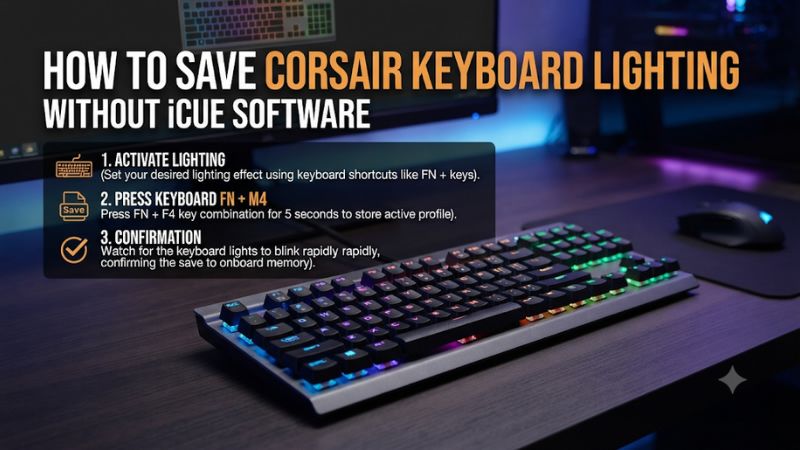
Some Corsair keyboards include hardware lighting presets, a brightness control, or an onboard profile cycle. The keys differ by model.
Look up the full keyboard name and find the hardware lighting section in its manual. Then try a documented shortcut while iCUE is closed or absent.
A built-in preset can change the look immediately. It does not necessarily write a new custom profile to memory or change the effect that loads after you reconnect. Test the board after a full disconnect or power cycle before describing the result as saved.
If your keyboard has neither a compatible onboard lighting feature nor a preset you can select, a host-side lighting program may still control it while that program is active. Check model support before buying, reinstalling software, or expecting a pattern to travel with the board.
| Your goal | Use this path | How to verify it |
|---|---|---|
| Custom lighting with iCUE closed | Save a supported effect in Device Memory Mode | Quit iCUE and reconnect the keyboard |
| Custom lighting on a legacy installation | Use Hardware Lighting and save to an onboard slot | Check the chosen slot without the app |
| Lighting when iCUE was never installed | Use documented hardware presets and brightness controls | Try the effect on a fresh connection |
| Lighting at a console or work computer | Save on a permitted supported computer first, if the model allows it | Connect to the destination and confirm the intended slot |
| PC-controlled sync or screen-reactive effects | Use the supported software path where needed | Check the effect with the software running |
How do you save the effect in Device Memory Mode?
Connect the exact keyboard and choose its hardware slot
Start on a supported computer where iCUE identifies your keyboard. For a wireless model, a direct USB data cable is a useful way to establish a stable connection if the model supports it.
Select the keyboard tile itself and confirm that the page shows the model you want. A receiver tile can offer a different set of controls.
Corsair documents the Device Memory Mode workflow for iCUE 5.14 and newer. Enable the toggle on the keyboard’s device page.
Look for the memory card icons or onboard profile indicators. They help distinguish what you are editing from the ordinary software profile.
Pick an available slot or an existing slot you intend to update. Note the lighting or actions already saved there before overwriting. If built-in profile switching uses several slots, using a spare one makes the test easy to reverse.
Create a simple effect the keyboard can store
- Open Lighting Effects inside Device Memory Mode. Make sure the memory indicators remain visible before adding the effect.
- Start with Static Color. Choose a color that looks clearly different from the current pattern. Apply it to the intended keys or available lighting zones.
- Set a visible brightness. Confirm the board’s own light toggle is on and the effect is bright enough to check.
- Preview the whole board. Check the intended regions and remove any older layer that covers the test effect. Make sure you can identify the new pattern with a quick glance.
Corsair notes that hardware effects are more limited and vary by device. If a specific lighting type is missing in memory mode, use an effect that actually appears in the device’s supported list.
A screen-reactive or synchronized pattern may need the computer to calculate it. Look for a hardware approximation if you want a similar appearance at startup.
The number of zones or layers also varies. Start with one plain color across all supported keys.
After that saves reliably, try the additional keys or simpler effects your model can hold. This order avoids mixing a save problem with an unsupported design.
Save the slot and exit the app fully
Click the save control for the current onboard profile or select the slot you are editing as directed by the interface. Corsair’s guide shows a save indicator when memory changes have not been written. Complete that step before leaving the page or disconnecting the keyboard.
Quit iCUE fully using its tray or application controls where available. Closing the main window can leave it running.
Check whether the keyboard now uses the color you chose. If a different pattern appears, use the documented keyboard shortcut to select the saved profile and check the result again.
Disconnect and reconnect the board. For a wireless model, also test the mode you use most often.
A solid color that appears in Device Memory Mode while the app is present is a useful preview. The fresh connection without software control is the proof that it works as you need it to.
What if your iCUE has Hardware Lighting instead?
Edit Hardware Lighting and write it to an onboard slot
Open the keyboard’s device page and look for Hardware Lighting. Corsair’s instructions for older supported versions put hardware effects under that name, while newer versions reorganize those controls.
Use the path that matches the app and device you actually see. Do not create the effect in the ordinary Lighting Effects panel if your legacy interface keeps hardware effects in a separate menu.
Once you’ve set up the effect, open the device settings or onboard profiles area. Select the intended onboard slot and save it using the documented controls.
An export of a software profile can be useful as a backup. It is not a substitute for writing the effect to the keyboard.
If every hardware slot is occupied, decide which existing one you can overwrite. Note its purpose first, especially if someone else shares the keyboard or if it also contains assignments. A hardware profile can include more than its visible colors.
Repeat the test outside of iCUE
Exit the app completely, then unplug and reconnect. Verify the expected pattern and ordinary typing.
If you can step through hardware profiles without the application, check each available slot once. The default selection may be different from the one you edited.
If the app offers a prompt about unsaved changes, save to the intended hardware location and test again. If it shows only an ordinary software profile export, return to the keyboard’s onboard profile area. The menu name may vary, but the important result is a pattern that is visible without the app active.
When testing on a destination computer, choose a simple static color first. A startup color that reappears in the same place after moving the keyboard gives you a better baseline than a complex pattern with several effects. Add detail after that first profile survives.
How do you change the lighting from the keyboard alone?
Use the shortcuts for your exact model
Find the hardware lighting section of the manual and identify the profile, effect, brightness, and light-toggle controls. Check whether each shortcut works only in hardware mode or whether it is available while the software is running. This keeps a failed shortcut from being mistaken for an app or hardware issue.
For example, the K65 Plus Wireless manual documents Fn + 0 to cycle available static colors in hardware lighting. Fn + F5 reduces keyboard backlight brightness and Fn + F6 increases it in the documented shortcut table. The board also offers a dedicated backlight toggle.
Treat these as K65 Plus examples. Check the manual before using the same keys on a K70, K100, or other Corsair keyboard.
If the first shortcut changes an effect only while Fn is held, release the key and see what remains. Try the profile switch if your model uses one. Watch for a profile indicator so you can tell the difference between a preset, a temporary preview, and the already stored profile.
Test profile selection and brightness separately
On the K65 Plus Wireless, Corsair documents Fn + Z for cycling the four onboard profiles. Select a profile and observe its layout or indicator. Then change brightness separately so you can tell whether the current profile is correct but has been dimmed.
When someone returns to an office or classroom computer without configuration software, the simplest acceptable result may be the built-in solid effect or lights off. Try the shortcut there and reconnect once. If the board restores a different setting on power-up, use a supported setup computer to make an onboard profile when possible.
Check the battery level on a wireless board. The K65 Plus manual says ordinary backlighting turns off at 20 percent battery or lower, apart from indicators.
Charging can be the right fix when your keyboard still types and its effect disappears away from USB. Check the same hardware profile again after restoring charge.
Keep the hardware setting and the host setting distinct
Windows Dynamic Lighting can manage compatible RGB devices. Other utilities may also change a keyboard after login even when iCUE is not running.
If your saved color appears briefly and then changes, observe when that happens. A change at desktop login suggests an external controller or application may be taking over.
Temporarily test with competing lighting control disabled through the relevant settings, or use another supported host with no RGB software running. Reconnect and check what the keyboard shows.
Turn other controls back on after the test if you prefer that normal arrangement. The objective is to identify which system produces the change.
A console, USB switch, or dock can also change how a keyboard receives power. Test directly on the destination first. If the same keyboard lights on a direct connection but not behind a particular accessory, investigate that setup before rewriting the onboard profile.
How do you make an onboard profile useful at startup or on another device?
Build a profile that clearly proves what was saved
Choose a static single-color effect distinct from the factory pattern and from the settings already in use. If you normally play with blue lights, a temporary amber test profile can be easier to recognize.
Use one onboard slot you intend to change and note its identity before saving. Then check that the test color appears when the application is fully closed.
Once this works, edit the same slot to the color you actually want. Check both the save indicator and the physical keyboard after you press Save.
A successful preview inside iCUE does not establish that the change reached the keyboard. You should recognize the color on a fresh reconnect without needing to open the editor again.
If you want only certain keys lit, first confirm which regions the hardware editor offers. Save one supported zone and test it before adding more.
Each time you add a layer, preview which visible areas it affects. A single remembered color on an intended startup zone can be easier to maintain than a complicated set of effects with uncertain ordering.
Test before login and after login as separate conditions
With iCUE closed, restart the destination computer where appropriate and look at the keyboard when it first receives power. Observe it again at the sign-in screen and after login.
If a known saved color appears early and changes only when the desktop opens, look at software or host lighting priorities first. If it never appears at any stage, recheck the stored slot and brightness.
Behavior while the USB port is powered down or asleep can differ from normal operation. A dark board while the computer is off does not establish that the effect was lost. The confirmation comes when the board receives normal power, types correctly, and brings back the stored effect on a supported connection.
If you use a host on which app installation is not possible, setting up the keyboard temporarily on an approved compatible computer can be useful. After writing the onboard effect, disconnect it and take only the keyboard and required cable or receiver to the destination. Verify which profile loads there before returning the setup computer.
Keep effects on the keyboard separate from synchronized PC lighting
An onboard profile can work across compatible hosts because the device drives its saved effect. A design that depends on a screen image, live system values, or software-managed synchronization may require a running PC app. If the editor offers fewer controls in Device Memory Mode, choose a visually similar hardware effect from the available options.
For a setup with multiple Corsair peripherals, test the keyboard by itself first. Another device can have a different number of slots or supported effects.
Matching colors across two independent onboard profiles is possible where both support it. Coordinating a moving pattern between them can still depend on software.
Keep a note of the main software profile and the device memory slot you use. That gives you separate answers for startup and for the desktop session. A person who wants lights off by default and a game effect after login can verify that transition without overwriting the wrong profile.
Check the same result after switching to the normal connection
A wireless board used in USB mode for configuration may be used differently every day. Reconnect by the regular receiver or Bluetooth mode where supported and watch what it does before launching a lighting app. Also check battery level and any inactivity setting that changes lights after a pause.
If the stored effect looks right on USB while the keyboard is charged but goes dark on wireless, start with mode, battery, brightness, and the selected onboard slot. Return to a direct powered connection to verify the saved effect still exists. That tells you whether to troubleshoot the wireless state or the original profile write.
Write down the shortcut that gets you back to the intended profile. Test it once without the configuration application and once after a normal boot. A quick repeatable check matters more than keeping the editor’s lighting preview on screen.
What should you do when the effect will not persist?
Check the symptom against the most likely cause
- The effect works only while iCUE is open. Confirm you edited a hardware effect and saved it to a physical slot. Quit the application fully before testing.
- The board reverts to a different saved color. Select the intended hardware profile using the documented shortcut and check which profile loads after power-up.
- Only some keys are the wrong color. Check zone selection and overlapping layers. Try one effect across all eligible keys before rebuilding your pattern.
- The keyboard is dark but still types. Check brightness, the light toggle, and any model-specific battery or sleep behavior. Use a known visible stock preset to establish that lighting works.
- Device Memory Mode never appears. Verify the exact keyboard, supported software version, and configuration connection. Follow legacy Hardware Lighting instructions if that is the path for your setup.
- The color changes only after Windows starts. Reproduce the test with other applicable RGB control paused or use a supported host without it.
Record the starting symptom and change one item at a time. If you move the receiver, modify a profile, and change the lighting source together, a successful result cannot show what fixed it. A simple saved color and a direct cable give you an initial configuration to return to.
Rebuild one known-good profile before using firmware tools
Start with a single plain hardware effect in one onboard slot. Save and verify it with the app closed.
If it will not persist, check first that the device supports the feature, the write completed, and the correct profile was selected. Try a supported second computer if you have one available.
Use an official update or reset only when model documentation makes that the next step. Record or back up settings you want to keep before a reset.
Lighting, remaps, and preferences can share the same profile. Confirm that the default hardware effect works after a reset before trying to restore a complicated pattern.
Once you have a stable saved result, test three ordinary transitions. Quit iCUE, reconnect the keyboard, and restart the device or host you really use.
A profile that survives those changes is ready for daily use. If one transition still causes failure, the timing of that failure gives you a better troubleshooting clue than another reinstall.
Conclusion
Save an effect through Device Memory Mode, or through Hardware Lighting on a supported older setup, and verify the actual onboard slot with iCUE fully closed. Use the keyboard’s built-in presets and brightness controls if you cannot use the application for setup. Reconnect on the intended host to confirm whether the effect really persists.