🛒 Best Price Today on Amazon
Prime members get fast, free shipping on everything above, plus member-only deals. New members get a 30-day free trial — cancel anytime.
- Is the original Razer Huntsman V3 Pro TKL worth buying?
- How do the switches and Rapid Trigger affect play?
- How does it feel away from the settings screen?
- Can you configure it without relying on Synapse every time?
- How should you build a usable gaming profile?
- Where are the limits for different players?
- What should you test before keeping it?
- Conclusion
Buy the original Huntsman V3 Pro TKL if you want adjustable optical switches and Rapid Trigger without giving up dedicated arrows or the function row. This Razer Huntsman V3 Pro TKL keyboard review covers the 1,000 Hz RZ03-0498 model. Try a quieter or simpler TKL if you mainly type and rarely change how keys actuate.
Is the original Razer Huntsman V3 Pro TKL worth buying?
Buy it for adjustable inputs in a familiar TKL layout
The Huntsman V3 Pro TKL has a clear audience. It suits someone who wants to tune how far movement keys travel before they activate and how readily they reset, while preserving the arrow keys and function row. You can use those features in fast movement games without learning a compact keyboard layer for navigation.
The original model also provides onboard adjustment, dedicated controls, and a wired USB connection. You can establish a stable typing profile and another for gaming. The controls make it practical to move between them when the basic layout and stock feel already suit your hands.
If you play with ordinary fixed switches and rarely want them to behave differently, part of the price pays for settings you may never use. An ordinary TKL can preserve the same useful set of keys. A quiet typist or buyer who wants switch swaps has better reasons to compare a different design.
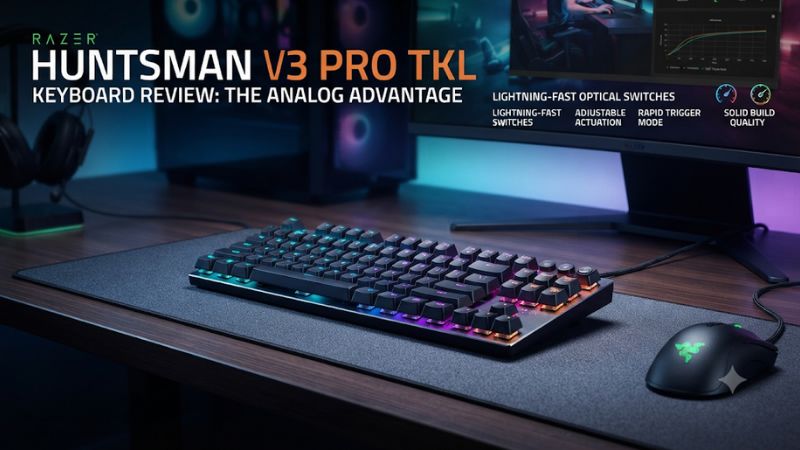
Check the exact model before interpreting the specifications
This review covers the original RZ03-0498 tenkeyless model. Razer lists 1,000 Hz polling for that version.
Razer also sells a separate Huntsman V3 Pro Tenkeyless 8KHz and a low-profile product with a similar name. A listing that mixes photos or specifications from those versions can give you the wrong switch, rate, or desk height.
Check the model on the label or order summary and confirm the layout you will receive. The TKL is different from the 60% Huntsman V3 Pro Mini, even though both offer related optical features. If the price difference is small, evaluate the layout and physical controls before assuming the larger or newer product is automatically a better fit.
A retailer’s reference to an 8,000 Hz family model does not raise the original TKL’s report rate. Compare your actual version’s condition, price, and supported features. This matters even more on a used unit or an outlet listing with a short or abbreviated product name.
| Feature | Original Huntsman V3 Pro Tenkeyless |
|---|---|
| Model family | RZ03-0498 |
| Layout | TKL with dedicated arrows, navigation keys, and function row |
| Switches | Razer Analog Optical Switches Gen-2 |
| Published actuation range | 0.1–4.0 mm |
| Connection | Wired with detachable USB cable |
| Published polling | 1,000 Hz |
| Key controls | Adjustable actuation, Rapid Trigger, and onboard profiles |
| Additional hardware | Digital dial, dedicated controls, and included magnetic wrist rest |
| Stock caps | Double-shot PBT |
How do the switches and Rapid Trigger affect play?
Adjustable actuation controls where the first press begins
The Gen-2 optical switches use light to determine movement and can register at different points along the stroke. Razer advertises 0.1 to 4.0 mm of adjustable actuation. A smaller number asks the board to register sooner in the press, while a larger one can provide more room to rest lightly on a key.
Try the factory or a moderate setting first and test a familiar route in a game. Move, stop, tap a direction deliberately, and check what happens when your fingers rest between actions. If a small shift sends an unwanted command, increase the actuation distance before changing everything else.
The advertised minimum is an option. It is not the best setting for every key or user, and the displayed value does not prove an identical physical threshold on every key.
Keep settings tied to an observable need. You can make one key more sensitive without asking your writing profile to behave that way for every letter.
Rapid Trigger controls how a held input resets
Rapid Trigger uses movement to decide when a held key releases and when a following press registers. That can help in games where stopping a held direction cleanly matters.
It is a separate control from the initial actuation point. Tuning both at once makes it hard to tell which one caused a change.
Set a reasonable actuation point and test an ordinary hold first. Then enable Rapid Trigger on only the keys you want to change.
If the game receives extra releases during a hold, choose a less sensitive setting or test with the feature off again. A feature is useful when it produces more control rather than more input to manage.
If you use separate movement assistance features, check the rules of the game or competition first. A standard typing and gaming profile works without those optional settings. Keep the configuration that applies to the environment in which you actually play.
Interpret latency reviews and report rate in context
Razer’s 1,000 Hz specification describes the USB reporting rate. It does not state the time from a finger beginning to move until the result appears on the screen. The switch threshold, keyboard processing, game, computer, and display all play a part.
RTINGS reports low input latency for a sample in the original Huntsman V3 Pro family, but its tested unit was full-size. It discusses related layouts, including TKL. Treat the result as family-level context rather than as a lab measurement on the exact TKL reviewed here.
On your desk, test USB directly before adding a dock or switch. If an action appears delayed in only one game, compare keyboard settings, the game’s binding, and frame behavior.
Use identical settings when comparing another keyboard. A precise latency claim needs a comparable measurement and the exact two devices.
How does it feel away from the settings screen?
Check the stock linear feel and key noise
Try a normal writing task before assigning deep or shallow actuation values. A linear switch can feel quick and smooth while offering little tactile warning before it registers.
The larger keys and case can sound different from the individual letters. Compare Space and Shift along with the quietest keys you use.
The family review at RTINGS describes sound and typing behavior from its full-size sample. The TKL case and desk can change what you hear. If noise matters in a shared room, try the actual TKL in a call or make a short recording at the microphone’s usual position.
The switches are part of the optical design. This is a poor match for someone who likes testing regular MX switch types by pulling them out.
If you need quieter action or a different spring feel, judge the stock board first. Configuration changes adjust when it works rather than converting the switch to a different mechanical mechanism.
Use the dedicated arrows, controls, and included wrist rest
The TKL layout is a useful middle ground when you want an open mouse area without moving arrows and common navigation onto a layer. Try your regular mouse sensitivity and game binds.
A few centimeters can matter if you frequently brush a full-size keyboard with a large sweep. The best position is the one where both arms reach naturally.
Test the digital dial and dedicated controls while you are actually playing or in a call. A quick volume change can be a practical benefit, especially when the game captures the mouse. Check whether the controls remain convenient with the keyboard at the distance you normally sit.
Try the magnetic wrist rest with the keyboard flat, then remove it and compare. The included rest changes how much desk depth the setup occupies and how your hand approaches the keys. Use whichever arrangement feels steady during a whole session rather than judging it from a few presses.
Can you configure it without relying on Synapse every time?
Learn the onboard shortcuts before building the full profile
Razer documents Fn + Tab for onboard actuation adjustment and Fn + Caps Lock for the Rapid Trigger adjustment mode on the original Huntsman V3 Pro line. Follow the exact TKL instructions to test and save a change. Look for the documented indicator rather than assuming a new setting took effect.
The board offers preset and configurable profiles. Use a normal profile for typing and a separate profile for the game.
If a feature is disabled in the factory default profile, switch to a supported profile before testing. Build and verify one setting at a time.
Onboard adjustments are useful on a machine where you do not want a software window open. Test them by exiting the setup utility and reconnecting the board.
A key that behaves differently when the application closes may be reading a separate stored configuration. Confirm the active profile first.
Use Synapse for detailed per-key work
On a supported system, use Synapse when you need to adjust several keys or review assignments in one place. Start with a small set such as four movement keys and leave the rest on a familiar actuation setting. Confirm that each intentionally changed key behaves differently in a plain test before adjusting other rows or effects.
If you create separate work and gaming maps, give them uses you can remember and document the switch back. Restore normal key behavior before troubleshooting a game that appears to miss a command. A remapped key or active game profile can cause a symptom that resembles switch trouble.
Write down the setting that made your ordinary movement more reliable and the steps to restore it. If you later use another PC or update the firmware according to the vendor’s guidance, this simple baseline makes it easier to tell whether the saved profile is still active.
How should you build a usable gaming profile?
Set a stable default before tuning movement
Choose an ordinary actuation setting and start with Rapid Trigger disabled. Test holding a direction without applying unusual pressure. Then try a handful of quick taps.
Your first goal is a stable starting point that allows the same normal input more than once. Save that profile before making more changes.
For movement settings, pick two or four high-use keys. Bring them closer to the response you want in small steps.
Keep other keys more conservative while you learn the change. If scrolling menus or chatting suddenly produces unwanted input, you can isolate the problem instead of rebuilding the entire keyboard configuration.
Do one familiar drill with the unchanged profile and another with the tuned one. Use the same game, frame-rate setup, and movement pattern.
Check whether stops and short taps become more predictable. A profile is worth keeping when you can repeat the benefit after the novelty wears off.
Use the dial and LED feedback to verify a single setting
On the original TKL, Razer says you can use the dial or arrow keys during onboard actuation adjustment. Test a key in that mode, change the setting, then exit as directed in the model guide to save it.
The indicators are useful for confirming the setup. They do not independently measure physical travel under your finger.
The TKL controls differ from the Mini workflow, which uses other keys during adjustment. Confirm the guide for RZ03-0498 before following a shortcut diagram. Owners moving between keyboard sizes can otherwise mistake an unfamiliar adjustment control for a failed key or profile.
Once a setting is saved, leave the adjustment mode and test ordinary typing or game input. Then reconnect and confirm the profile remains active.
If a game changes how an input feels, check that the saved setting is still selected. An in-game response can differ even when the device configuration is correct.
Keep a typing profile you can restore immediately
Use standard actuation and ordinary key assignments in the profile you keep for writing. Type an ordinary page and try several corrections and navigation tasks.
Compare that session with the game profile active. If the game profile produces unwanted letters, make the switch back a normal part of ending a session.
The benefit of a dedicated arrow cluster shows up here. Try moving through text, responding to chat, and restoring focus to a game.
A TKL can serve both roles without using a layer for basic navigation. That makes a full-size numpad easier to give up if you rarely need it.
If someone else uses the same keyboard, show them the ordinary profile and how to activate it. A second user may rest their fingers differently and find a shallow setting too sensitive. A plain baseline is convenient even when you are the only person who uses the board.
Where are the limits for different players?
Fast movement games give the tuning a clear job
If you play a movement-heavy shooter, the clearest advantage is being able to tune the input behavior on the actual keys you hold and release repeatedly. Start with a simple stop-and-start drill on a private map. Compare repeated inputs and unintended movement rather than relying on a general impression of speed.
If release is the main problem, adjust Rapid Trigger after fixing a first-press threshold. If you often trigger movement before you mean to, make the initial press deeper. Treating those symptoms separately helps you understand whether the keyboard is solving the need you paid for.
If your main competitive environment limits optional input-priority features, keep those settings disabled. You can still evaluate conventional digital inputs, adjustable actuation, and the controls that the environment allows. Verify its rules independently before using any feature that changes how opposing directions are handled.
Typing comfort and mechanical repair can favor other designs
For an everyday text-heavy setup, try a reasonable typing profile and compare how the space bar and stabilized keys feel. The board’s advanced optical system gives you control over the response.
It also narrows the ordinary switch changes you can make later. If you regularly replace switches or prefer a particular tactile part, choose a design with a documented replacement path.
A quieter full-height TKL may also suit a shared desk better if you rarely need analog options. Compare your actual microphone and desk surface while trying the switch sound. The price difference matters more when you can explain what the extra features would do on an ordinary day.
For a used unit, test every key and the dial on the same computer before paying. Check the model label and included USB cable, and verify that the board returns to a normal profile.
Missing accessories are a tangible cost. An unfamiliar profile that sends unusual results can often be changed, but first rule out a basic connection or hardware fault.
What should you test before keeping it?
Repeat a small set of checks under normal conditions
- Confirm the original model. Read the RZ03-0498 label and verify the cable and wrist rest included with the unit.
- Run a standard input check. Test arrows, function keys, media control, and several game combinations before tuning the switches.
- Compare two profiles in the same game. Keep actuation ordinary in one and add modest Rapid Trigger in the other.
- Check the typing profile. Write and correct a normal page. Confirm resting fingers or light touches do not cause unwanted letters.
- Test after reconnecting. Reapply the expected profile and confirm settings and normal inputs after closing Synapse.
Use a direct USB connection as the first baseline. If something feels wrong in one title, repeat it in a plain event test or a second game before buying another keyboard. The same setting can feel different depending on whether the game responds to the first press, a held key, or a tap followed by release.
Consider the length of a typical session. A fast setting can feel exciting in a short drill and become irritating during several hours of alternating desk tasks.
Try a profile you can use every day and keep the settings that help there. If the board only feels right after extensive work you do not enjoy, the value is smaller.
Compare alternatives against the exact missing feature
Choose another analog TKL if you want a different sound or documented switch swaps within a magnetic ecosystem. Compare the separate 8KHz Razer if high polling specifically matters and you have a supported setup for it. Do not transfer its specification to the original TKL or buy it only because the model names are similar.
If you want the most mouse room and can live with layered arrows, a 60% board may be appropriate. If you use navigation and function keys every day, keeping the dedicated cluster is a stronger reason to stick with the TKL. Choose the layout you actually use before comparing small differences in actuation options.
Test a key that serves two roles before settling on one global setting. A direction key can benefit from an early reset during a movement drill and also function as an ordinary letter during chat. If the gaming profile feels good and chat becomes error-prone, try changing only that key or using a separate typing profile before adjusting the entire board.
Conclusion
The original Razer Huntsman V3 Pro TKL is worth buying for precise optical input tuning, onboard control, and a familiar tenkeyless layout. Confirm the 1,000 Hz RZ03-0498 version and start with a stable profile before adjusting Rapid Trigger. Compare another keyboard if quieter typing, switch replacement, or the separate 8KHz model is your priority.