🛒 Best Price Today on Amazon
Prime members get fast, free shipping on everything above, plus member-only deals. New members get a 30-day free trial — cancel anytime.
- Is the Corsair K65 Plus Wireless worth buying?
- How do the layout and stock switches feel?
- How does the K65 Plus perform in wired and wireless games?
- How easy are iCUE, battery management, and switch swaps?
- What should you check during the first week of use?
- Who should shortlist a different model?
- Conclusion
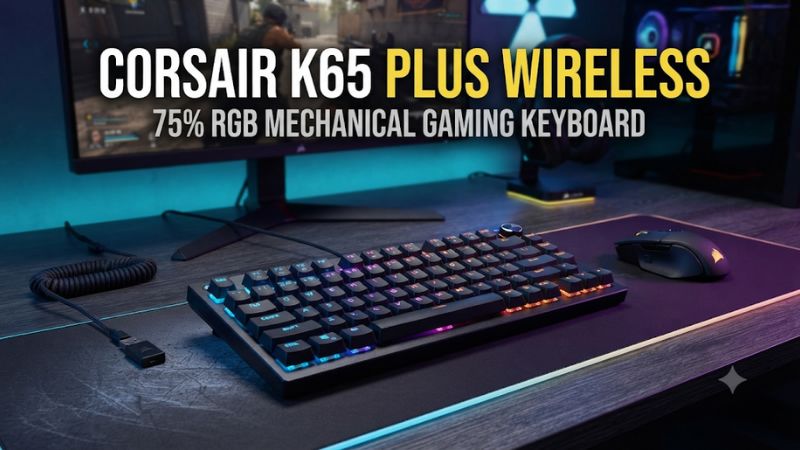
Buy the K65 Plus Wireless if you want a compact 75% board with smooth stock linear switches, a dial, and a way to change switches later. This Corsair K65 Plus Wireless gaming keyboard review covers its receiver, acoustics, and everyday trade-offs. Compare another board if you need shine-through legends or open firmware for remapping.
Is the Corsair K65 Plus Wireless worth buying?
Buy it for a complete 75% setup with a straightforward upgrade path
The K65 Plus gives you arrow keys, a function row, and a dial in a case narrower than a full-size keyboard. It can save space for the mouse without putting familiar navigation keys behind a layer. That makes it easy to use for a mix of games, typing, spreadsheets that do not need a number pad, and general desktop work.
The standard black model ships with pre-lubed Corsair MLX Red linear switches. You can use it as supplied and try replacement mechanical switches later.
The option is valuable even if you change only a small cluster. It gives you a way to experiment with the feel or replace a problematic switch without buying a different board.
This is a good fit for someone who already uses iCUE for other Corsair equipment. The board also operates with saved hardware settings when iCUE is not running. If you prefer to avoid the app during a game, verify the controls and lighting you intend to carry over before choosing a profile.
Choose a different design if your priorities are very specific
The K65 Plus is a conventional mechanical keyboard. A player who specifically wants adjustable actuation or Rapid Trigger should look for a model that implements those features. Faster polling and a hot-swappable socket do not turn ordinary mechanical switches into magnetic or optical switches with adjustable travel settings.
Also check the stock legends and layout. The standard keycaps do not illuminate through their lettering, even with per-key RGB around the caps. If you need clear lit legends in a dark room, plan on compatible replacement caps or compare a board that already supplies them.
The compact layout is a compromise if you work with numbers every day. You can add a separate number pad and keep it out of the way for games. If you want one complete layout with a permanent number pad, the 75% format may create more work than its mouse space is worth to you.
| Feature | Corsair K65 Plus Wireless |
|---|---|
| Layout | 75%, with arrows, function row, and multifunction dial |
| Standard black model switches | Pre-lubed Corsair MLX Red mechanical linears |
| Socket type | Hot-swap; Corsair documents Cherry MX RGB support |
| Stock keycaps | Dye-sublimated PBT with non-shine-through legends |
| Build emphasis | Plastic case, with two internal sound-dampening layers |
| Connection | 2.4 GHz USB receiver, Bluetooth, or USB cable |
| Published report rate | 1,000 Hz; wired and receiver behavior documented in independent testing |
| Battery rating | Up to 266 hours with LEDs off |
| Configuration | iCUE with onboard hardware mode |
How do the layout and stock switches feel?
Keep function and arrow keys without giving up mouse room
The 75% layout suits people who use function keys for game commands or desktop applications and still want more room on the right. Start by setting it where the movement keys naturally fall under your fingers and put the mouse where you normally aim. The difference from a full-size board is clearest when measured against how much movement you actually make.
Spacing near the right side can take time to learn. Use arrows and nearby navigation keys during a routine editing session before assuming you will always hit the correct one during a game. If a familiar action is on a different key or closer to Backspace than you expect, change one binding and play normally for a few sessions.
The dial is a useful addition when it lets you adjust sound without pausing. Check its default action and try it while listening to a game and chat. If another function is more important to you, verify which changes work in the onboard mode and which depend on iCUE.
Expect a smooth linear press with a subdued case sound
The standard MLX Red switches use a linear action, with no deliberate tactile bump in the stroke. Tom’s Hardware found their feel and the board’s dampening among its strongest features.
Corsair uses two internal sound-dampening layers. This construction can reduce the impression of an empty case, though key impact, the desk surface, and how hard you press still affect the sound.
If you normally type on a tactile switch, compare an ordinary page of typing and several minutes of movement inputs. A smooth switch can feel easy for repeated presses, while the absence of feedback can encourage heavier bottoming out. Use a few targeted changes if you only need a different feel on certain keys.
Check the large keys separately. Space, Enter, and Shift use larger caps and stabilizers, so some sound difference from ordinary letters is natural.
If one key sounds so different that it distracts you, compare another unit or inspect the seating of the cap. Changing every switch may not address a stabilizer issue.
Check the stock caps and case before budgeting for changes
The standard model uses dye-sublimated PBT caps. Their lettering remains opaque.
The lights can still help show key positions around the caps, but a completely dark desk may require different lighting or compatible shine-through caps. Try a normal evening session before assuming the stock board is readable enough.
Tom’s Hardware describes the case as plastic with an internal steel plate, and noted that the overall sound and switches felt more premium than some of the visible materials. If case finish matters to you, treat it as a separate criterion. A board can feel solid during use without meeting an expectation for an aluminum enclosure.
When swapping caps, measure the exact right Shift and bottom-row sizes and verify the regional layout. Many sets offer support for compact boards, but the pack must contain the pieces you need. Check the fit and light direction if you are buying new caps primarily for visibility rather than the change in profile.
How does the K65 Plus perform in wired and wireless games?
Use the 2.4 GHz receiver or USB for the baseline
Corsair supports USB, a dedicated 2.4 GHz receiver, and Bluetooth. Begin with the receiver on the PC and play a repeatable movement drill with your ordinary settings.
Then plug in with a data cable and run the same drill. Test a serviceable connection before deciding whether the board needs a software change.
RTINGS reports 1,000 Hz and very good press behavior on wired and 2.4 GHz paths in its review. It also flagged slower multi-key release behavior in its testing as a possible concern for rhythm games. This addresses a particular kind of simultaneous release.
It does not mean every game feels delayed. If your main title is release-sensitive, make the exact sequence part of your purchase test.
The report rate describes how often the board can send data, while the game still determines how input is processed. Use whichever of the two modes keeps your setup stable. A receiver that drops out under your desk warrants a placement and port check before you blame the switches.
Save Bluetooth for a secondary device where appropriate
Bluetooth is an easy way to use the same keyboard with a compatible laptop or tablet. Pair it intentionally and practice switching back to the gaming connection. Read the keyboard’s status indicators so you know which host is active before you type a command or message.
When you first test your main game, keep the receiver or USB path active. If a problem appears after switching to Bluetooth, compare the same game in the baseline mode. If the difference follows one host rather than one connection, check its settings, power management, or application before resetting the keyboard.
If you share the board between a PC and console, follow the supported connection instructions for your platform. Corsair documents a special keyboard mode for supported PlayStation use over receiver or wired USB. A console recognizing the device does not guarantee that every game supports keyboard input or that every PC-specific function is present.
Check sleep and wake in the setup you will actually use
Try reconnecting after a break using the receiver and any secondary host you rely on. Make sure it resumes in the intended mode and that familiar modifiers are still mapped correctly. A keyboard that wakes on the wrong host can look unresponsive even though it is sending input elsewhere.
If wake is unreliable through a dock, test with the receiver plugged directly into the PC. Check one port at a time and note whether the issue follows the port. If wired play works and the receiver fails only at a longer distance, solve that difference before changing the board’s general configuration.
Repeat one short game drill after changing a profile or installing an official firmware update. Verify both a held key and several quick taps. This confirms the keyboard behaves properly for ordinary gaming before you spend time customizing the rest of the layout.
How easy are iCUE, battery management, and switch swaps?
Verify what your iCUE profile saves to the board
Corsair’s manual distinguishes software mode when iCUE is running from hardware mode using saved onboard settings. Create one simple profile with the lighting and key behavior you want.
Then close iCUE and verify what remains. An app shortcut or an effect can behave differently if it was never saved in the hardware configuration.
If you use the keyboard at work and home, keep a plain baseline profile. Test the dial, game mode, and a simple remap after reconnecting.
A profile is useful when it saves time on both machines. If you have to recreate it after every switch, use the onboard settings that cover the tasks you actually do.
Start with changes that make a visible difference. Change the brightness or reassign one key before relying on more complicated actions. If the change appears in the software but the keyboard still behaves normally, check the intended profile and whether the cable or receiver path is the one you meant to configure.
Use the lights-off runtime as a ceiling
Corsair advertises up to 266 hours with the LEDs off. That is helpful if you prefer an unlit office setup and want fewer charges.
It is not a forecast for continuous bright effects. Keep the state of the lighting and the active connection in mind when comparing what you see.
For an at-home check, start from a full charge and use the board under normal conditions. Note the changes you make to brightness and how often you plug it in. A different pattern of sleep, lighting, or wireless mode can affect whether you notice the difference over a week.
A wired fallback is practical if it lets you use the same board while it charges. Consider how the cable sits at your desk before you commit to a wireless routine. If plugging it in takes seconds and leaves the mouse area clear, a modest difference in actual battery life may matter less than other features.
Try a small set of compatible switches first
Corsair’s manual documents Cherry MX RGB mechanical switches and notes that other third-party three- or five-pin mechanical switches may fit depending on physical differences. That guidance is more specific than treating all switches with those pin counts as compatible. Check the exact housing and pin alignment and try a limited sample before ordering a full set.
- Power down and unplug the keyboard. Remove the cap with a suitable puller and grip the switch at its designed tabs.
- Inspect the switch before insertion. Line up the pins with the socket and use gentle even pressure. If it resists, lift it and check the orientation and pins.
- Verify each test key. Reconnect the board and press and release the replaced key. Test it with modifiers before changing more.
- Compare the stock switch you removed. Listen and type in the same desk position. A swap is worth keeping when it gives you a repeatable benefit in the keys you use.
If a switch fails on one socket and another compatible switch works there, check the replacement’s pins before changing software. If both fail, return to a known working profile and verify the key assignment. If the issue follows the socket despite a standard configuration, use the applicable support route.
What should you check during the first week of use?
Learn the dial and host shortcuts before changing them
Corsair documents dial functions for common tasks such as volume, brightness, scrolling, and zooming through its hardware controls. Try the one you intend to use and then return the dial to volume.
If it moves a page or changes light levels when you expected sound, check the selected dial function first. This saves time if someone else also uses the desk.
The manual also documents up to three stored Bluetooth pairings. Choose which slot goes to which secondary host and record the assignments.
Disconnect and reconnect to verify the switch works. Keep the primary receiver for the gaming system so daily typing on a different machine does not force you to disturb the gaming setup.
Once the stock gestures make sense, decide whether iCUE customization adds something important. A basic hardware arrangement can be more convenient on systems where the app is unavailable. If a computer recognizes the board but a preferred action is missing, check whether it was saved onboard before changing the connection.
Test a full set of actions rather than a single tap
Start with a few minutes of movement, crouch, and a modifier in a familiar game. Then hold two keys and release them together in a title where timing matters. A text editor confirms that ordinary taps are arriving, but it cannot show whether a game reacts to a combination or to the end of a hold in the way you expect.
Repeat the same actions after changing from the receiver to a USB cable. If a timing issue persists in one particular game, review that game’s input and frame settings before deciding to replace the board. If the behavior appears only on the receiver and follows a certain USB port or placement, test the connection separately.
You can use a standard remap for one command if the new key position feels awkward. Keep a backup layout while you learn the right-side cluster so you can return to a known setup. Compare the new mapping during an actual match, not only while practicing it slowly.
Check sound and switch feel in the actual room
Place the keyboard on the surface you use, then type a normal message with another person nearby or make a short recording at your usual microphone position. If the main distraction is the space bar or a few hard bottom-outs, try a softer press or a compatible change only in those positions. Buying a full switch set is less useful until you know which noise bothers you.
The same room test helps if you work during the day and play at night. A sound that seems quiet with daylight activity around it can stand out in a silent room.
The board’s dampening changes case sound. An installed switch and large cap still produce an impact when you press them.
If you are shopping for a less expensive used unit, confirm that it has the receiver and that the case sits flat without rocking. Verify two common keys, the dial, and the lighting control before paying. Check that the board still retains its intended layout and profile when moved to a different supported computer.
Who should shortlist a different model?
Compare alternatives when you value firmware or different stock switches
The Keychron V1 Max is a sensible cross-shop if you want a similar physical size with an advertised gasket mount, different Gateron Jupiter choices, and QMK-based configuration. Its value depends on your preferred switch and remapping workflow. If you already know the K65 Plus stock feel works for you and use iCUE daily, the Corsair can be simpler to keep.
A low-profile keyboard is a different comparison when you primarily need a lower front edge. The K65 Plus’s 75% footprint can give the mouse more room and still leave your wrists higher than a low-profile model would. Measure your desk and prioritize the dimension that causes the problem.
If you already own a comfortable wired 75% board, check what wireless would change. Do you regularly swap the keyboard between two computers or need to remove a cable from the mouse area? If neither issue comes up, a switch change on your current keyboard may be a more direct upgrade.
Keep the standard parts until the setup is stable
Retain a few working stock switches and the original caps during the first week. If an input starts repeating after a swap, return that position to the stock parts and repeat the same game sequence. That makes it easier to separate a seating or fit problem from a connection or remap problem.
Keep the box and receiver with the board if you are comparing it during a return window.
Conclusion
The Corsair K65 Plus Wireless is worth buying for a 75% layout, smooth stock linear switches, a dial, and the flexibility of receiver, USB, and hot-swap support. Its limits are non-shine-through stock legends, iCUE differences between software and hardware mode, and ordinary mechanical rather than adjustable actuation. Choose it when the compact layout and stock feel already work for you.