🛒 Best Price Today on Amazon
Prime members get fast, free shipping on everything above, plus member-only deals. New members get a 30-day free trial — cancel anytime.
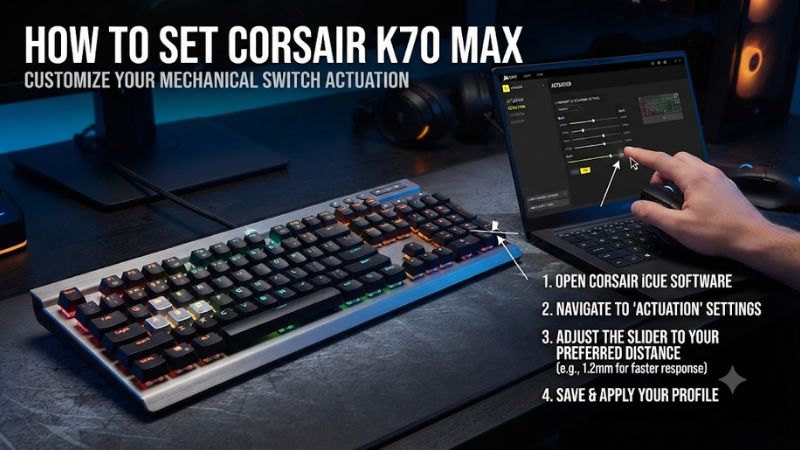
Learn how to set Corsair K70 Max switch actuation in iCUE by selecting the keys you want to tune and changing their primary actuation. Start at the 2.0 mm default, then lower selected gaming keys if you need a lighter touch. Use the onboard shortcut for a board-wide preset and test the result after saving.
Set K70 Max actuation from iCUE
For per-key adjustment, open the K70 Max in Corsair iCUE, select Key Actuations, and highlight the keys you want to change. Adjust their primary actuation point within the supported 0.4–3.6 mm range. Keep the rest of the board at a known setting while you test. For a quick adjustment without iCUE, the K70 Max also has a hardware mode that applies a preset to the entire regular key matrix.
Confirm the keyboard and establish a baseline
This guide covers the full-size Corsair K70 Max with MGX magnetic switches. Corsair uses the K70 name on several boards, including Core and RGB Pro models with fixed-actuation switches. The K70 Pro TKL also has magnetic keys in its own configuration and uses different hardware shortcuts. Confirm the name in iCUE or on the underside of the board before using an adjustment guide.
Check the current profile before you make changes. Corsair documents 2.0 mm as the default primary actuation setting. If you already tuned the board, record the existing value and whether Rapid Trigger or a secondary action is enabled. Your saved settings are the more useful baseline because they describe how the keyboard behaved just before the problem or improvement you want to investigate.
Close games or apps that load their own iCUE profile automatically. This is especially helpful if the settings change when you switch windows. A stable profile makes it easier to tell whether a different actuation value is actually being applied.
Select the keys and apply a primary actuation value
- Connect the K70 Max directly through a compatible USB data connection.
- Open Corsair iCUE, select the K70 Max, and choose the profile you want to edit.
- Open Key Actuations. The wording can appear in the singular in some Corsair documentation.
- Click the keys you want to tune, or use the supported selection controls to highlight several at once.
- Set primary actuation to the desired value. Corsair documents 0.4–3.6 mm in 0.1 mm steps.
- Apply or save the change as the interface requires and confirm you edited the intended selection.
- Test a changed key and an unchanged key before adding more adjustments.
A smaller number means the initial press registers earlier in the key’s downward travel. A larger number makes the first press require more travel. The setting changes the threshold the keyboard uses. The spring, cap height, bottom-out feel, and switch travel remain physical properties of the board.
If you cannot quickly tell whether a change took effect, compare two deliberately different values on a spare key before finding your final setting. Restore the spare key afterward. This makes it easier to detect a profile or selection issue than comparing two neighboring slider steps.
Set movement keys before sweeping across the whole layout
For a first gaming profile, adjust the handful of keys you use constantly. WASD is an obvious starting point for many shooters, while a rhythm or platform game may use arrows or an entirely different cluster. Keep modifier and chat keys at a value you already trust. A fast movement key has little value if the surrounding keys begin to activate while you rest your hand.
Try 2.0 mm as the baseline, then shorten the selected keys in small steps. For example, a move from 2.0 mm to 1.6 mm is a practical comparison if you want to see how a lighter first press feels. There is no universal value. A player who rests a heavy hand on the board may need more travel than a player who taps lightly.
After the switch registers consistently, test a held movement and a quick release. If only the first press feels wrong, keep the work focused on primary actuation. Tune reset behavior separately if the problem occurs between repeated presses.
Set a board-wide actuation preset without iCUE
The K70 Max has a hardware adjustment mode for quickly applying one actuation value to the board. It is useful on a computer without iCUE, when you need a known baseline, or when you want to compare broad press depth before deciding which keys to tune individually. Record your existing hardware profile if you depend on its individual settings.
Enter adjustment mode with Fn and Win Lock
- Use the profile you intend to adjust and close iCUE if you want to work in hardware mode.
- Hold Fn + Win Lock for about two seconds. Use the dedicated Win Lock button shown in the K70 Max manual.
- Wait for the adjustment lighting. Corsair describes Esc, F1–F12, and Win Lock remaining lit.
- Press the lit key for the actuation value you want.
- Press the Fn + Win Lock combination again to exit.
- Test the keyboard in a text editor and in your game.
The hardware selector acts across the keys. If you want only the movement cluster to change, use iCUE’s per-key selection. When comparing your existing per-key profile with a global preset, record which profile or mode is active so that you can restore the layout you use for normal work.
Choose the correct hardware preset
| Key in adjustment mode | Actuation value |
|---|---|
| Esc | 0.8 mm |
| F1 | 1.0 mm |
| F2 | 1.2 mm |
| F3 | 1.4 mm |
| F4 | 1.6 mm |
| F5 | 1.8 mm |
| F6 | 2.0 mm |
| F7 | 2.2 mm |
| F8 | 2.4 mm |
| F9 | 2.6 mm |
| F10 | 2.8 mm |
| F11 | 3.0 mm |
| F12 | 3.2 mm |
The hardware presets run from 0.8 mm to 3.2 mm in 0.2 mm steps. Use iCUE to access the full range, make finer adjustments, or apply different values to different groups of keys. F6 is the quickest way to return to the documented 2.0 mm baseline while in the hardware selector.
If a preset makes typing error-prone, return to a midpoint before changing anything else. Check whether the behavior improves across several keys. That helps distinguish a deliberately sensitive board-wide setting from an issue at one physical switch.
Find useful settings for gaming and typing
Tune a shallower threshold only where it helps
A shallower threshold can help if a deliberate, light press feels slow to register. Try the same movement on the current setting and a slightly lower value. For example, move up to cover with a short tap, then repeat from the same distance while paying attention to whether the press starts when you expect.
Test resting pressure after each change. Leave your fingers in their normal positions and see whether the game moves or a character appears in a text editor. Include a few rapid corrections and movements between keys. Stray inputs often show up when you reposition your fingers, even if the switch is stable while your hand is completely still.
Return to the last stable value and add a little margin if the problem appears near the end of longer sessions. The best threshold is one you can hit on purpose without thinking about how lightly you have to rest your fingers.
Use deeper actuation for actions you hit by mistake
A deeper setting can help on a nearby key that you keep brushing while moving. Pick the specific action that is causing trouble. An accidental reload, crouch, or ability is easier to address by tuning that key than by making the entire board slower to activate.
Test the intentional action as well. A very deep value can eliminate accidental presses while leaving a deliberate quick press feeling late. Compare two or three nearby values and confirm the action still registers when you need it. If the key is hard to reach with your current hand position, a remap may work better than a large change to actuation.
For typing, start with the original 2.0 mm threshold or a proven work profile. If typos appear during a game setting test, keep a separate typing configuration. The K70 Max is useful for this because it can preserve a deliberate feel on most keys while adjusting only the positions that benefit in a game.
Check primary actuation before enabling Rapid Trigger
Primary actuation controls when the first downward press registers. Rapid Trigger changes how much movement can reset and re-activate a key after that press. These are different settings. If the first press feels too sensitive, adjust primary actuation. If quick repeat taps fail because you do not lift far enough, test different reset behavior.
Keep Rapid Trigger off during your first actuation comparison. Once the press depth feels consistent, enable Rapid Trigger on a few keys, using supported firmware and iCUE. Corsair documents sensitivity controls and a way to separate downstroke and upstroke movement where available. Try a defined series of taps and check that your sustained press still holds.
For a rhythm game, compare a repeated-note section and a hold-note section. For shooters, check short taps, longer strafes, and transitions back to a stationary position. Apply the feature to the positions where it helps instead of treating the keyboard as if every key does the same job.
Leave secondary actuation off during ordinary tuning
The K70 Max can assign a second action deeper in the same stroke. That can be helpful for an application where one key legitimately has two depth-dependent roles. During basic tuning, leave it off so you can determine the behavior of one press and release without a second assignment confusing the test.
If a key performs two actions when you push to the bottom, inspect the key’s secondary actuation and any remap or macro assigned to it. Compare a normal profile with that feature disabled. A deeper press can activate a second assignment even when the initial threshold is correct.
For competitive play, check the rules of your game or event before assigning multiple actions to one movement. A simple one-action profile makes compliance and troubleshooting easier. Test it on the same computer and connection you expect to use at the event.
Save the profile and verify it on the keyboard
Distinguish an iCUE profile from device memory
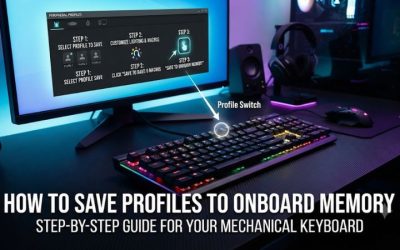
The K70 Max can use settings from the active iCUE profile while the application is running. It also has onboard storage for supported hardware profiles. For portable use, open the device memory controls shown by your version of iCUE. In current layouts, this may appear as Device Memory Mode with a slot and an unsaved-changes indicator.
Save the settings to the intended device slot where the interface supports it. If the software exposes the desired actuation controls only in a particular view, follow the K70 Max device workflow. Record the profile slot and test it with iCUE fully closed. This is a stronger confirmation than seeing the desired number on screen while the application is applying it.
If you need the setup on a second PC, reconnect the board there and use its onboard Profile button to select the expected configuration. Compare several keys. A single clear contrast between a changed key and one at 2.0 mm makes it easier to recognize when the intended profile is active.
Check for a profile switch before repeating the setup
If your setting seems to reset when a game opens, check whether iCUE loads a different profile for that application. A hardware profile or another software profile may become active when you close iCUE. Test the desktop, the game, and the offline case separately before assuming the setting was lost.
Also check the rear tournament switch. Corsair documents a simplified operating state that affects custom behavior and profile switching. Return to the usual mode for troubleshooting a custom profile, then verify the mode you actually need. Leave other keyboard and game settings unchanged during that comparison.
If you use the keyboard on a managed device without iCUE, a verified hardware preset may be enough. If you need distinct actuation values for particular keys, confirm them in the portable configuration before relying on the board in a different room or on another computer.
Fix actuation that feels inconsistent
Return to a clean profile and reproduce the problem
| Symptom | First change to test | What to check next |
|---|---|---|
| Keys register from light resting pressure | Raise primary actuation on the affected keys | Test your natural grip and ordinary typing |
| Rapid taps are missing | Keep primary actuation stable and test release behavior | Compare Rapid Trigger on and off |
| A held key releases unexpectedly | Increase release distance or turn Rapid Trigger off for that key | Retest a real hold in the game |
| A key sends another action at full travel | Disable its secondary assignment | Check remaps and macros |
| All keys seem to have the same depth | Check for a board-wide hardware preset | Reapply per-key settings in the intended profile |
| The setting disappears after quitting iCUE | Verify device memory and the selected slot | Reconnect and retest offline |
Start with a clean profile, a middle actuation value, and additional actions off. Tap the affected key, a nearby key, and an unrelated key. Compare them using similar pressure. A problem that follows the active profile points in a different direction from a problem that follows the same physical key across profiles and devices.
Try the game where you first noticed the issue along with a simple offline test. If the behavior occurs only in one game, check its bindings and whether another profile activates on launch. If several keys register inconsistently in a clean profile, move to calibration after checking the USB connection and model firmware.
Use the documented whole-board calibration when needed
Corsair’s K70 Max quick-start and MGX guidance document a whole-board calibration route. Hold Fn + Win Lock for about two seconds to enter the adjustment screen, then hold the Profile button for about two seconds. Let the keyboard complete the sequence and verify the expected normal state before testing again.
Corsair also publishes a separate troubleshooting calibration procedure. If the quick-start sequence does not produce its documented indicators on your device, use the current support instructions for your exact unit and firmware. Follow one complete procedure at a time. Calibration and actuation adjustment do different jobs, and mixing their steps makes it harder to know what the board saved.
After calibration, start from a known actuation value and test the keys that were inconsistent. Restore your custom changes only after the baseline works. If one key still behaves differently across profiles and computers, record the affected position and what happens at a moderate threshold before contacting support.
Conclusion
Use Key Actuations in iCUE when you want to set individual K70 Max keys. Start from 2.0 mm and adjust a small group before changing the rest of the board. Use Fn + Win Lock for the hardware preset when you need a quick board-wide setting. Save the intended profile, verify it after closing iCUE, and adjust Rapid Trigger only after the first press feels consistent.