🛒 Best Price Today on Amazon
Prime members get fast, free shipping on everything above, plus member-only deals. New members get a 30-day free trial — cancel anytime.
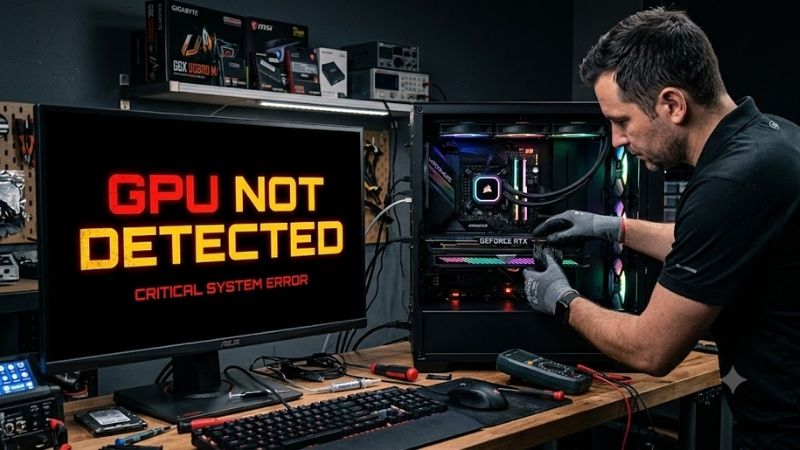
Gpu Not Detected errors frequently frustrate PC builders who encounter black display screens, missing device manager listings, and sudden gaming crashes. This troubleshooting guide provides clear hardware solutions, diagnostic advice, and verified replacement components to restore your graphics card performance quickly.
How to Choose Solutions When Gpu Not Detected Errors Occur
Resolving graphics hardware recognition glitches requires a systematic approach rather than blind component swaps. Understanding how power, firmware, and mechanical connections interact ensures that you can pinpoint why your system struggles. Methodical evaluation saves both time and money during troubleshooting.
PCIe Slot Integrity and Motherboard Seating
Physical connection problems represent one of the most frequent reasons why dedicated graphics cards fail to initialize properly. Heavy modern video cards can easily droop or unseat from standard expansion slots during transit or routine desk movement. Inspecting the mechanical latch guarantees proper contact.
Dust accumulation inside delicate contact pins can also interrupt primary communication pathways between the card and system board. Removing the device, cleaning the golden pins with isopropyl alcohol, and reseating the unit firmly clears hidden debris. A secure connection restores normal operational bandwidth.
Power Supply Capacity and Dedicated Cable Feeds
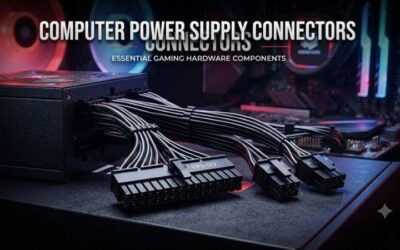
Modern graphics processing units demand substantial electrical wattage delivered through dedicated high-amperage power cables. Daisy-chained split cables frequently fail to supply continuous operational power during heavy system boot sequences. Using separate power cables from the power supply prevents sudden drops.
Aging power supplies often develop degraded internal capacitors that produce erratic rail voltages under sudden load. Verifying your total power envelope ensures the unit can handle initial transient power spikes without tripping safety circuits. Clean power delivery remains vital for steady component recognition.
BIOS Configuration and Display Output Defaults
Motherboard firmware settings directly govern which primary display adapter initializes when your desktop computer powers on. If your motherboard defaults strictly to integrated graphics, your dedicated processing card may remain completely ignored. Accessing your BIOS menu enables you to set discrete output manually.
Outdated system firmware can also introduce severe handshake incompatibilities with modern high-speed PCIe devices. Flashing the latest manufacturer BIOS version updates essential peripheral compatibility protocols across every slot. Maintaining current firmware prevents communication lockups between components.
Operating System Drivers and Device Detection
Corrupted software drivers frequently trick operating systems into overlooking functional graphics hardware. Leftover registry keys from previous component installations often conflict with fresh system drivers during initialization. Running a thorough driver cleaner in safe mode removes persistent legacy files.
Windows Update occasionally installs generic display adapters that obscure dedicated manufacturing software from functioning. Manually downloading the official package directly from manufacturer portals guarantees accurate hardware registration. Fresh drivers unlock complete clock speeds and hardware acceleration.
Top Picks to Resolve Gpu Not Detected Issues
Upgrading to reliable hardware components resolves persistent detection errors while improving total system stability. Our curated selections highlight top power supplies, dependable replacement cards, and protective mounting accessories. Invest in robust PC hardware to conquer gpu not detected problems for good.
Corsair RM850x Shift Power Supply
Gamers seeking reliable electrical power will appreciate this modular unit for handling high transient power loads easily. Side-mounted cable interfaces make organizing dedicated PCI power leads effortless inside modern chassis enclosures. The quiet fan profile operates silently, though side ports require wide cases.
Japanese capacitors guarantee flat voltage regulation, preventing sudden system reboots and graphics initialization errors. Clean dedicated power lines eliminate electrical brownouts that often prevent motherboards from recognizing powerful video cards. This durable power supply provides immense upgrade headroom.
ASUS Dual GeForce RTX 4060 V2 OC Edition
Builders who need a rock-solid replacement card for daily competitive gaming will enjoy this exceptionally efficient GPU. Axial-tech cooling fans maintain low thermal metrics without generating excessive noise during prolonged gaming matches. While eight gigabytes of VRAM limits ultra settings, stability is stellar.
The compact dual-slot footprint fits easily into smaller desktop enclosures without putting excessive strain on delicate motherboard sockets. Reinforced aluminum backplates prevent structural bowing over time, preserving clean mechanical contact inside slots. It offers dependable plug-and-play operation out of the box.
Cooler Master Universal Vertical GPU Holder Kit V3
Enthusiasts dealing with strained motherboard slots will love how this vertical mounting bracket relieves structural pressure. An included premium PCIe 4.0 riser cable provides full signal integrity while showing off your custom shroud aesthetics. Adjustability is fantastic, though it consumes multiple expansion brackets.
Heavy graphics cards often suffer from loose horizontal seating that breaks intermittent electrical contact across lane pins. Repositioning the card vertically eliminates mechanical sag completely, restoring consistent system recognition upon startup. High-grade shielding prevents external interference across the riser.
Antec GPU Support Bracket Brace
Budget-focused desktop builders looking to prevent heavy graphics card drooping will appreciate this simple mechanical support brace. Its solid metal column provides sturdy reinforcement beneath bulky thermal heat sinks, protecting delicate PCIe slots. The minimalist styling blends easily, though placement takes care.
Tool-free height adjustment allows precise leveling to keep long multi-fan graphics cards perfectly perpendicular to the motherboard. Eliminating downward leverage prevents circuit trace cracking that frequently causes sudden hardware recognition drops. This affordable accessory protects expensive gear against wear.
| Model | Hardware Category | Primary Benefit | Best Suited For |
|---|---|---|---|
| Corsair RM850x Shift | Modular Power Supply | Stable Rail Voltage Delivery | High-Wattage Dedicated Gaming Rigs |
| ASUS Dual GeForce RTX 4060 V2 | Dedicated Graphics Card | Compact High-Efficiency Design | 1080p Competitive Gaming and Upgrades |
| Cooler Master Universal Kit V3 | Vertical Riser and Mount | Eliminates Slot Strain and Droop | Showcase Cases with Ample Clearance |
| Antec GPU Support Bracket | Anti-Sag Metal Stand | Prevents Solder Joint Fatigue | Long Multi-Fan Discrete Video Cards |
Frequently Asked Questions About Gpu Not Detected Errors
Troubleshooting peripheral detection problems often triggers specific technical concerns regarding hardware safety, firmware settings, and cable configurations. Reviewing common user questions helps you isolate whether failures stem from software or physical components. Examine these clear answers to fix your system.
Why Is My Graphics Card Not Showing in Device Manager?
A graphics card missing from device manager typically points to unseated hardware or missing low-level driver handshakes. When a user faces a gpu not detected failure, Windows simply treats the expansion slot as empty. Reseating the board and verifying power indicators helps determine basic physical health.
Enabling hidden devices inside the management console frequently reveals inactive hardware profiles with pending error codes. Code 43 or Code 45 indicates that previous software layers failed to initialize the internal graphics processor properly. Running clean installation utilities typically restores normal visibility.
Can an Outdated Motherboard BIOS Prevent Card Recognition?
Outdated motherboard BIOS revisions frequently struggle to establish communication handshakes with modern graphics cards. Legacy firmware protocols may lack updated microcode necessary to negotiate high-speed lane links, which can leave your modern gpu not detected on initial boot. Upgrading system BIOS fixes this bug.
Accessing your BIOS and manually toggling the PCIe link speed from automatic to standard generation three often cures conflicts. Certain older chipsets fail during automatic speed training when paired with modern hardware. Setting fixed bus frequencies establishes reliable handshakes during system boot cycles.
Does GPU Sag Cause Intermittent Connection Disconnects?
Heavy modern thermal designs exert massive downward torque on expansion slots, causing cards to tilt gradually over time. This physical sagging can pull critical high-speed contact pins away from the motherboard socket during heated gameplay. The resulting physical gap triggers sudden screen blackouts and crashes.
Installing a dedicated support bracket or vertical riser eliminates uneven leverage against delicate motherboard solder joints. Keeping the graphics card strictly horizontal preserves firm electrical contact across all lane traces continuously. Simple mechanical stabilization prevents expensive damage and missing cards.
How Do Faulty Power Cables Trigger Detection Failures?
Modern graphics cards perform internal electrical safety checks before allowing the central processing unit to detect them. If an auxiliary power cable fails to supply steady current across all voltage pins, the card locks out completely, leaving your main gpu not detected during initial power checks.
Damaged connectors or split daisy-chain cords frequently suffer from internal pin looseness that restricts necessary current flow. Replacing aged power supply leads with verified individual cables guarantees stable power distribution under load. Clean electrical lines ensure your hardware reports reliably to system software.
View more products:
Final Thoughts
Overcoming a persistent gpu not detected problem requires systematic inspection of seating, firmware updates, and power delivery. Upgrading to stable power supplies and adding anti-sag brackets protects your investment while ensuring long-term gaming performance. Take action now to restore smooth graphics to your computer.