🛒 Best Price Today on Amazon
Prime members get fast, free shipping on everything above, plus member-only deals. New members get a 30-day free trial — cancel anytime.
The best KVM switch for a gaming rig that shares a desk with a work laptop is the AV Access KVM Switch 3 Monitors 2 Computers, because its listing combines 8K@60Hz, 4K@165Hz or 144Hz, DisplayPort 2.0, HDMI 2.1, Gigabit Ethernet and 100W USB-C laptop charging in one box. A KVM switch lets you control two or more computers with one keyboard, mouse and set of monitors, and a “docking” model adds USB ports, networking and charging on top. If you only need 4K at 60Hz on three screens, the TESmart HDMI model is the plainer route, and the TESmart four-computer unit suits mixed laptops and desktops.
Quick List
- AV Access 8K KVM Dock, 3 Monitors – best for a triple-monitor desk with 100W laptop charging and a 10Gbps USB hub
- TESmart HDMI KVM, 3 Monitors 2 PCs – best for 4K@60Hz triple-monitor setups on HDMI with EDID emulation
- 8K HDMI KVM, 2 Monitors 2 PCs – best for a dual-monitor desk that wants 4K@120Hz over HDMI
- AV Access 8K KVM Dock, 2 Monitors – best for a dual-monitor setup with 100W charging and 4K@165Hz
- AV Access KVM Dock, DP 2.0 and HDMI 2.1 – best for high-refresh gaming on three displays with future-proof ports
- TESmart USB-C + HDMI + DP KVM, 4 Computers – best for sharing two monitors across four machines of different types
Which One Is Right for You?
| If you… | Choose |
|---|---|
| have three monitors and want a single dock to charge your work laptop | AV Access 8K KVM Dock, 3 Monitors |
| run two monitors and care about high refresh rates | AV Access 8K KVM Dock, 2 Monitors |
| switch among four machines, such as two laptops and two desktops | TESmart USB-C + HDMI + DP KVM, 4 Computers |
| want triple monitors at 4K@60Hz and a simple HDMI-only chain | TESmart HDMI KVM, 3 Monitors 2 PCs |
| want DisplayPort 2.0 and HDMI 2.1 on a three-screen gaming desk | AV Access KVM Dock, DP 2.0 and HDMI 2.1 |
| use two HDMI monitors and want 4K@120Hz without a dock | 8K HDMI KVM, 2 Monitors 2 PCs |
Start with your monitor count and refresh rate, because those decide the video chip and the cable type. Then look at what the switch should do for the computers: share USB devices only, or also charge a laptop and provide Ethernet. Remember that the video spec on the box is a maximum, and your own graphics card, cables and monitors set the real limit.

AV Access 8K KVM Switch 3 Monitors 2 Computers, KVM Docking Station | 8K@60Hz, 4K@165Hz, 100W PD, 10Gbps USB Hub, 1GbE, Triple Monitor KVM for Laptop & Desktop PC, Ideal for Work & Gaming
Included for '6 Best Kvm Switches for Gaming and Work PCs (October 2026) Reviews & Picks' because the listing specifies KVM Docking Station and 8K@60Hz, details this guide uses to compare options.
View on Amazon
TESmart HDMI KVM Switch 3 Monitors 2 Computers 4K@60Hz, KVM Triple Monitors | EDID Emulation, USB 3.0 5Gbps, Gigabit Ethernet, Audio&Microphone, Hotkey and Mouse switching, RGB, Triple-Monitor Workflows
Included for '6 Best Kvm Switches for Gaming and Work PCs (October 2026) Reviews & Picks' because the listing specifies KVM Triple Monitors and EDID Emulation, details this guide uses to compare options.
View on Amazon
8K HDMI KVM Switch 2 Monitors 2 Computers, USB 3.0 Dual Monitor KVM Switch 4K@120Hz High Refresh Rate, Share Keyboard Mouse and USB Devices, Extended Display for PC Laptop Gaming Workstation
Included for '6 Best Kvm Switches for Gaming and Work PCs (October 2026) Reviews & Picks' because the listing specifies USB 3.0 Dual Monitor KVM Switch 4K@120Hz High Refresh Rate and Share Keyboard Mouse and USB Devices, details this guide uses to compare options.
View on Amazon
AV Access KVM Switch 2 Monitors 2 Computers, 8K KVM Docking Station | 100W PD, 1G Ethernet, 10Gbps, 4K@165Hz, 8K@60Hz, Dual Monitor KVM Switch for Laptop & Desktop, Ideal for Work & Gaming Setups
Included for '6 Best Kvm Switches for Gaming and Work PCs (October 2026) Reviews & Picks' because the listing specifies 8K KVM Docking Station and 100W PD, details this guide uses to compare options.
View on Amazon
AV Access KVM Switch 3 Monitors 2 Computers KVM Docking 8K@60Hz | 100W USB C Laptop Charge, Gigabit Ethernet, DP 2.0, HDMI 2.1, 4K@165Hz/144Hz, 10Gbps Ports, SD Card, Wired Controller
Included for '6 Best Kvm Switches for Gaming and Work PCs (October 2026) Reviews & Picks' because the listing specifies 100W USB C Laptop Charge and Gigabit Ethernet, details this guide uses to compare options.
View on Amazon
TESmart USB-C + HDMI + DP KVM Switch 4 Computers 2 Monitors 4K@60Hz, USB 3.0 KVM Switch Dual Monitor for Laptop&Desktop, EDID Emulation, Gigabit Network, Hotkey Switch, Input Cables
Included for '6 Best Kvm Switches for Gaming and Work PCs (October 2026) Reviews & Picks' because the listing specifies USB 3.0 KVM Switch Dual Monitor for Laptop&Desktop and EDID Emulation, details this guide uses to compare options.
View on AmazonAll 6 Picks in Detail
1. AV Access 8K KVM Dock, 3 Monitors – Best for a Triple-Monitor Work and Play Desk
As an Amazon Associate we earn from qualifying purchases at no extra cost to you.
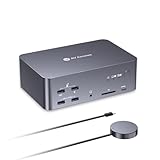
This AV Access listing describes an 8K KVM switch for three monitors and two computers, set up as a KVM docking station. It lists 8K@60Hz, 4K@165Hz, 100W power delivery, a 10Gbps USB hub and 1GbE Ethernet. The docking angle is the key: a laptop connects over one cable that carries video, USB and power, so your work machine can sit on the desk charging while a gaming tower uses the same three monitors. The high refresh figure matters if one of your screens is a fast gaming panel, since a KVM that caps at 60Hz would waste it.
- Monitors and computers: three monitors, two computers, per the listing
- Video: 8K@60Hz and 4K@165Hz, per the listing
- Power: 100W USB-C power delivery, per the listing
- USB: 10Gbps hub, per the listing
- Network: 1GbE; the exact video input types per computer: confirm on listing
Pros:
- Docking features remove the need for a separate laptop dock
- High refresh ceiling for gaming screens
- Faster 10Gbps USB hub for external drives
Cons:
- Cabling for three monitors is bulky and demands good cables
- Listings in this product family vary, so confirm that the 100W laptop port and the input types match your machines
Compared with the DP 2.0 and HDMI 2.1 model later in this list, it leads with the 10Gbps hub, which is the reason to choose it for storage-heavy desks. Plan the cable routes before you plug in, because three monitors and two computers mean many connections.
2. TESmart HDMI KVM, 3 Monitors 2 PCs – Best for Simple HDMI Triple-Monitor Switching

TESmart’s HDMI switch handles three monitors and two computers at 4K@60Hz, with EDID emulation, USB 3.0 at 5Gbps, Gigabit Ethernet and audio and microphone support, according to its listing. EDID emulation is the quiet hero: it tells each computer that monitors are still connected when the switch is pointing elsewhere, which stops windows from jumping around or collapsing onto one screen. TESmart’s own product page describes hotkey switching, so you can change computers from the keyboard rather than reaching for a button.
- Monitors and computers: three monitors, two computers
- Video: 4K@60Hz over HDMI, per the listing
- USB: USB 3.0 at 5Gbps, per the listing
- Network and audio: Gigabit Ethernet, audio and microphone, per the listing
- EDID emulation: yes, per the listing
Pros:
- EDID emulation keeps window layouts stable
- Straightforward HDMI connections on both sides
- Ethernet and audio sharing included
Cons:
- 4K@60Hz is a lower ceiling than the AV Access models for gaming
- No laptop charging is mentioned in the visible title
Next to the AV Access triple-monitor unit, it is the budget-friendly, lower-spec alternative for people who do not need high refresh rates or charging. Keep the listing’s hotkey option in mind if you prefer to switch without reaching for a button.
3. 8K HDMI KVM, 2 Monitors 2 PCs – Best for a Dual-Monitor Desk at 4K@120Hz

This listing is for a dual-monitor, two-computer HDMI KVM with USB 3.0 that shares a keyboard, mouse and other USB devices. It states 8K support and 4K@120Hz, the latter being a high refresh rate over HDMI. The brand is not stated in the visible title, so confirm the maker, warranty and exact HDMI version on the product page. The 4K@120Hz figure is the headline for gamers: it suits a pair of 4K monitors where one is a gaming screen and a console or second PC needs the same display.
- Monitors and computers: two monitors, two computers, per the listing
- Video: 8K support and 4K@120Hz, per the listing
- USB: USB 3.0, per the listing, shared devices
- HDMI version and data rate: confirm on listing
- Charging, Ethernet and brand: confirm on listing
Pros:
- High refresh rate stated for 4K
- Simple dual-monitor design
- USB 3.0 sharing for peripherals
Cons:
- No docking features are named in the visible title
- Brand and support details need confirming
Compared with the AV Access dual-monitor dock, it drops charging and Ethernet in exchange for a simpler, HDMI-only focus. Confirm which HDMI version the ports use, since that determines whether 4K@120Hz is available on your graphics card.
4. AV Access 8K KVM Dock, 2 Monitors – Best for Dual Monitors with Charging
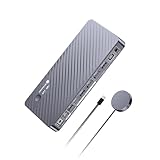
The dual-monitor AV Access listing describes an 8K KVM docking station for two computers with 100W power delivery, 1G Ethernet, a 10Gbps hub, 4K@165Hz and 8K@60Hz. It is the model for a person who splits a desk between a work laptop and a gaming desktop but only runs two screens. A single USB-C connection from the laptop can handle charging, display and USB, which keeps the desk cleaner than a separate dock would. The 165Hz ceiling at 4K is also notably high.
- Monitors and computers: two monitors, two computers, per the listing
- Video: 4K@165Hz and 8K@60Hz, per the listing
- Power: 100W power delivery, per the listing
- USB and network: 10Gbps hub and 1G Ethernet, per the listing
- Input connector types: confirm on listing
Pros:
- Single-cable laptop docking with charging
- High 4K refresh rate
- Fast USB hub
Cons:
- Limited to two monitors
- Requires quality cables to realize the highest resolutions
It is the two-monitor sibling of the first pick, so choose it when a third screen is not part of your plans. Use the manufacturer’s recommended cables so the full refresh rate is available.
5. AV Access KVM Dock, DP 2.0 and HDMI 2.1 – Best for High-Refresh Gaming on Three Displays

This AV Access listing is another three-monitor, two-computer dock at 8K@60Hz. It adds 100W USB-C laptop charging, Gigabit Ethernet, DisplayPort 2.0, HDMI 2.1 and 4K@165Hz or 144Hz. AV Access describes its iDock D23 line as using DisplayPort 2.0 and HDMI 2.1 connections, with independent video outputs per computer, but variants differ in which computer gets charging, so check which ports on this particular unit support a laptop. If you game on a high-refresh 4K panel and want headroom for newer graphics cards, the DP 2.0 and HDMI 2.1 pairing is the point.
- Monitors and computers: three monitors, two computers, per the listing
- Video: 8K@60Hz, 4K@165Hz or 144Hz, per the listing
- Ports: DisplayPort 2.0 and HDMI 2.1, per the listing
- Power and network: 100W USB-C charging and Gigabit Ethernet, per the listing
- Hub speed and which computer port charges: confirm on listing
Pros:
- Modern DisplayPort and HDMI standards
- High refresh rates on three displays
- Charging and Ethernet in the same box
Cons:
- Full 8K and top refresh rates need certified HDMI 2.1 or DP cables
- Setup is more involved than a basic HDMI switch
Compared with the first AV Access model, this listing foregrounds the port standards rather than the 10Gbps hub, so pick it for the display connections. Check the listing to see which input handles laptop charging before you connect your machines.
6. TESmart USB-C + HDMI + DP KVM, 4 Computers – Best for Four Machines on Two Monitors
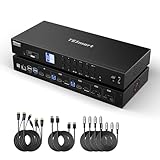
This TESmart switch supports four computers and two monitors at 4K@60Hz with USB-C, HDMI and DisplayPort inputs, USB 3.0, EDID emulation and Gigabit Ethernet according to the title. Mixed inputs let you attach a USB-C laptop, an HDMI console-style machine and a DisplayPort desktop without adapters. Four inputs is the most in this list, which suits a small studio or a shared workstation. The cost is the 4K@60Hz ceiling, so it is a convenience-first choice.
- Computers and monitors: four computers, two monitors, per the listing
- Inputs: USB-C, HDMI and DisplayPort, per the listing
- Video: 4K@60Hz, per the listing
- USB and network: USB 3.0 and Gigabit Ethernet, per the listing
- Laptop charging over USB-C: confirm on listing
Pros:
- Four inputs and mixed connector types
- EDID emulation for stable layouts
- USB 3.0 and Ethernet included
Cons:
- 4K@60Hz is not meant for high-refresh gaming
- Larger unit with many cables
Next to the TESmart triple-monitor model, it swaps a third screen for two extra computers, which is the deciding factor. Label each input so you remember which machine is on which port.
Specs Compared
| Switch | Computers | Monitors | Max video (listing) | Laptop charging | USB | Ethernet |
|---|---|---|---|---|---|---|
| AV Access 8K KVM Dock, 3 Monitors | 2 | 3 | 8K@60Hz, 4K@165Hz | 100W PD | 10Gbps hub | 1GbE |
| TESmart HDMI KVM, 3 Monitors | 2 | 3 | 4K@60Hz | Confirm on listing | USB 3.0, 5Gbps | Gigabit |
| 8K HDMI KVM, 2 Monitors | 2 | 2 | 8K support, 4K@120Hz | Confirm on listing | USB 3.0 | Confirm on listing |
| AV Access 8K KVM Dock, 2 Monitors | 2 | 2 | 8K@60Hz, 4K@165Hz | 100W PD | 10Gbps hub | 1G |
| AV Access KVM Dock, DP 2.0 and HDMI 2.1 | 2 | 3 | 8K@60Hz, 4K@165Hz/144Hz | 100W USB-C | Confirm on listing | Gigabit |
| TESmart USB-C + HDMI + DP KVM | 4 | 2 | 4K@60Hz | Confirm on listing | USB 3.0 | Gigabit |
How We Chose These
This guide is built from research into listing details and maker documentation. We began with the six KVM switches in the current catalog set and read each listing title and specification field for monitor count, computer count, video resolution and refresh rate, USB speed, Ethernet and charging. We checked the AV Access iDock and TESmart product pages to understand what the headline figures mean and where variants differ. Because listing titles within a brand can overlap, we flagged details that need confirming rather than assuming them. We favored clear video specs, modern connector standards, stable-layout features such as EDID emulation and sensible docking extras.
What to Look For
Monitors, inputs and the video chain
Count your monitors first, because a KVM that switches three screens needs three video connections per computer. A triple-monitor KVM with two computers has six video inputs plus three outputs, which means a lot of cables. Check the connector type on both sides. HDMI 2.0 carries 4K at 60Hz, while HDMI 2.1 raises the ceiling to roughly 4K at 120Hz and beyond, and DisplayPort 1.4 and 2.0 reach 4K at 144Hz to 165Hz. The switch can only pass what its chips and your cables allow, and your graphics card must also support the mode. If a listing states 8K@60Hz, that normally requires HDMI 2.1 or DisplayPort 2.0 cables rated for the bandwidth.
Refresh rate, HDR and EDID emulation
Gamers should look for the refresh rate at their monitor’s native resolution, not just the headline 8K figure. A switch might offer 4K@60Hz while a gaming monitor supports 4K@144Hz. HDR and variable refresh rate support are not always included, so confirm them if you use them. EDID emulation stores monitor identity data inside the switch so each computer thinks the monitors remain connected when you switch away. Without it, windows may be rearranged or a desktop might lose its multi-monitor layout every time you toggle inputs, which becomes a real annoyance in a work setup.
USB hub speed and peripherals
A KVM shares your keyboard, mouse and other USB devices between computers. Entry models pass keyboard and mouse only; docking models include a USB 3.0 hub at 5Gbps or a 10Gbps port for storage or webcams. Gaming mice with a high polling rate generally work well, but check for compatibility if you use a wireless dongle or a keyboard with special software, since some switches handle only standard HID devices. If you share a webcam or a capture card, a faster hub helps avoid dropped frames.
Laptop charging and power
Some docking KVMs include USB-C power delivery, listed as 100W. That is the supply capacity, not a guarantee that your laptop will charge at that rate, and manufacturers sometimes reserve a margin for safety. Match the figure against your laptop’s charger wattage, and use the cable the maker recommends. If a laptop gets noticeably hot while charging through a dock, unplug it and check the cable and port. A desktop does not need power delivery, so you can skip it if your computers are towers.
Switching methods and desk layout
There are three common ways to change computers: a front-panel button, a keyboard hotkey and a wired or wireless remote. Buttons are reliable but can be awkward if the box sits behind a monitor, so a desktop remote or a hotkey is worth having. Think about where the box will live. A triple-monitor KVM with ten or more cables attached needs space behind the desk and enough slack for strain relief, and heavy HDMI 2.1 or DisplayPort cables can pull on the ports if they hang unsupported. Label each cable at both ends, because a mixed-up input is the most common reason a screen stays black after setup. It also helps to update your graphics drivers and, where applicable, the KVM firmware before blaming the hardware.
Sleep, wake and audio behavior
One everyday annoyance is how a computer behaves when you switch away. With EDID emulation, the machine usually stays awake and keeps its display layout, but some setups still wake slowly or ask you to log in again. Audio can be shared through a 3.5mm jack and microphone port on some models, as listed on the TESmart triple-monitor switch, or through USB headsets passing through the hub. If you rely on a particular headset, check that it appears on both computers after a switch before you decide the box is a fit.
Worked example
Suppose you have a gaming tower with two 4K@144Hz monitors and a work laptop with USB-C. You want a single keyboard and mouse, and the laptop should charge when active. A dual-monitor docking KVM with 4K@165Hz and 100W power delivery covers the tower on DisplayPort or HDMI 2.1 and the laptop on USB-C. If you later add a third monitor, you would move up to a three-monitor model. If you only need 4K@60Hz for office work, a lower-cost HDMI model is enough.
Questions
Will a KVM switch reduce my gaming performance?
It should not reduce frame rates, since the computer still renders the game, but the video passes through the switch, so the switch must support your resolution and refresh rate. A switch that caps at 60Hz will limit a high-refresh monitor, and poor cables can cause flicker or dropouts.
What is EDID emulation and do I need it?
EDID is the data a monitor sends to a computer to describe its supported modes. A KVM with emulation keeps that data available when you switch away, so windows do not rearrange themselves. It is especially useful with multiple monitors.
Do I need special cables?
For high resolutions and refresh rates, yes. Use certified HDMI 2.1 or DisplayPort cables rated for the bandwidth you need, and keep runs short. Cables included in the box may not cover every mode.
Can a KVM charge my laptop?
Docking KVMs that list USB-C power delivery can, but the figure applies to specific ports. Check which input supports charging, and confirm that your laptop accepts USB-C charging at that wattage.
Is a KVM better than a monitor’s built-in input switch?
A monitor’s input switch changes only the picture, so you still move the keyboard and mouse by hand. A KVM switches video and USB devices together, which is why it is popular for desks shared between work and gaming machines.
Will a KVM work with a console or a Mac?
Many KVMs work with anything that outputs HDMI, DisplayPort or USB-C video, but behavior varies with the device. Macs may limit multi-monitor modes or HDR through a switch, and consoles generally only need the video path. Confirm compatibility on the product page for your exact machines before you buy.
Update History
- October 20, 2026 – Initial publication; product set drawn from current catalog listings.
- Check the product page for current specifications and availability before buying.
Sources
- Manufacturer product and specification pages for AV Access and TESmart
- Retailer listing titles and specification fields for each switch