🛒 Best Price Today on Amazon
Prime members get fast, free shipping on everything above, plus member-only deals. New members get a 30-day free trial — cancel anytime.
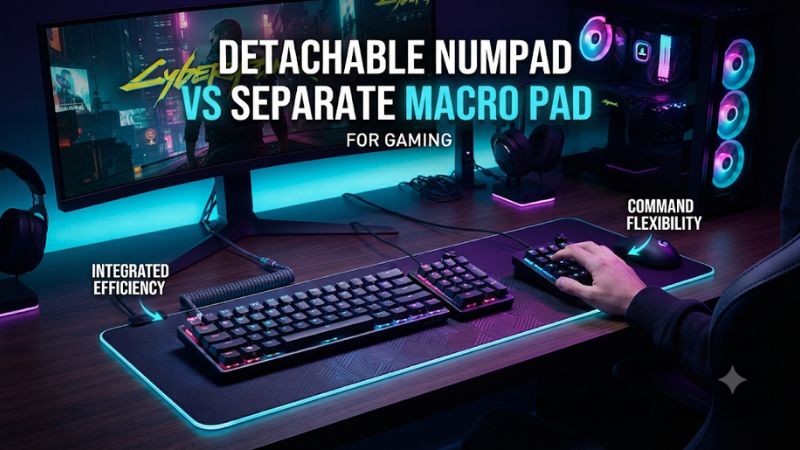
The detachable numpad vs separate macro pad for gaming decision depends on what your extra keys do. A detachable numpad suits daily number entry and frees mouse space when you remove it. A separate macro pad better suits shortcuts, push-to-talk, or stream controls that need their own position beside your main keyboard.
Which option should sit on your desk?
Choose a detachable numpad if you use ordinary number entry regularly and want one keyboard that can change between full-width and compact layouts. Choose a separate macro pad if you already like your keyboard and want additional controls somewhere your hand can reach independently. If you need both numeric entry and custom keys, a programmable standalone numpad can preserve the familiar numeric grid while adding a second profile or dedicated shortcut controls.
| Feature | Detachable numpad | Separate macro pad |
|---|---|---|
| Primary job | Numeric entry and a modular main keyboard layout | Extra commands beside an existing keyboard |
| Placement | Beside the compatible keyboard where the mount allows | Wherever its connection, cable, and reach allow |
| Independent operation | Depends on the exact module | Designed to work separately from the main keyboard |
| Usable number grid | Usually the main purpose | Depends on layout and programming |
| Typical controls | Numbers, arithmetic keys, sometimes extra buttons or a dial | Programmable keys, sometimes encoders, displays, or labeled controls |
| Best example use | Spreadsheet work followed by low-sensitivity gaming | Push-to-talk, simulator commands, or OBS scene controls |
Decide whether you want an actual numpad
An actual numpad provides a predictable grid, arithmetic keys, and usually a dedicated Enter position. If you can enter several values without looking down, a new control surface with a different grid may slow that task. A detachable module gives continuity to a player who uses numeric input for much of the day and wants to remove it when gaming.
A macro pad can be smaller because its buttons only need to cover the commands you assign. If the main objective is push-to-talk, mute, record, and a few game shortcuts, you may only need a handful of keys with clear positions. Think about whether you need the original number functions or simply more controls.
A standalone programmable numpad bridges those jobs. The Keychron Q0 Max, for example, combines a numeric layout with additional keys and a rotary encoder. You can retain normal number entry and use supported remapping for a gaming workflow, while placing the unit away from your mouse.
Check whether the detachable piece works by itself
“Detachable” describes how a unit comes off the main board. It does not promise independent power or data. Some modules simply disappear from the setup when you remove them. The be quiet! Dark Mount numpad, for instance, needs attachment to the main keyboard to work. Treat it as an interchangeable layout section.
Check the manufacturer’s manual if you want to put the module at an angle, above the keyboard, or several inches away. Look for an explicitly supported independent connection. A visible connector may be intended for a dock rather than for direct connection to your computer. Confirm the physical arrangement before budgeting around remote placement.
A separate macro pad normally has its own cable or supported wireless link. That is why it can remain accessible when you move the keyboard. The trade-off is another device to connect, configure, and sometimes charge. Decide whether independent placement is valuable enough to make that second connection part of the setup.
Desk space, reach, and layout
Detaching the number block creates one compact playing position
A keyboard with a right-mounted numpad can push the mouse hand outward. Removing the module for gaming can reclaim that area. It works especially well if you play several hours with low mouse sensitivity and often sweep beside the keyboard. Reattach it when you return to numeric work.
Test how you would change configurations. Place a current full-size board on the desk and measure the area you want for the mouse. Then estimate where the main module and any loose numpad will go. If the removed module ends up beside the mouse anyway, you gain little unless you can store it nearby or move it to the opposite side.
For a left-handed mouse setup, the opposite mounting choice can matter. Several modular keyboards let you attach the numpad to either side. Check that the exact model supports the position you want and that its cable and other accessories remain easy to route.
A separate macro pad gives you more placement options
A standalone pad can sit to the left, between the main board and a display, or near a controller. That helps when you want your extra keys close to a particular hand. A push-to-talk button could sit beside your movement keys, while an OBS pad could sit in your line of sight where you can read the labels.
Start by moving a cardboard outline or a small object around your actual desk. Reach for it while keeping your eyes on a screen and your mouse arm in its usual position. If you have to shift your whole hand for a command used every round, put the pad closer or map that command back to the main board.
Make sure the pad is stable. A light USB keypad can move when you reach across and press a corner. A low-profile case may be easy to slide under a monitor, while a raised or angled deck may be easier to read. Choose a shape that matches the way the pad will be used.
For constant number entry, try the left side
If the number pad troubles your mouse space but you still enter numbers during a game or workday, move it left where supported. A modular keyboard such as the ROG Claymore II or Mountain Everest Max gives you a documented left-side configuration. A separate programmable numpad offers similar placement flexibility without tying you to the main board.
Give yourself time to adapt if you usually enter numbers with your right hand. A large volume of numeric work can initially be slower with the other hand. Try a routine that includes decimal entry, arithmetic, and Enter. If the shift costs too much time, keep the pad to the right during work and move or remove it for gameplay.
A left-side numpad also has value if your right hand frequently returns to the mouse. You can input values and use pointer controls with less hand travel across the board. The right setup depends on when you need each hand and how often the task happens.
Plan cable routes and charging before choosing wireless
A docked module can share the main board’s connection, depending on design. A standalone pad needs its own route. If you already have an accessible USB hub or several ports near the monitor, the extra cable may be easy to manage. If ports are scarce, look for a reliable connection mode that fits the computer you actually use.
Wireless creates more placement freedom and can make a pad easier to store between sessions. Check wake behavior and any charging routine, particularly for a pad that sits unused until you reach for one command. A device that needs to wake before the first press can be inconvenient if that first press controls a live scene.
For a stationary streaming or simulator desk, direct USB can be simpler. Leave a route that lets you move the pad for cleaning without pulling on the connector. A cable that safely follows the back of the desk can be less intrusive than a nearby battery warning halfway through use.
Bindings, profiles, and software
Check what the application actually receives
A normal numeric keypad sends keyboard events. Some games can bind numpad keys separately from the top-row digits. Other games treat certain inputs alike or expose only a subset of distinct bindings. Go into the application’s own binding screen and press the intended key. Look at the recorded name and verify that it activates only the command you assigned.
Num Lock can also affect how traditional keypad keys are interpreted. Try your binding with it in the state you normally use and check what happens after reconnecting the pad. If the game’s binding changes with Num Lock, use a stable key available on the pad, or assign a separate input through supported firmware and test again.
Windows offers APIs that can distinguish individual keyboards, but applications must choose to use that information. Two attached keyboards can generate the same command from the app’s perspective. A separate USB device is not automatically a separate command set when both send identical key codes.
One-to-one remapping is enough for most gaming uses
For a game, start with one physical press performing one permitted action. This covers push-to-talk, camera views, interface toggles, inventory tabs, and many simulator functions. Assign one command, test it in the game, then place related commands nearby. A group of intuitive buttons is easier to use than a grid filled with commands you rarely need.
Avoid adding sequences merely because the software supports them. Complex macros, repeated inputs, and combined actions may be restricted by a game or event. Even where allowed, they can be awkward to undo during play. Keep a clean profile available and check the relevant rules before assuming a programmed action is acceptable.
A mapped numeric key can still retain its number-entry role in a second profile. Test how you switch profiles and confirm the active one at the start of a session. This matters when an editing shortcut and an in-game action are assigned to the same physical position.
Check whether remapping needs an app running
Some programmable pads can save supported keymaps to the device. Others depend on a host application for shortcuts, automatic profile switching, display labels, or app integrations. Review what is stored, then test by closing the configurator and reconnecting the device. A key that works with its software open may behave differently on another computer.
This matters if you use a managed office computer, a second operating system, or a gaming laptop with a minimal software setup. A standard keypad usually provides ordinary number entry with little configuration. A specialized macro pad can be more useful when installed tools are permitted and you rely on automation or visible profiles for productivity.
Check the software’s configuration requirements as well. For instance, Keychron documents using a supported browser and a wired connection when configuring the Q0 Max through Launcher. The pad’s ability to operate wirelessly in normal use and the connection used to configure it are separate details.
Use an app-linked deck for streaming if you need state or labels
A Stream Deck-style unit is useful when you want visible labels and app controls for streaming or recording. Elgato’s Stream Deck MK.2 has 15 customizable LCD keys, and its software supports shortcuts and plugins. An OBS integration can provide direct scene or source commands, while a simple hotkey sends the same kind of shortcut you would press on a keyboard.
Choose a plugin action when you value its integration with the specific app and its documented behavior. Test it while the game has focus. A keyboard shortcut may affect the wrong window or collide with an in-game bind. A plugin has its own software and connection requirements, so verify how the deck and OBS behave after startup.
For fast gameplay actions, physical feel and nonconflicting one-to-one binds may matter more than a visual label. A key grid with distinct corners can be easier to use without looking. A deck is most valuable where its labels and app features remove work you actually do.
Examples and buying checks
Modular boards for a full-width workday and compact game setup
The ASUS ROG Claymore II illustrates a keyboard-first design. You can attach its numpad on either side or use the keyboard without it. ASUS also documents programming the extra unit for compatible shortcut use. This works when you want the main board and number block to operate as one layout during work.
Mountain’s Everest Max also supports left or right placement and adds four display keys on the numpad. The be quiet! Dark Mount is another example with left and right mounting. For any of these, confirm accessory inclusion and which functions depend on physical attachment. If you consider a used unit, make sure the mounting hardware and contacts are intact.
A modular board is easiest to justify as a replacement for a keyboard you already wanted to change. If your main board is comfortable and works well, adding a separate pad generally gives you the extra functionality with less disruption.
Standalone pads for an existing keyboard you want to keep
A programmable numeric pad is useful for simulators, editing, or work that needs numbers beside custom actions. The Q0 Max preserves ordinary keypad positions and adds a macro column and knob. Its independent wired and wireless routes make it flexible if you want numbers near your left hand or need to clear the desk later.
For stream controls, a small labeled deck can fit a different routine. Assign separate positions for mic mute, recording, and scenes. Then test each with the game open and your usual OBS profile loaded. The value comes from the control flow and labels, so a full numeric grid is optional for that setup.
Keep the number of extra controls modest at first. Give recurring actions the most accessible positions. Add more only when the layout proves comfortable in use. A smaller device you can operate by feel may be more useful than a larger one that requires you to read every key.
Consider the total hardware cost and what you can replace later
A detachable module generally belongs to a particular keyboard family. If either piece breaks, replacement availability matters. For a secondhand board, check whether the seller includes the number block and all connectors or adapters used in the intended configuration. Test it attached in each position you plan to use.
A separate pad can stay on your desk when you upgrade the main keyboard. That independence can be a better investment if you often swap keyboards or use a laptop. Factor in any receiver, software subscription for a particular workflow if applicable, and the space taken by a stand or cable. Many ordinary keypad jobs need no paid software.
Estimate how much time the extra keys save rather than how many keys you gain. Daily numeric entry favors a familiar grid. A handful of repeatable commands favors an accessible separate pad. Judge the purchase by whether it reduces friction after the initial novelty wears off.
Try the workflow before deciding
Write down the actions you want to move. Divide them by frequency and which hand needs to use them. Test a numeric pad in the position you would buy it for, even if that means borrowing an inexpensive one briefly. Spend a normal work block entering values, then play a full match and see whether it interferes with the mouse.
Bind and unbind a few commands in the actual game. Verify that the input is recognized, that no unwanted duplicate command fires, and that the same setup works after reconnecting. For streaming, run a local recording and try scene changes and mute controls while the game is focused. Review the recording to check that the actions did what you intended.
If your test uses only four dedicated shortcuts, a small macro pad is enough. If you keep returning to the standard number grid, value that layout first and add custom controls around it.
Conclusion
Choose a detachable numpad when you use the numeric layout often and want to take it off for more mouse room. Choose a separate macro pad when you mostly need independent placement, game shortcuts, or app controls alongside your existing keyboard. A programmable standalone numpad covers both jobs if you need the grid and custom bindings. Check connection, key recognition, and profile behavior in the applications where you will use them.