🛒 Best Price Today on Amazon
Prime members get fast, free shipping on everything above, plus member-only deals. New members get a 30-day free trial — cancel anytime.
- Best Mouse for Data Analysts: Quick Comparison
- Logitech MX Master 3S — Best Overall
- Logitech MX Anywhere 3S — Best for Travel
- Logitech Lift — Best Vertical Mouse
- Razer Pro Click Mini — Best Compact Multi-Device Option
- Keychron M6 — Best Value for Horizontal Scrolling
- How to Choose a Mouse for Data Analysis
- FAQ
- Conclusion
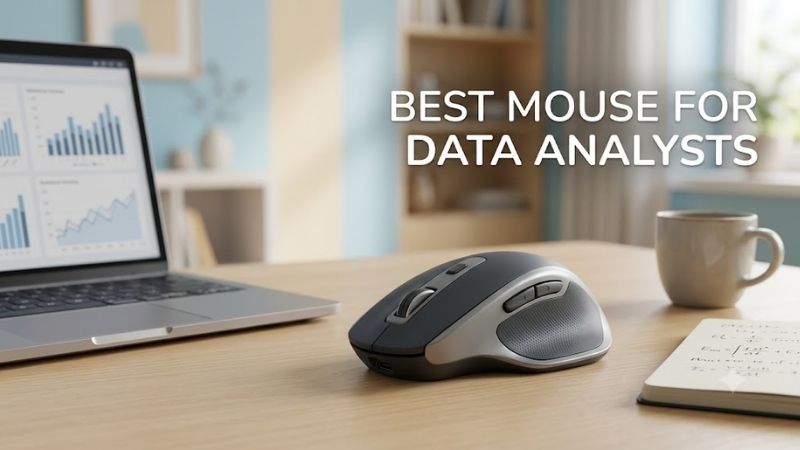
The best mouse for data analysts should make long sessions in Excel, SQL tools, dashboards, and browsers easier to control. Fast scrolling, accurate tracking, useful shortcuts, and comfortable shaping matter more than gaming-style extras. These five models suit different desk setups, hand sizes, and workflow priorities.
Quick answer: For most people in 2026, the best mouse for data analysts is the Mouse — our #1 rated choice. See the full ranked comparison, alternatives and buying advice below.
Best Mouse for Data Analysts: Quick Comparison
| Mouse | Best For | Scrolling Advantage | Connectivity | Main Trade-Off |
|---|---|---|---|---|
| Logitech MX Master 3S | Overall productivity | MagSpeed + thumb wheel | Bluetooth, Logi Bolt | Large right-handed shape |
| Logitech MX Anywhere 3S | Travel and hybrid work | MagSpeed wheel | Bluetooth, Logi Bolt on supported editions | No dedicated thumb wheel |
| Logitech Lift | Vertical ergonomics | SmartWheel | Bluetooth, Logi Bolt | Adjustment period |
| Razer Pro Click Mini | Compact multi-device work | Four-way tilt wheel | Bluetooth, 2.4 GHz | Uses AA batteries |
| Keychron M6 | Spreadsheet scrolling | Main wheel + side wheel | Bluetooth, 2.4 GHz, wired USB | Multiple variants require careful selection |
Logitech MX Master 3S — Best Overall
Best For: Spreadsheet-heavy analysts and fixed workstations
Key Features:
- 8,000 DPI optical sensor
- MagSpeed electromagnetic scroll wheel
- Dedicated horizontal thumb wheel
- Quiet Clicks
- Logi Options+ customization
- Multi-device switching
For most analysts, the Logitech MX Master 3S is the strongest all-around fit because its MagSpeed wheel moves quickly through long sheets while the thumb wheel handles horizontal navigation. Its 8,000 DPI sensor also supports precise pointer movement across high-resolution and multi-monitor workspaces.
The main advantage is workflow control rather than raw speed. Logi Options+ lets users customize buttons for app-specific tasks, so Excel, browser, and BI shortcuts can live on the mouse. The trade-off is its full-size right-handed body, which may feel bulky for small hands, shared desks, or frequent travel.
What Makes It Different
The separate thumb wheel addresses a problem that matters specifically in data work: navigating wide tables without repeatedly dragging a horizontal scroll bar. MagSpeed handles long vertical datasets, while customizable controls can reduce keyboard movement when switching applications or repeating common commands.
Pros
- Dedicated horizontal scrolling
- Fast MagSpeed vertical scrolling
- Customizable app-specific controls
- Quiet main clicks
- Tracks on high-resolution displays
- Supports multiple paired devices
Cons
- Full-size body is less portable
- Right-handed design
- More features than basic spreadsheet users may need
Use Case
Use it when your day includes wide spreadsheets, long SQL result sets, Power BI or Tableau dashboards, and constant switching between windows. The combination of fast vertical scrolling, horizontal thumb scrolling, quiet clicks, and multi-device support is especially useful at a fixed workstation with large displays.
Who It’s For
The MX Master 3S fits analysts who spend most of their working day at one desk and regularly manipulate large tables, financial models, dashboards, or reporting interfaces. It is especially relevant when horizontal navigation and programmable workflow shortcuts matter more than keeping the mouse compact.
Logitech MX Anywhere 3S — Best for Travel
Best For: Hybrid workers, consultants, and traveling analysts
Key Features:
- 8,000 DPI tracking
- MagSpeed scrolling
- Quiet Click technology
- Compact design
- Up to three paired devices
- Rechargeable battery
The MX Anywhere 3S keeps Logitech’s MagSpeed wheel and 8,000 DPI tracking in a smaller body, making it better for analysts who move between office, home, client sites, and coworking spaces. It can pair with up to three devices, so one mouse can follow a laptop-heavy workflow without taking much bag space.
Its compact design is the key difference from the MX Master 3S. You gain portability and precise tracking on varied surfaces, but lose the dedicated thumb wheel that makes very wide spreadsheets easier to navigate. That makes it better for mobile analysis than for an Excel-heavy desktop setup with complex models.
What Makes It Different
Rather than maximizing buttons and palm support, the MX Anywhere 3S compresses productivity features into a travel-oriented shape. MagSpeed remains useful for long reports, SQL output, and web dashboards, while its compact dimensions make it easier to use beside a laptop on smaller temporary desks.
Pros
- Compact enough for frequent travel
- Fast MagSpeed scrolling
- High-resolution sensor
- Quiet primary clicks
- Multi-device pairing
- Rechargeable design
Cons
- No dedicated horizontal thumb wheel
- Less palm support than larger mice
- Compact shape may not suit larger hands
Use Case
Choose the MX Anywhere 3S if portability matters more than maximum shortcut access. It suits analysts who work on notebooks, jump between meeting rooms, or frequently travel with a compact keyboard. The small shape is easy to pack, while MagSpeed still helps with long documents and browser-based dashboards.
Who It’s For
This model is aimed at analysts who rarely stay at one permanent workstation. Consultants, business intelligence specialists, and remote workers can carry it between locations without giving up fast scrolling or adjustable tracking. Desktop-only users may prefer a larger mouse with stronger horizontal navigation.
Logitech Lift — Best Vertical Mouse
Best For: Analysts who prefer an upright hand position
Key Features:
- 57-degree vertical design
- SmartWheel
- 400–4,000 DPI adjustment
- Bluetooth Low Energy
- Logi Bolt receiver
- Up to three connected devices
- Replaceable AA battery
The Logitech Lift is designed around a 57-degree vertical angle that places the hand in a handshake-style position. For analysts who spend most of the day pointing, selecting cells, and moving between windows, that shape changes wrist posture while still providing a SmartWheel and programmable controls.
Lift supports Bluetooth and Logi Bolt, connects with multiple systems, and runs on a replaceable AA battery. Its 400 to 4,000 DPI range is more than sufficient for productivity. The limitation is that vertical mice feel unfamiliar at first, and the shape is intended mainly for small to medium hands.
What Makes It Different
Lift changes the physical orientation of the hand rather than focusing primarily on more buttons or higher sensor specifications. The vertical body can appeal to users who dislike a conventional flat mouse posture, while SmartWheel still provides both controlled line movement and faster scrolling through lengthy documents.
Pros
- 57-degree vertical shape
- SmartWheel scrolling
- Quiet primary controls
- Multi-device support
- Right- and left-handed options in selected markets
- Long battery specification
Cons
- Requires adaptation from a conventional mouse
- No dedicated horizontal scroll wheel
- Shape targets small to medium hands
Use Case
This model makes the most sense for analysts who prioritize wrist position and all-day comfort over horizontal scrolling. It is especially relevant when the job involves repetitive pointer work across Excel, CRM tools, dashboards, and web apps. Left-handed and right-handed versions are available in selected configurations.
Who It’s For
Lift suits data professionals who actively want a vertical design and do not depend heavily on horizontal wheel navigation. It can be especially practical for long office sessions involving repetitive selection and window switching, provided the user is comfortable adapting to a significantly different hand position.
Razer Pro Click Mini — Best Compact Multi-Device Option
Best For: Portable setups needing extra programmable controls
Key Features:
- 12,000 DPI optical sensor
- Seven programmable buttons
- Four-way HyperScroll tilt wheel
- Free-spin and tactile scrolling modes
- Bluetooth and 2.4 GHz wireless
- Pairing for up to four devices
The Razer Pro Click Mini is a compact productivity mouse with a 12,000 DPI optical sensor, seven programmable buttons, and a four-way HyperScroll tilt wheel. That wheel can scroll vertically and tilt horizontally, giving spreadsheet users another way to move through wide tables without dragging the bottom bar.
It supports Bluetooth and 2.4 GHz wireless, with multi-host pairing for up to four devices. The ambidextrous-style shell is also easier to pack than a large ergonomic mouse. Its main trade-off is battery power from one or two AA cells rather than an internal rechargeable battery, adding some travel weight.
What Makes It Different
The Pro Click Mini combines travel-friendly dimensions with more programmable controls than many compact office mice. Horizontal tilt scrolling is useful in spreadsheets, while four-device pairing can serve analysts moving among several computers. Its design emphasizes portability without stripping away productivity functions.
Pros
- Seven programmable buttons
- Four-way scrolling
- Compact body
- Up to four connected devices
- Bluetooth and 2.4 GHz options
- Adjustable sensitivity
Cons
- Uses AA batteries
- No dedicated thumb scroll wheel
- Smaller shell offers less palm support
Use Case
Pick the Pro Click Mini when you want a travel-friendly mouse with more programmable controls than a basic compact model. It fits analysts who use several computers, rely on side-to-side spreadsheet navigation, and also want high sensor sensitivity for large displays without carrying a full-size productivity mouse.
Who It’s For
This mouse suits consultants, analysts using multiple machines, and users who want horizontal scrolling without carrying something as large as an MX Master. It also works for people who rely heavily on programmable shortcuts, although anyone preferring an internal rechargeable battery should consider another option.
Keychron M6 — Best Value for Horizontal Scrolling
Best For: Wide spreadsheets and users wanting dual scroll wheels
Key Features:
- Dedicated side scroll wheel
- Switchable standard and infinite main scrolling
- More than ten customizable controls
- Bluetooth connectivity
- 2.4 GHz wireless
- Wired USB support
- Multiple sensor and polling-rate variants
The Keychron M6 is a strong alternative for analysts who want a dedicated side wheel without moving to a heavy full-size mouse. Its thumb wheel handles horizontal scrolling, while the main wheel can switch between standard and free-spinning modes. That pairing is particularly useful in wide worksheets and long reports.
Keychron offers the M6 in several sensor and polling-rate variants, so exact specifications depend on the version selected. Current models support wired USB, 2.4 GHz wireless, and Bluetooth. This flexibility is useful, but buyers should verify the exact sensor, switch type, and receiver configuration before ordering.
What Makes It Different
The M6 combines a dedicated horizontal wheel with a relatively lightweight productivity-oriented body. That gives spreadsheet users direct side-to-side navigation without relying on tilt scrolling. Its unusually broad selection of sensor and switch configurations also lets buyers prioritize productivity, silence, or higher polling rates.
Pros
- Dedicated horizontal side wheel
- Free-spin main wheel
- Many customizable controls
- Three connection methods
- Relatively lightweight ergonomic shape
- Several hardware configurations
Cons
- Specifications vary between versions
- Right-handed ergonomic shape
- Buyers need to check the exact configuration carefully
Use Case
Choose the M6 if horizontal spreadsheet movement is a priority and you prefer a lighter right-handed shape. It also provides numerous customizable buttons for shortcuts or macros. The trade-off is a broader variant lineup, which requires more care at checkout than buying a single fixed-spec productivity mouse.
Who It’s For
The M6 makes sense for analysts who want MX Master-style horizontal navigation but prefer a lighter design or different connectivity options. It is particularly relevant for Excel, financial modeling, large CSV files, and reporting tools where columns extend far beyond one screen and sideways scrolling occurs constantly.
How to Choose a Mouse for Data Analysis
Prioritize Scrolling for Large Datasets
For Excel-heavy work, scrolling design should be the first filter. A fast free-spin or electromagnetic wheel reduces repeated finger movement through thousands of rows, while a dedicated side wheel is better for wide models with many columns. Tilt wheels can also scroll horizontally, but usually with less continuous control.
Consider Programmable Buttons
Programmable buttons matter when the same commands repeat all day. A side button can trigger back, paste, task switching, or an app-specific shortcut, reducing keyboard travel. The benefit grows in Excel, SQL editors, and browser dashboards, but only if the mouse software supports the operating system you use.
Match DPI to Your Displays
Higher DPI is useful on 4K displays and multi-monitor setups because the cursor can cross more screen space with less hand movement. Data analysis rarely needs gaming-level sensitivity, so adjustability matters more than the headline maximum. A stable sensor and comfortable pointer speed are the practical priorities.
Choose the Right Wireless Connection
Connection choice depends on the desk. Bluetooth saves a USB port, while a dedicated receiver can be convenient for fixed systems or managed office setups. Multi-device switching is valuable when analysts move between a work laptop, personal computer, or secondary machine, but confirm software support before relying on shared shortcuts.
Match the Shape to Your Work Style
Shape should match both hand size and work style. Full-size sculpted mice provide more palm support, compact mice travel easily, and vertical mice change forearm posture. None is universally better. Analysts who work eight-hour desk sessions should favor comfort, while frequent travelers may accept less support for portability.
FAQ
Is the Logitech MX Master 3S Good for Excel?
Yes, the MX Master 3S is particularly useful for Excel because it combines a fast MagSpeed vertical wheel with a separate thumb wheel for horizontal scrolling. That setup helps with long rows and wide column ranges. Its customizable buttons can also be mapped to frequently used actions through Logi Options+.
Is a Vertical Mouse Better for Data Analysts?
A vertical mouse can help analysts who prefer a more upright wrist and forearm position during long sessions, but it is not automatically more comfortable for everyone. Models such as Logitech Lift change hand angle substantially, so shape, hand size, desk height, and adaptation time all affect the experience.
How Much DPI Does a Data Analyst Need?
For data analysis, a very high DPI ceiling is not essential. What matters is having enough adjustable sensitivity to move comfortably across large or multiple displays. Higher settings can reduce physical hand travel, but excessively fast cursor movement may make cell selection, chart editing, and precise UI work harder.
Is a Horizontal Scroll Wheel Useful for Excel?
A side scroll wheel is highly useful if you regularly work with wide spreadsheets, timelines, or dashboards. It lets the thumb move horizontally without grabbing a small on-screen scroll bar. Analysts who mostly read vertical reports or code may benefit more from a fast main wheel than from a dedicated side wheel.
Is Bluetooth Good Enough for Data Analysis?
Bluetooth is usually sufficient for office analysis because spreadsheets and dashboards do not require ultra-low gaming latency. A USB receiver can still be helpful on desktops, in crowded wireless environments, or when IT policies favor dedicated receivers. The better choice depends on ports, device switching, and workplace setup.
Conclusion
The best mouse for data analysts depends on how and where you work. MX Master 3S suits spreadsheet-heavy desks, MX Anywhere 3S favors travel, Lift prioritizes vertical ergonomics, Pro Click Mini balances portability with controls, and Keychron M6 adds a useful side wheel. Match the shape and scrolling style to your workflow.
Ready to decide? Our #1 pick for 2026 is the Mouse.
Live price & availability on Amazon.