🛒 Best Price Today on Amazon
Prime members get fast, free shipping on everything above, plus member-only deals. New members get a 30-day free trial — cancel anytime.
- Best Mouse for Photoshop at a Glance
- Logitech MX Master 3S — Best Overall for Photoshop
- Logitech Lift — Best Vertical Mouse for Photoshop
- Razer Pro Click V2 — Best for Customizable Productivity
- Logitech G502 X — Best for Photoshop Shortcuts
- Logitech MX Anywhere 3S — Best for Portable Photoshop Editing
- How to Choose the Best Mouse for Photoshop
- Useful Photoshop Mouse Shortcuts to Consider
- FAQ
- Conclusion
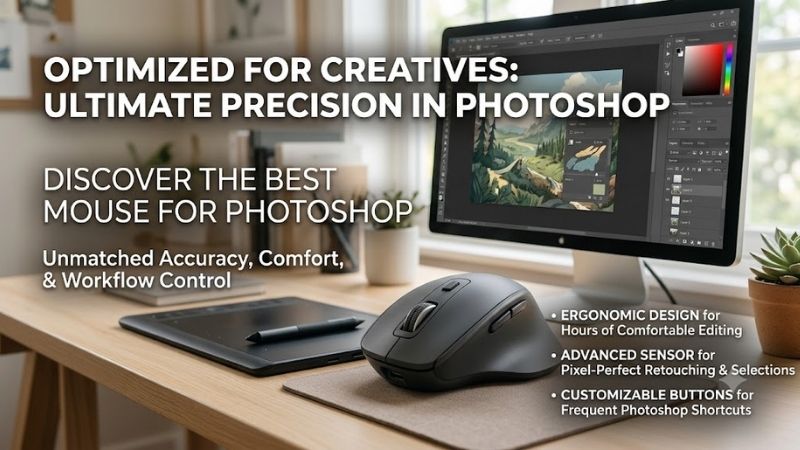
The best mouse for Photoshop should make precise selections, long retouching sessions, zooming, panning, and repeated shortcuts feel easier. This roundup focuses on accurate tracking, useful buttons, scroll control, comfort, and software customization, with options for full desks, travel setups, and ergonomic workflows.
Quick answer: For most people in 2026, the best mouse for photoshop is the Logitech MX Master 3S — our #1 rated choice. See the full ranked comparison, alternatives and buying advice below.
Best Mouse for Photoshop at a Glance
| Mouse | Best For | Sensor | Standout Feature |
|---|---|---|---|
| Logitech MX Master 3S | Overall Photoshop workflow | Up to 8,000 DPI | Photoshop app profiles and MagSpeed scrolling |
| Logitech Lift | Vertical ergonomics | Up to 4,000 DPI | 57-degree vertical design |
| Razer Pro Click V2 | Customizable productivity | Focus Pro 30K | Up to 9 programmable controls and Adobe app profiles |
| Logitech G502 X | Maximum shortcut control | HERO 25K | Programmable controls and dual-mode wheel |
| Logitech MX Anywhere 3S | Laptop and travel editing | Up to 8,000 DPI | Compact body and MagSpeed scrolling |
Logitech MX Master 3S — Best Overall for Photoshop
Logitech’s MX Master 3S is the strongest all-round fit for Photoshop because it combines an 8,000 DPI sensor, MagSpeed scrolling, quiet clicks, and app-specific customization in Logi Options+. Its extra controls are useful for repetitive editing commands, while the larger sculpted body favors desk-based work over travel.
Best For: Desktop photographers, retouchers, designers, and editors who spend hours inside Photoshop.
Key Features:
- 8,000 DPI optical sensor with adjustable sensitivity.
- MagSpeed electromagnetic scroll wheel.
- Quiet Click main buttons.
- Customizable buttons through Logi Options+.
- Predefined app-specific customization for Adobe Photoshop.
- Tracking supported on glass at the manufacturer’s stated minimum thickness.
What Makes It Different: Photoshop-specific customization is available directly through Logi Options+, allowing controls to behave differently when Adobe Photoshop is active.
Pros:
- Strong balance of precision, comfort, and shortcut control.
- Fast and controlled scrolling modes.
- Useful for high-resolution and multi-monitor work.
- Quiet buttons suit shared workspaces.
Cons:
- Larger than compact travel mice.
- Shape is primarily designed for right-handed use.
- More controls require some setup before they become useful.
Use Case: Assign frequently repeated Photoshop actions to accessible buttons while keeping zooming, document navigation, masking, and retouching movements under one hand.
Who It’s For: Editors who want one productivity-focused mouse for Photoshop, Lightroom, browsers, office applications, and general desktop work.
Logitech Lift — Best Vertical Mouse for Photoshop
Logitech Lift suits Photoshop users who care more about wrist position than a dense shortcut layout. Its 57-degree vertical shape is designed for a more natural hand posture, while the 4,000 DPI sensor and customizable buttons still cover everyday editing. The main trade-off is fewer controls than productivity mice built around macros.
Best For: Editors with small to medium hands who prefer a vertical ergonomic mouse.
Key Features:
- 57-degree vertical design.
- Adjustable tracking up to 4,000 DPI.
- SmartWheel scrolling.
- Logi Options+ customization.
- Bluetooth Low Energy and Logi Bolt connectivity.
- Left-handed version available.
What Makes It Different: The upright design places the hand in a different position from conventional productivity mice, making ergonomics the main reason to choose it.
Pros:
- Vertical shape for users who prefer a handshake-style grip.
- Quiet operation.
- Customizable controls for common commands.
- Left-handed model is available.
Cons:
- Fewer shortcut controls than MX Master 3S or G502 X.
- Vertical positioning requires an adjustment period.
- Less suited to users who prefer fast fingertip-style movements.
Use Case: Combine keyboard shortcuts with a few mouse assignments while prioritizing a comfortable posture during lengthy retouching, compositing, or batch-editing sessions.
Who It’s For: Photoshop users whose first priority is mouse ergonomics rather than fitting numerous commands onto the mouse itself.
Razer Pro Click V2 — Best for Customizable Productivity
Razer Pro Click V2 is a strong choice for editors who want a conventional ergonomic shape with modern wireless flexibility and programmable controls. Its sculpted body and extended thumb rest support longer desk sessions, while Synapse customization can place frequently used commands closer to the mouse hand instead of the keyboard.
Best For: Editors who want extensive customization without moving to a gaming-first mouse design.
Key Features:
- Razer Focus Pro 30K optical sensor.
- Up to nine programmable controls.
- Tactile and free-spin HyperScroll modes.
- Razer Synapse customization.
- Adobe app profiles include Photoshop.
- Multi-device functionality.
- Ergonomic design with extended thumb rest.
What Makes It Different: Razer specifically supports customizable Adobe application profiles, so Photoshop commands can be assigned without treating the mouse solely as a gaming peripheral.
Pros:
- Many programmable inputs.
- Dedicated Photoshop profile support.
- Two scroll-wheel behaviors.
- Designed for productivity as well as gaming.
Cons:
- Software setup is needed to extract the most value.
- Extra controls may be unnecessary for editors who rely heavily on keyboard shortcuts.
- RGB lighting adds little to a photo-editing workflow.
Use Case: Map frequently repeated Photoshop commands to mouse controls while retaining a conventional ergonomic shape for general office work and creative applications.
Who It’s For: Designers, photographers, and hybrid work-and-gaming users who want one highly customizable wireless mouse.
Logitech G502 X — Best for Photoshop Shortcuts
Logitech G502 X is worth considering when Photoshop shortcuts matter more than office-focused styling. Its programmable controls, dual-mode wheel, adjustable DPI-shift button, 89-gram wired body, and HERO 25K sensor offer extensive input options. The cable is the obvious trade-off for editors who prefer a clean wireless desk.
Best For: Editors who want many physical controls for shortcuts, macros, and tool changes.
Key Features:
- HERO 25K sensor.
- 89-gram stated weight.
- Multiple programmable controls through Logitech G HUB.
- Adjustable DPI-shift control.
- Dual-mode scroll wheel.
- Scroll-wheel left and right tilt inputs are programmable.
What Makes It Different: The control-heavy gaming layout creates more places to assign Photoshop actions than a minimalist office mouse.
Pros:
- Extensive shortcut potential.
- Lightweight compared with many large productivity designs.
- Ratcheted and free-spin scrolling.
- No battery management because it is wired.
Cons:
- Cable may clutter a clean editing desk.
- Gaming-oriented shape and controls may feel excessive.
- Requires deliberate mapping to avoid confusing button assignments.
Use Case: Assign brush controls, undo, zoom functions, tool switching, or other repeated commands to physical controls that can be reached without moving to the keyboard.
Who It’s For: Photoshop power users who value shortcut density and programmable input more than wireless convenience.
Logitech MX Anywhere 3S — Best for Portable Photoshop Editing
Logitech MX Anywhere 3S is the travel-friendly option for photographers who edit on laptops or move between workspaces. It combines an 8,000 DPI sensor, MagSpeed scrolling, quiet clicks, multi-device Bluetooth support, and a compact body. The smaller shape saves bag space, but it offers less hand support than the MX Master 3S.
Best For: Laptop-based photographers, remote workers, and traveling editors.
Key Features:
- 8,000 DPI sensor.
- Tracking designed for many surfaces, including glass under stated conditions.
- MagSpeed wheel with ratcheted and fast scrolling.
- Quiet clicks.
- Bluetooth connection with up to three devices.
- USB-C rechargeable battery.
What Makes It Different: It brings several MX-series productivity features into a significantly more portable form factor.
Pros:
- Easy to pack with a laptop.
- High-resolution adjustable tracking.
- Quiet operation.
- Useful multi-device support.
- Fast MagSpeed scrolling.
Cons:
- Compact body provides less palm support.
- Fewer physical controls than larger productivity mice.
- Less comfortable for some users during very long sessions.
Use Case: Edit photos at home, in a studio, at a client location, or while traveling without carrying a full-size mouse.
Who It’s For: Photographers who prioritize portability but still want accurate tracking and productivity-oriented scrolling.
How to Choose the Best Mouse for Photoshop
Tracking Sensitivity and Precision
For Photoshop, sensor precision matters less as a headline number than predictable cursor control at your chosen display scaling and zoom level. A higher DPI ceiling can help on large or high-resolution monitors, but the useful feature is adjustable sensitivity. Choose a mouse that lets you tune movement without sacrificing control.
Programmable Buttons
Programmable buttons can reduce keyboard travel during repetitive edits, especially when you map commands you use constantly. Good candidates include undo, brush size changes, zoom, hand-tool access, or switching tools. The ideal number depends on memory and workflow: more buttons help only when their positions remain easy to learn and reach.
Scroll Wheel Design
Scroll behavior matters because Photoshop work often moves between fine adjustments and fast navigation. A precise ratcheted wheel helps controlled movement, while free-spin modes can move quickly through long panels or documents. A thumb wheel can add another input axis, but it is most valuable when your workflow actually uses it consistently.
Shape and Ergonomics
Ergonomics should match your hand size, grip, and session length rather than a single universal shape. Large sculpted mice can support the palm well, compact mice travel easily, and vertical designs change wrist posture. The trade-off is adaptation: a shape that reduces strain for one editor may feel slower or less familiar to another.
Useful Photoshop Mouse Shortcuts to Consider
Possible actions worth mapping include:
- Undo.
- Zoom in or out.
- Brush size increase or decrease.
- Hand tool.
- Brush tool.
- Eraser.
- Eyedropper.
- Fit image to screen.
- Switch between frequently used tools.
Avoid filling every programmable button immediately. Start with the actions you repeat dozens of times during a normal editing session, then add more only after the original layout becomes automatic.
FAQ
Do You Need a High-DPI Mouse for Photoshop?
Photoshop does not require an extremely high DPI setting, but adjustable DPI is useful because monitor size, resolution, scaling, and personal control preferences differ. Many editors work comfortably at moderate sensitivity. The goal is accurate, repeatable cursor movement, not using the maximum sensor setting simply because it is available.
Are Extra Mouse Buttons Useful for Photoshop?
Extra mouse buttons can improve a Photoshop workflow when they replace commands you already use repeatedly. The benefit is faster access without moving the keyboard hand as often. They are less useful when every button is assigned to a rarely used function, so start with a small set of high-frequency shortcuts and expand only when needed.
Is a Vertical Mouse Good for Photoshop?
A vertical mouse can work well for Photoshop if you prefer its hand and wrist position, but it may take time to adjust for detailed cursor movements. It is not automatically more precise than a standard mouse. For long editing sessions, comfort may outweigh having many extra buttons, especially if most shortcuts stay on the keyboard.
Is Wireless or Wired Better for Photoshop?
Wireless mice are fully practical for Photoshop when they provide stable connectivity and sufficient battery life for your routine. For photo editing, the convenience of a cable-free desk often matters more than gaming-level latency differences. Wired models still appeal to users who want no charging concerns and a fixed workstation setup.
Conclusion
The best mouse for Photoshop depends on how you edit. MX Master 3S offers the most balanced mix of precise tracking, scrolling, and app customization; Lift prioritizes posture; G502 X emphasizes shortcuts; MX Anywhere 3S favors mobility; and Razer Pro Click V2 blends ergonomics with programmable control for a flexible desk setup.
Ready to decide? Our #1 pick for 2026 is the Logitech MX Master 3S.
Live price & availability on Amazon.