🛒 Best Price Today on Amazon
Prime members get fast, free shipping on everything above, plus member-only deals. New members get a 30-day free trial — cancel anytime.
- Quick Comparison
- How We Chose
- 1. 3Dconnexion CadMouse Pro Wireless
- 2. 3Dconnexion CadMouse Compact Wireless
- 3. 3Dconnexion CadMouse Pro Wireless Left
- 4. Logitech MX Master 3S
- 5. Logitech MX Vertical
- 6. Logitech Lift
- More CAD Input Devices Worth Adding
- Buying Guide: What Matters for CAD Designers
- Matching the Mouse to Your CAD Workflow
- FAQ
- Conclusion

Logitech MX Master 3S - Performance Wireless Mouse with Ultra-Fast Scrolling, Ergo, 8K DPI, Track on Glass, Quiet Clicks, Bluetooth, Windows, Linux, Chrome, Black
Included for 'Best Mouse for CAD Designers: 6 Precision Picks for 2026' as a representative consumer electronics in this roundup; selection reflects the product set returned for this topic.
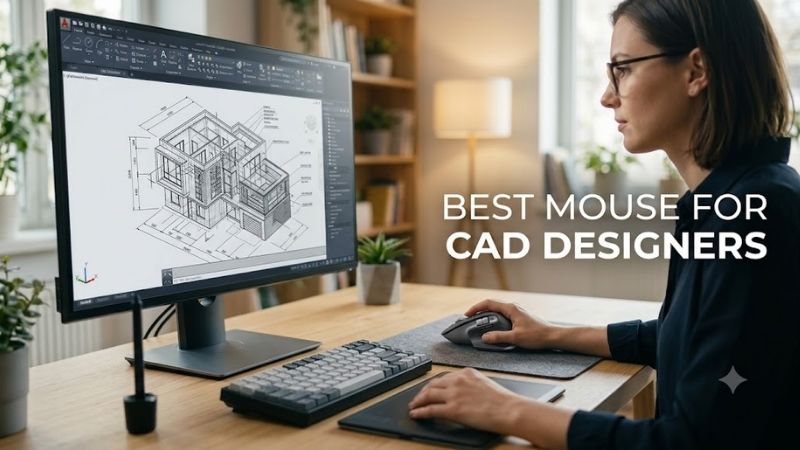
View on AmazonThe best mouse for CAD designers should make precise selection, panning, zooming, and repetitive commands feel predictable during long modeling sessions. This roundup compares CAD-focused mice with versatile productivity models, emphasizing control, programmable inputs, hand fit, connectivity, and workflow flexibility.
Quick Comparison
| Mouse | Best For | Key CAD-Relevant Strength | Main Trade-Off |
|---|---|---|---|
| 3Dconnexion CadMouse Pro Wireless | Dedicated desktop CAD work | CAD-specific middle button, QuickZoom, radial menu | Full-size, right-handed shape |
| 3Dconnexion CadMouse Compact Wireless | Smaller hands and mobile CAD work | CAD controls in a smaller 110 g body | Less palm support than Pro |
| 3Dconnexion CadMouse Pro Wireless Left | Left-handed CAD professionals | True left-handed CAD-focused design | Specialized form factor |
| Logitech MX Master 3S | CAD plus office and creative apps | Thumb wheel, 7 buttons, multi-device workflow | No dedicated CAD middle button |
| Logitech MX Vertical | Medium-to-large hands seeking vertical grip | 57° shape and customizable controls | Fewer shortcut inputs |
| Logitech Lift | Small-to-medium hands seeking vertical grip | Compact vertical shape and multi-device use | Less CAD-specific control layout |
How We Chose
CAD work rewards control more than extreme gaming sensitivity. We prioritized mice with precise tracking, useful extra buttons, dependable scrolling, software customization, and shapes suited to hours of drafting or 3D modeling. We also separated full-size, compact, vertical, and left-handed options so hand fit stays central.
1. 3Dconnexion CadMouse Pro Wireless
3Dconnexion CadMouse Pro Wireless is the most directly CAD-focused option here. Its dedicated middle button, QuickZoom controls, radial-menu support, and full-size ergonomic shell target common modeling actions without forcing designers to repurpose a gaming layout. It suits long desktop sessions better than frequent travel.
- Best For: Full-time CAD users working primarily at a fixed workstation.
- Key Features: 7 buttons, 7,200 DPI optical sensor, dedicated CAD-oriented controls, Bluetooth Low Energy, 2.4 GHz wireless, and USB-C cable connectivity.
- What Makes It Different: Dedicated middle mouse button, QuickZoom, Smart Mouse Wheel 2, and customizable radial menus through 3DxWare 10.
- Pros: Purpose-built CAD layout; full-size ergonomic shell; three connection methods; programmable workflow options.
- Cons: Larger and heavier than compact productivity mice; designed around right-handed use.
- Use Case: AutoCAD, Revit, SolidWorks, Fusion 360, or other navigation-heavy CAD sessions.
- Who It’s For: Designers who want mouse hardware shaped around CAD commands rather than adapting a general office mouse.
2. 3Dconnexion CadMouse Compact Wireless
3Dconnexion CadMouse Compact Wireless keeps the same CAD-first idea in a smaller body. The dedicated middle button, programmable controls, QuickZoom, and radial menu remain useful for model navigation, while the shorter shell is easier to pack and can suit smaller hands. The trade-off is less palm support for users who prefer a full grip.
- Best For: CAD designers with smaller hands, limited desk space, or frequent travel.
- Key Features: 7 buttons with 5 programmable, 7,200 DPI optical sensor, dedicated middle button, QuickZoom, Bluetooth Low Energy, 2.4 GHz wireless, and USB-C.
- What Makes It Different: It preserves the CadMouse navigation concept in a 110 g, 110 mm-long chassis.
- Pros: Compact size; CAD-oriented controls; carry case included; multiple connection modes.
- Cons: Shorter body provides less palm support for users who prefer a full palm grip.
- Use Case: Mobile workstations, laptop CAD setups, site visits, or compact home offices.
- Who It’s For: Users who want CadMouse features without the size of the Pro model.
3. 3Dconnexion CadMouse Pro Wireless Left
3Dconnexion CadMouse Pro Wireless Left gives left-handed CAD users a rare purpose-built alternative rather than an ambidextrous compromise. It mirrors the CAD-oriented feature set of the standard Pro model, including a dedicated middle button, QuickZoom, radial menus, and a full-size shape designed specifically for the left hand.
- Best For: Left-handed CAD professionals who want a truly left-shaped design.
- Key Features: 7 buttons, 7,200 DPI optical sensor, QuickZoom, Smart Mouse Wheel 2, radial-menu support, Bluetooth Low Energy, 2.4 GHz wireless, and USB-C.
- What Makes It Different: It is a left-handed counterpart to the CadMouse Pro Wireless instead of a symmetrical compromise.
- Pros: Purpose-built left-hand ergonomics; CAD-focused controls; multiple connectivity options.
- Cons: Specialized handedness limits sharing with right-handed users; full-size 140 g body is not highly portable.
- Use Case: Long left-handed drafting, BIM, mechanical design, and 3D modeling sessions.
- Who It’s For: Left-handed professionals who have struggled to find CAD-specific mice shaped for their dominant hand.
4. Logitech MX Master 3S
Logitech MX Master 3S is a strong fit for CAD designers who split time between modeling, documents, spreadsheets, browsers, and creative apps. Its thumb wheel, customizable buttons, high-resolution tracking, and multi-device switching make it flexible across mixed workflows. It is right-handed and less CAD-specific than a CadMouse.
- Best For: CAD designers who also work heavily in office, browser, Adobe, or multi-device workflows.
- Key Features: 7 buttons, thumb wheel, MagSpeed scrolling, 200–8,000 DPI tracking, Bluetooth Low Energy, Logi Bolt support, and a rechargeable USB-C battery.
- What Makes It Different: The thumb wheel and broad Logi Options+ customization make it highly adaptable across applications.
- Pros: Strong multi-app flexibility; horizontal thumb wheel; high-resolution tracking; Easy-Switch support for multiple devices.
- Cons: Right-handed shape; middle-click workflow is less CAD-specific than 3Dconnexion’s dedicated design.
- Use Case: Designers moving between CAD, spreadsheets, documents, browsers, image editors, and project-management tools.
- Who It’s For: Mixed-workflow users who want one premium productivity mouse for most desktop tasks.
5. Logitech MX Vertical
Logitech MX Vertical is aimed at users who prefer a more upright hand position during long workstation sessions. Its 57-degree shape, adjustable tracking, customizable buttons, and three-device switching support general CAD navigation while reducing reliance on broad wrist movement. It favors ergonomic posture over dense shortcut access.
- Best For: Medium-to-large hands that prefer a vertical mouse for long work sessions.
- Key Features: 57° vertical design, adjustable 400–4,000 DPI tracking, 4 customizable buttons, Bluetooth, Logitech Unifying receiver support, USB-C charging, and Easy-Switch for up to 3 computers.
- What Makes It Different: It prioritizes a more upright forearm and hand position rather than packing in many shortcut controls.
- Pros: Vertical grip; adjustable sensitivity; multiple connection methods; multi-computer support.
- Cons: Fewer programmable inputs than CAD-focused models; right-handed only.
- Use Case: Long drafting or modeling sessions where hand posture matters more than a dense shortcut layout.
- Who It’s For: CAD professionals with medium-to-large hands who already prefer vertical-mouse ergonomics.
6. Logitech Lift
Logitech Lift is the compact vertical option for designers with small to medium hands. Its 57-degree body, SmartWheel, customizable controls, and multi-device wireless support work well for drafting setups where comfort and a smaller footprint matter. A left-handed version is also available, but the layout is less CAD-specialized than 3Dconnexion.
- Best For: Small-to-medium hands seeking a compact vertical mouse.
- Key Features: 57° vertical shape, SmartWheel, 4 customizable side buttons, adjustable 4,000 DPI tracking, Bluetooth Low Energy, Logi Bolt support, and connection to up to 3 devices.
- What Makes It Different: Its smaller vertical shell is designed for small-to-medium hands, and a left-handed variant is available in selected markets.
- Pros: Compact vertical form; quiet everyday operation; multi-device support; left-handed option.
- Cons: AA-powered rather than USB-C rechargeable; fewer CAD-specific navigation controls.
- Use Case: Drafting, markup, general CAD navigation, and office work on compact desks.
- Who It’s For: Designers who want a vertical grip but find larger models such as MX Vertical oversized.
More CAD Input Devices Worth Adding
The six mice above cover dedicated CAD mice, a productivity flagship and vertical designs. Competing guides also recommend a 3D navigation controller for the other hand, an ergonomic trackball and a budget-friendly programmable mouse. These five fill those gaps.
3Dconnexion SpaceMouse Compact — Best 3D Navigation Add-On

3DConnexion 3DX-700059 Spacemouse Compact 3D Mouse
Included for 'Best Mouse for CAD Designers: 6 Precision Picks for 2026' as a representative consumer electronics in this roundup; selection reflects the product set returned for this topic.
View on AmazonThe SpaceMouse Compact is not a replacement for a mouse. It is a small desktop controller that you rest your other hand on to pan, zoom and rotate a 3D model while the main mouse selects and draws. Several CAD guides call this two-handed workflow the single biggest productivity change available to people who model in 3D, because navigation no longer interrupts selection.
Who it suits: designers working in 3D programs such as SolidWorks, Fusion 360, Rhino or similar, where constant orbiting and zooming is part of the day. Strengths: compact body, intuitive 3D movement and a device that works alongside any mouse you already own. Drawbacks: it adds a learning period, it is of limited use in pure 2D drafting, and software support should be checked for the specific CAD application. It sits in the mid-range tier. Compared with the CadMouse Pro, it solves a different problem: navigation, not clicking.
3Dconnexion SpaceMouse Wireless (Bluetooth Edition) — Best Cable-Free 3D Controller
This SpaceMouse Wireless is listed as the Bluetooth edition, so it avoids a cable across the desk. Its purpose matches the Compact: one hand controls the 3D view, the other uses a regular mouse. A wireless controller is easy to move between a desktop and a laptop setup.
Strengths: no cable, a good fit for shared desks and portable workstations, and the same navigation concept as the Compact. Drawbacks: it costs more than the Compact, it needs charging or batteries as described in the full listing, and Bluetooth set-up can take longer than a wired device. Choose it only if you value the wireless freedom. For a fixed workstation, the Compact is the simpler pick.
Logitech MX Ergo S — Best Trackball for Wrist Comfort

Logitech MX Ergo S Advanced Wireless Trackball Mouse USB C - Graphite | Advanced ergonomic design, rechargeable battery, Bluetooth and encrypted dongle, 6 programmable buttons, PC/Mac compatible
Included for 'Best Mouse for CAD Designers: 6 Precision Picks for 2026' as a representative consumer electronics in this roundup; selection reflects the product set returned for this topic.
View on AmazonThe MX Ergo S is an advanced wireless trackball with a rechargeable USB-C battery and Bluetooth connection, according to its listing. A trackball lets the hand stay still while the thumb moves the cursor, which reduces wrist and forearm motion during long drafting sessions. Competing guides name it as the pick for people who feel strain from sliding a mouse around.
Strengths: low hand movement, a small desk footprint and multi-device connection. Drawbacks: trackballs take a few days to learn, fine endpoint snapping can feel different, and it has fewer CAD-specific controls than a CadMouse. Compared with the vertical mice above, it keeps your arm in place instead of changing its angle.
Logitech G502 X — Best Programmable Budget-Tier Option

Logitech G502 X Wired Gaming Mouse - White | Optical Switches, 13 Buttons, Infinite Scroll, PC/MacOS Compatible
Included for 'Best Mouse for CAD Designers: 6 Precision Picks for 2026' as a representative consumer electronics in this roundup; selection reflects the product set returned for this topic.
View on AmazonThe wired G502 X is a gaming mouse that CAD students often use because it has many programmable buttons at a reasonable cost tier. The listing mentions optical switches, 13 buttons and an infinite scroll toggle. The extra buttons can hold undo, escape, view commands and app shortcuts, and the scroll wheel can switch between notched and free-spinning modes for long zooms.
Strengths: many buttons, a wired connection with no battery to charge and a shape that suits larger palm grips. Drawbacks: it is built for gaming, so the styling is bold, it is heavier than a lightweight office mouse, and it has no dedicated CAD middle button. Check the weight and DPI settings and use a low sensitivity setting for drafting precision.
Razer Basilisk V3 — Best Gaming-Style Mouse With Customisable Controls

Razer Basilisk V3 Customizable RGB Wired Ergonomic Gaming Mouse, Black | Fastest Gaming Mouse Switch, Chroma RGB Lighting, 26K DPI Optical Sensor, 11 Programmable Buttons, HyperScroll Tilt Wheel
Included for 'Best Mouse for CAD Designers: 6 Precision Picks for 2026' as a representative consumer electronics in this roundup; selection reflects the product set returned for this topic.
View on AmazonThe Razer Basilisk V3 is a wired ergonomic mouse with customisable controls, mechanical switches and RGB lighting, per its listing. Its adjustable scroll behaviour and programmable buttons make it a possible budget alternative for users who like a larger gaming shape.
Strengths: customisable controls, a comfortable shape for right-handed palm or claw grips and a lower cost tier than premium productivity mice. Drawbacks: the shell is right-handed, it carries gaming styling and software, and a cable is required. Treat it as a backup option if the Logitech G502 X shape does not suit your hand.
Buying Guide: What Matters for CAD Designers
Programmable Buttons
For CAD, extra buttons matter when they replace repeated keyboard reaches rather than adding complexity. Map a few high-frequency actions such as escape, enter, view commands, or app shortcuts, then keep the layout stable. Too many bindings can slow muscle memory, especially when switching between AutoCAD, Revit, or SolidWorks.
Dedicated Middle-Button Control
A dedicated middle button can be valuable because many CAD packages rely heavily on middle-click or wheel-button actions for pan, orbit, and view control. A separate physical button reduces the need to press the scroll wheel itself repeatedly. Designers who navigate models all day may find this more important than extremely high maximum DPI.
Hand Size and Shape
Shape should match hand size, grip, and desk habits. Full-size right-handed mice can support the palm during long sessions, compact models travel better and suit smaller hands, while vertical designs change forearm orientation. There is no universal ergonomic winner, so fit and control access should outweigh appearance or headline specifications.
Wireless and Multi-Device Connectivity
Wireless flexibility matters when a workstation includes a desktop, laptop, or secondary review machine. Bluetooth saves ports, while a dedicated receiver can simplify a fixed desk setup. Multi-device switching is useful for designers moving between systems, but check whether advanced button customization requires vendor software on every computer.
DPI and Tracking Control
DPI affects cursor travel, but CAD accuracy depends more on consistent tracking and a sensitivity setting you can control comfortably. Very high DPI is not automatically better for drafting. On large or high-resolution displays, adjustable sensitivity helps balance long cursor moves with fine endpoint selection as zoom levels change.
Selection Thresholds for CAD Mice
- Programmable buttons: at least 4 programmable inputs, with 6 to 8 being comfortable for mixed use.
- Weight: roughly 100 to 150 grams suits most CAD users. Lighter mice move faster, heavier ones feel steadier for precision.
- DPI: a range of about 800 to 3200 DPI is enough. Larger or higher-resolution screens benefit from the upper part of that range, while 800 to 1600 DPI suits smaller monitors and detailed work.
- Polling rate: 1000Hz is a typical target for smooth navigation.
- Sensor type: optical sensors are generally preferred for CAD tracking accuracy.
- Battery: wireless mice with multi-week battery life are practical. Keep a cable or spare charge for deadline days.
- Handedness: check that the shell suits your dominant hand, since left-handed models are rare.
Comparison Table: Mouse Type and Workflow
| Type | Examples | Best for | Budget tier |
|---|---|---|---|
| Dedicated CAD mouse | CadMouse Pro Wireless, Compact | Daily CAD users who want a middle-button design | Premium |
| Productivity flagship | Logitech MX Master series | Mixed CAD and office work | Mid-range |
| Vertical mouse | MX Vertical, Lift | Posture and wrist angle | Mid-range |
| Trackball | MX Ergo S | Reducing arm movement | Mid-range |
| 3D navigation controller | SpaceMouse Compact, Wireless | 3D modeling with a second hand | Mid-range to premium |
| Gaming-style programmable | G502 X, Basilisk V3 | Students on a budget | Budget |
Comparison Table: Which Software Needs What
| Software | What matters most |
|---|---|
| AutoCAD, 2D drafting | Reliable middle button, quick zoom, accurate selection |
| Revit and BIM | Middle-click navigation, shortcuts and software profiles |
| SolidWorks, Fusion 360 | Orbit and view control, ideally with a 3D controller |
| Rhino and SketchUp | Viewport navigation and gesture shortcuts |
Setup and Ergonomic Tips
- Set the pointer speed low enough to place endpoints cleanly, then raise it only if you run out of room on the mouse pad.
- Use a large, smooth mouse pad so your arm moves from the elbow and not the wrist.
- Assign no more than four to six actions to the extra buttons, and keep them consistent across programs.
- Keep the keyboard close so the mouse hand does not reach far to the side.
- Take short breaks and stretch your wrist and forearm during long modelling sessions.
- If you use two devices, rest the 3D controller hand lightly and avoid tilting the wrist.
Mistakes to Avoid
- Buying on maximum DPI. Tracking consistency and shape matter more.
- Assigning too many buttons and losing muscle memory.
- Choosing a vertical mouse without a trial period. It takes time to adapt.
- Ignoring software compatibility with your CAD program before buying a dedicated device.
- Expecting a 3D controller to replace a mouse. It supplements it.
Who Should Skip a Dedicated CAD Mouse
If you draw only occasionally, a good general mouse is fine. If your main pain is wrist strain, an ergonomic vertical mouse or trackball may help more than a CAD-specific model. If you model mainly in 3D and navigation is slowing you down, a 3D controller will help more than a new mouse.
Matching the Mouse to Your CAD Workflow
For 2D drafting, prioritize a reliable middle-click action, quick zoom control, and a shape that stays comfortable during repetitive selection. For 3D modeling, orbit and view navigation matter more, so CAD-specific controls can save repeated wheel presses. Mixed office users may gain more from cross-app shortcuts and device switching.
BIM users often move between models, schedules, browsers, spreadsheets, and documentation tools in one session. That makes software profiles and multi-app shortcuts more valuable than raw DPI alone. Mechanical CAD users may prefer dedicated navigation controls, while mobile designers may value compact size and receiver-free Bluetooth.
Should I use a SpaceMouse with a regular mouse?
Yes, that is the usual way. One hand uses the 3D controller to navigate while the other uses a regular mouse to select and draw.
Is a gaming mouse good for CAD?
It can be, if the shape fits and the sensitivity is set low enough. Programmable buttons are useful, but gaming extras such as RGB lighting add nothing to drafting.
What DPI is best for CAD?
There is no single number. A range of about 800 to 3200 DPI is typical, and you should choose a setting that lets you place endpoints cleanly on your monitor.
Are trackballs good for CAD?
Many designers like them for comfort and small footprint. They need a short adaptation period, and fine selection may feel different at first.
Is wireless reliable enough for CAD work?
Modern wireless mice work well for professional use when they are kept charged. Keep a cable or spare battery available for deadline days.
Is the MX Master 4 better than the MX Master 3S?
The MX Master 4 is the newer model and adds haptic feedback, according to its listing. Both suit mixed CAD and office use. Pick by price, availability and which software profile features you need.
FAQ
Is a special CAD mouse necessary for AutoCAD?
No, not strictly. A regular mouse can run AutoCAD effectively, but a CAD-focused model may reduce friction if you constantly pan, zoom, orbit, or repeat commands. The biggest gains usually come from a comfortable shape, a dependable middle-click action, and programmable buttons that match your own command habits rather than from raw sensor specifications alone.
Is 3Dconnexion CadMouse better than Logitech MX Master 3S?
3Dconnexion CadMouse models are designed specifically around CAD workflows, while Logitech MX mice are broader productivity tools. CadMouse emphasizes dedicated navigation controls and 3DxWare customization; MX Master emphasizes multi-app shortcuts, scrolling, and device switching. The better fit depends on how much of your day stays inside CAD.
Is a vertical mouse good for CAD work?
A vertical mouse can work well for CAD if you like its hand position and can still reach the buttons comfortably. Models such as MX Vertical and Lift offer adjustable tracking and customizable controls, but they do not provide the same CAD-specific middle-button approach as 3Dconnexion. Expect a short adjustment period when changing grip style.
What mouse features matter most for Revit or SolidWorks?
For Revit or SolidWorks, prioritize comfortable middle-button use, precise tracking, and shortcuts you can assign consistently. A CAD-specific mouse can help with navigation-heavy work, while MX Master 3S suits users who also spend time in Excel, email, browsers, and Adobe tools. Check software support before building macros.
What is a good left-handed mouse for CAD designers?
Left-handed CAD designers have fewer specialized choices, which makes the CadMouse Pro Wireless Left notable. Logitech Lift also has a left-handed version for users who prefer a vertical grip. Before buying, verify that the exact handed variant is sold in your region and that its configuration software supports the operating system you use.
Conclusion
The best mouse for CAD designers depends on whether you value dedicated CAD controls, portability, cross-app productivity, or a vertical grip. CadMouse Pro Wireless is the most purpose-built option, MX Master 3S is more versatile for mixed work, and left-handed or vertical designs solve specific fit needs without forcing one layout on every user.