🛒 Best Price Today on Amazon
Prime members get fast, free shipping on everything above, plus member-only deals. New members get a 30-day free trial — cancel anytime.
- Quick Comparison of the Best Mice for Coding
- 1. Logitech MX Master 4 — Best Overall for Coding
- 2. Logitech MX Anywhere 3S — Best Portable Coding Mouse
- 3. Logitech Lift — Best Vertical Mouse for Coding
- 4. Logitech MX Ergo S — Best Trackball Mouse for Coding
- 5. Keychron M6 — Best for Coding and Gaming
- 6. Razer Pro Click Mini — Best Compact Mouse for Shortcuts
- How to Choose the Best Mouse for Coding
- FAQ
- Conclusion

Logitech MX Master 2S Wireless Mouse with Flow Cross-Computer Control and File Sharing for PC and Mac, Graphite
Included for 'Best Mouse for Coding: 6 Picks for Faster Developer Work' because the listing specifies Graphite, details this guide uses to compare options.
View on Amazon
Logitech MX Master 4 for Mac, Ergonomic Bluetooth Mouse with Advanced Performance Haptic Feedback, Ultra-Fast Scrolling, USB-C Charging, MacOS, iPadOS, Windows - Space Black
Included for 'Best Mouse for Coding: 6 Picks for Faster Developer Work' because the listing specifies Ultra-Fast Scrolling and USB-C Charging, details this guide uses to compare options.
View on Amazon
Logitech MX Master 3S - Performance Wireless Mouse with Ultra-Fast Scrolling, Ergo, 8K DPI, Track on Glass, Quiet Clicks, Bluetooth, Windows, Linux, Chrome, Black
Included for 'Best Mouse for Coding: 6 Picks for Faster Developer Work' because the listing specifies Performance Wireless Mouse with Ultra-Fast Scrolling and Ergo, details this guide uses to compare options.
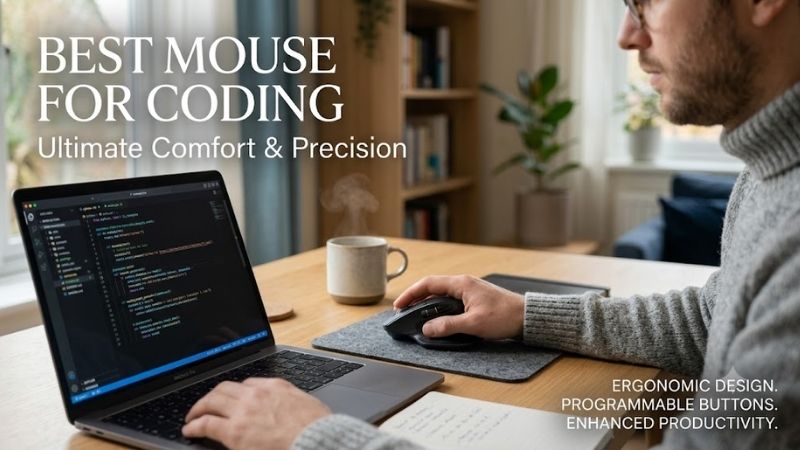
View on AmazonThe best mouse for coding should reduce hand fatigue, move quickly through long files, and make repeated actions easier without getting in the way. This roundup compares productivity, ergonomic, portable, and trackball options for developers who spend hours in editors, terminals, browsers, documentation, and code reviews.
Quick Comparison of the Best Mice for Coding
| Mouse | Best For | Key Strength | Main Trade-Off |
|---|---|---|---|
| Logitech MX Master 4 | Overall coding workflow | Haptics, Actions Ring, thumb wheel, fast MagSpeed scrolling | Large, right-handed desktop shape |
| Logitech MX Anywhere 3S | Portable coding | Compact body, MagSpeed, quiet clicks, multi-device Bluetooth | Less palm support than full-size models |
| Logitech Lift | Vertical ergonomics | 57° vertical shape, quiet operation, SmartWheel | Fewer advanced productivity controls |
| Logitech MX Ergo S | Trackball coding | Stationary control, 20° tilt, customizable buttons | Requires trackball adaptation |
| Keychron M6 | Coding plus gaming | Multiple scroll modes, many customizable buttons, wired and wireless modes | Specs vary significantly by version |
| Razer Pro Click Mini | Compact shortcut-heavy use | Seven programmable buttons, four-way tilt wheel, multi-host support | Small body may not suit larger hands |
1. Logitech MX Master 4 — Best Overall for Coding
- Best For: Developers who want maximum desktop productivity and shortcut control.
- Key Features: 8,000 DPI Darkfield tracking, MagSpeed scrolling, thumb wheel, Actions Ring, customizable haptic feedback, and Logi Options+ support.
- Connectivity: Bluetooth Low Energy and Logi Bolt USB-C receiver.
- Battery: Up to 70 days on a full charge, with USB-C quick charging.
What Makes It Different
MX Master 4 stands out because its controls are built around dense desktop workflows rather than simple pointing. The thumb wheel helps with horizontal navigation, while configurable buttons can handle actions such as back, forward, app switching, or custom shortcuts. Its larger right-handed shape favors a fixed desk over travel.
Pros
- Fast main wheel for long files and documentation.
- Dedicated thumb wheel for horizontal navigation.
- Strong shortcut customization through Logi Options+.
- Haptic feedback and Actions Ring add workflow-specific control.
Cons
- Larger and heavier than travel-oriented mice.
- Right-handed design limits suitability for left-handed users.
- Advanced software features are primarily aimed at Windows and macOS.
Use Case
For coding, MX Master 4 fits developers who jump between an IDE, browser, terminal, issue tracker, and documentation throughout the day. Mapping repeated commands to mouse controls can reduce small keyboard detours, while the fast main wheel is useful when scanning long source files, logs, pull requests, and reference pages.
- Who It’s For: Full-time developers, software engineers, data professionals, and power users working mainly at a fixed desk.
2. Logitech MX Anywhere 3S — Best Portable Coding Mouse
- Best For: Laptop developers who move between desks, offices, classrooms, or coworking spaces.
- Key Features: 8,000 DPI Darkfield sensor, MagSpeed wheel, quiet clicks, six buttons, and Logi Options+ support.
- Connectivity: Bluetooth with up to three devices; compatible with Logi Bolt USB receiver.
- Battery: Up to 70 days per charge, with quick USB-C charging.
What Makes It Different
MX Anywhere 3S compresses productivity features into a smaller body that is easier to carry between a home desk, office, classroom, or coworking space. Its fast scroll wheel is useful for long code and documentation, but the compact shape gives less palm support than a full-size productivity mouse during very long sessions.
Pros
- Compact enough for a laptop bag.
- Fast scrolling for source files and long documentation.
- Quiet clicks suit shared workspaces.
- Multi-device pairing works well for mixed computer setups.
Cons
- Smaller shell provides less palm support.
- No dedicated thumb wheel.
- Logi Bolt receiver is not included with the standard consumer model.
Use Case
This model makes the most sense for developers who code on laptops and regularly change work locations. It can stay paired with multiple devices, so switching between a work machine and a personal computer is simpler. Choose it when portability matters more than a broad palm rest or a large set of dedicated controls.
- Who It’s For: Mobile developers, students, consultants, remote workers, and programmers who frequently code away from a permanent desk.
3. Logitech Lift — Best Vertical Mouse for Coding
- Best For: Programmers who prefer an upright ergonomic grip and quieter operation.
- Key Features: 57° vertical angle, SmartWheel, adjustable tracking up to 4,000 DPI, customizable controls, and Logi Options+ support.
- Connectivity: Bluetooth Low Energy and Logi Bolt; supports switching among up to three devices.
- Power: One AA battery with rated life of up to 24 months.
What Makes It Different
Logitech Lift takes a different approach by placing the hand in a more upright position instead of adding many productivity controls. That shape can feel more relaxed for some users during long desk sessions, while quiet clicks suit shared spaces. The trade-off is slower adaptation if you are accustomed to a conventional flat mouse.
Pros
- Upright design changes wrist and forearm orientation.
- Quiet clicks work well in shared environments.
- SmartWheel supports precise and faster scrolling.
- Available in right- and left-handed versions in selected configurations.
Cons
- Vertical grip requires an adjustment period.
- Not designed around a large number of shortcut buttons.
- Best suited to small and medium hands according to Logitech.
Use Case
Lift is best suited to programmers who prioritize wrist posture and spend most of the day at one desk. Its SmartWheel still handles ordinary code, browser, and document scrolling, while multi-device switching helps mixed laptop and desktop setups. It is less compelling for users who depend on many shortcut buttons or horizontal wheel control.
- Who It’s For: Developers who spend long hours at one workstation and prioritize an upright hand position over maximum shortcut density.
4. Logitech MX Ergo S — Best Trackball Mouse for Coding
- Best For: Developers with limited desk space or users who prefer stationary cursor control.
- Key Features: Thumb-operated trackball, 20° tilt angle, six customizable buttons, quiet clicks, precision mode, and USB-C charging.
- Connectivity: Bluetooth and Logi Bolt.
- Multi-Device: Supports switching between up to two devices.
What Makes It Different
MX Ergo S minimizes desk movement by moving the pointer with a thumb-operated trackball while the mouse body stays in place. That can be useful on compact desks beside large keyboards, notebooks, or audio gear. The adjustable tilt and customizable buttons support long work sessions, but trackball control has a real learning curve.
Pros
- Requires very little desk movement.
- Sculpted shape supports the hand while the device stays stationary.
- Customizable buttons can handle repeated productivity actions.
- Precision mode provides quick cursor-speed changes.
Cons
- Trackball control takes time to learn.
- Large body is less travel-friendly than compact mice.
- Designed for right-handed thumb operation.
Use Case
For developers with crowded desks or limited mousing space, MX Ergo S can keep cursor control contained to a small footprint. It also suits users who prefer to avoid repeated arm movement across the desk. It is a specialized choice, though, because precise cursor placement feels different from a standard mouse until muscle memory develops.
- Who It’s For: Programmers working on compact desks, multi-device stations, or setups where reducing broad mouse movement is a priority.
5. Keychron M6 — Best for Coding and Gaming
- Best For: Developers who want productivity controls plus a lighter, gaming-capable mouse.
- Key Features: More than ten customizable buttons, dual scrolling modes, multiple scrolling controls, and Keychron Launcher customization.
- Connectivity: 2.4 GHz wireless, Bluetooth, and wired USB.
- Variants: Available with different PixArt sensors, polling rates, wheel designs, and silent or clicky switch options.
What Makes It Different
Keychron M6 is interesting for programmers who want productivity controls without giving up a lighter mouse feel. Its multiple scroll methods and generous button layout can support browser navigation, shortcuts, and long-page movement. Because specs vary by sensor, polling rate, wheel, and switch version, choose the exact M6 variant carefully.
Pros
- More programmable controls than many productivity mice.
- Multiple scrolling methods support code, browsers, and wide content.
- Wired, Bluetooth, and 2.4 GHz operation increases flexibility.
- Silent-switch versions are available.
Cons
- Specifications differ by exact M6 version.
- Higher polling variants add features that coding rarely needs.
- Buyers must verify sensor, wheel, and switch configuration before ordering.
Use Case
The M6 fits developers who code by day and also want a responsive mouse for games or other fast pointer work. Silent-switch versions suit offices or late-night setups, while higher polling variants target users who value responsiveness. For coding alone, scroll behavior, button placement, and shape matter more than maximum polling rate.
- Who It’s For: Developers who use one mouse for programming, productivity, and gaming and want more buttons than a typical office model.
6. Razer Pro Click Mini — Best Compact Mouse for Shortcuts
- Best For: Developers who want a travel-size productivity mouse with several programmable inputs.
- Key Features: Seven independently programmable buttons, 12,000 DPI optical sensor, four-way HyperScroll tilt wheel, and silent mechanical switches.
- Connectivity: Bluetooth and 2.4 GHz wireless.
- Multi-Host: Supports connections with up to four devices.
What Makes It Different
Razer Pro Click Mini combines a compact productivity shape with a four-way tilt wheel and seven programmable buttons. That gives it more shortcut potential than many travel mice, while Bluetooth and 2.4 GHz connections support flexible setups. Its small body is convenient in a bag, but users with larger hands may prefer a fuller ergonomic shell.
Pros
- Four-way wheel supports vertical and horizontal navigation.
- Seven programmable buttons allow useful shortcut mapping.
- Compact body travels easily.
- Multi-host support fits multi-computer workflows.
Cons
- Small shell may be less comfortable for larger hands.
- Uses AA batteries rather than an integrated rechargeable battery.
- Advanced remapping depends on Razer Synapse.
Use Case
This mouse suits developers who want portable hardware but still rely on several programmable actions. The tilt wheel helps with horizontal movement in wide editors, spreadsheets, or timelines, and multi-host support aids multi-system setups. It is better suited to compact mobility than to maximum palm support during long stationary workdays.
- Who It’s For: Mobile programmers who want compact hardware without giving up horizontal scrolling, programmable buttons, or multi-device flexibility.
How to Choose the Best Mouse for Coding
Shape and Ergonomics
Shape matters more than headline sensor numbers for most coding workloads because programming involves hours of repeated, low-intensity movement. A contoured mouse supports the palm, a vertical mouse changes wrist orientation, and a trackball reduces desk travel. Pick the design that matches your hand size, posture, and available desk space.
Scrolling
Scrolling is unusually important for programmers because source files, logs, documentation, issue threads, and pull requests can become long. A free-spinning or fast wheel saves repeated finger motion, while ratcheted scrolling helps with small adjustments. Horizontal scrolling helps when code, tables, or terminal output extend beyond the viewport.
Programmable Buttons
Programmable buttons matter when they remove actions you repeat dozens of times per day. Useful mappings include back and forward, virtual desktop changes, copy and paste, browser controls, or editor commands. More buttons are not always better, because awkward controls can be slower than familiar keyboard shortcuts or cause accidental presses.
Multi-Device and OS Support
Multi-device support matters if your workflow spans a work laptop, personal desktop, test machine, or tablet. A mouse that switches between paired systems reduces desk clutter, but software-based cross-computer features may depend on the operating system. Linux users should verify whether advanced customization is supported or only basic functions.
Click Noise and Battery Design
Quiet clicks can improve concentration in shared offices, libraries, bedrooms, and late-night workspaces, but silence should not outweigh shape and control. Battery design also affects convenience: rechargeable models avoid disposable cells, while long-life AA designs reduce charging interruptions. Choose based on where and how you actually work.
FAQ
Can a gaming mouse be good for coding?
A gaming mouse can work well for coding if its shape is comfortable and its software lets you assign useful shortcuts. High polling rates and extreme DPI are rarely essential for programming, but low weight and precise tracking can still feel responsive. Productivity mice usually add stronger scrolling, multi-device features, or office controls.
Is a vertical mouse better for programmers?
A vertical mouse can be useful for coding when you spend many hours at a desk and prefer a more upright hand position. It does not automatically solve discomfort, and the shape may take time to learn. Hand size, desk height, keyboard position, and posture still matter, so judge comfort from your complete workstation rather than the mouse alone.
How much DPI do I need for coding?
Most programmers do not need extremely high DPI. What matters is setting a comfortable cursor speed that feels controlled across your monitor setup. Higher DPI can help on large or high-resolution displays, but coding does not directly benefit from esports-level sensitivity. Stable tracking and predictable movement are usually more important.
Do these mice work well with Linux?
Many modern mice provide basic pointer, wheel, and button functions on Linux, but advanced customization may be more limited than on Windows or macOS. Before buying, check whether the vendor supports configuration software on your distribution or whether settings can be stored onboard. This matters when your workflow depends on remapped buttons.
Is a trackball good for programming?
A trackball can be a strong coding option when desk space is tight or you want to reduce large arm movements. It stays stationary while your thumb or fingers move the pointer. The main drawback is adaptation: selecting small interface targets can initially feel slower until you build accuracy and speed with the different control method.
Conclusion
The best mouse for coding depends on how you work. MX Master 4 suits feature-heavy desktop workflows, MX Anywhere 3S favors portability, Lift emphasizes vertical ergonomics, MX Ergo S saves desk movement, and Keychron M6 or Razer Pro Click Mini add flexible controls. Prioritize shape, scrolling, shortcuts, and device switching over sensor specs.