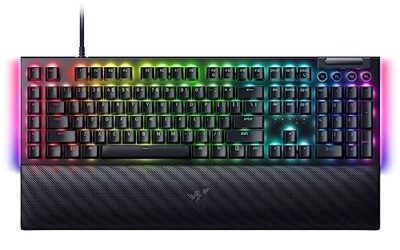
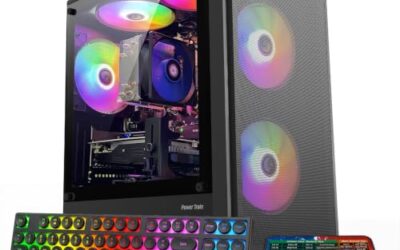
- Top Pick: iolo – System Mechanic, Fix & Speed Up Your PC Automatically With Award Winning Software Solution
- Best Value: How to Fix and Speed Up Your Computer in 30 Minutes (No Technical Skills Needed): Step-by-Step Guide to Cleaning, Optimizing, and Improving PC Performance for Beginners
- Premium Choice: WinOptimizer 29 – Increase the performance, stability and system optimizer – for Win 11, 10
Few things break immersion like stuttering. Your average frame rate reads a healthy 120fps, yet the game hitches, micro-freezes, and feels jerky during firefights. Stuttering is a frame-pacing problem rather than a raw performance one, which is why buying a faster GPU often does not fix it. The real culprits are usually background processes, driver settings, thermal throttling, or storage bottlenecks.
This guide walks through the practical fixes for game stuttering on PC in 2026, in the order worth trying them. Most cases come down to a handful of common causes, and working through them methodically will smooth out the vast majority of hitches without spending a cent on new hardware.
As an Amazon Associate we earn from qualifying purchases at no extra cost to you.


⚡ Save on Your Next PC — Amazon Prime
Prime members get fast free shipping on the systems above, plus early access to Prime Day & Black Friday PC deals. New members get a 30-day free trial.
Watch: How to Fix Game Stuttering on PC — Video Review
Rule Out Background Processes
Stuttering frequently comes from something else grabbing CPU or disk time mid-game. Open Task Manager and watch the Performance tab while playing in a window. Browser tabs, cloud sync, antivirus scans, and overlay apps are common offenders that steal resources in bursts, producing exactly the kind of periodic hitch that ruins smooth play.
- Close browsers, Discord overlays, and file-sync tools before launching a game.
- Disable startup programs you do not need so they are not running in the background.
- Schedule antivirus and Windows updates for times you are not gaming.
Update and Configure Drivers
Outdated or corrupt GPU drivers cause stutter more often than people expect. Perform a clean driver installation rather than an in-place update, then check that your game is set to use the discrete GPU. Enabling a latency and frame-pacing feature in the driver control panel can also smooth delivery.
Cap Your Frame Rate
Counterintuitively, an uncapped frame rate can cause stutter when it bounces wildly or exceeds your monitor’s refresh. Enable your monitor’s variable refresh feature and set an in-game or driver frame cap a few frames below your refresh ceiling. Consistent frame pacing feels smoother than a higher but erratic number.
Check Thermals and Storage
A CPU or GPU that overheats will throttle, causing sudden drops that read as stutter. Monitor temperatures during a session; if they climb past safe limits, clean your fans and improve airflow. Loading a game from a slow or nearly full drive can also cause traversal stutter, so keep games on a fast SSD with free space. Dedicated tune-up utilities and optimization guides can help automate cleanup for less technical users.
Tips
- Turn off Windows Game Bar and background recording, which can introduce hitches.
- Set your power plan to High Performance so the CPU does not downclock mid-game.
- Keep at least 15 to 20 percent free space on your game drive for smooth asset streaming.
- Test with a clean driver install using DDU before assuming the hardware is at fault.
Frequently Asked Questions
Why does my game stutter with high FPS?
High average FPS with stutter points to inconsistent frame pacing, not a lack of power. Background tasks, driver issues, or thermal throttling cause the uneven delivery you feel as hitching.
Does more RAM fix stuttering?
It can if you were running out of memory, which forces slow disk swapping. If you already have 16GB or more and still stutter, the cause is usually elsewhere.
Will a faster SSD stop stutter?
If your stutter happens while new areas load, moving the game to a fast SSD with free space often helps. Traversal stutter is frequently a storage bottleneck.
Should I enable V-Sync or G-Sync?
A variable refresh feature like G-Sync or FreeSync paired with a small frame cap usually smooths pacing better than traditional V-Sync, which can add latency.
Conclusion
Stuttering is almost always fixable without new hardware. Close background apps, do a clean driver install, cap your frame rate a touch below your refresh with variable refresh enabled, and check that thermals and storage are healthy. Work through these steps in order and your games should feel as smooth as the frame counter suggests they should be.