- Top Pick: Build Your Ultimate Gaming PC (2025/2026 Edition): A Beginner-to- Pro Guide to Building a High Performance Custom Rig (Custom Rig Blueprint Series: Designing … Streaming, Editing, and Everyday Use)
- Best Value: How to Build a Gaming PC for Beginners: A Complete Step-by-Step PC Building Guide for Gaming, Streaming, and Performance (Custom Rig Blueprint Series: … Streaming, Editing, and Everyday Use)
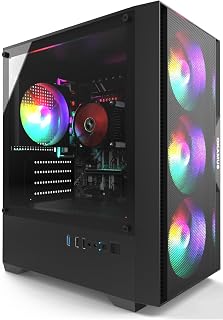
- Premium Choice: Pre-Built PC, i5 CPU Up to 3.6GHz, Integrated Graphics Only, 256 GB M.2, 8 GB RAM Cheap Budget Gaming PC, RGB Fans x 3, Win 11 Home,WiFi 6 + BT 5.3, 400W PSU (i5+No GPU+8GB+256GB)
A gaming PC that refuses to power on is alarming, but the cause is usually something small and fixable rather than a dead component. In 2026 the same handful of culprits account for the vast majority of no-boot situations: loose power connectors, a wall switch or PSU toggle left off, a shorted case, or a stick of RAM that has crept out of its slot. Working through them in order almost always brings the machine back to life.
This guide walks you through the fixes step by step, from the quickest checks to deeper diagnostics, so you can isolate the problem without guessing or buying parts you do not need. Keep a screwdriver handy and follow the sequence rather than jumping around.
As an Amazon Associate we earn from qualifying purchases at no extra cost to you.




⚡ Save on Your Next PC — Amazon Prime
Prime members get fast free shipping on the systems above, plus early access to Prime Day & Black Friday PC deals. New members get a 30-day free trial.
Watch: Why Won’t My Gaming PC Turn On? (2026 Fixes) — Video Review
Start With Power and the Basics
Before opening anything, confirm the machine is actually getting power. Check that the wall outlet works, the power strip is on, and the switch on the back of the power supply is flipped to the I position. A surprising number of no-boot calls end here.
- Test the outlet with another device to rule out a dead socket or tripped breaker.
- Reseat both ends of the power cable, at the wall and at the PSU.
- Make sure the PSU rocker switch on the rear is set to on.
- If you use a surge protector, plug the PC directly into the wall to bypass a failed strip.
Reseat Power Connectors Inside the Case
If the wall side checks out, open the side panel and verify the internal power connections. The two that most often work loose are the 24-pin motherboard connector and the 8-pin (or dual 8-pin) EPS CPU power cable at the top of the board. A GPU that lost its PCIe power will also prevent a clean boot on many systems.
Unplug and firmly reseat each one until it clicks. On modern GPUs, double-check the 12VHPWR or PCIe connector is fully seated, since a partially inserted plug is a common cause of no display or no boot.
Test the RAM and Clear a Short
Memory that is not fully seated is the classic no-boot trigger. Push each DIMM down until both retention clips snap shut. If the system still will not post, try booting with a single stick in the slot your motherboard manual recommends, then swap sticks to find a faulty module.
A case short can also block power-on. Remove the machine from the case or check that no motherboard standoff is touching the board where it should not. Reset the CMOS by removing the battery for a minute or using the clear-CMOS jumper to wipe a bad setting.
Read the Motherboard Diagnostics
Most gaming motherboards include either a two-digit POST code display or a row of debug LEDs labeled CPU, DRAM, VGA, and BOOT. These tell you exactly where the boot sequence stalls. A stuck DRAM light points to memory, a VGA light points to the graphics card, and a CPU light points to the processor or its power.
If your board lacks these, a cheap PCIe POST diagnostic card can display the same codes. Match the code to your manual’s table to pinpoint the failing subsystem before replacing anything.
Tips
- Change one thing at a time so you know which fix worked.
- Keep the motherboard manual open to the POST-code and LED reference.
- Listen and watch for fans spinning briefly then stopping, which often signals a power or RAM fault.
- Discharge static by touching bare metal before handling components.
Frequently Asked Questions
My fans spin but there is no display. What now?
That usually means the system powers on but fails to post. Reseat RAM and GPU, check the monitor cable and input, and read the motherboard debug LEDs to find the stalled stage.
Could a dead CMOS battery stop my PC booting?
It can cause boot errors or reset settings, and clearing CMOS often resolves a no-post after a bad overclock. A truly dead battery is cheap to replace.
How do I know if my power supply is the problem?
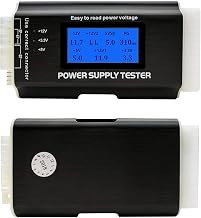
Use the paperclip test to jump the PSU, or swap in a known-good unit. If fans never spin and no lights appear even with everything reseated, the PSU is a prime suspect.
Is a no-boot usually a dead motherboard?
Rarely. Loose connectors, unseated RAM, and power issues are far more common. Exhaust those before assuming the board has failed.
Conclusion
A gaming PC that will not turn on is almost always a loose connection, an unseated stick of RAM, or a power oversight rather than a catastrophic failure. Work through the checks in order, use your motherboard’s debug LEDs or POST codes to narrow the cause, and change one variable at a time. Nine times out of ten the machine boots again without a single new part.