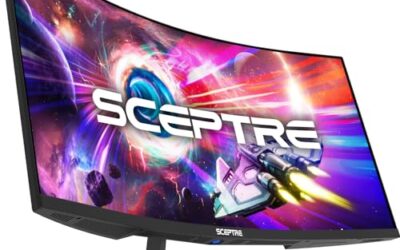
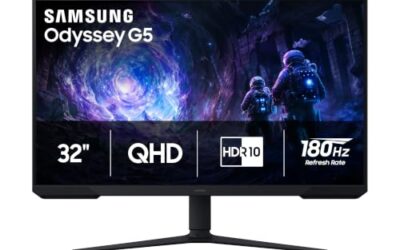
- Top Pick: Samsung 27" Odyssey G5 (G51F) Series QHD (1440P) Gaming Monitor
- Best Value: ASUS TUF Gaming 27” 1440P HDR Monitor (VG27AQ3A) – QHD (2560 x 1440), 180Hz, 1ms, Fast IPS, 130% sRGB, Extreme Low Motion Blur Sync, Speakers, Freesync Premium, G-SYNC Compatible, HDMI, DisplayPort
- Premium Choice: acer Nitro 27 Inch QHD 2560 x 1440 IPS Gaming Monitor | AMD FreeSync | Up to 180Hz Refresh | Up to 0.5ms | DCI-P3 95% | HDR 10 Support | One Display Port 1.2 & Two HDMI 2.0 | KG271U N3bmiipx
The 27-inch 1440p gaming monitor has become the enthusiast’s default for good reason. It delivers a sharp, immersive picture with far more detail than 1080p while remaining much easier to drive than 4K, and at high refresh rates it makes fast-paced games feel wonderfully fluid.
- Watch: Best 27 1440p Gaming Monitor — Video Review
- How to Choose a 27-Inch 1440p Gaming Monitor
- The Best 27-Inch 1440p Gaming Monitors Reviewed
- The Picks Above, Side by Side
- Match the Monitor to Your Graphics Card
- Panel Types in Plain Terms: IPS vs VA vs OLED
- Setup and Settings That Make a Difference
- Who Should Skip a 27-Inch 1440p Monitor
- Common Mistakes When Buying a 1440p Gaming Monitor
- More Picks Worth Considering
- Frequently Asked Questions
- Final Thoughts
- Related Articles
- Related Guides
This roundup gathers the best 27-inch QHD gaming monitors, from fast IPS panels to immersive curved and premium OLED options. Here is how to choose a display that pairs sharpness, speed, and value to match your GPU and play style.
As an Amazon Associate we earn from qualifying purchases at no extra cost to you.




🛒 Best Price Today on Amazon
Prime members get fast, free shipping on everything above, plus member-only deals. New members get a 30-day free trial — cancel anytime.
Watch: Best 27 1440p Gaming Monitor — Video Review
How to Choose a 27-Inch 1440p Gaming Monitor
- Refresh rate: 144Hz is the practical minimum for smooth gaming, while 180Hz gives competitive players extra fluidity. Higher refresh benefits fast-paced titles most.
- Panel type: IPS offers the best color and viewing angles, VA delivers deeper contrast, and QD-OLED provides stunning image quality at a premium price.
- Response time: Lower is better for motion clarity. Fast IPS panels around 1ms keep blur to a minimum in action.
- Adaptive sync: FreeSync or G-Sync compatibility eliminates tearing when frame rates fluctuate, keeping gameplay clean.
- Curved vs flat: Curved panels add immersion for single-player games, while flat screens are often preferred for competitive precision.
The Best 27-Inch 1440p Gaming Monitors Reviewed
ASUS TUF Gaming VG27AQ3A
The ASUS TUF VG27AQ3A is a gamer favorite, offering a fast 180Hz IPS QHD panel with 1ms response, wide sRGB coverage, and both FreeSync Premium and G-Sync compatibility. Its motion clarity and color make it excellent for competitive and immersive play alike. As a balanced, high-performing display, it is one of the best all-round picks here.
Samsung Odyssey OLED G6
The Samsung Odyssey OLED G6 brings premium QD-OLED technology to 27-inch QHD gaming, delivering breathtaking contrast, perfect blacks, and vivid color. For those who want the absolute best image quality and can pay for it, the OLED panel is a stunning upgrade. It is the showcase choice for gamers who prioritize visual impact above all.
Acer Nitro KG271U
The Acer Nitro KG271U offers a 180Hz IPS QHD panel with wide color coverage, HDR10 support, and both DisplayPort and HDMI inputs at a competitive price. It delivers fast, colorful gaming without breaking the bank. For players hunting high refresh and good color on a budget, it is a dependable and affordable option.
Samsung Odyssey G5 (G51F)
The Odyssey G5 packs a fast 180Hz QHD panel with 1ms response, FreeSync, HDR10, and gaming extras like a black equalizer and virtual aim point, all with a height-adjustable stand. It balances speed, features, and value nicely. For gamers who want high refresh and useful tools at a reasonable price, it is a strong contender.
KTC H27S5C Curved
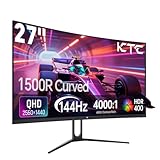
The KTC H27S5C offers a curved 27-inch QHD panel with a 144Hz refresh and HDR 400 support, adding immersion for single-player and atmospheric games. The curve draws you into the action, and the price is aggressive. For those who want an immersive curved gaming experience without spending much, it is a compelling value pick.
The Picks Above, Side by Side
The five monitors reviewed in this guide look similar on a spec sheet, but they split into clear camps once the key numbers sit next to each other. Two are fast flat IPS panels aimed at balanced play, one is a premium QD-OLED, one is a value IPS with a proper ergonomic stand, and one is a curved VA panel for immersion on a budget. Use the table to narrow the field by panel type and refresh rate first, then check the input list against your graphics card and any console you plan to connect, because the port you plug into decides the refresh rate you actually get.
| Monitor | Panel | Refresh rate | Response time | HDR | Main inputs | Best for |
|---|---|---|---|---|---|---|
| ASUS TUF Gaming VG27AQ3A | Fast IPS, flat | 180Hz | 1ms GtG | HDR10 | DisplayPort, HDMI | Balanced competitive and everyday play |
| Samsung Odyssey OLED G6 | QD-OLED, flat | 240Hz | 0.03ms GtG | HDR10+ | DisplayPort, HDMI 2.1 | Image quality and motion clarity |
| Acer Nitro KG271U | IPS, flat | 180Hz | Up to 0.5ms | HDR10 | DisplayPort, 2 x HDMI | High refresh in the budget tier |
| Samsung Odyssey G5 (G51F) | IPS, flat | 180Hz | 1ms | HDR10 | DisplayPort, HDMI | Value with a height-adjustable stand |
| KTC H27S5C | VA, 1500R curved | 144Hz | 1ms MPRT | HDR 400 | DisplayPort, HDMI | Immersive curved gaming for less |
Match the Monitor to Your Graphics Card
A monitor can only display the frames your graphics card produces, so the right refresh rate starts with your GPU, not with the biggest number on the box. Work through this checklist before choosing between the 144Hz, 180Hz and 240Hz picks above.
- Esports titles at high frame rates: If your card holds well above 180 frames per second at 1440p in games like Counter-Strike 2, Valorant or Apex Legends, every pick here keeps up, and the Odyssey OLED G6 adds 240Hz headroom plus near-instant pixel response for tracking fast targets.
- Story games at high settings: If you play mostly single-player titles and your card sits in the 100 to 160 frames per second band at 1440p, a 180Hz IPS model is the sweet spot. Adaptive sync smooths the dips, and you are not paying for refresh you rarely reach.
- Upscaling users: If you rely on DLSS or FSR to hit your frame rate, judge the pairing by the frame rate the game actually renders and displays, not by the output resolution alone. Upscaling makes 1440p high-refresh gaming realistic on mid-range cards.
- Entry-level cards: If your games hover near 60 to 90 frames per second at 1440p, a 144Hz panel still improves desktop smoothness and leaves room to grow, but a GPU upgrade will change your experience more than a faster monitor will.
- Console players: Current consoles output 1440p at up to 120Hz. Check the HDMI version on the monitor, because several models reach their full refresh rate only over DisplayPort, while the OLED G6 carries HDMI 2.1 for both PC and console use.
Panel Types in Plain Terms: IPS vs VA vs OLED
IPS panels, used by the ASUS, Acer and Samsung G5 picks here, offer the most consistent color and the widest viewing angles, which suits shared screens and any color-sensitive work alongside gaming. Their weakness is contrast: blacks look dark grey in a dim room, and some units show a soft glow in the corners on dark scenes.
VA panels, like the curved KTC, deliver much deeper contrast, so night scenes and dark games look richer. The trade-off is slower dark transitions, which can smear shadow detail in fast motion, and color shift when viewed off angle. The curve helps immersion in racing and simulation titles.
QD-OLED, in the Odyssey OLED G6, lights every pixel individually, giving true blacks, vivid color and response times LCD panels cannot match. The compromises are care and cost: static desktop content shown for hours raises burn-in risk over time, text can show slight color fringing because of the sub-pixel layout, and full-screen bright scenes are dimmer than on a good LCD.
Setup and Settings That Make a Difference
A few minutes of setup decides whether you get the performance you paid for. These are the steps that matter most on this class of monitor.
- Use DisplayPort for your PC. On several 1440p gaming monitors, the headline refresh rate is only available over DisplayPort, while HDMI tops out lower. Connect the cable supplied with the monitor first.
- Set the refresh rate manually. Windows and some drivers default a new monitor to 60Hz. Open your display settings or GPU control panel and select the panel’s maximum refresh rate, then confirm it in the monitor’s on-screen display.
- Enable adaptive sync in two places. Turn FreeSync or G-SYNC on in the monitor menu and again in your graphics driver. Both switches need to be on for tear-free variable refresh.
- Pick the middle overdrive setting. The fastest overdrive mode often adds inverse ghosting, visible as bright halos behind moving objects. The normal or medium setting usually gives the cleanest motion.
- Treat HDR realistically. Enable HDR in Windows and in the game itself. On edge-lit HDR10 and HDR 400 models the effect is modest; on the OLED it is dramatic, because each pixel controls its own light.
- Run OLED care routines. On the Odyssey OLED G6, let the panel run its pixel refresh cycles, avoid leaving static windows up for hours, and hide the taskbar. These habits are the practical side of owning OLED.
- Check the color mode. Many gaming monitors ship in a vivid mode that oversaturates color. An sRGB mode, where offered, is the better choice for desktop work and video.
Who Should Skip a 27-Inch 1440p Monitor
This category is a sweet spot, not a universal answer. Skip it if you need 4K resolution for detailed creative work or for watching a lot of 4K video, where the extra pixels are visible all day. Skip it if your graphics card is entry-level and already struggles at 1080p, because 1440p asks considerably more of it. Console-first players with a large 4K TV may also find a monitor a sideways step rather than an upgrade. Dedicated esports players who prioritize raw speed above image quality often prefer smaller 1080p panels with even higher refresh rates, and anyone who wants a single-cable laptop dock should note that most picks in this guide leave out USB-C, so check the extra picks below if a KVM or USB-C matters to you.
Common Mistakes When Buying a 1440p Gaming Monitor
- Treating every HDR label as equal. HDR10 support and an HDR 400 badge on an edge-lit panel describe a signal the monitor accepts, not bright, locally dimmed HDR. Only OLED and Mini LED designs deliver the real thing in this class.
- Assuming HDMI carries the full refresh rate. Many models reserve their maximum refresh for DisplayPort. Plugging into the wrong port is the most common reason a new monitor feels no faster than the old one.
- Comparing response times across measurement types. A 1ms MPRT figure and a 1ms GtG figure are measured differently and are not directly comparable. Treat both as marketing ceilings rather than guarantees.
- Paying for refresh your GPU cannot feed. A 240Hz panel shows no benefit in a game running at 90 frames per second. Match the monitor to measured frame rates in the games you actually play.
- Ignoring the stand. Budget picks sometimes ship with tilt-only stands. If you share the desk or sit for long sessions, a height-adjustable stand or a VESA arm is worth planning for from the start.
More Picks Worth Considering
The five monitors above cover the main shapes of this category, but three more models deserve a look if your priorities lean toward real HDR, color work, or a two-computer desk.
AOC Q27G3XMN
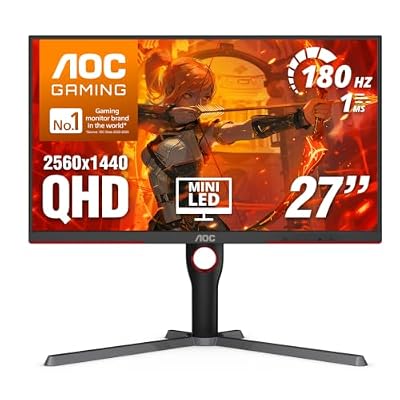
The AOC Q27G3XMN fills the one gap in the main list: genuine HDR on an LCD. Its VA panel uses a Mini LED backlight with 336 local dimming zones and a DisplayHDR 1000 rating, so bright highlights and dark scenes coexist in a way the edge-lit picks above cannot reproduce, and there is no OLED burn-in to manage. It runs 180Hz over DisplayPort and 144Hz over HDMI 2.0, with a 1ms GtG rating and a height-adjustable stand, placing it in the mid-range tier. It fits players who split time between HDR story games and movies. Skip it for fast competitive play, where VA dark smearing shows, or if you need USB-C or a KVM, which it leaves out entirely.
LG UltraGear 27GP850-B
The LG UltraGear 27GP850-B is the color-first alternative to the IPS picks above. Its Nano IPS panel runs 165Hz with an overclock to 180Hz, a 1ms GtG response time, and wide DCI-P3 coverage of 98 percent, and it carries both G-SYNC Compatible and FreeSync Premium support. The stand adjusts for height, tilt and pivot, and a small USB hub is built in. That mix makes it a strong fit for players who also edit photos or video on the same screen, in the mid-range to premium tier. Skip it if you want convincing HDR, since its DisplayHDR 400 edge-lit panel is modest there, or if you need HDMI 2.1, because its HDMI 2.0 ports cap consoles at 1440p and 120Hz.
Gigabyte M27Q2
The Gigabyte M27Q2 is the pick for a desk shared between a gaming PC and a work laptop. Its SS IPS panel runs at 200Hz with an overclock to 210Hz and a 1ms GTG response time, and its Type-C KVM lets one keyboard and mouse switch between two computers, a feature none of the main picks offer. FreeSync Premium and G-SYNC Compatible support cover both GPU brands, and the stand adjusts for height and tilt, all in the mid-range tier. It fits hybrid workers who game after hours and anyone who wants refresh above 180Hz without moving to OLED. Skip it if deep contrast or strong HDR is the priority, because its IPS panel and entry-level HDR support cannot match OLED or Mini LED models there.
Frequently Asked Questions
Is 1440p better than 1080p for gaming at 27 inches?
Yes. At 27 inches, 1440p looks noticeably sharper than 1080p while remaining far easier to drive than 4K, making it the ideal resolution for this screen size.
How much refresh rate do I need?
Aim for at least 144Hz for smooth gaming, with 180Hz offering extra fluidity for competitive play. Higher refresh benefits fast-paced games the most.
Is an OLED gaming monitor worth it?
If you want the best possible image quality with perfect blacks and vivid color, yes. OLED panels like the Odyssey G6 are premium but deliver stunning visuals.
Should I get a curved or flat monitor?
Curved panels add immersion for single-player and atmospheric games, while flat screens are often preferred for competitive precision. It comes down to personal preference.
Final Thoughts
A 27-inch 1440p gaming monitor is one of the best upgrades for any PC gamer. The ASUS TUF VG27AQ3A leads for balanced, fast IPS performance, while the Samsung Odyssey OLED G6 is the premium image-quality champion. The Acer Nitro KG271U and Samsung Odyssey G5 offer high refresh at great value, and the KTC H27S5C brings immersive curve on a budget. Match refresh rate and panel type to your priorities, and you will love the result.