🛒 Best Price Today on Amazon
Prime members get fast, free shipping on everything above, plus member-only deals. New members get a 30-day free trial — cancel anytime.
- Best Monitors for Legion Go at a Glance
- ASUS ROG Strix XG27ACS — Best Overall for Legion Go
- Gigabyte M27U — Best 4K Monitor for Legion Go
- LG UltraGear 27GS95QE-B — Best OLED for Legion Go
- ASUS ZenScreen MB16QHG — Best Portable Monitor for Legion Go
- Which Legion Go Monitor Should You Choose?
- How to Choose the Best Monitor for Legion Go
- FAQ
- Conclusion

cocopar Portable Monitor 18.5 Inch 2K QHD 120Hz 120% sRGB Travel Monitor with Speaker HDMI USB-C Second Screen for Laptop MacBook Surface PC Xbox PS4/5, VESA Mountable, with Kickstand
Included for 'Best Monitor for Legion Go: 4 Displays Worth Buying in 2026' because the listing specifies VESA Mountable and with Kickstand, details this guide uses to compare options.
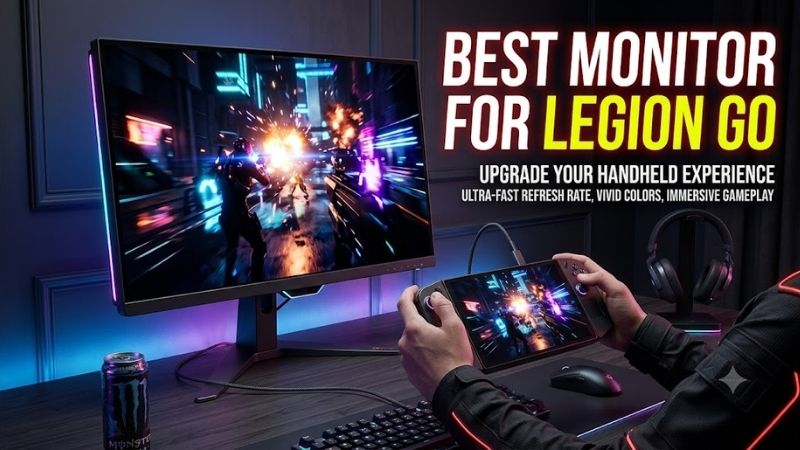
View on AmazonChoosing the best monitor for Legion Go depends on whether you want a portable second screen, a sharper desktop display, or a premium OLED setup. The handheld supports video output through USB4 with DisplayPort 1.4, so the right monitor can turn it into a compact gaming PC without adding unnecessary complexity.
Quick answer: For most people in 2026, the best monitor for legion go is the ASUS ROG Strix XG27ACS — our #1 rated choice. See the full ranked comparison, alternatives and buying advice below.
Best Monitors for Legion Go at a Glance
| Monitor | Best For | Size | Resolution | Max Refresh Rate | Legion Go Connection |
|---|---|---|---|---|---|
| ASUS ROG Strix XG27ACS | Best overall | 27-inch | 2560 × 1440 | 180Hz | USB-C, docked DP/HDMI |
| Gigabyte M27U | Best 4K option | 27-inch | 3840 × 2160 | 160Hz | USB-C, DP, HDMI |
| LG UltraGear 27GS95QE-B | Best OLED gaming | 27-inch | 2560 × 1440 | 240Hz | DP/HDMI via adapter or dock |
| ASUS ZenScreen MB16QHG | Best portable monitor | 16-inch | 2560 × 1600 | 120Hz | USB-C |
ASUS ROG Strix XG27ACS — Best Overall for Legion Go
The ASUS ROG Strix XG27ACS is the most balanced desktop pick for Legion Go owners who want a fast 1440p screen without paying for resolution the handheld may struggle to drive in demanding games. Its 27-inch Fast IPS panel, 2560×1440 resolution, 180Hz refresh rate, and USB-C DisplayPort Alt Mode suit both gaming and everyday desktop use.
Its biggest advantage is flexibility. You can connect the Legion Go through USB-C for video, or use DisplayPort and HDMI through a dock. The monitor supports Adaptive-Sync, while height adjustment, swivel, pivot, and tilt help with desk ergonomics. USB-C power delivery is only 7.5W, so keep the Legion Go charger connected.
Best For: Legion Go owners building a permanent 1440p gaming desk.
Key Features
- 27-inch Fast IPS panel
- 2560 × 1440 resolution
- Up to 180Hz refresh rate
- Adaptive-Sync
- DisplayPort 1.4
- HDMI 2.0
- USB-C with DisplayPort Alt Mode
- 7.5W USB-C power delivery
What Makes It Different: It combines a sensible gaming resolution with direct USB-C video connectivity and a highly adjustable stand.
Pros
- 1440p is practical for handheld gaming
- Direct USB-C video support
- High 180Hz refresh ceiling
- Strong ergonomic adjustment
- Adaptive-Sync support
Cons
- USB-C cannot adequately charge the Legion Go
- HDMI input is limited to 144Hz at the monitor’s native resolution
- No built-in speakers
Use Case: Connect directly by USB-C for video while powering the Legion Go separately, or add a dock when you need peripherals, Ethernet, storage, and additional charging.
Who It’s For: Players who want one desktop monitor for Legion Go gaming, Windows productivity, browsing, and general PC use without moving to a more demanding 4K panel.
Gigabyte M27U — Best 4K Monitor for Legion Go
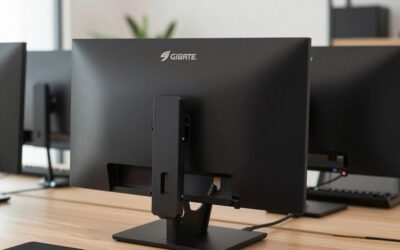
The Gigabyte M27U makes sense if you want 4K sharpness for Windows, media, strategy games, and lighter titles while still keeping high-refresh capability. It uses a 27-inch 3840×2160 SS IPS panel with up to 160Hz refresh, DisplayPort 1.4 with DSC, two HDMI 2.1 inputs, USB-C video, a USB hub, and an integrated KVM switch.
For Legion Go gaming, the M27U is best treated as a flexible 4K desktop monitor rather than a promise that every game should run natively at 4K. Lowering game resolution to 1920×1080 or 2560×1440 can reduce GPU load, while Windows and video remain crisp at 4K. Its USB-C port supplies up to 18W, which is not enough to replace the handheld charger.
Best For: Users who mix Legion Go gaming with productivity, web browsing, media, and other 4K desktop tasks.
Key Features
- 27-inch SS IPS panel
- 3840 × 2160 native resolution
- Up to 160Hz refresh rate
- DisplayPort 1.4 with DSC
- Two HDMI 2.1 inputs
- USB-C with DisplayPort Alt Mode
- Integrated KVM
- USB hub
- Up to 18W USB-C power delivery
What Makes It Different: The combination of 4K resolution, high refresh, USB-C, KVM functionality, and several display inputs makes it more versatile than gaming-only alternatives.
Pros
- Sharp 4K desktop image
- USB-C video connection
- Built-in KVM switch
- Multiple USB ports
- High-refresh capability
Cons
- Native 4K can be demanding in modern games
- 18W USB-C charging is insufficient for the Legion Go
- Stand lacks swivel and pivot adjustment
Use Case: Run the Windows desktop at 4K, then lower game resolution when a title requires more GPU performance to maintain a smoother frame rate.
Who It’s For: Legion Go owners who value display sharpness and desktop versatility as much as gaming performance.
LG UltraGear 27GS95QE-B — Best OLED for Legion Go
The LG UltraGear 27GS95QE-B is the strongest fit here for players who care most about OLED contrast and motion clarity. Its 27-inch QHD OLED panel runs at up to 240Hz and supports HDMI 2.1, DisplayPort 1.4, VRR, FreeSync Premium, and G-SYNC Compatible operation. The 2560×1440 resolution is also more practical for handheld-class graphics than 4K.
OLED gives this LG a major visual advantage in dark games because individual pixels can switch off instead of relying on a backlight. That also improves perceived motion clarity during fast camera movement. The trade-offs are cost, the absence of USB-C video input, and the need for a dock or USB-C-to-DisplayPort connection when using the Legion Go.
Best For: Single-player games, racing, action titles, horror games, and anyone prioritizing contrast and fast pixel response.
Key Features
- 27-inch OLED panel
- 2560 × 1440 resolution
- Up to 240Hz refresh rate
- HDMI 2.1
- DisplayPort 1.4
- VRR
- AMD FreeSync Premium
- G-SYNC Compatible
- Height, tilt, swivel, and pivot adjustment
What Makes It Different: OLED pixel-level light control produces deeper blacks and stronger dark-scene contrast than conventional IPS gaming monitors.
Pros
- OLED black levels
- Fast pixel response
- QHD resolution fits gaming better than 4K
- 240Hz refresh ceiling
- VRR support
- Flexible stand
Cons
- No USB-C video input
- Requires an adapter or dock
- 240Hz exceeds what many demanding Legion Go games will reach
Use Case: Pair it with a suitable USB-C-to-DisplayPort connection or dock and use variable refresh when game frame rates fluctuate below the panel’s maximum refresh rate.
Who It’s For: Players who care more about image quality, dark-scene contrast, and motion presentation than single-cable USB-C convenience.
ASUS ZenScreen MB16QHG — Best Portable Monitor for Legion Go
The ASUS ZenScreen MB16QHG is the most natural choice if you want a monitor that can travel with the Legion Go. Its 16-inch 16:10 IPS panel offers 2560×1600 resolution, 120Hz refresh, two full-function USB-C ports with DisplayPort Alt Mode, HDMI 2.0, an integrated stand, and a slim 7 mm chassis for portable setups.
This model suits hotel desks, small apartments, LAN events, and anyone who wants a larger display without giving up portability. A single USB-C link can carry video, although power needs vary by setup, so carrying the monitor adapter and Legion Go charger is sensible. The 16-inch panel is less immersive than a 27-inch desktop monitor.
Best For: Travel, compact desks, temporary gaming stations, and portable dual-screen setups.
Key Features
- 16-inch IPS panel
- 16:10 aspect ratio
- 2560 × 1600 resolution
- 120Hz refresh rate
- Two USB-C ports with DisplayPort Alt Mode
- HDMI 2.0
- Integrated L-shaped stand
- 7 mm chassis
- 1.2 kg listed net weight
What Makes It Different: It preserves the portability that makes the Legion Go appealing while providing considerably more screen area for desktop play.
Pros
- Portable form factor
- Direct USB-C video
- 120Hz refresh rate
- Sharp 1600p panel
- Integrated stand
- HDMI input for additional devices
Cons
- Smaller than a desktop gaming monitor
- No height-adjustable desktop stand
- External power may still be required depending on the connection setup
Use Case: Carry the monitor and Legion Go together, connect by USB-C at your destination, and create a larger gaming or Windows workspace without transporting a conventional monitor.
Who It’s For: Frequent travelers and Legion Go owners who specifically want to preserve a handheld-focused, portable setup.
Which Legion Go Monitor Should You Choose?
| Priority | Recommended Monitor | Why |
|---|---|---|
| Balanced desktop gaming | ASUS ROG Strix XG27ACS | QHD, 180Hz, USB-C |
| Maximum desktop sharpness | Gigabyte M27U | 4K, 160Hz, KVM |
| OLED image quality | LG UltraGear 27GS95QE-B | QHD OLED, 240Hz |
| Travel and portability | ASUS ZenScreen MB16QHG | 16-inch, 120Hz, USB-C |
How to Choose the Best Monitor for Legion Go
Resolution
Resolution should match how you actually use the Legion Go. A 1440p monitor is the most versatile target because it gives noticeably more desktop space than 1080p without placing the same rendering load on the GPU as 4K. A 4K display still works well for productivity and media, but demanding games may need a lower render resolution.
Refresh Rate
Refresh rate matters when frame rates are high enough to use it. The Legion Go can benefit from 120Hz, 144Hz, 160Hz, or 180Hz monitors in esports, indie titles, older games, and desktop use, but a 240Hz panel should be chosen mainly for panel quality and responsiveness rather than an expectation that every modern AAA game will reach 240 fps.
USB-C, DisplayPort, and HDMI
USB-C is the cleanest connection because the Legion Go includes two USB4 40Gbps ports with DisplayPort 1.4 support. A USB-C monitor with DisplayPort Alt Mode can accept video directly, while HDMI-only or DisplayPort-only screens need a compatible adapter or dock. Do not assume monitor charging can replace the Legion Go power supply.
Variable Refresh Rate
Variable refresh rate is useful because handheld frame rates often move instead of staying locked to one number. Adaptive-Sync, FreeSync, or compatible VRR can reduce visible tearing as output changes. Actual VRR behavior depends on the monitor, connection path, adapter or dock, graphics driver, and selected refresh rate.
Portable vs Desktop Monitors
A desktop monitor is the better choice when the Legion Go will regularly replace a PC at a desk, while a portable monitor is better when mobility is the priority. Desktop models offer larger panels, better stands, more ports, and stronger HDR options. Portable screens trade those advantages for lower weight, easier USB-C cabling, and faster setup.
FAQ
Can the Lenovo Legion Go connect directly to a monitor?
Yes. The original Legion Go can output video through either of its USB4 40Gbps ports because Lenovo specifies DisplayPort 1.4 support on both ports. You can connect directly to a USB-C monitor that supports DisplayPort Alt Mode or use a compatible USB-C dock or adapter for HDMI and standard DisplayPort monitors.
Is 1440p or 4K better for Legion Go?
1440p is usually the most balanced resolution for a Legion Go desktop setup. It provides more workspace and sharper text than 1080p, while demanding less graphics performance than native 4K. You can still use a 4K monitor successfully, especially for productivity, video, and lighter games, while lowering game resolution when necessary.
Is a high-refresh monitor worth using with Legion Go?
A high-refresh monitor can still be worthwhile even if many games run below its maximum refresh rate. Windows feels smoother, lighter games can exceed 60 fps, and VRR-capable displays can adapt to changing frame rates. Buy the panel for its overall quality and features rather than assuming the Legion Go will always reach the maximum refresh rate.
Can a USB-C monitor charge the Legion Go?
USB-C power delivery from a monitor is not automatically enough for the Legion Go. Lenovo lists USB Power Delivery support on the handheld, but monitor output varies widely. The XG27ACS provides 7.5W and the M27U up to 18W, both well below the Legion Go’s 65W bundled adapter rating, so use the original charger or a suitable powered dock.
Is a portable monitor worth buying for Legion Go?
A portable monitor is worth buying if the reason you chose the Legion Go includes travel, flexible workspaces, or compact gaming. A 16-inch 120Hz USB-C model such as the ZenScreen MB16QHG adds screen size while preserving mobility. For a permanent desk, however, a 27-inch monitor gives more immersion, better ergonomics, and broader connectivity.
Conclusion
The best monitor for Legion Go depends on how portable you want the setup to remain. The ROG Strix XG27ACS is the balanced 1440p desktop choice, the M27U adds 4K versatility, the LG 27GS95QE-B prioritizes OLED gaming, and the ZenScreen MB16QHG is built for travel. Match resolution, ports, and power delivery to your actual use.
Ready to decide? Our #1 pick for 2026 is the ASUS ROG Strix XG27ACS.
Live price & availability on Amazon.