Table of Contents
- 0.1 🛒 Best Price Today on Amazon
- 1 Best Monitors for RTX 5090 Compared
- 2 ASUS ROG Swift OLED PG27UCDM — Best 27-Inch 4K Pick
- 2.1 What Makes It Different
- 2.2 Use Case and Who It’s For
- 3 LG UltraGear 32GS95UE-B — Best Dual-Mode Monitor
- 3.1 What Makes It Different
- 3.2 Use Case and Who It’s For
- 4 ASUS ROG Swift OLED PG32UCDM Gen3 — Best DP 2.1 32-Inch Pick
- 4.1 What Makes It Different
- 4.2 Use Case and Who It’s For
- 5 LG UltraGear 45GX950A-B — Best 5K2K Ultrawide
- 5.1 What Makes It Different
- 5.2 Use Case and Who It’s For
- 6 MSI MPG 321URX QD-OLED — Best for KVM and USB-C
- 6.1 What Makes It Different
- 6.2 Use Case and Who It’s For
- 7 Samsung Odyssey OLED G8 G80SD — Best for Gaming and Streaming
- 7.1 What Makes It Different
- 7.2 Use Case and Who It’s For
- 8 How to Choose the Best Monitor for RTX 5090
- 8.1 Resolution
- 8.2 Refresh Rate
- 8.3 DisplayPort 2.1 vs HDMI 2.1
- 8.4 OLED Panel Technology
- 8.5 Screen Size
- 9 FAQ
- 9.1 Is a 4K 240Hz monitor worth it for an RTX 5090?
- 9.2 Does an RTX 5090 monitor need DisplayPort 2.1?
- 9.3 Should I buy a 480Hz monitor for RTX 5090?
- 9.4 Is OLED a good choice for an RTX 5090 gaming PC?
- 9.5 Is 5K2K ultrawide worth using with an RTX 5090?
- 10 Conclusion
🛒 Best Price Today on Amazon
Prime members get fast, free shipping on everything above, plus member-only deals. New members get a 30-day free trial — cancel anytime.
- Best Monitors for RTX 5090 Compared
- ASUS ROG Swift OLED PG27UCDM — Best 27-Inch 4K Pick
- LG UltraGear 32GS95UE-B — Best Dual-Mode Monitor
- ASUS ROG Swift OLED PG32UCDM Gen3 — Best DP 2.1 32-Inch Pick
- LG UltraGear 45GX950A-B — Best 5K2K Ultrawide
- MSI MPG 321URX QD-OLED — Best for KVM and USB-C
- Samsung Odyssey OLED G8 G80SD — Best for Gaming and Streaming
- How to Choose the Best Monitor for RTX 5090
- FAQ
- Conclusion
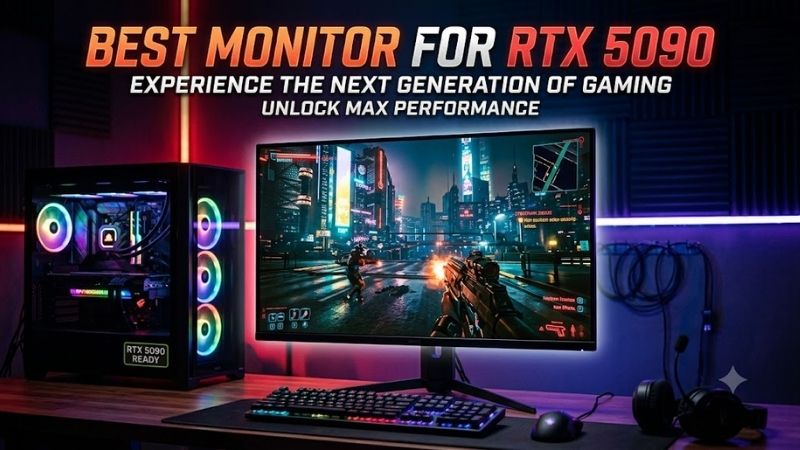
The best monitor for RTX 5090 should match a flagship GPU with enough resolution, refresh rate, HDR capability, and display bandwidth to avoid wasting its output. This roundup focuses on verified 4K OLED, dual-mode, and 5K2K models that suit competitive games, cinematic AAA titles, and mixed gaming workloads.
Quick answer: For most people in 2026, the best monitor for rtx 5090 is the ASUS ROG Swift OLED PG27UCDM — our #1 rated choice. See the full ranked comparison, alternatives and buying advice below.
Best Monitors for RTX 5090 Compared
| Monitor | Resolution | Refresh Rate | Panel | Best For |
|---|---|---|---|---|
| ASUS ROG Swift OLED PG27UCDM | 3840 x 2160 | 240Hz | QD-OLED | High-density 27-inch 4K gaming |
| LG UltraGear 32GS95UE-B | 3840 x 2160 / 1920 x 1080 | 240Hz / 480Hz | OLED | AAA gaming plus competitive esports |
| ASUS ROG Swift OLED PG32UCDM Gen3 | 3840 x 2160 | 240Hz | Tandem QD-OLED | 32-inch 4K with DisplayPort 2.1 |
| LG UltraGear 45GX950A-B | 5120 x 2160 / WFHD | 165Hz / 330Hz | OLED | 5K2K ultrawide immersion |
| MSI MPG 321URX QD-OLED | 3840 x 2160 | 240Hz | QD-OLED | KVM and mixed PC/laptop setups |
| Samsung Odyssey OLED G8 G80SD | 3840 x 2160 | 240Hz | OLED | Gaming plus smart entertainment |
ASUS ROG Swift OLED PG27UCDM — Best 27-Inch 4K Pick
Best For: High-density 4K gaming on a compact desk
Key Features:
- 27-inch 3840 x 2160 QD-OLED
- 240Hz refresh rate
- 0.03ms GtG
- DisplayPort 2.1a UHBR20
- 166 ppi
- G-SYNC Compatible
- 99% DCI-P3
- KVM switch
What Makes It Different
The ROG Swift OLED PG27UCDM pairs a 27-inch 4K QD-OLED panel with a 240Hz refresh rate and DisplayPort 2.1a UHBR20. That combination is especially relevant to an RTX 5090 because it supports high-bandwidth 4K output without making a 32-inch screen mandatory, while 166 ppi keeps text and fine game detail exceptionally dense.
Pros
- Very high pixel density
- Native DisplayPort 2.1a UHBR20
- 4K and 240Hz in a compact size
- OLED response characteristics
- Useful KVM functionality
Cons
- Less physically immersive than a 32-inch display
- No dedicated 480Hz competitive mode
Use Case and Who It’s For
Its smaller 27-inch format favors players who sit close to the screen or want a sharper desktop footprint than a 32-inch 4K display. The trade-off is immersion: cinematic games feel less expansive, but competitive shooters gain a compact field of view that is easier to scan without excessive eye movement.
LG UltraGear 32GS95UE-B — Best Dual-Mode Monitor
Best For: Switching between 4K AAA gaming and 480Hz esports
Key Features:
- 32-inch OLED
- 3840 x 2160 at up to 240Hz
- 1920 x 1080 at up to 480Hz
- 0.03ms GtG
- G-SYNC Compatible
- Dual Mode
- Pixel Sound audio system
What Makes It Different
The LG 32GS95UE is built around flexibility rather than one fixed operating point. It can run at 4K up to 240Hz for high-detail AAA gaming, then switch to Full HD up to 480Hz when frame rate and motion clarity matter more than resolution. That makes it unusually well matched to an RTX 5090 system used for both esports and visually demanding games.
Pros
- 4K 240Hz and 1080p 480Hz modes
- Excellent flexibility across game genres
- OLED pixel response
- 32-inch size works well for 4K
- G-SYNC compatibility
Cons
- 1080p is visibly softer on a 32-inch panel
- 480Hz provides little benefit in games that cannot reach extreme frame rates
Use Case and Who It’s For
Dual Mode is the defining advantage here because one display can cover two very different workloads. The compromise is obvious: 1080p on a 32-inch panel is less sharp than native 4K, so the 480Hz mode is best treated as a competitive preset rather than a general desktop setting. For mixed-genre players, that trade is practical.
ASUS ROG Swift OLED PG32UCDM Gen3 — Best DP 2.1 32-Inch Pick
Best For: RTX 5090 owners wanting 32-inch 4K 240Hz with newer connectivity
Key Features:
- 31.5-inch Tandem QD-OLED
- 3840 x 2160 resolution
- Up to 240Hz
- DisplayPort 2.1
- Two HDMI 2.1 ports
- USB-C with 90W power delivery
- G-SYNC Compatible
- Three-year warranty including panel burn-in
What Makes It Different
The ASUS ROG Swift OLED PG32UCDM Gen3 targets users who want a conventional 32-inch 4K layout but also prefer a modern DisplayPort 2.1 connection. Its Tandem QD-OLED panel, 4K resolution, HDMI 2.1, USB-C with 90W power delivery, and G-SYNC compatibility make it a strong centerpiece for a premium RTX 5090 desk setup.
Pros
- DisplayPort 2.1 connection
- 32-inch 4K 240Hz layout
- Tandem QD-OLED panel
- HDMI 2.1 and USB-C
- 90W USB-C charging
Cons
- No 480Hz dual-mode option
- Larger footprint than a 27-inch monitor
Use Case and Who It’s For
Compared with older 4K 240Hz OLED models that rely on DisplayPort 1.4 plus DSC, the Gen3 model gives RTX 5090 owners a more direct path to the GPU’s newer display interface. It is aimed at players who value 32-inch immersion, high pixel density, and cleaner long-term connectivity more than a special 480Hz esports mode.
LG UltraGear 45GX950A-B — Best 5K2K Ultrawide
Best For: Immersive racing, simulation, RPG, and cinematic gaming
Key Features:
- 44.5-inch OLED
- 5120 x 2160 resolution
- 21:9 aspect ratio
- 165Hz at 5K2K
- 330Hz WFHD Dual Mode
- 800R curvature
- DisplayPort 2.1
- USB-C with 90W power delivery
- G-SYNC Compatible
What Makes It Different
The LG UltraGear 45GX950A takes a different route by using a 45-inch 21:9 OLED panel at 5120 x 2160. Its 165Hz native mode gives the RTX 5090 far more pixels to drive than standard 4K, while the 800R curve fills peripheral vision. It also offers a 330Hz WFHD Dual Mode for faster competitive play when resolution can be reduced.
Pros
- Expansive 5K2K ultrawide resolution
- DisplayPort 2.1
- 165Hz native refresh rate
- 330Hz lower-resolution mode
- Strong fit for simulation games
Cons
- Requires substantial desk space
- Heavier GPU load than standard 4K
- Ultrawide support varies between games
Use Case and Who It’s For
This is the most specialized screen in the group. Racing games, flight sims, RPGs, and wide-field single-player titles benefit from the 21:9 canvas, but desk depth and game support matter. Some competitive titles handle ultrawide formats differently, and the 45-inch size demands more physical space than a standard 27- or 32-inch display.
MSI MPG 321URX QD-OLED — Best for KVM and USB-C
Best For: Gaming desktops sharing peripherals with another computer
Key Features:
- 31.5-inch QD-OLED
- 3840 x 2160 resolution
- 240Hz refresh rate
- 0.03ms GtG
- DisplayPort 1.4a
- Two HDMI 2.1 ports
- USB-C with 90W power delivery
- Integrated KVM
- G-SYNC Compatible
What Makes It Different
MSI’s MPG 321URX QD-OLED is a straightforward 32-inch 4K 240Hz choice with practical extras. It combines QD-OLED, 0.03ms GtG response time, HDMI 2.1, USB-C with 90W power delivery, a KVM switch, and G-SYNC compatibility. For an RTX 5090 gaming PC that also shares peripherals with a laptop, the KVM can simplify the desk.
Pros
- 4K 240Hz QD-OLED panel
- Integrated KVM switch
- 90W USB-C power delivery
- HDMI 2.1
- Three-year burn-in coverage
Cons
- DisplayPort 1.4a instead of DP 2.1
- No 480Hz dual-mode setting
Use Case and Who It’s For
Its main limitation for an RTX 5090 build is DisplayPort 1.4a rather than DisplayPort 2.1, so 4K 240Hz over DP depends on the monitor’s supported transport method rather than the GPU’s full UHBR20 capability. That does not stop it from reaching its rated 4K 240Hz, but buyers prioritizing DP 2.1 may prefer a newer alternative.
Samsung Odyssey OLED G8 G80SD — Best for Gaming and Streaming
Best For: Rooms where one display handles PC gaming and entertainment
Key Features:
- 32-inch OLED
- 3840 x 2160 resolution
- Up to 240Hz
- 0.03ms GtG
- HDR10+
- 99% DCI-P3 coverage
- Integrated smart TV features
What Makes It Different
Samsung’s Odyssey OLED G8 G80SD combines a 32-inch 4K OLED panel with a 240Hz refresh rate and gaming-focused HDR support. It is particularly interesting for users who want a monitor that also behaves like an entertainment display, because Samsung integrates smart TV features alongside the core 4K 240Hz gaming specification.
Pros
- 4K 240Hz OLED
- Standard 32-inch 16:9 layout
- Built-in entertainment features
- Strong HDR and color-oriented specification
- Useful as a mixed gaming and media screen
Cons
- Smart features add less value to a dedicated desktop
- No 480Hz competitive mode
Use Case and Who It’s For
For a dedicated RTX 5090 desktop, its appeal depends on how much you value those integrated media functions. A pure PC gaming setup may not need them, while a bedroom or living-room desk can benefit from one screen handling both PC games and streaming. The 32-inch 16:9 format also avoids the compatibility quirks of ultrawide gaming.
How to Choose the Best Monitor for RTX 5090
Resolution
For most RTX 5090 owners, 4K is the natural starting point because the GPU is designed to drive very high resolutions and refresh rates. NVIDIA lists support up to 4K at 480Hz or 8K at 165Hz with DSC on its reference specification. A lower-resolution monitor can still make sense for esports, but it leaves more visual performance unused.
Refresh Rate
Refresh rate should follow the games you actually play. A 240Hz 4K OLED is a balanced target for high-end AAA games, shooters, racing titles, and general desktop use. A 480Hz mode is more specialized: it matters most when the game and CPU can produce extremely high frame rates and when reduced resolution is acceptable.
DisplayPort 2.1 vs HDMI 2.1
DisplayPort 2.1 is desirable with an RTX 5090 because the card exposes DP 2.1b UHBR20, but it is not mandatory for every 4K 240Hz monitor. Several proven displays reach 4K 240Hz through HDMI 2.1 or DisplayPort 1.4 with DSC. Choose DP 2.1 when you want the newest bandwidth path, not because older interfaces automatically perform poorly.
OLED Panel Technology
OLED is a strong fit for an RTX 5090 because near-instant pixel response, deep blacks, and per-pixel light control complement high frame rates and HDR games. The trade-offs are panel care and static-content risk. If your PC spends long hours on spreadsheets, browser windows, or fixed UI elements, use the monitor’s OLED protection features.
Screen Size
Screen size changes how 4K feels. At 27 inches, 4K produces very high pixel density and crisp desktop text; at 32 inches, it adds physical immersion while remaining comfortable on a typical desk. A 45-inch 5K2K ultrawide expands horizontal vision dramatically, but it also needs more desk depth and more GPU work per rendered frame.
FAQ
Is a 4K 240Hz monitor worth it for an RTX 5090?
Yes. A 4K 240Hz monitor is one of the most balanced pairings for an RTX 5090 because it gives the GPU room to deliver high image quality and very high frame rates. You will not reach 240 fps in every maxed-out AAA game, but variable refresh rate keeps the display useful across a wide performance range.
Does an RTX 5090 monitor need DisplayPort 2.1?
No. DisplayPort 2.1 is useful but not required. The RTX 5090 supports DP 2.1b UHBR20, yet many 4K 240Hz monitors operate correctly through HDMI 2.1 or DisplayPort 1.4 with DSC. DP 2.1 mainly matters if you want a newer high-bandwidth connection path or a monitor designed specifically around the latest interface.
Should I buy a 480Hz monitor for RTX 5090?
A 480Hz monitor can make sense for competitive shooters, but only if you are willing to prioritize frame rate over resolution. Models such as the LG 32GS95UE use a lower-resolution mode to reach 480Hz. For cinematic games, 4K at 240Hz usually provides a more balanced mix of sharpness, motion clarity, and visual detail.
Is OLED a good choice for an RTX 5090 gaming PC?
OLED is a strong choice for an RTX 5090 gaming build because fast pixel response and high contrast make high-refresh gameplay look cleaner and HDR scenes more convincing. It is less ideal for users who display static desktop elements for very long periods, so panel-care features and sensible usage habits remain important.
Is 5K2K ultrawide worth using with an RTX 5090?
A 5K2K ultrawide is worth considering when immersion matters more than maximum frame rate. The 5120 x 2160 resolution gives games a wider field of view and more workspace than standard 4K, but it also increases rendering load. The RTX 5090 is a logical GPU for this class because weaker cards are more likely to become the limiting factor.
Conclusion
The best monitor for RTX 5090 depends on whether you value sharp 4K detail, extreme refresh rates, or ultrawide immersion. The PG27UCDM suits compact high-density setups, the 32GS95UE covers 4K and 480Hz esports, while 32-inch OLED options balance both. Choose the display mode your games can actually exploit, not the highest spec alone.
Ready to decide? Our #1 pick for 2026 is the ASUS ROG Swift OLED PG27UCDM.
Live price & availability on Amazon.