🛒 Best Price Today on Amazon
Prime members get fast, free shipping on everything above, plus member-only deals. New members get a 30-day free trial — cancel anytime.
- Which X3D processor should you buy for sim racing?
- What do published racing benchmarks show?
- How do VR and triple screens change the bottleneck?
- What should you verify on the dual-chiplet 9950X3D?
- How can you compare a CPU upgrade on a real racing rig?
- How should you compare the complete rig budget?
- Conclusion
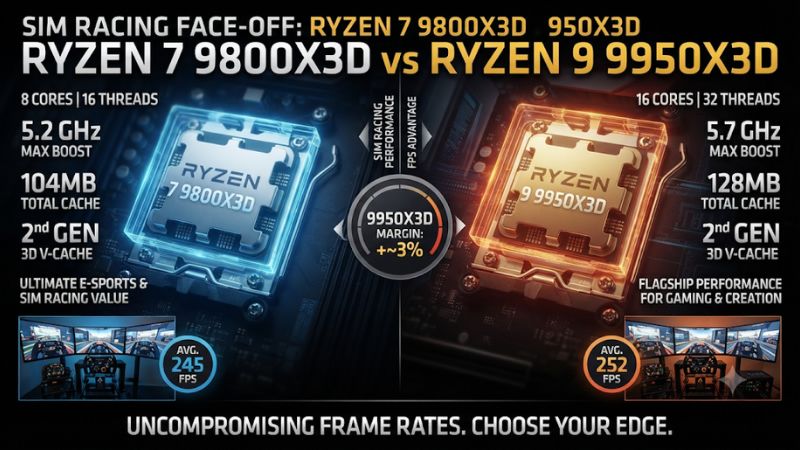
Buy the Ryzen 7 9800X3D for a dedicated sim racing rig. Pick the 9950X3D when the same PC regularly races and handles heavy editing, encoding, or other threaded work. This Ryzen 7 9800X3D vs Ryzen 9 9950X3D for sim racing comparison shows how grid size, the simulator, VR, and display settings change the decision.
Which X3D processor should you buy for sim racing?
Choose the 9800X3D for spending focused on lap-to-lap gameplay. The 9950X3D offers excellent gaming performance plus more CPU capacity for other jobs, but paying for 16 cores does not double the processing resources a simulator can use. Benchmark the demanding race moments that matter to you.
| Feature | Ryzen 7 9800X3D | Ryzen 9 9950X3D |
|---|---|---|
| Architecture | Zen 5 with second-generation 3D V-Cache | Zen 5 with second-generation 3D V-Cache |
| Cores and threads | 8 cores and 16 threads | 16 cores and 32 threads |
| Maximum listed boost | Up to 5.2 GHz | Up to 5.7 GHz |
| L3 cache | 96 MB | 128 MB total across two core chiplets |
| Core chiplet layout | One eight-core chiplet with stacked cache | Two eight-core chiplets, one with stacked cache |
| Default TDP | 120 W | 170 W |
| Practical purchase case | Dedicated VR, triple-screen, or single-display racing PC | Racing and sustained multithreaded work on the same PC |
Buy the 9800X3D for a dedicated racing rig
The 9800X3D brings its eight gaming cores and stacked cache together on a single core chiplet. That makes it a straightforward fit for a system whose demanding workload is running the simulator. It also leaves more room in the budget for the graphics card, display, or other part that can help the actual driving experience.
A 9800X3D system running triple screens can still be limited by graphics work. In that case you gain little from paying for more CPU cores.
Measure the demanding start or traffic section at your target resolution first. Consider the results alongside GPU demand and the refresh target you intend to keep.
A dedicated racing PC may still run a wheel utility, voice chat, and a telemetry app. Test them in your normal session.
If their impact is small, those programs do not by themselves justify moving to the 16-core chip. An uncapped comparison taken in another workload does not settle that choice.
Buy the 9950X3D if this is also your workstation
The 9950X3D becomes more attractive when the computer spends regular time on CPU-heavy video exports, encoding, rendering, or other heavily threaded work. Those jobs can use more of the processor than a simulator typically does. The benefit may come mainly after you leave the rig and begin editing or processing.
For game capture alone, a supported GPU encoder can keep much of the encoding work off the CPU. If you use software encoding or run multiple heavy tasks while racing, compare the entire session. The extra cores are worthwhile when they reduce a measured constraint rather than simply raising the processor’s specification.
The 9950X3D’s default 170 W rating also makes cooling a bigger consideration in sustained CPU work. Base the cooler on the case and the full workload.
A gaming session can draw far less than an all-core render. Plan the system for the heaviest job you expect to run regularly.
What do published racing benchmarks show?
The two chips can sit close in sim racing even when the faster result is measurable. A benchmark from one racing title is evidence about that title and scene. Look at both the measured performance and the workload used to get it.
Read the direct Assetto Corsa Competizione comparison
In Tweakers’ 2025 1080p Medium test of Assetto Corsa Competizione, the 9950X3D averaged 507.7 FPS and the 9800X3D averaged 492.2 FPS. That is roughly a 3% lead for the Ryzen 9 in that specific test. The outlet’s Epic test also placed the 9950X3D ahead in average FPS, with a small gap in its own conditions.
Those results are useful as an example of matched hardware testing. They do not mean your rig can reach those figures with a particular graphics card, a busy multiplayer field, a weather effect, or triple displays. The absolute values are less portable than the conclusion that both processors were close in that benchmark.
Avoid treating the outlet’s minimum FPS column as a 1% low unless the test documentation specifically supports that definition. A minimum, a low-percentile statistic, and a frame-time percentile describe different things. Use the same metric before interpreting differences in the slowest part of a run.
Compare grid starts and traffic rather than an empty lap
An empty practice lap can be easy to reproduce, but it might not expose the CPU work your rig faces at the start of a crowded race. Pick a repeatable grid, track, and weather setting. Compare frame times through the most demanding section, such as the approach to the first corner.
If the simulator allows consistent offline fields or replays, use them to isolate changes. A live multiplayer session can provide a realistic follow-up, though drivers, track conditions, and session timing can vary. Collect more than one comparable run when the processor gap is small.
Use the title you actually drive. Assetto Corsa Competizione, iRacing, and other simulators differ in how they schedule work and combine physics, graphics, and network data. A result from one engine helps you interpret a similar workload, but it cannot predict the exact difference in another.
Read slow frames against the pace you want to sustain
A stable frame interval can matter more in a simulator than a high average on a long straight. At 120 FPS the mean frame interval is about 8.33 ms.
At 90 FPS it is about 11.11 ms. Use those figures to identify the amount of time you can afford per frame on your chosen output.
Examine what happens when the race becomes busy. A brief frame-time spike can arise from assets or another task.
A repeated stretch of long frames in the same kind of traffic is more relevant to hardware choice. Keep a consistent statistic and note the scene that produced it.
If both CPUs meet your target across that scene, total cost and other workloads are better tie-breakers. If a matched result shows the 9950X3D improving exactly the part you care about, give that result more weight than a general gaming average.
How do VR and triple screens change the bottleneck?
Display setup affects the amount of work your GPU has to do. It can also change how sensitive the experience is to slow frames. Check the output mode you actually use before assuming a CPU benchmark represents your rig.
Compare triples at their actual render resolution
A triple-screen setup can require more graphics work than a single display. The final load depends on the combined resolution, render settings, and how the simulator draws the views. Check performance at those settings, even if your starting reference is a 1080p CPU benchmark.
Lower a clearly GPU-heavy setting or render scale for a diagnostic run while preserving the grid and simulation settings. If the same start improves noticeably, the graphics card is an important limit. If GPU work falls and frame times barely move, look at the CPU and simulation constraints.
A result can change over the race. Early traffic can stress CPU work while another part with more visual effects stresses the GPU.
Compare the section that limits the experience you care about. Spending more on one component may simply move the constraint to the other.
Use VR timing rather than a desktop FPS counter alone
VR runtimes can report CPU and GPU timings plus compositor behavior. The headset’s refresh setting, render scale, and reprojection mode affect the result. Compare under the same runtime settings and check whether the application is rendering frames at the expected rate.
A headset may report smooth delivery even when the runtime fills gaps with generated or reprojected frames. That can be a valid playing mode.
It should be identified separately when comparing hardware. Check the base workload and whether your usual race spends time in the fallback mode.
Record the large grid or demanding section that usually triggers the issue. If lowering render scale improves GPU time but the same slow frames remain, the CPU or game engine may deserve more attention. If both timings improve after graphics changes, budget for the part that addresses the whole rig rather than chasing CPU specifications alone.
What should you verify on the dual-chiplet 9950X3D?
The 9950X3D has two core chiplets and carries stacked cache on one. The 9800X3D has a single cache-equipped core chiplet. This difference affects how Windows and the AMD chipset software can direct gaming work.
Check the intended gaming configuration first
Use a compatible BIOS, current supported AMD chipset software, and the documented Windows game detection and Game Mode setup for the platform. The dual-chiplet processor can prefer the cache-equipped chiplet for suitable games. Exact driver behavior can vary by version and application.
If your results are inconsistent, confirm the game is recognized and that temperatures, CPU activity, and the selected operating profile look like the expected configuration. Keep generic CPU affinity or manual parking changes out of the baseline. They can add a new variable and change the performance of other applications.
The extra chiplet remains useful for suitable threaded work. The processor’s 128 MB total L3 should be understood as a total across both chiplets.
It is not a single 128 MB cache available with identical latency to every core. Compare game performance as measured, rather than adding up specifications to predict FPS.
Check the actual use case before paying the premium
- Choose the 9800X3D for a system devoted mainly to sim racing, especially if it already reaches your driving target.
- Choose the 9950X3D when you frequently combine racing with work that benefits from 16 cores or when a matched test shows a useful advantage in your target scene.
- Protect GPU budget for high-resolution triples and VR when the graphics side already limits the race.
- Include cooling and platform setup in the comparison if the PC will run sustained workstation loads as well as games.
If you already own a 9800X3D, avoid comparing its cost with a new-build quote as if both processors were new purchases. Include resale, cooler changes, and testing time. A small lead may be worthwhile when building from scratch and still fail to justify replacing a good CPU.
If prices are close, decide whether the spare threaded capacity will be used regularly and can be cooled appropriately. If the prices are far apart, ask whether a GPU, headset, monitor, or other improvement would produce more benefit in the rig you use.
How can you compare a CPU upgrade on a real racing rig?
Build a small test set around the way you drive. One quiet lap and one demanding start can reveal different limits, especially if you use several monitors or a headset. Use the same car, field, and settings when you make the comparison.
Make a busy start your main test scene
Choose a race start that reliably produces the issue. Record the track, weather, number of visible cars, and roughly where the slow section begins.
If an offline test has predictable opponents, use it to isolate hardware behavior. A familiar replay can be useful when the simulator reproduces the same rendering and simulation conditions closely enough.
Start the capture before the flag or rollout and end after the first complex section. Keep presentation mode, graphics preset, and the chosen cap the same. A whole race average can bury several seconds of slow frames that matter much more to driving than a higher result in clean air.
After collecting an offline or replay result, run a normal session as a follow-up. Online conditions can add variation, so compare similar situations and avoid reading a small FPS gap as conclusive. Where possible, note whether the problem coincides with the same part of the field or a different event such as a scene load.
Change one graphics setting to identify rendering headroom
For a first pass, lower internal render scale with the same cars on track. Observe GPU frame time and the slow frames you identified. If the graphics card takes much less time but the important slow segment stays in place, inspect the CPU-side workload rather than assuming more pixels were the only issue.
A second useful comparison can change a setting such as mirrors or visible objects. Which part of the system it affects depends on the simulator.
Record both CPU and GPU timing when available. A setting that reduces additional views can affect rendering, while some track and car options can also change preparation work on the CPU.
Return to your original settings for a final baseline. If the returning run is faster or slower than the first one with the same settings, check whether temperatures, session conditions, or background processes have drifted. A small processor advantage needs a stable enough test to be meaningful.
Look at the motion result in VR and the base workload separately
In VR, check which refresh rate and render scale the headset is actually using. Record runtime CPU and GPU frame-time metrics, along with any indication of missed or reprojected frames. A desktop capture can miss the behavior that affects the headset.
Use a comparable sequence of head movement and view in the demanding scene if you can repeat it. The work can change when you look toward a crowded area or a heavy environment. Control what you reasonably can, and compare a short ordinary driving session afterward to see how the change feels in practice.
Keep the same motion-smoothing or reprojection policy when you compare. If the runtime switches behavior between modes, label those runs carefully. A perceived improvement can be real when the fallback occurs less often, even if a desktop FPS number does not explain it on its own.
Place telemetry, overlays, and replays in the right test
Record with your normal dashboard, wheel, and telemetry software active on a follow-up pass. A capture tool can help collect the evidence, but an unnecessary overlay can also change workload. The most informative comparison uses only the tools needed to record each suspected issue.
If you save replays or record video while driving, check whether those jobs materially change the result. Recording can add graphics, storage, or CPU work depending on its settings. A separately timed offline export can reveal a benefit for the 9950X3D even when the race itself looks similar.
If the machine runs one simulator and light companion tools, the 9800X3D may have the whole session covered. If you regularly process long recordings and build other content afterward, evaluate those jobs in their own tests. Do not value eight additional cores using a task your workflow rarely performs.
How should you compare the complete rig budget?
Include the processor, cooler, and any change to the graphics card or display plan together. A processor premium has an opportunity cost, especially for a rig with three monitors or a headset.
Choose a spending threshold based on the limiting scene
A workable threshold is the extra amount you would pay to fix a specific recurring problem. For a rig that nearly meets its frame-time target at crowded starts, a repeatable CPU result may justify a small premium. A faster processor is less convincing if the same symptom responds to a graphics change.
Compare the total price with a second configuration that uses the 9800X3D and reallocates the difference to the limiting part. This could be a faster GPU, a more appropriate cooling layout, or another component that lowers delay or improves the complete setup. The better value is the build that changes the actual driving experience or regular work.
Write your target in terms of the scenes you run and output configuration you own. A machine that already meets those requirements can remain an excellent rig even if a test bench shows another CPU a little faster. Reinvesting only when it removes a real bottleneck avoids an expensive change with little benefit.
Verify the decision after the rig’s other settings are settled
Long sessions can warm the case and shift fan noise, so test the complete machine after the hardware and driver setup is stable. Keep the same memory profile and background tools across runs. Check whether a boot or firmware change altered anything that affects repeatability.
If you bought the 9950X3D for two distinct jobs, record separate results for racing and the threaded work. A useful reduction in export time can justify the purchase even if the gaming difference is modest. If the rig is only for racing, emphasize the frame times and overall system balance that motivated the build.
Keep the benchmark advantage in the right units
The difference between roughly 492 and 508 FPS in Tweakers’ Medium test is around 15.5 FPS. At those measured averages, the reciprocal frame intervals are both near 2 ms. That arithmetic describes the overall rate, while actual individual frames can still be much slower.
This is why the headline FPS difference must be judged alongside your display, the most demanding race section, and the shape of the frame-time trace. A small average lead can be real and still offer little practical improvement when both systems are already far above the intended target.
Conclusion
Choose the Ryzen 7 9800X3D for most dedicated sim racing PCs. Choose the Ryzen 9 9950X3D when the same machine regularly handles heavy multithreaded work or a matched race test shows an advantage you need. Compare frame times in your busiest grid, VR mode, or triple-screen setup and spend on the component that limits that experience.