🛒 Best Price Today on Amazon
Prime members get fast, free shipping on everything above, plus member-only deals. New members get a 30-day free trial — cancel anytime.
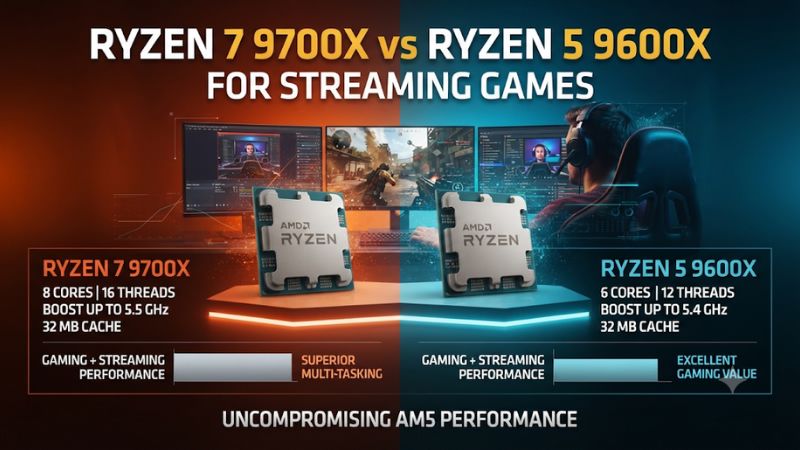
Choose the Ryzen 5 9600X if you stream through a supported GPU encoder and your game stays smooth with OBS running. Choose the 9700X for CPU encoding or heavier scenes and background tasks. This Ryzen 7 9700X vs Ryzen 5 9600X for streaming games comparison explains how to verify that the extra cores solve your actual bottleneck.
Which processor should you buy for one-PC streaming?
The Ryzen 5 9600X is a good starting choice for a gaming-first build using hardware encoding on a suitable graphics card. The Ryzen 7 9700X is the stronger choice for frequent x264 encoding or a setup with more CPU-heavy work running during the game. Its two extra cores are most valuable when the system has useful work for them.
| Feature | Ryzen 7 9700X | Ryzen 5 9600X |
|---|---|---|
| Architecture | Zen 5 | Zen 5 |
| Cores and threads | 8 cores and 16 threads | 6 cores and 12 threads |
| Maximum listed boost | Up to 5.5 GHz | Up to 5.4 GHz |
| L3 cache | 32 MB | 32 MB |
| Default TDP | 65 W | 65 W |
| Platform | AM5 and DDR5 | AM5 and DDR5 |
| Boxed cooler | Sold separately | Sold separately |
| Best streaming fit | CPU encoding or heavier concurrent workloads | GPU encoding and simpler scenes |
Choose the 9600X for a stream your graphics card can encode
OBS recommends supported hardware encoding for many setups because it moves video encoding work to dedicated hardware. With an appropriate card, you can use its supported encoder while the CPU handles the game and supporting applications. This makes a six-core processor a realistic option for a straightforward stream.
Check the actual encoder and codec the graphics card supports, and confirm that the platform accepts the output you intend to use. Your stream is limited by what the entire chain handles. A codec available in one encoder menu may not be accepted in every service, account, or ingest configuration.
A good use for the 9600X savings is a graphics card with the capabilities and performance headroom you need, or enough memory to keep normal OBS scenes and supporting applications responsive. Look at the total PC before paying for extra CPU cores that your preferred encoder will rarely need.
Choose the 9700X for CPU encoding or repeatable CPU contention
The 9700X offers two additional Zen 5 cores. For a stream using x264, those cores can help when the encoding task and game share the same processor. The eight-core choice can also provide headroom for audio processing, extra sources, browser elements, simultaneous recording, or production tasks between streams.
Nevertheless, the benefit depends on what is taking time in your setup. If a complex scene overloads GPU rendering or the network drops data, an eight-core processor may change little. Identify the part of OBS that is falling behind before spending more.
Consider how often that workload occurs. A simple stream running once a week has different requirements from frequent broadcasts with multiple sources and background applications. The 9700X makes a stronger case when the extra headroom solves an observed issue or supports a production workflow you expect to use regularly.
What does the encoder change about this comparison?
Your encoder choice determines where much of the video work runs. A fair processor comparison keeps the game, output format, scene, and encoder settings the same. Switching both the CPU and encoder in one test makes it difficult to understand why the stream improved.
Hardware encoding can leave the CPU with room to spare
A supported GPU encoder uses dedicated encoding resources available on the card. The game and OBS scene still require rendering resources, and the system still processes audio, sources, and other work. A reliable stream depends on headroom for the complete process.
A game that uses nearly all available rendering resources can leave OBS struggling to compose frames on time. A practical frame cap, a less demanding game setting, or a simpler scene can help. In that situation, extra CPU cores may have less effect than restoring graphics headroom.
Choose the target game and run it with your intended OBS scene. Compare it with a clean gaming run to see what the stream actually costs.
Keep the same frame cap and capture duration. If both the game and stream remain stable on a six-core configuration, you have a concrete reason to favor the less expensive CPU.
Software x264 can make the eight-core processor more useful
With x264, the CPU performs encoding alongside the game and other applications. Output resolution, frame rate, encoder preset, and scene conditions affect scheduling and workload. A configuration that works well in a GPU-limited game can behave differently in a title with busy CPU threads.
Tweakers’ 2025 suite included a combined F1 24 and x264 streaming workload. The 9700X placed well ahead of the 9600X in that test’s reported average frame-rate metric. It provides evidence that the extra cores can matter under combined CPU encoding and gaming, in one documented workload.
Do not use that result as the expected gain with a hardware encoder or a different x264 preset. When choosing CPU encoding, run a steady comparison using the output settings you will keep.
Check whether the game preserves usable frame times and the encoder completes frames consistently. A strong result in only one of those two measurements is incomplete.
Keep the output service and local recording separate
A live service can impose limits on accepted codecs, resolution, or bitrate. Local recording may allow a different format or quality setting. Verify each requirement before assuming the processor must satisfy both with the same settings.
If you stream and record simultaneously, check whether the recording uses the same encoder settings or asks for a separate output. Two jobs can change system load or storage traffic. Test the actual combination before concluding that a CPU upgrade is necessary.
For game capture only, an efficient hardware encoder and a suitable storage path can be a good starting point. For live CPU encoding and a second high-quality recording, the system may need more headroom. Evaluate the game, render path, encoding, storage, and network according to the jobs you actually run.
How can you tell whether the game, OBS, or the network is overloaded?
Observe the game and OBS Stats together during a representative stream. A game FPS counter describes only the game. It cannot confirm that the stream is reaching the service with consistent frames.
| Observation | What to check | Useful first test |
|---|---|---|
| Missed frames due to rendering lag | OBS scene composition or GPU rendering headroom | Cap game FPS or lighten the graphics load while retaining the scene |
| Skipped frames due to encoding lag | Encoder workload or capacity | Confirm the encoder and compare a less demanding setting |
| Dropped frames tied to the connection | Network, route, or ingest stability | Check a test stream and connection conditions separately |
| Game frame times worsen while OBS looks healthy | Game or shared system resources | Compare the same route with OBS off and on |
Start with a reference game capture
- Baseline Run a repeatable route without streaming. Record resolution, graphics settings, average FPS, and slow frames.
- Stream comparison Run the same route with the intended scene, encoder, output settings, and frame cap.
- Read both outcomes Compare game frame times and the counters in OBS Stats. Identify the first metric that worsens.
- If results vary Repeat the same route after shader preparation settles and other background work is consistent.
A representative scene is more helpful than a short idle test. Include the overlays, browser sources, and transitions you normally use. If you play a competitive match that cannot be reproduced precisely, compare similar rounds and collect enough time to distinguish a recurring problem from a one-off spike.
Use a low-risk test broadcast or a local recording when appropriate. A local recording checks rendering and encoding under some of the same settings. It does not exercise the live connection, so confirm live delivery separately if that is where the problem appears.
Adjust the part of the pipeline that shows the fault
If OBS misses rendering frames when the game is using most GPU rendering capacity, try a modest game cap before changing CPUs. Check whether the same scene then runs without recurring rendering lag. If it does, keep the game-cap trade-off in your build decision.
If x264 shows encoding lag, check the preset, output frame rate, and output resolution. A lighter workload or supported hardware encoder can resolve the issue without a CPU replacement. If CPU encoding is required and the desired settings remain overloaded, the 9700X’s extra cores are more relevant.
If the live network drops frames while local output and rendering stay healthy, test the connection and ingest separately. A processor upgrade is an expensive response to a network shortage. Keep that evidence separate from game performance and OBS rendering counters.
Check the effect of scenes and background applications
A webcam, browser overlay, capture source, and filters can create a more complicated workload than a bare game scene. Build a reference profile based on what you actually use. Then compare a simpler profile if the original one struggles.
A game can also behave differently when voice chat, a browser, and recordings are active. Measure the combination before treating core count as a solution. The 9700X is easier to justify when repeated testing shows CPU contention after obvious encoder and rendering issues are addressed.
Capture enough of the session to reach a stable thermal state. A short sample taken just after launch can hide a fan or clock change that appears later. On a quiet or compact build, compare the late part of the stream and note whether the additional headroom survives once the system is warm.
How should the processor premium fit the rest of the setup?
Price the CPU, cooling, memory, and graphics hardware together. Comparing processor prices alone can miss the factor that actually keeps the stream and game smooth.
Account for coolers and BIOS settings equally
Neither processor includes a boxed cooler. Add a suitable cooler for the case and daily workload.
Both have a 65 W default TDP, but actual power and noise can differ with the work. Compare the same intended operating mode or use each model’s appropriate baseline.
Supported firmware on these processors may provide an official higher power mode. That is a separate configuration from default operation.
For a fair purchasing comparison, establish what the gaming and streaming setup does at its normal settings first. A larger allowable power draw does not automatically resolve rendering or encoding problems.
Check motherboard support for the processor and memory kit. You may get more value from a sensible case, stable memory, and an appropriate GPU than from a premium board with features you rarely use. Count upgrade and cooling costs that actually apply to the chosen build.
Match the choice to the channel you plan to run
- Buy the 9600X for supported hardware encoding, a straightforward scene, and gaming-first value when repeatable tests show acceptable frame delivery.
- Buy the 9700X when your x264 target or other CPU tasks benefit clearly from the two extra cores.
- Keep GPU budget intact if the cheaper processor lets you retain the encoder support or rendering performance your games need.
- Document the real workload before upgrading a functioning machine, especially if an OBS setting change already resolves the issue.
For someone building from scratch, a small price difference can favor the 9700X as a straightforward way to gain more CPU headroom. For someone already using a 9600X, the upgrade decision is stricter. Verify that your stream loses quality or gameplay performance from a CPU problem you actually need to fix.
What should you test before choosing a streaming CPU?
Create a repeatable test that measures the game and the stream separately. The aim is to find a usable settings combination for the channel before comparing processors. It also gives you a way to check the result after an upgrade.
Record the encoder and output target
Save the OBS profile or note the encoder, output resolution, frame rate, and preset. Record whether you are streaming to a service, recording locally, or doing both. Two output profiles that look similar on the screen can place different demands on the encoder.
Keep the streaming service’s accepted settings in mind. If one configuration changes the codec or bitrate, any comparison of visible image quality can be influenced by those settings.
Establish an acceptable target and compare processors with the same output. Evaluate codec and preset choices as separate tests.
Include capture type and the number of active scene sources. An animated browser overlay can consume resources when it is visible, and some sources can continue work depending on how they are configured. A simple one-source capture can confirm a working baseline, while your regular scenes determine whether the machine handles a real broadcast.
Compare gameplay and stream timing across the same interval
Begin with the repeatable route you use to test normal gaming. Record frame times and approximate CPU and GPU load. Start the comparison with the same cap, settings, map, and warm-up state, then capture an equivalent segment with OBS active.
In OBS Stats, note when the rendering and encoding counters change. A count accumulated since the application opened can include unrelated startup behavior. Use a defined period so the recorded problems line up with the part of the game being analyzed.
At the end, compare output quality and reported stability as well as performance. A run that maintains good game frame times while repeatedly skipping frames is not a successful streaming configuration.
A run that delivers a clean stream but makes the game uncomfortable is also a poor fit. Decide which compromise is acceptable before choosing the processor.
If the application supports inspecting a log after the session, preserve it with the matching game capture. This lets you compare a failure around one overlay transition with a sustained overload that lasts until the end of the route. The two patterns suggest different corrections.
Keep the processor decision distinct from network and storage problems
For a live test, keep the service, ingest connection, and output settings fixed. A change in the connection can affect delivered frames without changing how quickly the processor handles the game. Compare live results with a local recording to establish which metrics remain healthy.
If you record at the same time, watch what happens when the storage device writes a large amount of data. Local recording can add storage traffic and may use a separate encoder task depending on your configuration. A workload that becomes unstable only with simultaneous recording deserves its own test.
If the game and local stream both run as intended, an intermittent live delivery issue may be better diagnosed through the connection or service configuration. The 9700X’s additional cores are relevant only when CPU throughput or contention is the problem. Record the evidence that connects the fault to the part you want to upgrade.
Interpret a demanding x264 result in the context of quality
With CPU encoding, one setting change can shift the amount of work dramatically. A slower preset or higher output frame rate can increase pressure on the CPU. Choose a realistic combination for the service and the kind of motion your games produce.
If you need x264, test the image quality you would use in a real broadcast instead of choosing the most demanding preset solely to stress the PC. Assess crowded action, camera turns, and scenes with significant detail. The processor comparison is most useful when the test represents a quality target you intend to keep.
A result can favor the 9700X even when the higher core count does little in a game-only run. The combined job is what changed.
On the other hand, a supported hardware encoder can make an acceptable stream easier on either CPU. Decide which encoder you are committed to before treating a CPU encoding benchmark as the primary buying evidence.
Put actual repeatability ahead of a very small difference
If two runs differ slightly, repeat the original settings at the end of the test. A change in background activity or a warmer PC can move results by more than the difference you were trying to measure. Use comparable samples and keep notes for anything that changed.
Imagine a stream that loses frames only during a heavy OBS scene transition. If a lighter transition resolves the issue on both CPUs, the savings may belong elsewhere in a new build. If the intended scene remains demanding and CPU encoding is essential, testing the 9700X under those same conditions tells you whether the premium addresses the concern.
For a system that already works, put the expense alongside the actual benefit. Cleaner output or more consistent gameplay can justify an upgrade for a frequent broadcaster. If you seldom stream and your current hardware encoder consistently delivers the desired quality, a processor change may have very little effect on what viewers receive.
Check the target once more with the intended settings
If the 9600X maintains the desired game result and the actual OBS counters stay steady with hardware encoding, record the configuration as a known working baseline. An eight-core CPU may still offer room for future work, but the streaming decision can be based on a result you can already verify.
For a new system where you cannot run the test yourself, look for benchmarks that specify the game, encoder, output, and scene. A CPU-only video benchmark can help indicate throughput under load.
It does not measure how the editor software, rendered game, and stream share resources at the same time. Prefer a combined workload that resembles your plans.
Conclusion
Choose the Ryzen 5 9600X for most gaming-first builds that stream through a supported GPU encoder. Choose the Ryzen 7 9700X when regular x264 encoding, complex workloads, or repeatable CPU contention justify its additional cores. Compare gameplay frame times with OBS Stats before paying to solve a rendering, encoding, or network problem.