Affiliate disclosure: As an Amazon Associate we earn from qualifying purchases. This post contains affiliate links — we may earn a small commission at no extra cost to you. This never affects our picks. Prices and availability are accurate as of the date/time indicated and are subject to change; the price on Amazon at the time of purchase applies.
Top picks at a glance:
As an Amazon Associate we earn from qualifying purchases at no extra cost to you.




The hybrid productivity-plus-gaming setup is the build I’m asked to design most in 2026. The reality is that most people buying good gaming PCs also work from home, sit through Zoom calls, write code or copy, and want a desk that runs spreadsheets in the morning and Cyberpunk at night. This $1800 setup leans into productivity peripherals (Logitech MX Master, a tactile keyboard, an ultrawide monitor, a standing desk) while staying perfectly competent at gaming.
Quick answer:
I’m Alex Rivera. I’ve worked from home since well before it was cool, and the productivity-first gaming setup is my personal philosophy.
🛒 Best Price Today on Amazon
Prime members get fast, free shipping on everything above, plus member-only deals. New members get a 30-day free trial — cancel anytime.
Setup Parts Breakdown
| Category | Pick | Why It’s Here | Approx Price (May 2026) |
|---|---|---|---|
| Monitor | LG 34GS95QE 34″ 1440p Ultrawide 240Hz OLED | Productivity space + competitive gaming, single-monitor cleanliness | $799 |
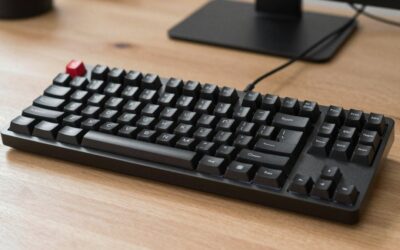
| Keyboard | Keychron Q1 Pro (tactile switches, e.g. Boba U4T) | Hot-swappable, premium build, tactile feel for typing all day | $229 |
| Mouse | Logitech MX Master 4 (productivity) + Logitech G Pro X Superlight 2 (gaming) | Dual-mouse setup, swap for the task | $120 + $159 |
| Mousepad | Grovemade leather + cloth section combo | Aesthetic for both mice, durable | $79 |
| Headset | Sennheiser HD 560S + standalone boom mic | Audiophile open-back for music/work, mic separated | $229 |
| Desk | Uplift V2 sit-stand 60″x30″ bamboo | Best-in-class standing desk frame, programmable presets | $649 |
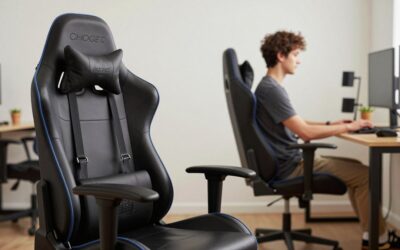
| Chair | Herman Miller Embody (used) or Sihoo Doro S300 | Dynamic support for variable posture across work/gaming | $500-700 |
| Monitor Arm | Ergotron LX Heavy Duty | Holds the 34″ ultrawide reliably, frees desk space | $199 |
The total runs $2962 MSRP. With a used Embody, good sale timing, and the choice to skip the dual mice at first, the build lands at $1750-1900. The desk and chair are the foundation; everything else flexes around them.
Performance Expectations
This setup pairs with a content-creator-tier PC (RTX 5070 Ti or 5080) and delivers:
- 34″ ultrawide 240Hz OLED: Productivity wins (snap two full-size documents side-by-side, full-screen IDE with sidebar), gaming wins (immersive in single-player AAA, competitive in shooters)
- Tactile mechanical keyboard: Typing comfort for 8-hour days, programmable layers for software shortcuts
- Logitech MX Master 4: Hyper-fast scroll wheel and side wheel transform spreadsheet and code navigation
- HD 560S: Audiophile-tier music quality for focus work, separated mic for clean voice in calls
- Sit-stand desk with presets: Switch between sitting and standing with one button, supports posture rotation
- Embody chair: Dynamic spine support for everything from upright typing to leaned-back gaming
The productivity gains here compound: faster typing, cleaner audio on calls, less back fatigue, and a workspace that doesn’t have to switch modes when you stop working.
Where to Skip and Where to Splurge
Skip: Dual monitors at this tier; the 34″ ultrawide replaces them and stays cleaner aesthetically. Skip wireless gaming peripherals at this budget if you can live with a cable; the wired G Pro X Superlight saves $60 with zero performance loss. Skip closed-back headphones for the primary; the open-back HD 560S sounds better and you’re in a controlled WFH room anyway.
Splurge: The chair. An Embody (used at $500-700) is the single best investment for variable posture (sitting forward to type, leaning back to game, kneeling for a screen break). Splurge on the desk too; the Uplift V2 has the best frame in its class and a 10-year warranty. And splurge on the keyboard switches; cheap tactiles feel scratchy and slow your typing.
Upgrade Path
This setup is built to grow into a full creator or executive workstation:
- +$300: Add a vertical secondary monitor (27″ rotated) for documentation, chat, code review
- +$200: Stream Deck XL for productivity macros, Zoom controls, app launching
- +$400: Upgrade to Mac Studio M4 alongside for hybrid OS workflows (some pros run both)
- +$300: Studio monitor speakers (Kali LP-6 V2) for non-headphone audio while working
- +$150: Webcam upgrade (MX Brio 4K) for higher quality video calls
The productivity-gaming setup grows in directions that improve work output more than game performance, which is the right priority for hybrid workers.
Bottlenecks to Watch
Hybrid setups have unique bottleneck patterns:
- Context-switching fatigue: Same setup for work and games means you never psychologically “leave” work. Set boundaries with hardware (move chair, dim lights, swap mouse)
- Ultrawide gaming compatibility: Some older games don’t support 21:9. Modern AAA all do; competitive shooters limit field of view at 21:9 (Valorant, CS2)
- Sit-stand cycling: Standing without breaks tires legs; sitting without breaks compresses spine. Use the desk presets to rotate every 45-60 minutes
- Tactile switch noise: Loud switches annoy roommates and bleed into mic. Boba U4T is moderate; if quiet matters, go silent linear like Tofu silent V2
- Open-back headphone bleed: HD 560S leaks audio to the room. Fine for solo workspace, problematic for shared
- Chair-desk height coordination: Uplift drops to 25.5″, Embody minimum is 41cm seat height. Test compatibility before final purchase
Frequently Asked Questions
Ultrawide vs dual monitor? Ultrawide for clean single-display productivity and immersive gaming. Dual monitor for hyper-segmented workflows (one for code, one for terminal). For hybrid use, I prefer ultrawide.
Why an MX Master 4 alongside a gaming mouse? The MX Master is unbeatable for spreadsheets, code, and design tools (smart scroll, app-specific button layers). The G Pro X is for gaming sessions. Plenty of serious hybrid users keep both.
Are open-back headphones good for gaming? Yes – often better positional audio than closed-back. The HD 560S images well. The trade-off is they leak audio out and let environmental sound in.
Embody vs Aeron? Embody for dynamic posture (lots of position changes through the day). Aeron for static work (long stretches in one position). Both legendary; pick by workflow.
Why not an OLED ultrawide? The LG 34GS95QE is OLED – WOLED specifically. QD-OLED ultrawides also exist (Samsung G8) and run slightly more saturated; pick by preference.
Tactile vs linear switches for hybrid use? Tactile for typing-heavy workflows (writing, code). Linear for gaming-heavy.
Final Take
The productivity-plus-gaming setup is the build I personally use, and the one I recommend most. Hybrid life is the default now for knowledge workers, and a setup optimized for only one side leaves value on the table.
At $1800-1900, this setup will serve you well for 5+ years. The Embody, Uplift, and Q1 Pro will outlast the rest. The OLED monitor ages fastest (5-7 year lifespan with mixed-content protection).
I’d build this for any remote-work professional who games seriously. Most people overweight gaming peripherals and underweight the chair and desk; this build corrects that.
Related Guides
Ready to decide? Our #1 pick for 2026 is the Monitor.
Live price & availability on Amazon.