🛒 Best Price Today on Amazon
Prime members get fast, free shipping on everything above, plus member-only deals. New members get a 30-day free trial — cancel anytime.
- First, describe the noise
- Prerequisites and safety
- Step-by-step troubleshooting order
- Extra steps for wireless headsets
- Wired and analog headsets: hiss, ground noise and DACs
- Microphone-only static
- Signs of hardware failure and when to stop
- Worked example: narrowing it down in ten minutes
- Prevention habits
- Related guides
- Frequently asked questions
Static in a gaming headset usually comes from one of four places: a damaged or loose cable and connector, electrical or wireless interference, over-aggressive microphone or software settings, or a worn component in the headset itself. The fastest fix is to work through them in a fixed order and change one thing at a time. This guide is compiled by the Editorial team from published specifications, manufacturer documentation and general troubleshooting knowledge, and it points you to the manufacturer’s manual for anything model specific.
First, describe the noise
Different noises hint at different causes, so spend a minute listening before you change anything.
- Steady hiss: often analog noise, high gain or a low-quality output.
- Crackle or popping when you move: commonly a cable fault or loose plug.
- Buzz that rises with mouse movement or screen activity: typically electrical interference or a ground-loop type issue.
- Cutting in and out with robotic breaks: likely wireless interference or distance.
- Static only in voice chat: look at microphone settings or the chat app.
Make a note of when it happens, because the pattern matters more than the sound itself.
Prerequisites and safety
Gather the manual, a second device such as a phone or laptop, and a different cable if the headset has a detachable one. Turn the volume down before changing connections, since a loud pop in the ears is unpleasant. If anything smells burnt, feels hot or shows exposed wire, stop and unplug it. Never open a charging headset or pry open a battery.
Step-by-step troubleshooting order
- Reseat the connection. Unplug and firmly replug the 3.5 mm plug, USB cable or wireless dongle. Dust or a half-seated plug causes many crackles.
- Try another port. Move from a front-panel or hub port to a rear motherboard port, away from other busy devices.
- Try another device. Plug the headset into a phone, laptop or console. If the noise disappears, the headset is probably fine and the original computer is the issue.
- Check volume balance. Very high headset volume combined with low software volume, or the reverse, can raise the noise floor. Aim for a middle setting on both.
- Disable audio enhancements. In the operating system sound settings, turn off effects, spatial processing and equalizers, then listen again.
- Lower microphone gain and boost. Remove any extra boost, and turn off listening to the microphone through the headset if that option is active.
- Match the audio format. Set the output format to a standard option such as 24-bit at 48 kHz, or whatever the manual recommends, then restart the audio service or the computer.
- Update drivers and firmware. Use the audio driver from the board maker and any headset firmware from the headset brand.
- Swap the cable. If the cable detaches, try another known-good one.
- Reset the headset. Follow the manufacturer’s reset or re-pairing method if the model has one.
Stop at the step where the noise changes. That step tells you the category of the problem and saves time on the rest.
Extra steps for wireless headsets
Wireless headsets add radio problems. The common 2.4 GHz band is shared with Wi-Fi routers, Bluetooth devices, wireless mice and other dongles, so crowded desks can suffer. Plug the dongle into a short USB extension and place it in clear line of sight, rather than behind the case or beside a fast external drive. Some USB 3 devices and ports are known to radiate noise in this band, which is why moving the dongle can help.
Check the battery next. Low charge can cause dropouts and noise in some designs, so charge fully before concluding anything. Move closer to the transmitter and see if static drops. If your router uses a crowded channel, changing the router channel or moving the dongle away from it may help. For Bluetooth connections, remove old pairings and pair again so the headset is not fighting for another device.
Wired and analog headsets: hiss, ground noise and DACs
With a 3.5 mm analog headset, noise can come from the computer’s own audio output, which sits near power circuits, graphics cards and storage. A buzz that changes with graphics load or mouse movement suggests electrical interference reaching the analog path. A front-panel audio jack connected with a thin internal cable is a frequent offender.
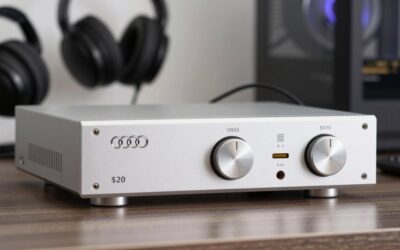
A small external USB DAC or an inline USB audio adapter bypasses the onboard sound hardware, and can quiet the background hiss for many setups. It cannot repair a failing driver or damaged cable, so use the other-device check from the step list first. If you are using a splitter for separate headphone and microphone jacks, try a single combined-jack connection or a proper adapter, because cheap splitters add noise.
Microphone-only static
If teammates hear static but you do not, the issue is on the input side. Lower input gain to the point where your voice still registers clearly. Move the microphone a little to the side of your mouth to cut breath noise, and keep it away from case fans and speakers. Apps like voice chat clients often include noise suppression, so enable it and avoid stacking two suppression tools on top of each other, because that can create warbling artifacts.
Signs of hardware failure and when to stop
If the static follows the headset across devices, changes when you gently flex the cable near the plug or the hinge, or shows up with a fresh cable and a new port, the headset itself is likely at fault. Intermittent static that gets worse over weeks, especially near a hinge or plug, is a common wear pattern.
At that point, check whether the headset is under warranty and contact the manufacturer. Do not open sealed ear cups or batteries yourself, and do not use a headset with exposed wires or a swollen battery. If you decide to replace it, review broad roundups such as the guide to Logitech PC headsets or the overview of Razer headsets for gaming and streaming and confirm the connection type matches your setup.
Worked example: narrowing it down in ten minutes
Suppose a USB headset hisses on a desktop but only when the graphics card is busy. Plug it into a rear port: the hiss fades but does not vanish. Plug it into a laptop: it is silent. That pattern points to electrical noise around the desktop rather than a faulty headset, so the next move is a different port away from the graphics card, then perhaps a small USB audio adapter. Had the hiss followed the headset to the laptop, the cable or the headset would be the suspect, and the warranty route would come into play.
Prevention habits
Avoid wrapping the cable tightly around the headset, keep it out of chair wheels, and route it away from power bricks. Give wireless dongles a clear line of sight. Keep software and firmware reasonably current, but change one thing at a time so you can reverse it. Write down your working settings so a driver update does not leave you guessing.
Related guides
- Logitech G Pro X 2 Vs Steelseries Arctis Nova Pro Wireless
- Travel Controller Case For 8Bitdo Ultimate Series
- Gaming Pc Under 600 For Roblox And Minecraft
Frequently asked questions
Why does a gaming headset crackle or hiss?
Common causes include a loose or damaged cable, a dirty or worn connector, electrical interference from a nearby USB device or power supply, a wireless dongle with weak signal, high microphone gain that adds hiss, or a driver and audio-format mismatch. Working through them one at a time is the quickest way to find which one applies.
Can a USB port cause static?
It can. A noisy front-panel port, an overloaded hub or a port close to other busy devices can introduce interference, and some wireless dongles dislike sitting next to fast USB 3 devices. Trying a different port, ideally on the rear of a desktop, and removing hubs from the chain is a quick and useful step.
Is static always a sign the headset is broken?
No. Many cases trace back to settings, interference or a worn cable rather than failed drivers inside the ear cups. Still, if static follows the headset across several devices and ports, or changes when you flex the cable, a hardware fault is more likely. Check warranty options before considering repair or replacement.
Will an external DAC or amp remove static?
Sometimes, mainly for analog headsets that pick up electrical noise from a motherboard’s audio output. A USB DAC moves the conversion away from that noisy environment. It will not fix a damaged cable, a failing driver or wireless interference, so confirm first that the headset behaves cleanly on another device.
How can you stop mic hiss without changing hardware?
Lower the microphone gain or boost in your sound settings, increase the distance between your mouth and the mic slightly, move away from fans and PC cases, and use any noise suppression feature in your chat or headset software. Excessive gain amplifies background noise, so use the lowest level that still sounds clear.