🛒 Best Price Today on Amazon
Prime members get fast, free shipping on everything above, plus member-only deals. New members get a 30-day free trial — cancel anytime.
- Disk Drive Vs Hard Drive Comparison
- What Is a Disk Drive?
- What Is a Hard Drive?
- Disk Drive Vs Hard Drive: Terminology
- Hard Drive Vs Optical Disk Drive
- Hard Drive Vs SSD
- Disk Drive Vs Hard Drive for Gaming
- Disk Drive Vs Hard Drive for Storage
- Reliability Differences
- Power Consumption
- Which One Should You Choose?
- FAQ
- Conclusion
The main difference in disk drive vs hard drive terminology is scope. A hard drive specifically means a hard disk drive, or HDD, that stores data magnetically on spinning platters. “Disk drive” is broader and can describe hard drives, optical drives, removable disks, and sometimes storage devices generally. In everyday PC discussions, however, the terms are often used loosely.
Disk Drive Vs Hard Drive Comparison
| Feature | Disk Drive | Hard Drive |
|---|---|---|
| Meaning | Broad storage-device term | Specific magnetic storage device |
| Common Types | HDD, optical drive, removable disk | HDD only |
| Storage Medium | Depends on device | Magnetic platters |
| Moving Parts | Depends on device | Yes |
| Typical Capacity | Varies widely | High capacity |
| Speed | Depends on drive type | Slower than SSD |
| Common Use | General storage or optical media | Mass file storage |
| Cost per GB | Depends on technology | Usually low |
A hard drive can therefore be considered one type of disk drive, but not every disk drive is a hard drive. Microsoft documentation uses “disk” broadly enough to include physical hard disks, removable disk units, optical-drive units, and other storage resources recognized by the system.
The terminology becomes more confusing because modern users often call SSDs “drives” even though an SSD contains no spinning disk at all. For practical computer buying, it is better to identify whether a device is an HDD, SSD, or optical drive rather than relying only on the generic word “disk.”
What Is a Disk Drive?
A disk drive is a device that reads data from, writes data to, or provides access to storage media. The phrase does not always describe one specific technology. Depending on context, it may refer to an HDD, optical disc drive, removable disk system, or another storage device recognized as a disk by the operating system.
Historically, the term made more literal sense because computers frequently used floppy disks, hard disks, CDs, DVDs, and similar physical media. Each required a device capable of reading and sometimes writing information to a disk-shaped storage medium.
Types of Disk Drives
A disk drive can include several categories:
- Hard disk drives
- Optical disc drives
- Removable disk drives
- Legacy floppy disk drives
- External hard drives
- Certain storage devices identified as disks by an operating system
An optical disc drive is a good example of a disk drive that is not a hard drive. Dell defines an optical drive as a device capable of reading CDs, DVDs, or Blu-ray discs, with many models also supporting disc writing.
How a Disk Drive Works
The operating principle depends entirely on the type. A hard disk drive uses magnetic platters and moving read/write heads. An optical drive uses a laser to read physical patterns on CDs, DVDs, or Blu-ray discs. IBM describes optical storage as technology that uses a laser to read information stored on a physical disc.
Because the term covers several technologies, there is no single disk-drive speed, capacity, interface, or durability rating. You must identify the specific drive type before comparing performance.
What Is a Hard Drive?
A hard drive, more accurately called a hard disk drive or HDD, is a non-volatile storage device that keeps data even when the computer is powered off. HDDs store information magnetically on rapidly rotating platters inside an enclosed chassis.
An actuator arm moves read/write heads across the surfaces of these platters. When the operating system requests a file, the drive must position the head over the correct location and wait for the necessary part of the spinning platter to rotate beneath it.
Key Hard Drive Components
A traditional HDD contains:
- Magnetic platters
- Spindle motor
- Read/write heads
- Actuator arm
- Controller electronics
- Cache memory
- SATA or another storage interface
These moving components explain both the advantages and weaknesses of HDD storage. Magnetic platters allow very high capacity at relatively low cost, but mechanical movement introduces latency and makes HDDs more vulnerable to physical shock than solid-state drives.
Hard Drive Form Factors
Consumer hard drives commonly use 2.5-inch and 3.5-inch form factors. IBM notes that 2.5-inch HDDs have traditionally been used in laptops, while 3.5-inch drives are common in desktops and larger storage systems.
Modern laptops increasingly use SSDs instead because SSDs are smaller, faster, quieter, and more resistant to movement. Microsoft notes that SSDs are now the more common storage choice in newer computers, while HDDs remain common in older systems and high-capacity applications.
Disk Drive Vs Hard Drive: Terminology
The biggest difference is linguistic rather than technical.
“Hard drive” has a precise meaning. It normally refers to an HDD using spinning magnetic platters.
“Disk drive” can mean multiple things. A DVD drive is a disk drive. A removable disk device can also be considered a disk drive. In operating-system terminology, even broader storage resources may appear as disks.
This means saying “disk drive” does not automatically tell you whether the storage device is magnetic, optical, removable, internal, or external.
Why People Mix the Terms
For decades, the internal storage device in most PCs was a hard disk drive. As a result, “disk,” “disk drive,” and “hard drive” became interchangeable in casual language.
Windows still uses terms such as Disk Management even when the computer contains an SSD rather than an actual spinning disk. This is another reason the terminology can feel inconsistent.
When purchasing hardware, always identify the actual technology rather than relying on the word “drive.”
Hard Drive Vs Optical Disk Drive
A hard drive and optical drive are both disk-based storage technologies, but they work very differently.
An HDD stores data on internal magnetic platters. These platters remain inside the drive and are not normally removed by the user.
An optical drive reads removable CDs, DVDs, or Blu-ray discs using laser technology. Dell notes that optical drives can use tray-loading or slot-loading mechanisms and may support both reading and writing depending on the model.
Capacity
HDDs offer dramatically more storage. Consumer hard drives commonly provide multiple terabytes of capacity.
A standard CD holds roughly 700MB, while a conventional single-layer DVD stores about 4.7GB.
This enormous capacity difference explains why optical drives are no longer used as primary storage.
Speed
Hard drives are much faster for everyday file access than optical media. Optical discs are useful mainly for legacy software, movies, archival media, or situations where physical removable discs are required.
Hard Drive Vs SSD
Although SSD is not strictly a disk drive in the physical sense, modern storage comparisons almost always include SSDs because they have replaced HDDs as the primary system drive in many PCs.
SSDs use semiconductor flash memory instead of spinning magnetic platters. IBM explains that SSDs contain no moving mechanical components, which allows faster access and lower latency than HDDs.
Speed
SSD performance is one of the largest differences.
A SATA SSD can provide dramatically faster random access than an HDD, while PCIe NVMe SSDs increase throughput further. This translates into faster Windows boot times, quicker application startup, faster game loading, and more responsive file operations.
HDDs remain limited by mechanical seek time because the actuator arm must physically move to the required location.
Noise
Hard drives create audible mechanical noise. You may hear spinning, clicking, or seeking during operation.
SSDs are silent because there are no moving parts. Microsoft specifically highlights noiseless operation as one of the advantages of SSD technology.
Shock Resistance
An operating HDD is more sensitive to drops and impacts because its platters and heads are moving at high speed.
An SSD has no mechanical read/write head, making it better suited to laptops and portable devices. This does not make SSDs indestructible, but they generally tolerate movement better than HDDs.
Price Per Gigabyte
This is where HDDs remain competitive.
IBM notes that HDDs generally provide lower cost per gigabyte, making them useful when users need large amounts of storage without paying premium SSD prices.
This is why many desktop users combine a fast SSD for Windows and applications with a large HDD for media, backups, and archives.
Disk Drive Vs Hard Drive for Gaming
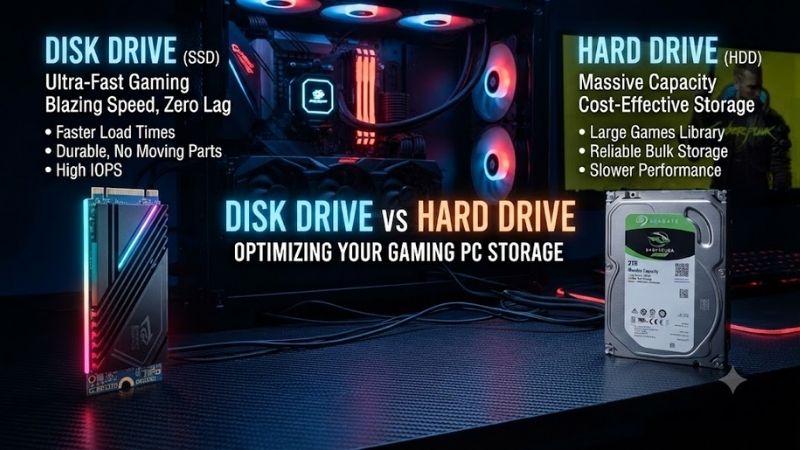
For modern gaming, an HDD can technically store games, but an SSD is normally preferable for the operating system and frequently played titles.
A hard drive does not usually reduce GPU-generated frame rate directly, but it can increase loading times and make asset streaming slower. Games designed around modern SSD storage may also perform more smoothly when installed on solid-state storage.
A high-capacity HDD still makes sense for storing older games, archived installations, screenshots, recordings, and backups.
An optical disk drive is rarely important for PC gaming today because most games are downloaded through platforms such as Steam, Epic Games Store, or Microsoft services rather than installed from physical DVDs.
Disk Drive Vs Hard Drive for Storage
Hard drives remain excellent for large collections of files that do not require extremely fast access.
Good HDD workloads include:
- Video archives
- Photo libraries
- Backup copies
- Surveillance recordings
- Media servers
- Large document archives
- Older game libraries
- NAS storage
Seagate describes HDDs as particularly useful when capacity and economical storage matter more than high random-access performance.
For active programs and operating systems, SSD storage is generally more appropriate.
Reliability Differences
Reliability cannot be judged simply by saying one technology always lasts longer.
HDDs contain moving parts that can wear and are more vulnerable to physical impact. At the same time, magnetic recording does not experience the same NAND program/erase wear mechanism found in SSD flash cells. Seagate notes that magnetic hard-drive media does not suffer from repeated-write NAND cell wear in the same way as flash storage.
SSDs eliminate mechanical wear but flash memory has finite write endurance. Modern SSD endurance is usually more than adequate for ordinary consumer use.
Neither technology should be considered a substitute for backups. Important files should exist in more than one location regardless of drive type.
Power Consumption
SSDs generally consume less power than mechanical HDDs because they do not need motors to spin platters or move read/write heads.
This is particularly valuable in laptops. Reduced storage power consumption can contribute to longer battery life and allows thinner systems. Seagate notes that solid-state storage helped enable lighter and thinner laptop designs.
Desktop systems are less sensitive to the power difference, although lower heat and noise remain useful.
Which One Should You Choose?
Choose a hard drive when capacity per dollar is your main priority. HDDs remain ideal for storing large media libraries, backups, archived games, and files that do not require instant access.
Choose an SSD when you need fast boot times, responsive applications, faster game loading, silent operation, and better resistance to movement.
Choose an optical disk drive only when you actually need to use CDs, DVDs, or Blu-ray media.
The phrase “disk drive” alone should not guide a purchase because it is too broad. Identify the actual device type first.
FAQ
Is a Disk Drive the Same as a Hard Drive?
Not always. A hard drive is one specific type of disk drive. The broader term can also refer to optical drives, removable disks, and other storage devices. Microsoft documentation uses “disk” as a broader storage classification.
Is an SSD a Hard Drive?
No. An SSD is a storage drive, but it is not a hard disk drive. HDDs use magnetic spinning platters, while SSDs use electronic flash memory with no moving mechanical parts.
Is a DVD Drive a Disk Drive?
Yes. A DVD drive is an optical disk drive because it reads optical media using laser technology. Some DVD drives can also write or rewrite compatible discs.
Which Is Faster, SSD or Hard Drive?
SSDs are much faster for random access, boot times, applications, and many file operations. Microsoft notes that SSDs are generally faster than HDDs and have become the common storage type in newer PCs.
Are Hard Drives Still Worth Buying?
Yes. HDDs remain useful when large capacity and low cost per gigabyte matter more than speed. They are especially practical for backups, media archives, NAS systems, and secondary desktop storage.
Does a Hard Drive Have Moving Parts?
Yes. HDDs use spinning magnetic platters and moving read/write heads controlled by an actuator mechanism. These mechanical parts are fundamental to how hard drives store and retrieve data.
Conclusion
In the disk drive vs hard drive comparison, a hard drive is specifically an HDD that stores data on magnetic spinning platters, while disk drive is a broader term that can include HDDs, optical drives, and other storage devices. For modern PCs, use SSDs for speed, HDDs for affordable high-capacity storage, and optical drives only when physical discs are required.