🛒 Best Price Today on Amazon
Prime members get fast, free shipping on everything above, plus member-only deals. New members get a 30-day free trial — cancel anytime.
- Best Mouse for Simulation Games: Quick Comparison
- Logitech G502 X Plus — Best Overall Balance
- Razer Naga V2 Pro — Best for Flexible Button Layouts
- Corsair Scimitar Elite Wireless SE — Best for Thumb Controls
- SteelSeries Aerox 9 Wireless — Best Lightweight Multi-Button Pick
- How to Choose a Mouse for Simulation Games
- FAQ
- Conclusion
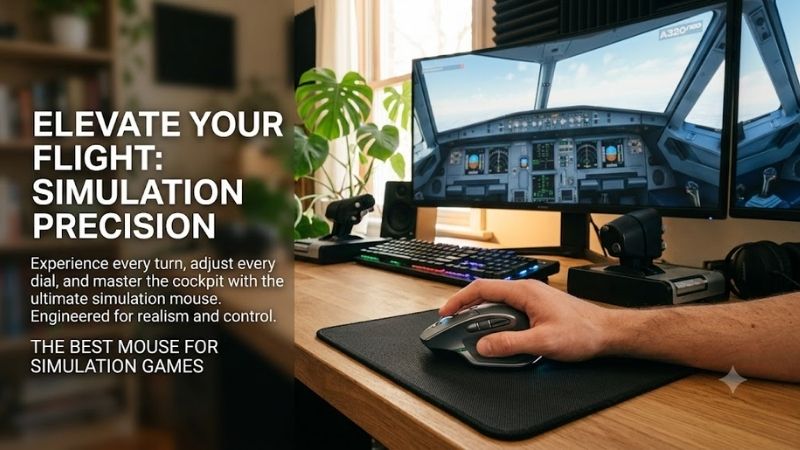
The best mouse for simulation games should make dense controls easier to reach, not just raise sensor speed. For flight, farming, trucking, city-building, and management sims, programmable buttons, a practical scroll wheel, stable wireless, and long-session comfort matter most. These four picks suit different control styles.
Quick answer: For most people in 2026, the best mouse for simulation games is the Logitech G502 X Plus — our #1 rated choice. See the full ranked comparison, alternatives and buying advice below.
Best Mouse for Simulation Games: Quick Comparison
Simulation games vary more than most genres, so the right mouse depends on how often you use keyboard shortcuts, camera controls, maps, and menus. A compact button layout is easier to learn, while a 12-button side grid can move far more commands under your thumb. Weight and wheel design also shape long-session comfort.
| Mouse | Best For | Controls | Standout Feature | Main Trade-Off |
|---|---|---|---|---|
| Logitech G502 X Plus | Balanced simulation setups | 13 programmable controls | Dual-mode scroll wheel, LIGHTSPEED wireless | Fewer thumb commands than MMO-style mice |
| Razer Naga V2 Pro | Multiple simulation genres | 19+1 programmable buttons | Swappable 2-, 6-, and 12-button plates | Dense feature set takes time to configure |
| Corsair SCIMITAR ELITE SE | Command-heavy simulations | 16 programmable buttons | Adjustable 12-button Key Slider | Side grid requires practice |
| SteelSeries Aerox 9 Wireless | Many shortcuts with lower weight | 18 programmable buttons | 89 g multi-button design | Button spacing may not suit every grip |
Logitech G502 X Plus — Best Overall Balance
The Logitech G502 X Plus is the most balanced option here for players who want extra commands without committing to a full MMO-style thumb grid. Its 13 programmable controls and dual-mode scroll wheel make it easy to map camera actions, map views, pause, tools, or cockpit functions while keeping familiar mouse ergonomics.
Its main trade-off is that it offers fewer thumb commands than the Naga, Scimitar, or Aerox 9. That is often a benefit in city builders, truck sims, and general management games, where accidental presses can be more annoying than limited button count. Pick it when you want quick access to key actions without memorizing a full side grid.
| Category | Details |
|---|---|
| Best For | General simulation gaming and mixed game libraries |
| Key Features | 13 programmable controls, LIGHTSPEED wireless, dual-mode scroll wheel, onboard profiles |
| What Makes It Different | More commands than a basic gaming mouse without a full 12-button thumb pad |
| Use Case | Euro Truck Simulator, Farming Simulator, Cities: Skylines, management sims |
| Who It’s For | Players who want useful shortcuts without MMO-style complexity |
Pros
- Accessible programmable controls
- Free-spin and ratcheted scrolling
- Wireless connection keeps large desks cleaner
- Strong balance between gaming and desktop navigation
Cons
- Fewer dedicated thumb buttons than command-heavy alternatives
- Larger shape may not appeal to players who prefer minimalist mice
Razer Naga V2 Pro — Best for Flexible Button Layouts
The Razer Naga V2 Pro fits simulation players who switch between control-heavy games and lighter everyday use. Its three swappable side plates provide 12-, 6-, or 2-button layouts, while the HyperScroll Pro wheel adds multiple scroll modes. That flexibility is useful when one profile needs many bindings and another needs simplicity.
The Naga V2 Pro is the most adaptable choice when your simulation library changes often. Use the 12-button plate for command-heavy titles, the 6-button plate for moderate shortcut needs, and the 2-button plate when you want a cleaner grip. The downside is that its broader feature set adds complexity if you only need a few extra inputs.
| Category | Details |
|---|---|
| Best For | Players switching between simple and command-heavy simulations |
| Key Features | Three side plates, 19+1 programmable buttons, HyperScroll Pro wheel, HyperSpeed wireless, Bluetooth and wired modes |
| What Makes It Different | Physical button layout can change with the game |
| Use Case | Flight sims, space sims, management games, strategy-heavy simulations |
| Who It’s For | Players who want different control layouts without owning several mice |
Pros
- 2-, 6-, and 12-button side configurations
- Large number of programmable commands
- Multiple scroll-wheel modes
- Three connectivity options
Cons
- More configuration than simpler gaming mice
- Dense 12-button layout has a learning curve
Corsair Scimitar Elite Wireless SE — Best for Thumb Controls
The Corsair Scimitar Elite Wireless SE is built around a dense command layout. Its 12-button Key Slider can move forward or backward to match thumb reach, which matters when you bind camera views, vehicle functions, map layers, or frequent hotkeys. The shape favors players who prefer a supported right-handed grip over a low-profile mouse.
The Scimitar’s adjustable side panel is its clearest advantage because thumb reach varies widely between hand sizes and grips. Sliding the grid can make the first and last columns easier to access without moving your palm. Its dense layout rewards players who build consistent profiles, but newcomers may need time to learn each button by feel.
| Category | Details |
|---|---|
| Best For | Simulation games with large keyboard command sets |
| Key Features | 16 programmable buttons, adjustable 12-button Key Slider, MARKSMAN S sensor, 2.4 GHz wireless and Bluetooth |
| What Makes It Different | Thumb-button panel position can be adjusted |
| Use Case | Flight systems, space controls, complex vehicle sims, management hotkeys |
| Who It’s For | Players who want many commands positioned specifically for their thumb reach |
Pros
- Adjustable side-button position
- Twelve dedicated thumb buttons
- Extensive remapping through Corsair iCUE
- Multiple wireless connection options
Cons
- Grid requires time to memorize
- Overkill for simulations using only a few shortcuts
SteelSeries Aerox 9 Wireless — Best Lightweight Multi-Button Pick
The SteelSeries Aerox 9 Wireless gives simulation players a large button count without the heavy feel common to command-focused mice. It weighs 89 g and offers 18 programmable buttons, including a 12-button side panel. That combination suits users who want many shortcuts for complex sims but still move the mouse quickly across large maps.
Aerox 9 Wireless is especially appealing if you dislike the mass of many multi-button mice. The lighter shell makes repeated map panning and cross-screen movement less tiring, while the side grid still keeps a large command set close. The trade-off is that the honeycomb body and narrow button spacing may not suit every grip or preference.
| Category | Details |
|---|---|
| Best For | Large shortcut sets with frequent map or cursor movement |
| Key Features | 89 g weight, 18 programmable buttons, 12-button side panel, 2.4 GHz wireless, Bluetooth, TrueMove Air sensor |
| What Makes It Different | Combines an MMO-style control count with relatively low weight |
| Use Case | City builders, grand-scale management sims, space sims, large-map games |
| Who It’s For | Players who want many shortcuts but dislike heavier multi-button mice |
Pros
- 18 programmable buttons
- 89 g design
- 2.4 GHz and Bluetooth connectivity
- Up to 180 hours of battery life in supported power-saving conditions
Cons
- Honeycomb shell is a preference-dependent design
- Closely spaced side buttons require muscle-memory training
How to Choose a Mouse for Simulation Games
Programmable Buttons
For simulation games, button count is useful only when the layout is easy to learn by touch. Six to thirteen controls cover common actions such as camera rotation, map, pause, tool cycling, push-to-talk, or view changes. A 12-button thumb grid works better when you want to move repeated keyboard commands directly onto the mouse.
Scroll Wheel Design
A versatile scroll wheel can matter more in simulation titles than extreme DPI. Free-spin scrolling helps with long menus, lists, inventories, timelines, or zoom ranges, while a ratcheted mode gives more deliberate steps. Tilt inputs add two extra commands on some mice, which can be useful for horizontal camera movement or interface navigation.
Shape, Weight, and Thumb Reach
Long simulation sessions make shape, weight, and thumb access important. A larger contoured mouse can support the hand during slower, deliberate play, while a lighter shell reduces effort when you pan large maps or move between several monitors. Choose a side-button layout your thumb can reach without shifting your grip or tensing your hand.
Profiles and Button Mapping
Profile software is valuable when you play several simulations with different control schemes. Create a separate profile for each game, then keep related actions in consistent button positions so muscle memory transfers between titles. Start with frequent actions and add secondary shortcuts only when they reduce real keyboard travel.
FAQ
How many mouse buttons do I need for simulation games?
For most simulation players, eight to thirteen programmable controls are enough for camera actions, menus, tools, and a few repeated hotkeys. More buttons become useful in flight, space, farming, or management sims with large command sets. A 12-button side grid offers maximum access, but it also takes longer to learn and can feel crowded at first.
Is high DPI important for simulation games?
High DPI is not the main requirement for simulation games because many actions involve controlled cursor movement, menus, map work, and camera panning rather than fast flick shots. A reliable sensor with adjustable sensitivity matters more. Set a comfortable DPI, then tune in-game sensitivity for predictable movement across sims.
Is a wireless mouse good for simulation games?
Wireless is a good fit for simulation games when the mouse uses a stable low-latency 2.4 GHz connection. It reduces cable drag around large desks, keyboards, throttles, button boxes, or steering-wheel setups. Bluetooth is useful for convenience and battery life, but a dedicated gaming wireless mode is usually the better choice during active play.
Are MMO mice good for simulation games?
An MMO mouse can work very well for simulation games because its side buttons can replace frequently used keyboard shortcuts. It is especially useful for cockpit functions, camera presets, map layers, or management commands. The trade-off is a denser thumb area, so players who use only a few shortcuts may prefer a simpler mouse.
Conclusion
The best mouse for simulation games depends on how many commands you want under one hand. Choose the G502 X Plus for balanced controls, Naga V2 Pro for adaptable layouts, Scimitar Elite Wireless SE for an adjustable thumb grid, or Aerox 9 Wireless for many buttons at lower weight. Match the layout to your most-used sim shortcuts.
Ready to decide? Our #1 pick for 2026 is the Logitech G502 X Plus.
Live price & availability on Amazon.