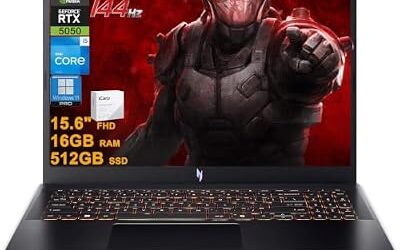
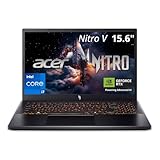
- Top Pick: Acer Nitro V Gaming Laptop | Intel Core i5-13420H Processor | NVIDIA GeForce RTX 4050 Laptop GPU | 15.6" FHD IPS 165Hz Display | 8GB DDR5 | 512GB Gen 4 SSD | Wi-Fi 6 | Backlit KB | ANV15-52-586Z
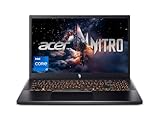
- Best Value: Acer Nitro V Gaming Laptop | Intel Core 7 Processor 240H | NVIDIA GeForce RTX 5050 Laptop GPU | 16" WUXGA IPS 180Hz Display | 16GB DDR5 | 1TB Gen 4 SSD | Wi-Fi 6 | Backlit KB | ANV16-72-73EW
- Premium Choice: acer Nitro V 15.6” FHD IPS 165Hz Gaming Laptop, Intel Core i5-13420H, NVIDIA GeForce RTX 5050 with 8GB GDDR7 VRAM, Win11H, w/Mouse pad (16GB RAM, 512GB PCIe SSD)
The Acer Nitro V has built a loyal following by doing one thing exceptionally well: delivering real gaming performance at a price that does not require a second job. In 2026 the Nitro V lineup spans everything from an RTX 4050 entry model to configurations with the RTX 5050 and even RTX 5060, all wrapped in a no-nonsense chassis aimed squarely at value-focused gamers.
- Watch: Acer Nitro V Gaming Laptop Review: Review & Buyer’s Guide — Video Review
- Design & Build
- Performance
- Pros & Cons
- Alternatives to Consider
- Checking a Nitro V Configuration Before You Pick One
- Which Configuration Should You Choose?
- Common Mistakes When Buying a Nitro V
- Troubleshooting Common Nitro V Issues
- Check the Listing Twice: Power Limits, Memory Type, and Battery Size
- Nitro V vs Its Closest Rivals: A Spec Decision Table
- Who Should Skip the Nitro V
- First-Day Setup: The Order That Prevents Most Problems
- More Picks Worth Considering
- Frequently Asked Questions
- Verdict
- Related Articles
This review examines what you actually get for your money across the Nitro V range, from its fast displays to its cooling and upgrade potential. If you want to know whether Acer’s budget gaming line can keep up with modern titles without draining your wallet, here is an honest, detailed look at the trade-offs.
As an Amazon Associate we earn from qualifying purchases at no extra cost to you.


🎮 Get More From Your Setup — Free
Prime Gaming gives you free PC games every month, in-game loot, and a free Twitch channel sub — plus fast free shipping on all the gear above. New members get a 30-day free trial.
Watch: Acer Nitro V Gaming Laptop Review: Review & Buyer’s Guide — Video Review
Design & Build
The Nitro V keeps things practical with a matte plastic chassis, a subtle gaming aesthetic, and a backlit keyboard that skips flashy per-key RGB in favor of clean function. Displays are a strong point: most models feature 15.6-inch FHD IPS panels at 165Hz, while newer 16-inch builds move to a WUXGA 180Hz screen with a taller aspect ratio. Wi-Fi 6 connectivity is standard, and the laptop stays reasonably portable for its class. Importantly, Acer keeps the Nitro V upgradeable, with accessible RAM and storage that let you expand the machine over time.
Performance
Value gaming is the Nitro V’s whole reason for being, and it delivers. Entry configurations with the Core i5-13420H and RTX 4050 handle esports and many AAA titles at 1080p with tuned settings, while RTX 5050 and RTX 5060 builds paired with Core i7 or i9 chips, 16GB or 32GB of DDR5, and fast Gen 4 SSDs push higher frame rates and smoother 1080p and 1440p play. The 165Hz and 180Hz panels make the most of that performance in fast shooters. It is not a flagship, but for the money the Nitro V punches above its weight in real games.
Pros & Cons
- Pros: Excellent gaming performance for the price
- Fast 165Hz and 180Hz IPS displays
- Upgradeable RAM and storage
- Range of GPU options from RTX 4050 to RTX 5060
- Cons: Plastic build feels less premium
- Battery life is modest under gaming loads
- Speakers and webcam are merely average
Alternatives to Consider
If you want a more premium build and stronger cooling, a mid-tier Lenovo Legion or ASUS TUF laptop steps up quality for a bit more money. Gamers chasing the highest frame rates should look at an RTX 5070-class machine, while those who mostly play esports titles could save further with an even lighter budget laptop. For balanced value, though, the Nitro V is tough to beat.
Checking a Nitro V Configuration Before You Pick One
The Nitro V name covers a family rather than a single machine. Acer sells 15.6-inch and 16-inch versions with different processors, graphics cards, memory amounts, and screens, so two listings that look alike can behave very differently. These sections explain which specifications deserve the closest look.
The GPU Tier and Its VRAM
Graphics memory shapes how long a laptop stays useful. The RTX 4050 laptop GPU carries 6GB of video memory, while the RTX 4060 and the newer RTX 5050 and RTX 5060 laptop GPUs carry 8GB. In practice, 6GB is a tighter fit for high-texture settings in recent games, and 8GB gives more breathing room at 1080p. Also remember that laptop GPUs of the same name can run at different power limits depending on the chassis and firmware, so a laptop GPU is not directly comparable to a desktop card with the same number.
| Laptop GPU | Video memory | Comfortable target |
|---|---|---|
| RTX 4050 | 6GB GDDR6 | 1080p at medium to high settings; esports titles at high refresh |
| RTX 5050 | 8GB GDDR7 | 1080p at high settings |
| RTX 4060 / RTX 5060 | 8GB | 1080p at high settings with higher frame rates |
Memory and Storage Layout
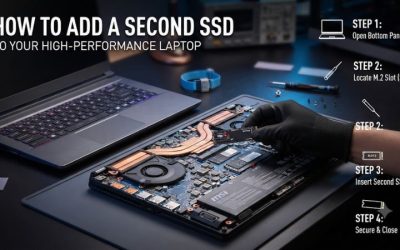
Nitro V models commonly have two SO-DIMM memory slots and at least one M.2 slot for storage, which makes them easier to upgrade than many thin laptops, though the exact count varies between generations. The trap is a configuration that ships with a single memory stick, which runs in single-channel mode and can reduce performance in CPU-heavy games and for the integrated graphics. Look for two matched sticks, such as 2 x 8GB or 2 x 16GB. If the machine arrives with one stick, adding a second matching module is a straightforward fix.
Display and Ports
A 144Hz or 165Hz refresh rate is typical for this class, which suits the frame rates these GPUs deliver. Check the screen’s color coverage, because budget panels in some gaming laptops cover only part of the sRGB range and look washed out for photo or video editing. For ports, count the USB-A connections, find out whether the USB-C port supports DisplayPort output or charging, and confirm the presence of HDMI for an external monitor.
Cooling and Power Modes
Acer’s NitroSense software and dedicated Nitro key let you switch performance profiles. A higher-performance profile raises fan speed and power limits, which increases frame rates but also noise. Keep the vents clear, avoid soft surfaces such as blankets under the chassis, and run the laptop on its charger when gaming, because performance is usually reduced on battery.
Which Configuration Should You Choose?
| If you… | Choose… |
|---|---|
| Play esports and older games at 1080p | An RTX 4050 or RTX 5050 configuration with 16GB of dual-channel RAM |
| Want the best frame rates in current AAA games | An RTX 5060 or RTX 4060 model with 8GB of VRAM and a 144Hz or faster screen |
| Plan to keep the laptop for several years | A configuration with two RAM slots and a second M.2 slot free, so memory and storage can grow |
| Travel often and want good battery life | A different laptop category, since gaming-class machines drain quickly under load |
| Care about screen color accuracy for creative work | A configuration whose listing states strong sRGB coverage |
Common Mistakes When Buying a Nitro V
- Choosing by the model name alone. “Nitro V” can mean an entry model or a more capable one. Read the GPU, RAM, storage, and screen lines.
- Accepting single-channel memory. It is a frequent configuration shortcut and an easy one to fix.
- Overlooking the power adapter. A lower-wattage adapter than the GPU needs can hold performance back. Use the supplied charger.
- Gaming on battery. Gaming laptops cut power on battery to save runtime, which lowers frame rates sharply.
- Ignoring thermals. Dust and blocked vents cause throttling. Clean the intake grills periodically.
- Skipping updates. Run Windows Update, the Acer software, and the NVIDIA driver after setup, because early firmware can affect fan and power behavior.
Troubleshooting Common Nitro V Issues
- Low frame rates in games. Confirm that the game uses the dedicated graphics card instead of the integrated one. In Windows graphics settings, assign the game to the high-performance GPU, and make sure the laptop is plugged in.
- Fans loud at idle. Switch the NitroSense profile to a quieter mode, close background applications, and clean dust from the vents.
- Stuttering after waking from sleep. Restart the machine, update the graphics driver, and install the latest BIOS from Acer’s support page.
- Wi-Fi drops. Update the wireless driver, and try the 5GHz band when the router offers one. Disabling power saving for the adapter in Device Manager can help.
- The screen does not reach its refresh rate. Open Windows display settings and select the highest refresh rate, and check that the graphics driver is installed.
- The battery drains while plugged in. This can happen when the adapter delivers less power than the machine draws under full load. Lower the performance profile or use the original adapter.
When to Contact Support
Repeated shutdowns under load, a fan that never spins, or visible artifacts on the screen point to hardware faults rather than settings. Document the behavior, note the serial number, and open a warranty request instead of continuing to troubleshoot at length.
A Simple Weekly Care Routine
Gaming laptops stay quicker when the basics are maintained. Once a week, close unused startup programs, clear temporary files, and confirm the fans spin up under load. Once a month, use compressed air to clear dust from the vents while the laptop is powered off, and look for loose rubber feet that could restrict airflow. Keep the laptop on a hard, flat surface or a stand during long sessions so the intake underneath can draw cool air freely.
Check the Listing Twice: Power Limits, Memory Type, and Battery Size
Three details decide how a Nitro V actually behaves, and none of them appears in the large print of a listing. Work through this checklist before ordering any configuration.
Find the GPU power limit. The same graphics card name can run at very different wattages in different laptops, and the wattage shapes frame rates more than the badge does. Look for the GPU power figure, sometimes labeled TGP, in the full specification section of the listing or in Acer’s specification sheet for the exact model code. If the listing never states it, treat that as unconfirmed and check Acer’s support page for that model code before buying — confirm on the listing.
Confirm the memory type, not just the amount. Most current Nitro V configurations use DDR5, but at least one high-end configuration pairs a fast processor and graphics card with DDR4 memory. Games tolerate this better than CPU-heavy work such as compiling, compression, and large photo exports, which run noticeably slower on the older memory standard. The memory type is one line in the specification table; read it.
Check the battery capacity for that generation. Battery size differs between Nitro V generations and screen sizes, and runtime claims from a review of one generation do not transfer to another. Find the watt-hour figure for the exact model code rather than assuming the larger battery.
Decode the model code. ANV15 models are the 15.6-inch line and ANV16 models the 16-inch line, and the digits after the dash separate generations and regional variants. Two listings with near-identical titles can be different generations with different screens and batteries.
Note who performed any upgrades. Some listings are seller-upgraded machines whose seal was opened to fit larger memory or storage. Those can be good value, but the warranty may be split between the seller for the upgraded parts and Acer for the rest. Confirm who covers what before ordering.
Nitro V vs Its Closest Rivals: A Spec Decision Table
The review above mentions rival families in general terms. This table puts the Nitro V’s range next to three specific alternatives in the same class, using only the headline specifications from each listing, so the trade-offs are visible at a glance.
| Check | Acer Nitro V range | ASUS TUF A16 | Lenovo LOQ 15 | MSI Katana A15 AI |
|---|---|---|---|---|
| Graphics card | RTX 4050, 5050, or 5060 | RTX 4050 | RTX 4060 | RTX 4060 |
| Video memory | 6GB on RTX 4050, 8GB on higher tiers | 6GB | 8GB | 8GB |
| Screen | 15.6-inch FHD at 165Hz, or 16-inch WUXGA at 180Hz | 16-inch WUXGA at 144Hz | 15.6-inch FHD at 144Hz | 15.6-inch FHD at 144Hz |
| Memory fitted | 8GB to 32GB, DDR5 on most, DDR4 on one configuration | 16GB DDR5 | 16GB DDR5 | 32GB DDR5 |
| Storage fitted | 512GB to 1TB Gen 4 SSD | 1TB SSD | 1TB SSD | 1TB SSD |
Read the table by the row that matters most to you. If screen speed is the priority, the Nitro V’s panels lead this group. If video memory is the priority, the two RTX 4060 rivals start at 8GB without stepping up to the Nitro V’s highest tier. If you dislike opening a new laptop, the Katana’s factory-fitted 32GB of memory removes the upgrade errand entirely.
Who Should Skip the Nitro V
The Nitro V is a desk-first value machine, and some buyers are better served elsewhere.
Skip it if your study or work space is shared and quiet. The fans run whenever the graphics card works, and under a full gaming load they are clearly audible across a small room. A thinner, lower-power laptop is the calmer tool for libraries and shared offices.
Skip it if you carry a laptop all day, every day. At roughly two kilograms plus a charger, it is a bag load you will feel on a long walk between classes or sites. Daily carriers should look at lighter machines and accept lower gaming performance as the trade.
Skip it if color-critical creative work pays your bills. Budget gaming panels in this class often cover only part of the wider color ranges, and coverage varies by configuration. If editing accuracy matters, choose a laptop whose listing states full sRGB coverage or better, and verify it — confirm on the listing.
Skip it if your target is high settings at 1440p in the newest releases without upscaling. That workload belongs to a higher graphics tier than any laptop in this comparison.
First-Day Setup: The Order That Prevents Most Problems
Most early Nitro V complaints trace back to setup order rather than faulty hardware. Work through these steps on day one, before installing your game library.
- Inspect the screen first, while the return window is wide open. Display a dark scene and a plain light screen and look for uneven backlight patches or dead pixels, because panel variation is the one flaw that only an exchange can fix.
- Run Windows Update fully, including optional driver updates, then restart.
- Update Acer’s own software and check for a BIOS update for your model code on Acer’s support page, since early firmware often governs fan curves and power behavior.
- Install the current NVIDIA driver and open the NVIDIA control software to confirm the laptop switches to the dedicated graphics card for games.
- Open Windows display settings and set the panel to its highest refresh rate; new machines sometimes default to a lower rate.
- Set a battery charge limit in Acer’s care settings if the laptop will live on a desk plugged in — confirm on the listing whether your model offers this, as availability varies.
- Remove trial software you will never open, create a system restore point, and register the warranty with the serial number from the base label.
- Keep the box and packaging until the return window closes.
More Picks Worth Considering
ASUS TUF A16 Gaming Laptop | 16″ WUXGA IPS 144Hz | AMD 6-Core Ryzen 7 7445HS | 16GB DDR5 1TB SSD | NVIDIA GeForce RTX 4050 (194 AI Tops) | Backlit Keyboard USB 4 Wi-Fi 6 Win11 Pro w/DLCA Accessory
This is the closest like-for-like alternative for a buyer who likes the Nitro V formula but prefers a 16-inch screen in the taller format and an AMD processor. It matches the entry Nitro V’s RTX 4050 graphics with 6GB of video memory, fits 16GB of DDR5 memory and a 1TB SSD as standard, and adds USB 4, which the Nitro V listings here do not claim. It fits desk-based players who want the bigger, taller panel for both games and documents, and who value the port upgrade. It does not fit buyers chasing the Nitro V’s faster 165Hz or 180Hz panels, or anyone who wants 8GB of video memory without moving up a tier. Note that this listing bundles accessories from the seller, so check what is included and who handles the warranty — confirm on the listing.
Lenovo LOQ i7 Gaming Laptop, 15.6″ FHD 144Hz, i7-13650HX (Beats i9-12900H), GeForce RTX 4060 (Boost Clock 2370MHz), 16GB DDR5 RAM, 1TB SSD, Backlit KB, RJ-45, Wi-Fi 6, Windows 11 Home, Grey
The LOQ is the natural step sideways for a buyer who wants the 8GB video memory tier without paying for the Nitro V’s highest configuration. Its RTX 4060 pairs with a 14-core Intel HX processor, 16GB of DDR5 memory, and a 1TB SSD, and the wired Ethernet port suits a fixed desk setup. It fits players whose games are texture-heavy at 1080p and who also run demanding desktop programs, where the extra processor cores help. It does not fit buyers who want the Nitro V’s 165Hz screen, since this panel runs at 144Hz, or anyone set on a 16-inch display. As with the Nitro V, the graphics card’s power limit is the figure that decides real performance, and it is not in the headline text — confirm on the listing.
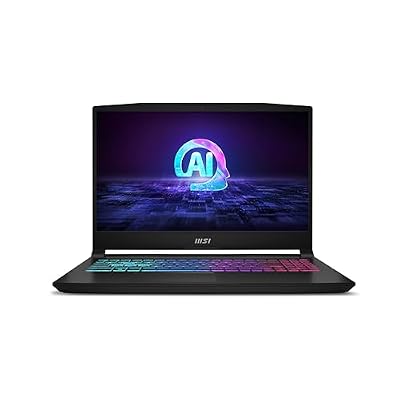
MSI Katana A15 AI 15.6″ 144Hz FHD Gaming Laptop – Ryzen 7-8845HS, GeForce RTX 4060, 32GB DDR5, 1TB SSD, Cooler Boost 5, Windows 11, B8VF-448US
The Katana A15 AI answers the Nitro V’s most common errand: it arrives with 32GB of DDR5 memory already fitted, so there is no opening the chassis or matching a second memory stick in the first month of ownership. The RTX 4060 brings 8GB of video memory, the Ryzen 7 8845HS handles the processor side, and MSI’s Cooler Boost 5 is its named cooling system. It fits buyers who multitask heavily alongside gaming — many browser tabs, chat, and a stream running at once — and who want that headroom from day one. It does not fit buyers who prefer an Intel processor, a 16-inch taller screen, or the Nitro V’s higher-refresh panels, since this display is a 15.6-inch 144Hz unit. Check the exact keyboard layout and port selection for your region — confirm on the listing.
Frequently Asked Questions
Which Nitro V configuration is the best value?
The RTX 5050 models with a Core i7 and 16GB of DDR5 offer the best balance of price and performance for 1080p and light 1440p gaming.
Can the Nitro V handle modern AAA games?
Yes, at 1080p with appropriate settings. The RTX 5060 builds push higher frame rates and can manage some 1440p gaming.
Is the Nitro V upgradeable?
Acer keeps RAM and storage accessible, so you can add memory or a larger SSD to extend the laptop’s useful life.
How is the battery life?
Like most gaming laptops, it is best used plugged in for gaming. Expect modest unplugged endurance for light tasks.
Verdict
The Acer Nitro V remains one of the smartest budget gaming laptops you can buy, delivering strong frame rates and fast displays without the premium price. The RTX 5050 Core i7 configuration is the value sweet spot, while the RTX 5060 build adds welcome headroom. If you want to game on a budget without major compromises, the Nitro V deserves a spot on your list.