🛒 Best Price Today on Amazon
Prime members get fast, free shipping on everything above, plus member-only deals. New members get a 30-day free trial — cancel anytime.
- Quick Comparison: Best Gaming Laptops for Engineering Students
- 1. Lenovo Legion Pro 7i Gen 10 — Best for Maximum Performance
- 2. ASUS ROG Zephyrus G16 (2025) — Best Balance of Power and Portability
- 3. MSI Vector 16 HX AI — Best for High RAM and Connectivity
- 4. ASUS TUF Gaming A14 (2025) — Best Compact Option
- How to Choose a Gaming Laptop for Engineering School
- Recommended Specs by Student Workload
- FAQ
- Conclusion
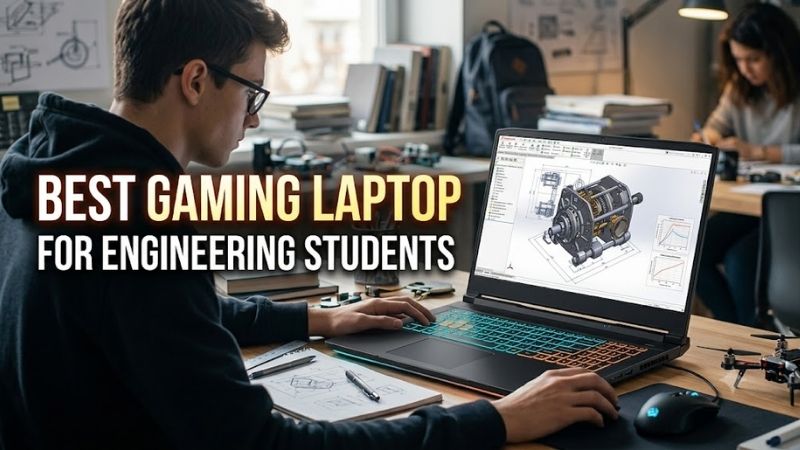
The best gaming laptop for engineering students must balance GPU power, CPU speed, memory, storage, portability, and reliable Windows software support. The models below suit CAD, coding, simulation, rendering, and modern games, with different trade-offs for students who commute daily or prioritize maximum performance.
Quick Comparison: Best Gaming Laptops for Engineering Students
| Model | Best For | CPU / GPU Focus | Memory / Storage | Display | Mobility |
|---|---|---|---|---|---|
| Lenovo Legion Pro 7i Gen 10 | Maximum performance and upgrade flexibility | Core Ultra 9 275HX; RTX 5080 16GB | 32GB DDR5 config; up to 64GB; dual M.2 support | 16-inch 2560 x 1600 OLED, 240Hz | Desktop-replacement class |
| ASUS ROG Zephyrus G16 (2025) | Premium portability with strong GPU options | Core Ultra 9 285H; RTX 5070 Ti 12GB option | Up to 64GB LPDDR5X; second M.2 slot | 16-inch 2.5K OLED, 240Hz | Starts at 1.85kg on listed configs |
| MSI Vector 16 HX AI | Heavy compute, ports, and high RAM ceiling | Core Ultra 200HX series; RTX 5070 Ti or RTX 5080 | Up to 96GB DDR5; two M.2 slots | 16-inch QHD+ 240Hz option | 2.7kg |
| ASUS TUF Gaming A14 (2025) | Compact campus carry | Ryzen AI 7 350; RTX 5060 option | Up to 32GB LPDDR5X in some regions; dual M.2 | 14-inch 2560 x 1600, 165Hz | 1.46kg |
1. Lenovo Legion Pro 7i Gen 10 — Best for Maximum Performance
- Best For: Mechanical, civil, electrical, and computer engineering students who expect demanding 3D projects, rendering, simulation, large datasets, or AAA gaming from one machine.
Key Features
- Intel Core Ultra 9 275HX processor on the referenced RTX 5080 configuration.
- NVIDIA GeForce RTX 5080 Laptop GPU with 16GB GDDR7.
- 16-inch WQXGA 2560 x 1600 OLED display with 240Hz refresh rate.
- 32GB DDR5-6400 on the referenced configuration; platform support up to 64GB.
- PCIe Gen5 SSD option plus two M.2 storage positions.
- Thunderbolt 4, HDMI 2.1, USB-C, USB-A, and RJ45 connectivity.
Lenovo’s Legion Pro 7i Gen 10 is the strongest fit here for students who run demanding 3D workloads and also want high-end gaming performance. The RTX 5080 configuration pairs 16GB of GDDR7 VRAM with a Core Ultra 9 275HX, while the 16-inch 2560 x 1600 OLED panel runs at 240Hz for both design work and games.

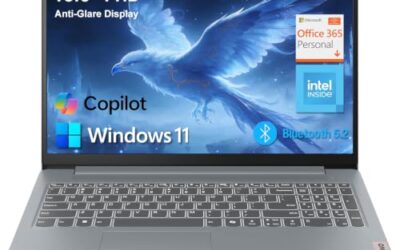
Lenovo Legion 5 15IRX10 15.1" WQXGA OLED, Gaming Laptop, Intel Core i9 14th Gen 14900HX 1.6GHz; NVIDIA GeForce RTX 5070 8GB GDDR7; 32GB DDR5 RAM; 1TB NVMe M.2 SSD; Gigabit LAN, 2x2 WiFi 7
Included for 'Best Gaming Laptop for Engineering Students: 2026 Guide' because the listing specifies Gaming Laptop and 2x2 WiFi 7, details this guide uses to compare options.
View on Amazon
Lenovo Legion 5a Gaming Laptop, AMD Ryzen 7 250, GeForce RTX 5060, 15.3" WQXGA (2560x1600) 165Hz OLED Display, 32GB DDR5 RAM, 1TB SSD, Wi-Fi 7, RGB Backlit, Win 11, Black, w/Portable 500GB Drive
Included for 'Best Gaming Laptop for Engineering Students: 2026 Guide' because the listing specifies AMD Ryzen 7 250 and GeForce RTX 5060, details this guide uses to compare options.
View on Amazon
Lenovo Legion 5i – Gaming Laptop - Intel® Core™ i7-14700HX - 15" 2.5K WQXGA PureSight OLED Display–165Hz Refresh Rate–NVIDIA® GeForce RTX™ 5070 – 16 GB Memory – 1 TB Storage – 3 Months of PC GamePass
Included for 'Best Gaming Laptop for Engineering Students: 2026 Guide' because the listing specifies Gaming Laptop and Intel® Core™ i7-14700HX, details this guide uses to compare options.
View on AmazonIts main advantage is expansion and sustained desktop-replacement capability. Lenovo supports up to 64GB of DDR5 memory and two M.2 SSDs, while Thunderbolt 4, HDMI 2.1, USB-C, RJ45, and multiple USB-A ports simplify lab setups. The trade-off is mobility: this class starts around 2.7kg before the large power adapter.
What Makes It Different
- A 16GB RTX 5080 configuration gives substantially more VRAM headroom than 8GB gaming-laptop GPUs.
- Two memory slots and dual-drive support make later upgrades practical.
- The OLED panel combines 2560 x 1600 resolution with a gaming-focused 240Hz refresh rate.
Pros
- High-end GPU option with 16GB VRAM.
- Upgradeable memory and storage.
- Strong wired and display connectivity.
- High-resolution OLED panel with wide DCI-P3 coverage.
Cons
- Heavy for daily campus commuting.
- Large power adapter adds more bag weight.
- More performance than many first- or second-year workloads require.
- Use Case: Running CAD, 3D visualization, local development environments, large project files, and demanding games primarily from a desk or dorm setup.
- Who It’s For: Students who want a desktop-replacement gaming laptop and expect their software workload to grow during a four-year engineering program.
2. ASUS ROG Zephyrus G16 (2025) — Best Balance of Power and Portability
- Best For: Students who need serious GPU performance but regularly carry their laptop between classrooms, labs, libraries, internships, and home.
Key Features
- Intel Core Ultra 9 285H processor.
- RTX 5070 Ti Laptop GPU option with 12GB GDDR7 and up to 115W listed graphics power.
- Up to 64GB LPDDR5X memory, depending on configuration.
- Up to 2TB PCIe 4.0 SSD with a second M.2 slot available.
- 16-inch 2.5K OLED panel with 240Hz refresh rate and 100% DCI-P3 coverage.
- Thunderbolt 4, HDMI 2.1, USB-C, dual USB-A, and UHS-II SD card reader.
The ROG Zephyrus G16 is aimed at engineering students who carry one machine between lectures, labs, dorms, and gaming sessions. The 2025 model combines a Core Ultra 9 285H with RTX 50-series options, including an RTX 5070 Ti with 12GB of GDDR7, while its 16-inch 2.5K OLED display offers a 240Hz refresh rate.
What separates the G16 from heavier performance laptops is its lower carrying weight, starting at 1.85kg on listed configurations. It still provides HDMI 2.1, Thunderbolt 4, USB-C, dual USB-A, and an SD reader. Memory is soldered, however, so choosing 32GB or 64GB at purchase is far more important than on upgradeable rivals.
What Makes It Different
- Lower listed starting weight than the large HX-class performance machines here.
- 12GB RTX 5070 Ti and higher GPU options are available without moving to a 2.7kg chassis.
- The OLED panel is useful for both gaming and color-sensitive visualization work.
Pros
- Strong performance-to-weight balance.
- High-resolution 240Hz OLED display.
- Up to 64GB memory configurations.
- Second M.2 slot for storage expansion.
Cons
- System memory is not user-upgradeable.
- Thin chassis means GPU power limits differ from heavier gaming laptops.
- Higher-memory configurations need to be chosen at purchase.
- Use Case: A single premium laptop for lectures, CAD labs, coding, reports, creative work, and gaming without carrying a full desktop-replacement chassis.
- Who It’s For: Engineering students who value mobility almost as much as performance and can select enough soldered memory for their expected workload.
3. MSI Vector 16 HX AI — Best for High RAM and Connectivity
- Best For: Students working with memory-heavy simulation, virtual machines, local databases, large CAD assemblies, rendering, or multi-monitor desk setups.
Key Features
- Intel Core Ultra 200HX-series processor platform.
- RTX 5070 Ti Laptop GPU with 12GB GDDR7 at up to 140W.
- RTX 5080 Laptop GPU option with 16GB GDDR7 at up to 175W.
- Up to 96GB DDR5 memory across two slots.
- One PCIe Gen4 M.2 slot plus one PCIe Gen5-compatible M.2 slot.
- QHD+ 2560 x 1600 240Hz display option with 100% DCI-P3.
- Two Thunderbolt 5 ports, HDMI 2.1, 2.5GbE, USB-A, and SD Express.
MSI’s Vector 16 HX AI is built for students who care more about compute headroom, ports, and upgrade capacity than a light backpack. RTX 5070 Ti models provide 12GB of GDDR7 at up to 140W, while RTX 5080 versions raise graphics memory to 16GB. The 16-inch QHD+ option runs at 240Hz and covers 100% DCI-P3.
The Vector also supports up to 96GB of DDR5 memory and includes two M.2 storage slots, which helps with large simulation files, VMs, game libraries, and project archives. Two Thunderbolt 5 ports, HDMI 2.1, 2.5GbE, USB-A, and an SD Express reader add flexibility, but its 2.7kg chassis is better for desk-heavy use.
What Makes It Different
- The 96GB maximum memory ceiling is unusually useful for VM-heavy and simulation-heavy student workflows.
- Thunderbolt 5 and 2.5GbE make it well suited to docks, fast external storage, and wired lab networks.
- Higher-power RTX configurations prioritize sustained performance over thin-and-light design.
Pros
- Very high RAM ceiling.
- 12GB and 16GB VRAM GPU options.
- Extensive high-speed connectivity.
- Two storage slots.
Cons
- 2.7kg chassis is not ideal for long campus walks.
- High-power configurations use large adapters.
- Performance-first design is less convenient for frequent mobile use.
- Use Case: Running demanding engineering applications at a desk, connecting external displays and storage, hosting VMs, and gaming after coursework.
- Who It’s For: Students who expect memory capacity, GPU power, and I/O flexibility to matter more than low carry weight.
4. ASUS TUF Gaming A14 (2025) — Best Compact Option
- Best For: Students who walk or commute frequently and need dedicated RTX graphics in a much lighter 14-inch gaming laptop.
Key Features
- AMD Ryzen AI 7 350 processor option.
- NVIDIA GeForce RTX 5060 Laptop GPU with 8GB GDDR7.
- 14-inch 2560 x 1600 IPS-level display with 165Hz refresh rate.
- G-SYNC, MUX Switch, and NVIDIA Advanced Optimus.
- Up to 32GB LPDDR5X memory in listed regional configurations.
- Two M.2 PCIe storage slots.
- USB4, USB-C, HDMI 2.1, dual USB-A, and microSD reader.
- Listed weight of 1.46kg.
ASUS TUF Gaming A14 is the compact choice for students who want dedicated RTX graphics without carrying a 16-inch chassis every day. The 2025 model can be configured with a Ryzen AI 7 350 and RTX 5060 Laptop GPU, while its 14-inch 2560 x 1600 IPS-level display supports 165Hz, G-SYNC, and a MUX Switch.
At about 1.46kg, the A14 is easier to carry across campus than the larger performance models. ASUS lists up to 32GB of LPDDR5X memory on some regional configurations and dual M.2 slots for storage expansion. The limitation is fixed system memory, so engineering students should avoid lower-RAM SKUs if their coursework uses large models.
What Makes It Different
- It is far lighter than the 16-inch HX-class systems while retaining a discrete RTX GPU.
- The 14-inch 16:10 panel gives more vertical workspace than a 16:9 screen.
- Dual M.2 slots preserve storage expansion even though system memory is onboard.
Pros
- Low 1.46kg listed weight.
- RTX 5060 option with 8GB GDDR7.
- 2.5K 165Hz display.
- Two M.2 slots despite the compact chassis.
Cons
- Memory is soldered.
- Lower RAM configurations can be restrictive for larger engineering workloads.
- 14-inch display offers less physical workspace than 16-inch models.
- Use Case: Coding, moderate CAD, coursework, presentations, lab work, esports, and mainstream AAA gaming in a system designed for frequent travel.
- Who It’s For: Students who prioritize carrying comfort and still need Windows engineering software plus a dedicated NVIDIA GPU.
How to Choose a Gaming Laptop for Engineering School
1. Start With 32GB of RAM When Your Software Can Use It
For most engineering students, 32GB of RAM is the practical target rather than an indulgence. AutoCAD 2027 lists 32GB as recommended, and SOLIDWORKS 2026 also recommends 32GB. More memory matters when CAD, MATLAB, browser tabs, IDEs, virtual machines, and reference documents are open together, reducing pressure on the SSD page file.
2. Match VRAM to CAD, Rendering, and 3D Work
GPU choice depends on the workload, not only the game library. AutoCAD 2027 recommends an 8GB DirectX 12 GPU for general use and 12GB or more VRAM for large datasets, point clouds, and 3D modeling. An RTX 5060 fits lighter student work, while 12GB or 16GB options provide more headroom for complex scenes and GPU rendering.
3. Choose CPU Class Around Your Mobility Needs
CPU choice matters for compilation, simulation, data processing, and CAD operations that are not fully GPU accelerated. Higher-power HX processors favor sustained desk work, while H-class chips help thinner laptops balance speed and portability. Students who travel daily should weigh chassis mass and charger size beside peak CPU capability.
4. Plan for SSD Capacity and Future Projects
Storage fills quickly once engineering software, local datasets, project versions, games, and recorded presentations share one drive. A 1TB SSD is a sensible floor, while a second M.2 slot lets you add capacity later. Models with soldered memory make storage expandability even more useful for extending practical service life.
5. Check Workstation Certification Before Buying
Do not assume a GeForce gaming laptop is automatically right for every engineering department. SOLIDWORKS specifies certified graphics cards and drivers, so courses that depend on certified hardware should be checked against departmental requirements. A gaming laptop makes the most sense when coursework compatibility and gaming both matter.
Recommended Specs by Student Workload
| Workload | RAM Target | GPU Direction | Storage | Practical Priority |
|---|---|---|---|---|
| Programming, circuits, basic CAD | 16GB minimum; 32GB preferred | RTX 5060-class or similar dedicated GPU | 1TB | Portability and battery behavior |
| Mechanical CAD and 3D assemblies | 32GB | 8GB+ VRAM; more for large projects | 1TB–2TB | CPU speed, GPU VRAM, cooling |
| Large datasets and point clouds | 32GB or more | 12GB+ VRAM is worth considering | 2TB preferred | Memory, VRAM, storage expansion |
| Simulation plus VMs | 32GB–64GB+ | Depends on solver and visualization path | 2TB preferred | RAM capacity and sustained CPU performance |
| CAD plus frequent AAA gaming | 32GB | RTX 5070 Ti / RTX 5080 tier if budget allows | 1TB–2TB | GPU power balanced with weight |
FAQ
Is a gaming laptop good for engineering students?
Yes, a gaming laptop can be a strong engineering laptop when its Windows support, RAM, CPU, and GPU match your coursework. Gaming models often provide dedicated graphics and stronger cooling, which also help 3D work. The main compromises are weight, fan noise, battery life under load, and the lack of workstation GPU certification.
Is 16GB or 32GB RAM better for engineering students?
For a new engineering laptop, 32GB is the safest general target for students using CAD, simulation, programming tools, and heavy multitasking. Sixteen gigabytes can handle lighter coding and introductory CAD, but it leaves less headroom for large projects. If RAM is soldered, buy the capacity you expect to need for the full degree program.
Is an RTX 5060 enough for engineering software?
An RTX 5060 Laptop GPU is enough for many student workflows and modern games, especially when projects are moderate in size. Students handling larger 3D assemblies, point clouds, GPU rendering, or heavier visualization should consider 12GB or 16GB VRAM options. Software certification requirements still take priority over raw GPU class.
Should engineering students buy a 14-inch or 16-inch gaming laptop?
A 14-inch laptop suits frequent commuting, while a 16-inch model gives more workspace and usually more room for cooling, ports, and higher-power hardware. Students who move between buildings all day may value the lighter system. Those who work mainly at a desk can benefit from a larger screen and stronger sustained performance.
Can gaming laptops run AutoCAD and SOLIDWORKS?
Gaming laptops can run CAD software, but compatibility is application-specific. AutoCAD supports capable DirectX hardware, while SOLIDWORKS publishes certified GPU and driver requirements for supported configurations. Before buying, check the exact software used by your department, especially for advanced CAD, simulation, or professional lab work.
Conclusion
The best gaming laptop for engineering students depends on how much performance you need to carry. The Legion Pro 7i and MSI Vector favor heavy workloads, the Zephyrus G16 balances power with portability, and the TUF A14 is easier to commute with. Choose 32GB RAM when possible, then match GPU memory to your actual engineering software.