🛒 Best Price Today on Amazon
Prime members get fast, free shipping on everything above, plus member-only deals. New members get a 30-day free trial — cancel anytime.
- Best Monitors for ROG Ally X Compared
- ASUS ROG Strix XG27ACS — Best Overall for ROG Ally X
- GIGABYTE M27Q X — Best 240Hz IPS Option
- LG UltraGear 27GS95QE-B — Best OLED for ROG Ally X
- Dell G2724D — Best Simple QHD Setup
- Is 1440p the Right Resolution for ROG Ally X?
- How to Choose the Best Monitor for ROG Ally X
- FAQ
- Conclusion
The best monitor for ROG Ally X should match the handheld’s USB4 DisplayPort 1.4 output, FreeSync support, and realistic GPU limits. For most players, a 27-inch QHD display at 165Hz to 240Hz gives the best balance of sharpness, motion clarity, desk comfort, and flexibility for both docked gaming and everyday Windows use.
Quick answer: For most people in 2026, the best monitor for rog ally x is the Monitor — our #1 rated choice. See the full ranked comparison, alternatives and buying advice below.
Best Monitors for ROG Ally X Compared
| Monitor | Panel | Resolution | Max Refresh Rate | Best For |
|---|---|---|---|---|
| ASUS ROG Strix XG27ACS | Fast IPS | 2560 × 1440 | 180Hz | Best overall |
| GIGABYTE M27Q X | SS IPS | 2560 × 1440 | 240Hz | High-refresh gaming and KVM |
| LG UltraGear 27GS95QE-B | OLED | 2560 × 1440 | 240Hz | OLED contrast and motion clarity |
| Dell G2724D | Fast IPS | 2560 × 1440 | 165Hz DP | Simple QHD setup |
ASUS equips the ROG Ally X with one USB4 Type-C port supporting DisplayPort 1.4, FreeSync, and Power Delivery 3.0, plus a second USB-C port with DisplayPort output and power delivery. That makes USB-C-to-DisplayPort, USB-C-to-USB-C, or a dock viable, but charging needs deserve attention because the Ally X ships with a 65W USB-C adapter.

cocopar Portable Monitor 18.5 Inch 2K QHD 120Hz 120% sRGB Travel Monitor with Speaker HDMI USB-C Second Screen for Laptop MacBook Surface PC Xbox PS4/5, VESA Mountable, with Kickstand
Included for 'Best Monitor for ROG Ally X: 4 Top Gaming Displays 2026' because the listing specifies VESA Mountable and with Kickstand, details this guide uses to compare options.
View on Amazon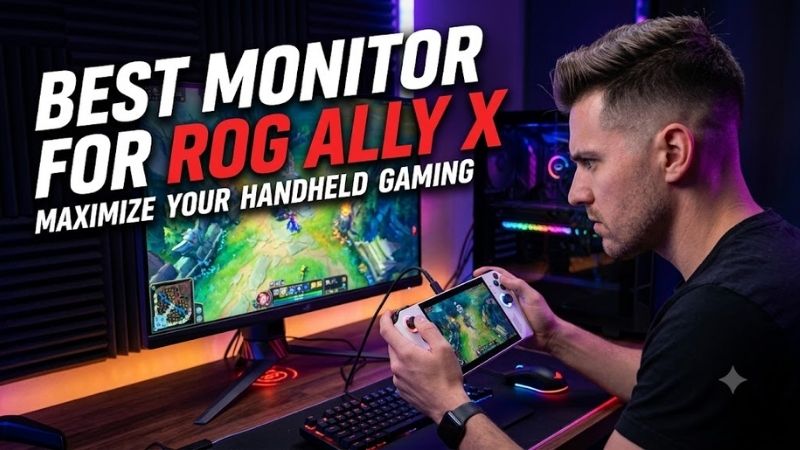
ASUS ROG Strix XG27ACS — Best Overall for ROG Ally X
| Category | Details |
|---|---|
| Best For | A balanced QHD gaming and desktop setup |
| Key Features | 27-inch Fast IPS, 2560 × 1440, 180Hz, 1ms GTG, USB-C DP Alt Mode, Adaptive-Sync |
| What Makes It Different | Direct USB-C video makes connecting the Ally X unusually simple |
| Pros | 180Hz QHD; USB-C video input; 97% DCI-P3; adjustable stand |
| Cons | USB-C power delivery is only 7.5W; HDMI tops out below the panel’s 180Hz maximum |
| Use Case | Docked handheld gaming, Windows desktop use, shooters and RPGs |
| Who It’s For | Players wanting one versatile monitor without paying for OLED |
The ASUS ROG Strix XG27ACS is the most balanced match for the ROG Ally X because its 27-inch Fast IPS panel uses a 2560 x 1440 resolution and refreshes at up to 180Hz. Its USB-C input supports DisplayPort Alt Mode, so the handheld can send video directly without requiring a full desktop dock for a clean single-cable display connection.
Its 1ms GTG response rating, Adaptive-Sync, FreeSync support, and 97% DCI-P3 coverage make it well suited to shooters, action games, and general PC use. The limitation is power: USB-C delivery is rated at only 7.5W, so it cannot replace the Ally X’s 65W charger. Use the second USB-C port or a powered dock for sustained gaming.
GIGABYTE M27Q X — Best 240Hz IPS Option
| Category | Details |
|---|---|
| Best For | Esports, multitasking and shared PC/Ally X desks |
| Key Features | 27-inch SS IPS, 2560 × 1440, 240Hz, DisplayPort 1.4, USB-C DP Alt Mode |
| What Makes It Different | Integrated KVM can share peripherals between multiple systems |
| Pros | 240Hz QHD; KVM; USB-C video; built-in speakers |
| Cons | USB-C Power Delivery reaches only 18W |
| Use Case | Competitive games plus a desktop PC or laptop on the same desk |
| Who It’s For | Players who value high refresh and multi-device convenience |
The GIGABYTE M27Q X is built for players who want a higher refresh ceiling. Its 27-inch SS IPS panel combines 2560 x 1440 resolution with up to 240Hz, DisplayPort 1.4, two HDMI 2.0 inputs, and USB-C with DisplayPort Alt Mode. That gives the Ally X several connection paths while leaving room for a desktop PC or console on the same display.
A built-in KVM is the feature that separates the M27Q X from simpler gaming monitors, especially if the Ally X shares a keyboard and mouse with another computer. USB-C Power Delivery reaches only 18W, so separate charging is still required for demanding play. The 240Hz ceiling is most useful in lighter esports titles rather than heavy AAA games.
LG UltraGear 27GS95QE-B — Best OLED for ROG Ally X
| Category | Details |
|---|---|
| Best For | Premium contrast, HDR blacks and fast motion |
| Key Features | 27-inch QHD OLED, 240Hz, 0.03ms GTG, DisplayHDR True Black 400 |
| What Makes It Different | Self-emissive OLED pixels combine very deep blacks with rapid response |
| Pros | OLED contrast; 240Hz; 0.03ms GTG; HDMI 2.1; FreeSync Premium Pro |
| Cons | No USB-C video input; OLED requires more care with prolonged static content |
| Use Case | Dark games, action titles and premium desk gaming |
| Who It’s For | Players prioritizing picture quality and motion clarity |
The LG UltraGear 27GS95QE-B is the premium image-quality option in this roundup. Its 27-inch QHD OLED panel runs at up to 240Hz with a 0.03ms GTG response time, DisplayHDR True Black 400, and 98.5% DCI-P3 coverage. Self-emissive pixels produce deep blacks and fast transitions that make dark scenes and rapid camera movement look especially clean.
Connectivity includes DisplayPort 1.4 and two HDMI 2.1 ports, so a USB-C-to-DisplayPort cable or suitable dock is the practical route from the Ally X. The trade-off is that OLED costs more and benefits from sensible static-image habits during long Windows sessions. It fits players who prioritize contrast and motion clarity over USB-C convenience.
Dell G2724D — Best Simple QHD Setup
| Category | Details |
|---|---|
| Best For | Straightforward 1440p gaming without extra monitor features |
| Key Features | 27-inch Fast IPS, 2560 × 1440, 165Hz DisplayPort, FreeSync Premium |
| What Makes It Different | Dell includes a USB-C-to-DisplayPort cable |
| Pros | QHD; 165Hz; adjustable stand; DisplayHDR 400; 99% sRGB |
| Cons | No USB hub; no USB-C power delivery; HDMI is limited to 144Hz |
| Use Case | Docked gaming with a separate Ally X charger |
| Who It’s For | Buyers who want a focused IPS gaming display |
The Dell G2724D is a straightforward QHD choice for players who do not need USB-C on the monitor itself. Its 27-inch Fast IPS panel supports 2560 x 1440 at up to 165Hz over DisplayPort, with AMD FreeSync Premium and VESA Adaptive-Sync. Dell also includes a USB-C-to-DisplayPort cable, which is particularly convenient for connecting the ROG Ally X.
The G2724D reaches 400 cd/m² brightness and carries VESA DisplayHDR 400, while its fully adjustable stand supports height, tilt, swivel, and pivot. It lacks a USB hub and USB-C power delivery, so charging remains separate. That simpler design suits buyers who mainly want a sharp 1440p gaming display without paying for OLED or KVM features.
Is 1440p the Right Resolution for ROG Ally X?
For the ROG Ally X, 1440p is usually a more flexible desktop target than 4K because it offers a sharper workspace than 1080p without demanding the same rendering load as Ultra HD. You can still lower a game’s internal resolution or use upscaling when needed. A 165Hz to 240Hz monitor also leaves headroom for lighter games and future devices.
How to Choose the Best Monitor for ROG Ally X
Check USB-C and DisplayPort Connectivity
Start with connectivity. The Ally X can output DisplayPort 1.4 through USB4, so a monitor with USB-C DisplayPort Alt Mode offers a clean direct link, while DisplayPort-only models work with a USB-C-to-DisplayPort cable. HDMI is practical through a dock, but the dock’s video bandwidth can limit available resolution and refresh rate.
Match Refresh Rate to the Games You Play
Do not choose a monitor only because it advertises 240Hz. The Ryzen Z1 Extreme can drive high frame rates in lighter or older games, but demanding modern titles often need lower settings, upscaling, or a reduced render resolution. A 165Hz or 180Hz QHD screen can therefore make more sense if you mainly play AAA games.
Do Not Rely on Low-Power Monitor USB-C Charging
Power delivery is easy to overlook. The ROG Ally X uses a 65W USB-C power adapter, while the XG27ACS supplies 7.5W and the M27Q X supplies up to 18W through USB-C. Those monitor outputs are useful for small devices but not as a full charging replacement for the handheld during sustained gaming, so plan on a separate charger or powered dock.
Choose IPS or OLED Based on Your Desktop Habits
Panel type should follow how you use the handheld when docked. Fast IPS models offer strong motion performance, familiar desktop behavior, and no OLED burn-in concern, while OLED adds much deeper blacks and extremely fast pixel response. If the monitor will show static Windows elements for many hours each day, IPS is the lower-maintenance option.
FAQ
Can the ROG Ally X Run a 1440p Monitor?
Yes. The ROG Ally X can drive a 1440p monitor through its USB4 DisplayPort 1.4 output or its second USB-C display-capable port. Game performance still depends on the title, settings, and render resolution, so using a 1440p desktop does not require every game to render natively at 2560 x 1440 during play.
Is a 240Hz Monitor Worth It for the ROG Ally X?
A 240Hz monitor can make sense for the ROG Ally X if you play esports, indie, or older games that can reach high frame rates. For graphically demanding AAA titles, the handheld is less likely to approach 240 fps, so 165Hz or 180Hz may offer similar practical value. The higher refresh ceiling is mainly about flexibility and low-latency headroom.
Does FreeSync Work With the ROG Ally X on an External Monitor?
FreeSync is relevant because ASUS lists FreeSync support on the Ally X’s USB4 DisplayPort 1.4 connection. A compatible monitor can vary its refresh rate with the rendered frame rate, reducing tearing and visible judder when performance fluctuates. Exact behavior still depends on the connection path, monitor settings, and supported refresh range.
Do I Need a Dock to Connect the ROG Ally X to a Monitor?
You do not need a dock if the monitor accepts USB-C video or if you use a USB-C-to-DisplayPort cable. A dock becomes useful when you also want Ethernet, several USB peripherals, HDMI output, or pass-through charging from one desk connection. Check the dock’s DisplayPort or HDMI bandwidth before expecting high-refresh QHD output.
Conclusion
The best monitor for ROG Ally X depends on whether you value simple USB-C video, a 240Hz ceiling, OLED contrast, or a lower-cost QHD setup. The ROG Strix XG27ACS offers the cleanest all-around fit, while the M27Q X, LG 27GS95QE-B, and Dell G2724D each serve a distinct use case without demanding unnecessary 4K resolution
Ready to decide? Our #1 pick for 2026 is the Monitor.
Live price & availability on Amazon.