🛒 Best Price Today on Amazon
Prime members get fast, free shipping on everything above, plus member-only deals. New members get a 30-day free trial — cancel anytime.
- Top 3 Picks
- Quick Comparison
- How We Chose
- 1. 8Bitdo Ultimate 2C – Best for Simple Wireless Play
- 2. GameSir Nova Lite 2 – Best Budget Pick for Co-op
- 3. 8Bitdo Ultimate 2 Wireless – Best Overall for Docked Play
- 4. EasySMX X15 – Best for Bluetooth-First Pairing
- 5. YUYIU Wireless Gaming Controller – Best for Multi-Device Households
- Hall Effect, TMR and Potentiometer Sticks Explained
- Setting Up a Controller for Docked, Tabletop and Handheld Modes
- Troubleshooting Connection Problems
- Steam Input Layout Tips for Pads With Back Buttons
- Original Deck or OLED Deck: Does It Change the Controller Choice?
- Wireless Interference and Placement Tips
- How a Controller Actually Connects to a Steam Deck
- Common Mistakes When Buying a Steam Deck Controller
- Care and Maintenance for Longer Life
- Battery Health and Charging Habits
- How to Choose a Controller for Steam Deck
- Frequently Asked Questions
- Our Recommendation by Situation
The best controller for Steam Deck is the 8Bitdo Ultimate 2 Wireless, because it pairs magnetic-sensing sticks, Hall-effect triggers, a 1,000 Hz wired and 2.4 GHz polling rate and a charging dock that keeps it topped up between sessions. It suits players who dock the Deck to a TV or prop it on the kickstand and want a full-size pad with back buttons and deep software remapping. If you want to spend as little as possible, the GameSir Nova Lite 2 gives you Hall-effect sticks and triggers, a dongle, Bluetooth and a wired mode in a light 225 g body. If you hate being tied to a dongle, the EasySMX X15 adds Bluetooth, a large battery and RGB lighting. The 8Bitdo Ultimate 2C and the YUYIU model round out the list for buyers who want a simpler, lower-commitment pad. Every pick below works as a standard gamepad that Steam Input can see, and we explain exactly which connection mode to use on the Deck.
Top 3 Picks
Best overall: 8Bitdo Ultimate 2 Wireless. It is the most complete package here: a 2.4 GHz receiver for low-latency play, wired USB-C for charging and tethered use, optional Bluetooth on some platforms, extra L4/R4 buttons, two back paddles and the Ultimate Software for mapping and sensitivity. The charging dock makes it easy to leave on the shelf next to a docked Deck.

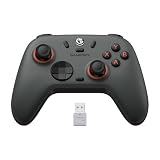
8Bitdo Ultimate 2C Wireless Controller for Windows PC and Android, with 1000 Hz Polling Rate, Hall Effect Joysticks and Triggers, and Remappable L4/R4 Bumpers (Purple)
Included for 'Best Controller for Steam Deck in 2026' because the listing specifies with 1000 Hz Polling Rate and Hall Effect Joysticks and Triggers, details this guide uses to compare options.
View on AmazonBest budget pick: GameSir Nova Lite 2. It brings Hall-effect sticks and triggers, two back buttons, a 2.4 GHz dongle, Bluetooth and a wired option into a pad that weighs about 225 g. It is the easiest recommendation for a second controller for couch co-op.
Best for dongle-free setups: EasySMX X15. Bluetooth, 2.4 GHz and wired modes, a roughly 1,000 mAh battery and Hall-effect sticks and triggers mean you can pair it straight to the Deck and keep the single USB-C port free for power or a dock.
Quick Comparison
| Controller | Best for | Key specs |
|---|---|---|
| 8Bitdo Ultimate 2C | Simple wireless PC-style play | 2.4 GHz and wired, 1,000 Hz polling, Hall-effect sticks and triggers, L4/R4 buttons, Windows and Android listing |
| GameSir Nova Lite 2 | Budget second controller | Hall-effect sticks and triggers, dongle plus Bluetooth plus wired, two back buttons, about 225 g, no gyro |
| 8Bitdo Ultimate 2 Wireless | Best all-round docked play | Magnetic-sensing sticks, Hall-effect triggers, 1,000 Hz on 2.4 GHz and wired, back paddles, charging dock, software mapping |
| EasySMX X15 | Bluetooth-first pairing | Hall-effect sticks and triggers, Bluetooth, 2.4 GHz and USB-C wired, 1,000 Hz on dongle and wired, RGB, two back buttons |
| YUYIU Wireless Controller | Multi-device households | Wireless modes for PC, Switch, Steam Deck, Android and iOS, Hall-effect class sticks, extra programmable buttons; confirm exact model details on the product page |
How We Chose
This ranking is built from published manufacturer specifications, listing details, retailer spec tables and independent write-ups, not from firsthand product evaluation. We started with a single question: what does a Steam Deck player actually need from an external pad? The Deck already has built-in controls, so an outside controller earns its place when you are docked, using the kickstand, playing local co-op or fighting stick drift. That shaped the criteria. First, connection options, because the Deck has one USB-C port and a 2.4 GHz receiver can occupy it. Second, input quality: Hall-effect or other magnetic-sensing sticks and triggers resist the drift that affects potentiometer sticks over time. Third, polling rate and wired fallback. Fourth, extra buttons and remapping, since Steam Input rewards pads with back buttons. Fifth, battery capacity and charging convenience. Last, honest listing clarity: where a listing is vague, we say so and tell you to confirm on the product page.
1. 8Bitdo Ultimate 2C – Best for Simple Wireless Play
As an Amazon Associate we earn from qualifying purchases at no extra cost to you.

The 8Bitdo Ultimate 2C is the pad for someone who wants a modern, drift-resistant controller without the extras of the flagship Ultimate 2. 8Bitdo redesigned it from the earlier Ultimate C with Hall-effect joysticks and triggers, a 1,000 Hz polling rate and added L4 and R4 buttons near the bumpers. Its listing states Windows PC and Android support, which is worth reading carefully: those are the platforms 8Bitdo officially names, and the Steam Deck is a Linux-based PC-class handheld that sees a 2.4 GHz XInput receiver as a standard controller in most reports. Treat Deck use as a well-established but not officially listed workflow and confirm on the product page before you buy.
Key specs
- Hall-effect joysticks and Hall-effect triggers
- 1,000 Hz polling on 2.4 GHz and wired connections
- Remappable L4 and R4 extra buttons rather than true rear paddles
- 2.4 GHz USB-A receiver, wired USB-C, and Bluetooth on Android
- Roughly 217 g weight, 3.5 mm audio jack, RGB ring lighting
Who it suits
Choose it if you play mostly on a TV with the Deck docked, you are comfortable with a 2.4 GHz receiver and you do not need the charging dock or true paddles. The compact shell also suits smaller hands, and the 1,000 Hz response is a real step up from older 125 Hz Bluetooth controllers.
Practical note for the Deck: the receiver is USB-A. The Deck has only USB-C, so you need a USB-C to USB-A adapter or a dock with USB-A ports. If the Deck is charging through its only port at the same time, you will want a dock or a passthrough hub.
Setup tips
Update the firmware through 8Bitdo’s PC tool first, then select the Xbox-style input mode so Steam labels the buttons correctly. In Steam’s controller settings you can calibrate the sticks and set dead zones to taste. Because L4 and R4 sit beside the bumpers rather than on the grips, they work best for secondary actions such as a quick-swap or a map button that you press with your index fingers while the thumbs stay on the sticks.
Pros
- Hall-effect sticks and triggers resist stick drift
- 1,000 Hz polling over the receiver and the cable
- L4 and R4 add useful remappable inputs
- Light and comfortable in the hand
- Software remapping is available through 8Bitdo tools
Cons
- Official listing names Windows and Android, not SteamOS
- No true rear paddles, unlike the larger Ultimate 2
- Receiver occupies the Deck’s only port unless you use a hub or dock
- Bluetooth is listed for Android, not for every host
How it compares
Against the Ultimate 2 Wireless in this list, the 2C gives up the back paddles, the charging dock and some polish but keeps the Hall-effect core and the 1,000 Hz response. Against the GameSir Nova Lite 2, the 8Bitdo has the stronger software and brand reputation for firmware updates, while the GameSir offers a broader connection menu with Bluetooth to more hosts. If you want the simplest dongle-and-play experience from a respected maker, the 2C is the right entry point.
2. GameSir Nova Lite 2 – Best Budget Pick for Co-op

The GameSir Nova Lite 2 is built for people who want Hall-effect hardware without paying flagship money. Its listing and the maker’s spec sheet describe Hall-effect sticks and Hall-effect triggers, two rear buttons, a mechanical D-pad, membrane face buttons and three ways to connect: a bundled 2.4 GHz dongle, Bluetooth and a wired USB cable. It is a PC-first pad that also supports Android, iOS and Switch family systems, but not Xbox. It has no gyroscope and uses two asymmetric rumble motors, so it covers the basics well and skips the trimmings.
Key specs
- Hall-effect sticks and Hall-effect triggers with trigger stops
- 2.4 GHz dongle, Bluetooth and wired USB modes
- 1,000 Hz polling on wired and 2.4 GHz XInput modes
- Two rear buttons, mechanical D-pad
- About 600 mAh battery and about 225 g weight
Who it suits
It suits the player who needs a second or third controller for friends, or who wants a spare to leave plugged in beside the TV. It is also a sensible choice for younger players, because a lighter pad is easier to hold through long sessions. Independent write-ups generally land battery life in the mid-teens of hours for mixed use, and the maker does not publish a single official figure, so plan to recharge after a long weekend session rather than assuming a full week.
Steam Deck notes
Because the pad offers Bluetooth, you can pair it directly to the Deck from the Bluetooth settings and keep the USB-C port free. Wired mode over USB-C is the lowest-latency fallback and charges the controller at the same time. The dongle is the best choice when you want 1,000 Hz response and the Deck is docked with spare USB ports.
Pros
- Hall-effect sticks and triggers in a budget-oriented pad
- Three connection modes, including Bluetooth
- Light body that is comfortable for long sessions
- Two rear buttons for Steam Input mapping
- Trigger stops let you shorten the pull for shooters
Cons
- No gyroscope for motion aiming
- Membrane face buttons feel softer than microswitch buttons
- Battery size is modest; confirm runtime on the product page
- Polling drops in some Bluetooth and console-style modes
How it compares
The Nova Lite 2 sits directly below the 8Bitdo Ultimate 2 in capability: it lacks the charging dock and the deeper desktop software, but it keeps Hall-effect sticks and triggers and adds Bluetooth flexibility. Against the EasySMX X15 it is lighter and has slightly better-documented software, while the X15 offers a bigger battery and RGB. If your priority is the lowest sensible spend for a drift-resistant pad that works on the Deck, this is the one to beat.
3. 8Bitdo Ultimate 2 Wireless – Best Overall for Docked Play

The 8Bitdo Ultimate 2 Wireless is the controller we would hand to most Steam Deck owners who want a living-room pad. The listing describes a wireless controller for PC, Apple, Steam and Android, which tells you 8Bitdo has Valve’s platform in mind. 8Bitdo’s own materials describe magnetic-sensing TMR joysticks, a close relative of Hall-effect sensing that promises durable, drift-resistant behavior with lower power draw, plus Hall-effect triggers that switch between a linear analog mode and a firmer tactile mode. Because 8Bitdo sells several variants of this family, check that the model you open is the wireless one with the 2.4 GHz receiver rather than a Bluetooth-oriented sibling aimed at console play.
Key specs
- Magnetic-sensing joysticks and Hall-effect triggers with switchable trigger modes
- 2.4 GHz wireless and wired USB-C, both at a 1,000 Hz polling rate
- L4 and R4 bumpers plus two back paddles
- Integrated charging dock that doubles as a receiver stand
- Ultimate Software for button mapping, stick and trigger curves, vibration and macros
- Roughly 246 g weight, motion control and RGB lighting
Who it suits
This is the pad for the player who treats the Deck as a console in the dock. Drop the controller on its stand after a session and it is charged and ready the next evening. The back paddles pair well with Steam Input action sets: put jump or reload on a paddle so your thumbs never leave the sticks. The software lets you tune dead zones and response curves, which matters if you play both fast shooters and precision platformers.
Steam Deck notes
Plug the dock-style receiver into a USB port on your Deck dock for the best range and latency, since the dock itself can act as a signal extender. If you only have the Deck’s single USB-C port, use a USB-C hub with a USB-A socket and pass-through charging. If a specific Bluetooth mode is listed on your variant, you can also pair it from the Deck’s settings, but confirm the supported platforms on the product page, because the Bluetooth variants differ.
Pros
- Drift-resistant magnetic-sensing sticks and Hall-effect triggers
- Back paddles and shoulder extras for generous remapping
- Charging dock removes cable clutter
- 1,000 Hz polling on receiver and cable
- Deep software for curves and macros
Cons
- Heavier than the budget pads in this list
- Variant confusion between wireless and Bluetooth models
- Software is a PC tool, so tuning happens before you game on the Deck
- Battery capacity figures differ between sellers; confirm on the product page
How it compares
Next to the Ultimate 2C, the Ultimate 2 Wireless adds paddles, a dock, adjustable trigger behavior and a more refined feel. Next to the EasySMX X15 it costs you some Bluetooth convenience in exchange for much stronger software and a more polished design. If you want only one pad and you plan to keep it for years, this is the safest choice on the list.
4. EasySMX X15 – Best for Bluetooth-First Pairing

The EasySMX X15 is the budget-friendly option for people who want to pair a controller to the Deck without sacrificing the USB-C port. The listing calls it a wireless PC and Steam gaming controller with Hall-effect sensing, and the maker’s spec table describes dual Hall sensing on both joysticks and triggers, three connection modes and a roughly 1,000 mAh battery. Runtime claims differ from seller to seller, with some listings promising around 20 hours and the maker’s own table quoting a more conservative figure of at least 12 hours, so plan around the low end and treat anything more as a bonus.
Key specs
- Hall-effect joysticks and triggers (no trigger stops, according to independent write-ups)
- Bluetooth, 2.4 GHz dongle and USB-C wired modes
- 1,000 Hz on dongle and wired, lower over Bluetooth
- Two programmable back buttons
- RGB lighting with several selectable colors
- Roughly 228 g, two asymmetric rumble motors, no gyroscope
Who it suits
It suits the player whose Deck sits on the kickstand on a desk. Pair it over Bluetooth, keep the USB-C port connected to a charger and you have a clean, cable-free arrangement. It is also a smart pick for anyone who moves between a Deck, a laptop and a phone, because the three connection modes cover all of them. The face buttons are rubber-dome membrane switches, so players who love clicky microswitches may want a different pad.
Steam Deck notes
Start with Bluetooth. If you notice input delay in a fast game, switch to the 2.4 GHz dongle through a hub or the wired cable. The pad has no configuration software, only a firmware tool, so mapping is done through Steam Input on the Deck, which is perfectly adequate for most players.
Things to know before you buy
Independent write-ups describe the X15 as a straightforward, no-frills pad: there is no companion app, no gyroscope and a plain rubber-dome feel under the face buttons. What you get in exchange is a solid set of core features and an unusually generous battery for its weight. If you plan to share it with a family member, the RGB lighting can be turned to a color or effect you like, which also makes it easy to tell two similar pads apart in a dim room. Check the product page for the current firmware tool and warranty terms.
Pros
- Hall-effect sticks and triggers at an entry-level tier
- Bluetooth keeps the USB-C port free
- Large battery for the weight
- Three connection modes cover many devices
- Two back buttons for Steam Input layers
Cons
- No desktop configuration software
- Membrane face buttons and no trigger stops
- Bluetooth polling is much lower than the dongle
- Runtime claims vary by listing
How it compares
Compared with the GameSir Nova Lite 2, the X15 has a bigger battery and RGB but no trigger stops and a less polished software story. Compared with the 8Bitdo Ultimate 2 Wireless, it is plainer and has no dock, but it is the more convenient pick if Bluetooth pairing is your preferred workflow. It is a strong value choice for casual and mid-core players.
5. YUYIU Wireless Gaming Controller – Best for Multi-Device Households

The YUYIU wireless gaming controller is the most generic entry on this list, and that is a fair way to describe how to shop for it. The listing names PC, Switch, Steam Deck, Android and iOS as supported targets, and YUYIU’s related models advertise 2.4 GHz wireless, Bluetooth and USB-C wired modes, Hall-effect joysticks and triggers, a 1,000 Hz polling rate on the dongle and wired connections, extra programmable back buttons and a battery of roughly 1,000 mAh. Because the brand sells many similar pads under near-identical names, the exact feature set can differ between listings, so read the bullet points on the product page you are actually buying.
What the class offers
- Wireless modes for PC, Switch family, Steam Deck, Android and iOS
- Hall-effect joysticks and triggers on the newer models
- Programmable back buttons and turbo or macro functions
- RGB lighting and vibration on most variants
- Not compatible with Xbox or PlayStation consoles, according to the maker’s listings
Who it suits
This is a practical choice for a household where one controller has to serve a Deck, a Switch and a phone. If your children bounce between systems, a single multi-mode pad avoids buying three separate ones. It is also fine as a travel spare. It is not the pick for competitive players who want precise firmware support and a software suite, because lesser-known brands tend to have thinner documentation and fewer firmware updates.
Steam Deck notes
Because the listing names the Steam Deck directly, the most reliable route is the wired connection or the Bluetooth pairing menu. When using a dongle, remember it is usually a USB-A part that needs an adapter. Switch the pad into the mode that presents itself as a standard Xbox-style controller; if a mode shows as a Nintendo-style device, Steam Input will still recognize it but the button labels will differ.
How to shop this listing safely
With a brand that reuses names across many listings, build a short checklist before you order: confirm the polling rate for wired and dongle modes, confirm the battery size, confirm whether the pad has a gyroscope, and look for a stated warranty period. Keep the packaging and the receiver until you are sure the pad suits you. A reliable pattern is to decide on the connection mode first, then confirm that the listing supports that mode on your device.
Pros
- Names the Steam Deck among its supported devices
- Multi-platform coverage for mixed households
- Hall-effect class sticks and triggers on recent models
- Back buttons and turbo functions
- Typically offers both wireless modes and a wired fallback
Cons
- Brand has many similar listings, so specs vary
- Thinner software and firmware support than 8Bitdo or GameSir
- No Xbox or PlayStation console support
- Confirm battery and polling figures on the product page
How it compares
The YUYIU is the least proven brand in the group, so it ranks below the 8Bitdo and GameSir options on support and above them only on breadth of platforms. If you value a clear upgrade path, a software suite and a track record, choose the Nova Lite 2 or an 8Bitdo pad. If you want the widest set of named devices in one controller, the YUYIU earns its place.
Hall Effect, TMR and Potentiometer Sticks Explained
Most of the pads in this guide advertise Hall-effect sticks, and one uses a close relative called TMR. The difference matters because stick drift is the most common reason people replace controllers, and the sensing method decides how and when drift appears.
Potentiometer sticks
Traditional sticks use a small resistive track and a wiper that physically rubs against it. Every movement wears a tiny amount of material off the track, and dust or grime adds noise. Over months or years the wear shows up as drift, where the on-screen camera creeps without input. This is the design that Hall-effect sensors were created to avoid.
Hall-effect sticks
A Hall-effect stick places a small magnet on the moving shaft and reads its position with a sensor that does not touch it. With no rubbing surface, the sensing element does not wear in the same way, so the usual cause of drift is removed. Makers often describe these sticks as anti-drift. That wording is a marketing claim, not a guarantee, because springs, gears and the plastic housing can still wear, and electrical noise can still need a small dead zone. Treat Hall effect as a meaningful durability upgrade rather than immortality.
TMR sticks
TMR stands for tunnel magnetoresistance. It is also a non-contact magnetic method, but it uses a different sensor type that generally draws less power and can offer finer resolution. 8Bitdo describes its Ultimate 2 family as using TMR joysticks and Hall-effect triggers, and GameSir uses similar wording for some other models. For a Steam Deck player the practical outcome is the same as with Hall effect: a smooth, drift-resistant stick that holds its center for a long time.
What about triggers?
Triggers have their own sensors. Hall-effect triggers read the pull with a magnet and sensor, which makes the response smooth and removes contact wear. Some pads add trigger stops, small mechanical limiters or microswitches that shorten the travel and give a clicky digital press, which is a favorite for shooters. Others, such as the EasySMX X15, have smooth analog triggers without stops, which suits racing and driving games. Match the trigger design to the genres you play most.
Setting Up a Controller for Docked, Tabletop and Handheld Modes
The Deck is flexible, and the best controller setup depends on how you place it.
Docked on a TV
This is where an external pad earns its place. The dock provides USB ports, video output and power in one connection, so a 2.4 GHz receiver can live in a rear port and your controller feels like it belongs to a console. Place the receiver on the front of the dock or use a short extension to avoid blocking the signal with the TV or a metal shelf. A pad with its own charging stand, like the 8Bitdo Ultimate 2 Wireless, completes the console-style experience.
Tabletop with the kickstand
If your Deck uses a kickstand case and sits on a desk or coffee table, Bluetooth is the neatest approach. Pair the pad, keep the Deck’s USB-C port connected to a charger and sit back. A comfortable, lightweight controller like the GameSir Nova Lite 2 is an excellent companion here, because you are holding it for long stretches without the Deck’s weight in your hands.
Handheld with a friend
For local co-op, one player can use the built-in controls and the second can use an external pad. Pair the controller over Bluetooth so no cable is dangling between people, then assign it to player two in the Steam overlay. Most games recognize a second player automatically after the pad connects.
Travel and desktop mode
If you switch the Deck into desktop mode for emulators or other launchers, remember that pads using a different mode, such as Nintendo-style layouts, may show different button names. Staying in the Xbox-style mode keeps labels consistent across Steam and non-Steam games. Pack the receiver and a short cable together so you always have a fallback.
Troubleshooting Connection Problems
- The pad connects but buttons are wrong. Switch to the Xbox or XInput mode on the controller. Many multi-mode pads default to a Switch or generic layout.
- The receiver is not detected. Reseat it in a different port, power cycle the controller and confirm that a hub is powered. Unpowered hubs may not supply enough current.
- Input delay over Bluetooth. Move closer, reduce nearby 2.4 GHz interference such as a busy router or other wireless gear, or switch to the receiver or the cable for competitive games.
- The controller disconnects mid-game. Check the battery. Low charge can cause dropouts. Also look at power-saving settings on the controller, which may sleep after a few minutes of inactivity.
- Stick drift or off-center behavior. Recalibrate in the maker’s software or the Steam calibration screen, and set a small dead zone. Clean around the stick base with compressed air if debris is visible.
- Two controllers fight for player one. Disconnect the extra pad, or assign players in the Steam overlay.
Steam Input Layout Tips for Pads With Back Buttons
Back buttons and extra shoulder keys are most useful when you map them thoughtfully. Put actions that you normally reach for with your thumbs, such as jump, dodge or crouch, onto the back buttons so your thumbs can stay on the sticks. Keep rarely used functions, such as map or inventory, on the L4 and R4 buttons or on the Steam Input menu. Use a separate layer for menu-heavy games so you do not accidentally trigger a macro. Save layouts as templates, name them clearly and share them with friends if the game supports community layouts. If a pad has its own software, avoid mapping the same button twice; use one tool or the other for each button. Finally, give a new layout a few evenings of use before you change it, since muscle memory takes time to settle.
Original Deck or OLED Deck: Does It Change the Controller Choice?
Valve sells the Steam Deck in an original LCD version and a newer OLED version. For controller shopping, the two behave alike: both run SteamOS, both have a single USB-C port with video output, and both accept standard gamepads through Steam Input. The OLED model uses newer wireless hardware than the original, which generally means better Bluetooth and Wi-Fi behavior, but you should confirm the exact wireless specifications on Valve’s own pages rather than rely on a summary. The practical advice is the same for both. Use Bluetooth for convenience, a 2.4 GHz receiver through a dock for the lowest delay, and a cable when you want the most reliable link. If your Deck sits in a protective case, check that the case still lets you reach the USB-C port with your adapter or cable, because some thick cases and stands make that awkward.
Another small factor is where you place the Deck relative to the controller. Bluetooth has a shorter comfortable range than a dedicated receiver, and a body, a metal shelf or a wall between the two can cause dropouts. If you play across the room from a docked Deck, a receiver on a short USB extension cable gives the radio a clearer view of the pad and helps keep latency steady.
Wireless Interference and Placement Tips
Bluetooth and 2.4 GHz controllers share the same crowded radio band as Wi-Fi routers, microwaves, wireless headsets and many smart-home devices. When a pad stutters, interference is a common cause. A few simple habits help. Keep the receiver away from the Wi-Fi router and from USB 3 devices, which are known to emit noise in the same band; a short extension cable moves it away from the dock’s busiest ports. Avoid sitting with the controller in a position that puts your body between the pad and the receiver. If you use a wireless headset at the same time, give each device a different path, such as a headset dongle on one side of the dock and the controller receiver on the other. And if a game feels laggy, try the wired connection for a few minutes; if the lag disappears, the wireless link was the cause and a placement change is the next step.
How a Controller Actually Connects to a Steam Deck
The Steam Deck is a PC-class handheld running SteamOS, a Linux-based system, and it treats most modern gamepads as generic input devices. Understanding the three connection routes saves a lot of frustration, because every pick above supports at least two of them.
Bluetooth
The Deck has built-in Bluetooth. Open the Bluetooth settings, put the controller in pairing mode and select it from the list. This keeps the sole USB-C port free, which is the main advantage. The trade-off is a lower polling rate on most budget pads, often around 125 Hz, compared with 1,000 Hz on a dongle or cable. For turn-based games, platformers and most single-player adventures, that difference is hard to notice. For fast shooters and fighting games, you may prefer another route.
2.4 GHz receiver
A receiver sends controller data over a dedicated radio link and typically supports the maker’s highest polling rate. The catch is the connector. Most receivers are USB-A, and the Deck has only a USB-C port, so you need either a small adapter or a dock. If you also need to charge the Deck at the same time, use a dock or hub with pass-through power. Many players leave the receiver in the dock and never think about it again.
Wired USB-C
A cable is the lowest-latency and most reliable method, and it recharges the controller while you play. It is also the cleanest way to rule out wireless interference when troubleshooting. If you play with the Deck on the kickstand, a longer cable can be a simple, dependable choice.
Why Steam Input matters
Once the pad is recognized, Steam Input can remap any button, create per-game layouts and assign back buttons to actions. Pads with extra buttons, such as the 8Bitdo Ultimate 2 Wireless and the EasySMX X15, benefit the most. Remember that remaps made inside a controller’s own software and remaps made in Steam can stack, so avoid double-mapping the same button in both places.
Common Mistakes When Buying a Steam Deck Controller
- Forgetting the port problem. A USB-A receiver on a handheld with one USB-C port needs an adapter or hub. Buy the adapter at the same time so you are not stuck.
- Assuming Hall effect means perfect. Hall-effect and similar magnetic sensors remove the contact wear that causes classic drift, but they can still need dead-zone tuning, and they do nothing for worn face buttons or triggers that use other mechanisms.
- Ignoring the variant. Brands such as 8Bitdo and YUYIU sell near-identical names with different connectivity. Read the feature bullets, not just the headline.
- Expecting motion controls everywhere. The GameSir Nova Lite 2 and EasySMX X15 have no gyroscope. If you rely on gyro aiming, choose a model that lists one.
- Buying on weight alone. A 225 g pad and a 246 g pad feel different, but ergonomics, grip texture and stick height often matter more than a 20 g difference.
- Skipping firmware. Firmware updates fix connection quirks. Updating through the maker’s PC tool before you use the pad on the Deck can resolve many oddities.
- Overlooking the cable. Some listings ship with a short or non-detachable cable. For a Deck on a kickstand, a cable of around two meters is far more comfortable than a short one, so check the length or buy a good USB-C cable separately.
- Treating every back button as equal. True rear paddles sit under your fingers on the grips, while L4 and R4 sit next to the bumpers. The two layouts feel different, and your mapping should reflect where each button lives.
- Ignoring the headset jack. Several of these pads include a 3.5 mm port, but the Deck already has its own, and audio routing can change when a controller with a headset jack connects. Plug your headset where you expect it and check the sound output in the Deck’s audio settings.
Care and Maintenance for Longer Life
A good pad should last years, and a few habits help. Wipe the shell with a slightly damp, lint-free cloth and let it dry fully. Avoid cleaning fluids near the sticks, because liquid can wick into the module. Store the controller away from direct sun and heat, which are rough on both plastics and lithium batteries. If you will not use a wireless pad for weeks, leave it around half charged rather than full or empty. When a stick feels off-center, recalibrate it using the maker’s software or the Steam calibration screen before assuming something is broken. Keep the receiver in a protected spot such as the dock slot, since small dongles are the item most often lost or bent in a bag.
Battery Health and Charging Habits
Every wireless pad here relies on a small lithium battery, and a few habits keep it healthy. Charge with a standard USB power source that is rated for ordinary phone-style charging, and avoid unknown, damaged or counterfeit cables. Do not leave a controller on a hot dashboard, in direct sun or under a pillow while it charges. Unplug it if you notice swelling, an unusual smell or excessive warmth, and contact the maker. If the pad has a dock, let it manage the charge, and if it does not, avoid running it to zero repeatedly. For travel, bring a short cable so the pad can top up from the Deck’s own charger or a power bank. These simple steps help the cell retain capacity and reduce the odds of a safety problem.
How to Choose a Controller for Steam Deck
Start with how you play, then work down the list. The Deck’s built-in controls are excellent, so an external pad should solve a specific problem: comfort on a TV, a second player, a drift-prone original, or the need for extra remappable buttons.
Step 1: Decide your connection
If you want a clean, cable-free setup on a desk, choose a pad with Bluetooth such as the EasySMX X15 or GameSir Nova Lite 2. If you play on a TV with a dock, a 2.4 GHz receiver is the better route and the Ultimate 2 Wireless or Ultimate 2C shine. If you simply want reliability, any wired mode works.
Step 2: Do the battery arithmetic
Work out how often you will recharge. Say you play two hours a night, five nights a week, which is 10 hours. A pad with a conservative 12 hour runtime needs a charge about every week. A pad realistically giving 15 hours lasts about a week and a half. A pad claiming 20 hours can stretch to two weeks, but only if the claim holds, so use the lower figure for planning. With a dock, none of this matters, because you recharge every time you set the pad down. That is why the 8Bitdo Ultimate 2 Wireless suits people who hate thinking about batteries.
Step 3: Count your ports
The Deck has one USB-C port. Count what needs it: charging, a dock, a receiver, a headset. If you use two or more of those at once, you need a hub or a dock. Bluetooth pads avoid one demand on the port, which is why they are often the easiest answer for travelers.
Step 4: Match the sticks and triggers to your genres
Hall-effect and similar magnetic sensors suit nearly every genre by resisting drift. Trigger stops, as on the GameSir Nova Lite 2, help shooters by shortening the pull. Linear analog triggers help racing games. Switchable trigger modes, as on the Ultimate 2 Wireless, cover both.
Step 5: Use the decision matrix
| Your situation | Best pick | Why |
|---|---|---|
| One controller for years, docked to a TV | 8Bitdo Ultimate 2 Wireless | Dock, paddles, deep software, 1,000 Hz |
| Cheapest drift-resistant second pad | GameSir Nova Lite 2 | Hall-effect sticks and triggers, three connections |
| Deck on a desk, port needed for charging | EasySMX X15 | Bluetooth pairing, large battery |
| Simple dongle-and-play with respected firmware | 8Bitdo Ultimate 2C | Hall-effect hardware at 1,000 Hz |
| One pad for Deck, Switch and phone | YUYIU Wireless Controller | Many named platforms; confirm model details |
| You rely on gyro aiming | A model that lists a gyroscope; check the product pages | Several picks here omit gyro |
Step 5b: Think about the warranty and support
A drift-resistant controller is only as good as the support behind it. Look for a published warranty period, a firmware update tool and a clear contact route on the maker’s site. Established makers such as 8Bitdo and GameSir publish manuals and software; smaller brands may offer a short warranty and a basic manual. A pad you can update is a pad that can be fixed when a new Steam client or SteamOS update changes how a mode behaves. If a listing is vague about what is in the box, assume you will need to supply your own cable and adapter, and plan accordingly.
Step 5c: Plan for sharing
If more than one person will use the pad, think about who. Children and guests tend to drop controllers, so a lighter shell with a firm grip texture is safer. Players who swap between right and left hands, or who share with someone with larger hands, should favor a standard Xbox-style layout, which most people find familiar. Label or color-code multiple pads, and keep a spare cable in the dock drawer so nobody is stuck waiting for a charge.
Step 6: Check ergonomics
Hand size matters. If you have large hands, the heavier Ultimate 2 Wireless may feel more secure. If you have small hands or play for hours, the lighter 8Bitdo Ultimate 2C and GameSir Nova Lite 2 are easier to manage. Keep the return window in mind and give any pad a few evenings of play before you judge it.
Frequently Asked Questions
Do I need an external controller for the Steam Deck?
No, the Deck has full built-in controls and many people never use anything else. An external pad is for docked TV play, local co-op, a different grip shape or a backup when the built-in sticks wear. Think of it as a comfort and flexibility upgrade.
Will a Hall-effect controller fix stick drift on my Deck?
It will not repair the Deck’s own sticks, but a Hall-effect or similar magnetic pad avoids the contact-wear mechanism behind most drift in external controllers. If your built-in sticks drift, an external pad lets you keep playing while you look at repair or replacement options.
Can I use a 2.4 GHz controller without a dock?
Yes, with a USB-C to USB-A adapter, because the Deck has only USB-C. The downside is that the adapter occupies the port, so a charger and the receiver cannot both be connected unless you use a pass-through hub.
Is Bluetooth good enough for gaming on the Deck?
For most games it is fine, especially single-player adventures, platformers and turn-based titles. Bluetooth polling is usually lower than a dongle or cable, so competitive shooters and fighting games are better on a receiver or wired connection.
Does the Steam Deck recognize Xbox-style controllers automatically?
In most cases, yes. Pads that use the common XInput standard are detected as generic gamepads, and Steam Input lets you remap them. Controllers that appear as a different device type may show different button labels, but they still work.
Can I charge the controller from the Deck?
You can plug a pad into the Deck’s USB-C port, and many will charge, but this draws on the handheld’s own battery. It is usually better to charge from a wall adapter, a dock or the controller’s own charging stand.
How many controllers can I connect at once?
The Deck supports multiple controllers for local multiplayer, limited by Bluetooth capacity and the game’s own player count. Mix and match connection types, such as one Bluetooth pad and one receiver pad, if you hit a limit.
Are cheaper brands safe to use with the Deck?
Controllers are low-voltage USB and Bluetooth devices, so the main risk is poor support rather than danger. Stick with listings from makers who publish a spec sheet and warranty, and charge only with a standard USB power source.
Our Recommendation by Situation
If you want the single best controller and will mostly play docked, buy the 8Bitdo Ultimate 2 Wireless. If you want a drift-resistant second pad with the least commitment, buy the GameSir Nova Lite 2. If you prefer to pair over Bluetooth and keep the USB-C port free, buy the EasySMX X15. If you like 8Bitdo’s approach but want something simpler, choose the Ultimate 2C. If one pad has to follow you from Deck to Switch to phone, the YUYIU is the flexible option, provided you confirm the model details before ordering.
Whatever you choose, give yourself time to settle in. Spend a few evenings with the default layout, note which buttons your hands miss, and only then refine your Steam Input mapping. Most players find that one good, comfortable controller and a simple, reliable connection matter more than any single spec on the sheet.