🛒 Best Price Today on Amazon
Prime members get fast, free shipping on everything above, plus member-only deals. New members get a 30-day free trial — cancel anytime.
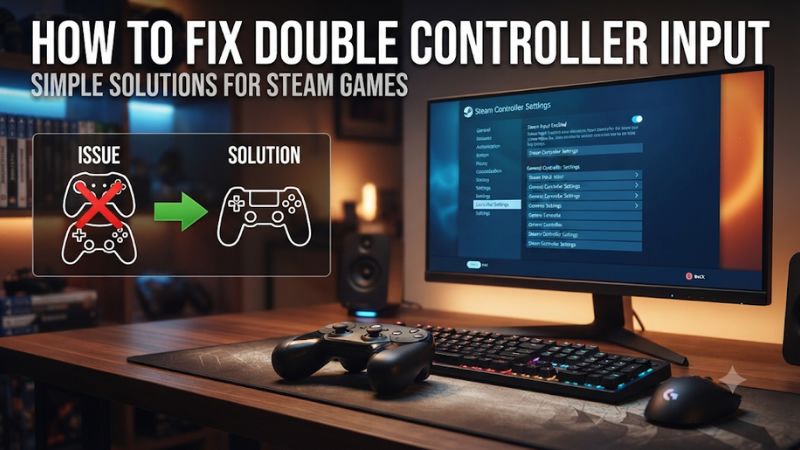
To learn how to fix double controller input in Steam games, start with one pad connected and close any remapping apps. Test the affected game with its native controller support or with Steam Input alone. If a remapper is essential, check whether the game can see both the physical pad and its virtual output.
Identify what the game is receiving
A single tap that moves down two menu rows usually means more than one input is reaching the menu, or one input is repeating. The distinction matters. A physical controller and a virtual controller can send the same action. One controller can also send a gamepad command and a keyboard command for the same button. A worn button or an aggressive repeat setting can produce a similar symptom through a single input path.
Start with the affected game closed. Disconnect extra controllers, including wireless pads that may still be paired and active. Exit controller remappers from the Windows notification area. Simply closing a settings window can leave its background process running. Keep a keyboard and mouse available so you can restore controller settings if the game loses input during a test.
Match the symptom to the first test
| What you see | Plausible cause | First test |
|---|---|---|
| Each short D-pad tap skips a menu item | Duplicate devices, two commands, or repeat | Try a clean layout with one pad and no remapper |
| A second player joins with one pad connected | The game sees a physical pad and a virtual pad | Compare the device list with the remapper off and on |
| Prompts switch between Xbox buttons and keyboard keys | The game is receiving mixed input types | Inspect the Steam layout for key or mouse bindings |
| Only one button repeats across several games | That button’s mapping, repeat setting, or hardware | Test it with Steam exited and remappers closed |
| The game only misbehaves in Remote Play | Input may come from the host and client | Disconnect extra host-side pads and test locally |
| Two real controllers work, but player numbers are wrong | Controller order or game-specific assignment | Reorder the pads or assign them in the game |
Use a screen where the symptom is easy to repeat. A menu with enough items to move up and down makes each tap observable. For an in-game test, use a spare save or a training area and pick a single action, such as jump. Avoid repeating a test where a game menu wraps from the bottom to the top. A normal wrap can make an ordinary input look like a skip.
Test the physical pad outside the game
In the desktop Steam client, open Settings > Controller. Select the connected pad and use Test Device Inputs if your client shows it for that device. Tap the suspect button briefly, release it, and wait before tapping again. Try a second button as a control. The goal is to see whether a single physical press behaves as expected before the game’s own menu logic gets involved.
On Windows, you can also press Windows + R, enter joy.cpl, and open Properties for a controller listed there. Watch the input indicators as you press and release the relevant button. The list is a diagnostic aid because different games and APIs can expose controllers in different ways. Treat duplicates in the game itself as the result you need to resolve.
If the Windows test already shows odd behavior with Steam fully exited and other remappers closed, try another data cable or a direct connection where supported. Then test a second controller if you have one. If the same physical button acts up across systems or connections, you have evidence to investigate the pad before changing the game’s layouts.
Fix Steam Input for the affected game
Change the per-game Steam Input setting before modifying the global controller configuration. A game with good native controller support may work best with Steam Input disabled. A second game may rely on Steam Input to translate the same pad or provide a special layout. The per-game override lets you choose a working path for each title.
Test with Steam Input disabled
- Exit the game all the way to the desktop.
- Open your Steam Library and right-click the affected game.
- Select Properties > Controller.
- In the game’s Steam Input override, select Disable Steam Input.
- Keep your remapper closed for this test.
- Relaunch from the library with only your intended controller connected.
- Tap the original problem button several times, waiting between presses.
If the game works and one tap produces one action, leave the override disabled for that title. Verify an analog stick and both triggers during gameplay. Some games behave differently in menus and in a live match, so a repaired menu alone gives you an incomplete result. On a PlayStation pad, also check your expected prompts and any controller features you care about, since support depends on the game and the connection.
If the controller stops working altogether, restore Use default settings or try Enable Steam Input. That result usually means the native route is unsuitable for your exact setup, or the game expects a controller mode different from the one you tested. Use the Steam Input-only test next.
Test Steam Input by itself with a clean layout
Close the game, keep DS4Windows and other remappers closed, and enable Steam Input for that specific title. Open the game’s controller layout and select its official or recommended layout if available. For a game that accepts standard gamepad input, a simple Gamepad template is a useful baseline. For a game with an official action-based layout, use that layout first so its menu and gameplay action sets are available.
Test before restoring your community layout or personal bindings. If the clean layout fixes the issue, save your current working setup so you can return to it. Reapply the custom bindings in small groups. When the duplicate reappears, review the most recent changes, including activators, keyboard commands, and action layers. This helps preserve useful customizations while finding the one that created the conflict.
Some controllers are recognized by Steam while a particular title still needs translation. Seeing the correct pad in Steam confirms that Steam can read it. The game’s behavior after launch confirms whether the selected route is usable.
Remove two commands assigned to a single press
In the Steam layout editor, inspect the input that triggers the duplicate. A D-pad direction, for example, could send both a gamepad direction and a keyboard arrow. A menu that accepts both can move twice even though the game reports only one controller. An action layer may add a second command when you open a menu or hold a modifier.
For the test, give the input one normal-press command and remove or temporarily disable extras for the same press. Check for turbo, hold-to-repeat, long-press, and release activators where present. Save, relaunch if necessary, and test again. If you need a secondary command, consider a clearly distinct gesture or another button that the game does not already use for the same action.
If gameplay only doubles while the overlay, inventory, or radial menu is open, review the active action set for that screen. A clean main gameplay profile can coexist with a duplicate on a menu layer. Also look for controller-to-mouse layouts if prompts flicker when you move a stick or touchpad. Mouse emulation can be intentional, but a plain gamepad layout gives you a baseline for comparison.
Fix duplicate devices from DS4Windows or another remapper
Windows remappers can translate a physical controller into a virtual one, such as an emulated Xbox pad. That is useful when a game recognizes the emulated device more reliably. If the game reads the physical device as well, each press can reach it twice, or it can create a second local player. Disabling Steam Input removes one possible processing layer. Both physical and virtual devices may still be visible to the game.
Find out whether virtual output is required
Run three tests with the same game and connection, closing the game between tests.
| Test | Steam Input | External remapper | What a passing result gives you |
|---|---|---|---|
| Native | Disabled | Closed | A direct path for your physical controller |
| Steam only | Enabled with a clean layout | Closed | A translation or mapping path managed by Steam |
| Remapper only | Disabled in that game | Running with the intended profile | A path managed by the external remapper |
If either of the first two works and meets your needs, keep that setup for the title. If you need the remapper for a specific feature, continue with the third case. Open the Windows controller list or the remapper’s device view with the remapper closed, then open it and compare. If a second entry appears and both indicators react to the same physical pad, you have a concrete lead.
Some software retains output devices until its background service exits. If a virtual pad remains visible when you close the app window, use the app’s own exit or output controls. A documented service or driver can have legitimate uses in other games, so begin with a reversible per-session change.
Configure HidHide if the game reads both outputs
HidHide is a Windows filter driver that can hide selected physical game controllers from ordinary applications while still allowing a chosen remapper to read them. Use it here if you confirmed that both the physical controller and the virtual output are reaching the game and the remapper is part of your intended setup.
- Open HidHide Configuration Client after following the project’s installation and restart instructions.
- In Applications, add the exact executable that reads your physical controller, such as the running copy of
DS4Windows.exe. - In Devices, identify the physical pad by disconnecting and reconnecting it if the names are unclear.
- Select the physical pad. Leave the corresponding virtual output visible.
- Enable device hiding and reconnect the physical controller.
- Open the remapper and confirm it still sees the real pad and generates the expected virtual output.
- Launch the game with the tested per-game Steam Input setting and check both menu and gameplay.
USB and Bluetooth can appear as separate entries. Configure and verify each connection you intend to use. If the game suddenly cannot see a controller, check whether you selected the virtual device or whether your remapper’s executable is missing from the Applications list. If you moved or updated the remapper, verify that the listed path still points to the executable you actually launch.
For a quick rollback, turn off Enable device hiding and reconnect the controller. Retest the original symptom. If an Xbox or XInput device remains visible despite being marked, consult HidHide’s device-specific documentation and verify behavior in the affected game. A device list alone can be misleading for some XInput setups.
Keep separate profiles for games with different needs
A setup that depends on a virtual pad in one game may be unnecessary in another. Save a short note for each problem title with its Steam Input override, remapper state, controller connection, and layout. This is particularly useful if auto-profile rules start the remapper when a launcher opens and apply a different profile once the game process begins.
When the problem returns after a launcher or game update, use the same test order. Check the active process profile before changing drivers. If a pad works until the game enters a particular menu, check the game and Steam mappings for that context. Preserve the last working profile so you can distinguish a newly introduced change from an older coincidence.
Troubleshoot duplicates that survive the main fixes
Check controller order and local multiplayer
Incorrect controller order can look like duplicate input when one pad navigates the general menu but another owns player one. Leave one controller connected and verify single-player input. Then connect the second real controller, if needed, and use Reorder Controllers where the Steam interface offers it. Some titles assign seats in their own local multiplayer screen, where each player must join using a deliberate button press.
If a second player appears with only one real pad, return to the virtual output check. Reordering two entries can change which one controls player one while a single physical button still feeds both. Remove the extra input route before attempting to establish permanent player order.
Games that enumerate devices at launch may retain an assignment after a controller is disconnected. Close and relaunch between tests. A successful test should also survive closing and reopening the game with the intended controllers already connected.
Check desktop layouts, launchers, and streaming
For symptoms that only occur on the desktop or in a launcher, open Steam’s controller settings and examine the Desktop Layout if you use one. A controller can legitimately move the mouse or send keys there. If keyboard prompts appear in the game, begin with its own Steam layout and add the desktop layout to the investigation only if the behavior follows a focus change or a launcher.
For Steam Remote Play, test directly on the host before troubleshooting the client. If local play works, reconnect the stream with only one intended client pad active and check whether any host-side controller or other participant is assigned input. If double input appears only in the streamed session, compare player assignment and the controllers available at each end.
On a Steam Deck used with an external controller, the built-in controls remain part of the setup. Controller order can decide which device a particular game treats as player one. Use the Deck’s available controller-order interface or the game’s own player assignment controls. The Windows-specific HidHide steps apply to a Windows host.
Rule out button bounce, drift, and ordinary menu repeat
Button bounce usually follows one physical button across apps. An overly low analog deadzone may make a menu scroll when the stick sits slightly off-center. Menu repeat occurs when a direction is held long enough for the game to move repeatedly. Compare a very brief tap, a deliberate hold, and a few seconds with your hands off the controller.
If only a single button repeats after Steam exits and the remapper is closed, try the controller on another compatible device. Check the manufacturer’s diagnostics and firmware for the exact model. If the behavior follows the controller, a software layout change is unlikely to solve the underlying problem. If the same game shows the issue with two unrelated pads, its layout or input settings deserve another look.
Avoid changing a stick’s deadzone to solve confirmed duplicate face-button events. That setting filters analog movement near the center and leaves digital button inputs unchanged. If the symptom instead follows stick movement in menus, raise the relevant deadzone by a small amount and repeat the hands-off test.
Confirm the fix and keep a working configuration
Use the original failure case again. Tap the problem button ten times slowly, then repeat a few faster taps and one deliberate hold. Confirm that a short tap causes a single action and that a hold behaves as intended. Test the D-pad, both sticks, and a face button in the game itself. For local play, verify that each real pad can join exactly one slot.
Close the game, reconnect the controller the way you usually play, and launch again. A fix that survives a fresh launch and the correct USB, Bluetooth, or receiver route is more valuable than one clean menu during a troubleshooting session. Restore other peripherals one at a time if they are part of your normal setup.
Final verdict
If you need game support, include the game version, controller model and connection, Steam Input override, whether a virtual controller is active, and the exact screen where the symptom occurs. Include the result with the remapper off. That comparison gives support a way to reproduce the same input path and saves another round of basic setup questions.