🛒 Best Price Today on Amazon
Prime members get fast, free shipping on everything above, plus member-only deals. New members get a 30-day free trial — cancel anytime.
- Which THX Spatial Audio setup applies to your headset?
- How do you enable the integrated THX option in Synapse?
- How do you set up the standalone THX application?
- What should you do when THX is missing, silent, or muffled?
- How should you handle apps, recording, and platform-specific audio?
- How do you decide whether to keep THX enabled for a game?
- Conclusion
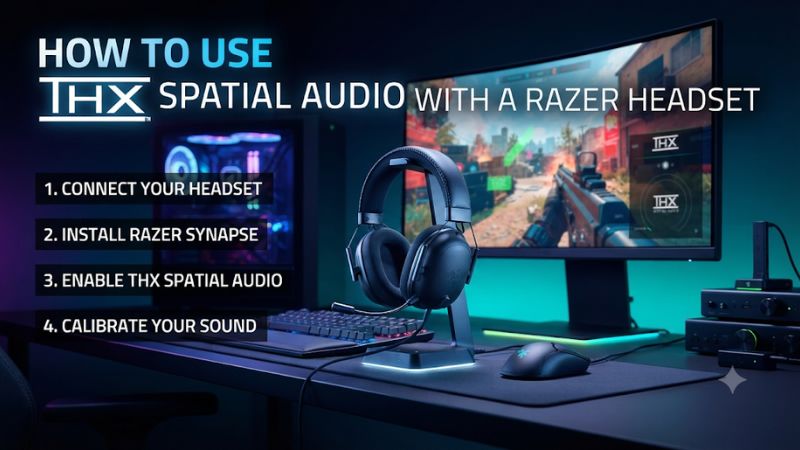
Select your Razer headset in Windows first, then enable THX in Synapse if your model includes it. That is how to use THX Spatial Audio with a Razer headset on the current integrated path. The separately installed THX app routes audio through a virtual Windows output. Check which setup you have before changing any device settings.
Which THX Spatial Audio setup applies to your headset?
Use Synapse when the feature comes with the headset
Look up the exact headset name, version, and platform edition. Some Razer headsets include THX Spatial Audio within Synapse.
These products normally have a sound panel with a stereo and THX choice or model-specific controls for spatial audio. Razer’s current support instructions for compatible headsets start by making the physical Razer headset the default Windows output.
The BlackShark V3 Pro is an example of the current integrated workflow. Its Synapse documentation shows device-specific Sound and Demo panels.
Razer lists Windows 11 version 23H2 or later for full THX Spatial Audio 7.1.4 on this supported model. Check your version and the product documentation before trying to solve a missing height feature with a different playback device.
The name of a feature matters. A headset advertised with Razer 7.1 Surround Sound or an activation code for that utility may use a different setup from THX Spatial Audio.
Check what is actually included before downloading software or paying for a license. A similar name on the packaging does not give every model the same software entitlement.
Use the standalone app if that is the license you have
Razer also offers a separate THX Spatial Audio application. This route normally uses a virtual THX playback endpoint as the Windows output.
The application then sends audio to the specific headphones you choose as its physical output. A physical Razer headset, a virtual endpoint, and the standalone app’s output setting are three parts of the same path.
This setup can be useful when the device has no included THX control in Synapse and you want to use the separate application. Review its requirements before installing and check whether you have a license or trial. Purchasing or installing that app does not change what a particular headset supports in Synapse.
Older Synapse builds and documentation can mention a playback device named THX Spatial – Synapse. Follow that route only if your exact active installation exposes it and model-specific instructions call for it. A current integrated headset that offers a THX toggle while using its own Windows endpoint can operate correctly without a separately listed THX device.
| What you have | Windows output to check | Where to enable or route THX |
|---|---|---|
| Current integrated Razer headset | Physical headset in Windows | Headset Sound panel in the supported Synapse version |
| Standalone THX Spatial Audio app | Virtual THX Spatial Audio endpoint | App Audio panel, pointing to the physical headset |
| Legacy Synapse setup with documented virtual device | Endpoint named in the exact model guide | The legacy Synapse controls for that headset |
| Console or phone without the Windows software path | Supported physical headset route | Platform or game headphone processing where available |
Check your Windows version and connection
Open Settings, then System, then About, and read the edition and version under Windows specifications. Compare it with the requirement for your model. THX Spatial Audio and full 7.1.4 rendering are separate feature claims, so a supported basic mode does not establish that every newer mode is available.
Start with the connection specified for Synapse on your headset, commonly the included USB wireless receiver or supported USB audio. Bluetooth can play sound without exposing the same device controls. An analog plug can play audio from the computer’s sound card without exposing the Razer headset to Synapse as a USB device.
On a PS5 or Xbox, the Windows Synapse route does not run on the console. Use the platform’s headset audio settings and any spatial options it supports. If your headset stores a compatible EQ profile, verify the model’s requirements for that profile separately from the Windows THX engine.
How do you enable the integrated THX option in Synapse?
Connect the headset and get ordinary stereo working
- Connect the supported route. Plug in the headset receiver or use USB audio if your model supports configuration through it. Select the documented PC mode on any receiver that has a platform switch.
- Select the headset output. In Windows Settings, open System and Sound, then choose the physical Razer headset under Output. Play a system sound or a track you recognize.
- Resolve silence before spatial setup. If you hear nothing, check volume, receiver status, and which endpoint the app uses. Verify normal playback without THX first.
- Open the supported Synapse version. Wait for it to recognize the headset. If it shows only generic devices, reconnect by a supported method and verify the exact model in Razer’s compatibility guidance.
The Windows default endpoint and an application’s assigned endpoint can differ. If the desktop plays correctly and the game is silent, look in the game’s audio settings and the Windows volume mixer for a per-app route. Restart an app that held onto an old device when you switched the receiver.
If a monitor or external DAC remains your default after a keyboard shortcut changes the output, select the headset again. Note the active endpoint by name. A Synapse setting applied to the headset may have no audible effect on a game actually routed to speakers.
Enable THX in the headset’s Sound panel
Open Synapse, select the headset, and go to Sound or the equivalent audio panel. Where the interface exposes an Audio Output choice, select THX Spatial Audio instead of Stereo. Keep the physical headset selected in Windows for a current setup documented to use that route.
On the BlackShark V3 Pro, the Synapse manual shows a Demo section that can switch between Stereo and THX Spatial Audio. Use that to hear whether the rendered presentation changes.
Then run the same comparison in a real application. The demo may confirm that a control is responding without proving that the game follows the same route or profile.
If the label or tab differs, use your model’s manual. A headset may expose only an on-off control or use a separate module.
Avoid selecting a generic Windows spatial provider of the same kind in addition to THX during the baseline test. The cleanest evaluation comes from one active spatializer.
Check whether a game profile is overriding the global choice
On supported Synapse setups, the software can apply output modes or EQ presets automatically when a game is in the foreground. The BlackShark V3 Pro manual documents a Game Profiles area where you can add games and programs and select their preferred audio output. Review the relevant profile when a setting works in the demo but appears to change in one title.
Select a known game, use the actual executable if manual assignment is required, and observe how the headset behaves when you enter and leave it. A launcher and the game itself can be separate processes. If a menu and a match sound different, confirm that the same mode is intended for both and that another profile did not load.
Tuning options vary by title and product. A supported per-game EQ changes frequency balance.
A THX output option determines how the audio is spatially rendered. Test one change at a time so you can tell which one is responsible for an audible difference.
How do you set up the standalone THX application?
Route Windows into THX and THX into your headset
- Connect and test the physical output. Put the Razer headset on its normal PC connection, select it directly in Windows, and verify sound before opening the standalone app.
- Open the standalone app and find its Audio settings. Select the physical headset as the output used by the application. Avoid selecting the THX virtual device as the app’s own destination.
- Set the virtual endpoint in Windows. With the standalone setup installed, choose the THX Spatial Audio device as the Windows playback output. Relaunch the game if it continues using the prior output.
- Verify sound through the full path. Play a known sound, then switch the app between its stereo and spatial choices where offered. If Windows shows playback but the headset is silent, recheck the standalone app’s physical output.
Your microphone does not need to become a THX device. Keep the headset mic or separate microphone selected under Windows Input and in your voice app. A successful THX playback test and a silent mic are different problems, so use the input meter separately.
If you swap from a USB receiver to an analog interface or put the headset into another mode, revisit the standalone output choice. A new output can take a different name and the app can still point to the old endpoint. Start by testing the new physical connection directly, then put the virtual endpoint back into the chain.
Calibrate and compare with one active spatial renderer
Use the standalone application’s demo or speaker calibration if it is present in your version. Listen for a consistent center and compare rear and side cues to the order shown in the test. A noticeably weak or reversed side is a reason to check headphone fit, balance, and system mono audio first.
Leave other surround tools off for this comparison. Native game HRTF, a separate Windows spatial provider, and THX can all modify positional information.
Choose the one path you want to test. If a title recommends a built-in headphone renderer, compare that directly against the supported THX configuration.
Match your listening level before choosing a winner. A slightly louder preset can make footsteps more obvious while leaving their actual direction no easier to judge.
Keep the same scene, sound cue, and camera position. Repeat with a source in front of and behind you rather than checking only left and right.
What should you do when THX is missing, silent, or muffled?
Fix a missing option by checking support and device recognition
Start with the model’s documented configuration. Check that the headset appears in the correct Synapse build, the supported receiver or USB route is active, and the Windows version meets the requirement for the feature you want. A generic Bluetooth connection is easy to mistake for the same interface as the receiver.
If the headset is recognized but its THX control is unavailable, check for model-specific firmware or app updates through Razer’s normal support process. Restart after changing the relevant software.
Then recheck the output and the headset’s visible tabs. Avoid installing the standalone application simply to replace an expected control until you know which feature the model includes.
Verify whether it is the virtual device or the spatial option that is missing. A separate virtual endpoint can be required for the standalone workflow and absent by design in a current integrated one. If a model guide tells you to choose the physical headset in Windows, the Synapse mode setting is the relevant thing to test.
Fix a silent path by following the signal in order
- Test the physical headset. Temporarily choose it as the direct Windows output and play a familiar sample. If it remains silent, check power, the cable or receiver, and volume.
- Check the game route. Ensure its output follows the intended Windows endpoint or select it explicitly. Restart the game after changing outputs if required.
- Check virtual routing when used. On the standalone path, Windows should feed THX and THX should feed the physical headset. Check both assignments after reconnecting.
- Restore one spatial feature. Add the correct THX option only once stereo playback works. If sound then disappears, you have narrowed the fault to that mode, app, or compatibility path.
Also test an ordinary desktop app and the game separately. If a demo works and only one title remains quiet, inspect that title’s endpoint or profile. If both go silent whenever the headset is selected, resolve the fundamental playback path before changing surround preferences.
Fix an unnatural or distant sound before applying EQ
Turn off other spatial effects and compare again with an ordinary stereo reference. When one renderer processes an already altered headphone mix, a center cue can seem hollow or a sound in front can move back. Start with one renderer and the game’s recommended output configuration for it.
Check Bluetooth mode if voices or music suddenly become thin when a call starts. Some systems change audio profiles when using a Bluetooth microphone.
Test over the receiver or choose a separate microphone to see whether the change follows the connection. That check can reveal a profile issue without changing THX settings.
Check the intended Game Profile and Windows audio balance if one app sounds unusually different. A personalized EQ, different output mode, or moved balance slider can change your first impression. Restore a simple baseline and reintroduce your preferred settings after the sound is consistent.
How should you handle apps, recording, and platform-specific audio?
Check the Windows mixer for overrides
An app can keep playing to a specific device when the Windows default changes. This commonly matters after moving between an integrated setup and a standalone THX setup.
Open Windows Settings and the Volume mixer, find a running app, and confirm its output. Try Default when you want it to follow Windows or choose the intended endpoint when the app needs a fixed route.
If the app stays silent after you change the device, close it completely and reopen it. Then play a known sound and check both the Windows volume and the app’s own level. A muted application can coexist with a perfectly working THX demo, so listen to something outside the game before reconsidering the headset driver.
Make this change in your usual login and with the intended receiver plugged in. A settings check made while the headset is on Bluetooth can show a different device name. This is important if you switch audio modes during a break and want a game to resume through the receiver afterward.
Verify what goes into a recording or stream
The effect you hear in the headset and the sound sent to a stream can come from different places in the signal path. An application-level source in a recorder can capture the game’s audio upstream from the headphone effect.
A device capture route can observe a different mix depending on the Windows device and the software. Make a short test clip when the distinction matters.
Record the same repeatable cue twice, once with your ordinary stereo baseline and once with your THX configuration. Listen back through ordinary stereo so you can hear whether the recordings differ without applying the effect again on playback. If your recording sounds the same when the headset sounds different, the capture source may sit before the effect.
Keep microphone setup separate. Confirm that the recorder’s input meter is tied to the headset boom or independent mic, then check the output you hear in a call. A clean game recording and correctly routed chat can coexist with a spatial headphone mix that only you hear.
Choose a console route separately from the Windows route
Use a supported receiver or wired connection on your console and verify game and chat output. Then decide whether to use the platform’s own headphone spatial settings if they are present. The Windows THX license and the PC Synapse interface are separate from those controls.
If you use the same headset on a console and PC, save a short note with the two working configurations. On PC, note the endpoint and software mode.
On the console, note the connection and the console’s audio setting. If the headset stores an EQ, check the model’s instructions for where it remains available and judge it independently from spatial processing.
A patient switch between two known states is easier to troubleshoot than one configuration that changed several things. First confirm ordinary console playback, then turn on the console option if wanted. Restore the PC path when you reconnect and check the Synapse or standalone setting before launching the game.
Check enhancements only when the model documentation calls for them
Some Windows audio paths expose enhancement controls in the device properties. If Razer’s instructions for your exact model mention one, check its current state before trying a fix from a different product. Record the original setting and make only the documented change, then see whether stereo and THX both behave.
If an older guide asks for an endpoint you cannot find, verify its date and the software path it describes. Restoring a working current route may only require selecting the physical headset again. Save driver reinstalls for a confirmed problem after you have verified compatibility, output, and the app’s visible settings.
How do you decide whether to keep THX enabled for a game?
Use a repeatable positional test
Choose a familiar map or practice scene with predictable footsteps or effects. Listen in stereo, then enable THX at a similar level. Note whether you can call left and right, front and back, and height when the game actually provides that information through a supported path.
Ask someone to repeat a sound from a few locations without showing you where they stand. Record the first direction you call.
Run the same positions again with the modes reversed. This is more informative for competitive play than a quick comparison of how wide the demo sounds.
If a mode makes a familiar cue easier to hear but harder to place, decide which outcome matters to you. Immersion may make THX worthwhile in one game while stereo remains preferable in another. Save separate profiles where the software supports them.
Record enough setup information to reproduce it
Save the Windows output name, whether the setup uses Synapse or standalone, and the active game profile. Include any disabled effects that matter to the sound path. Recheck those items after Windows updates or receiver changes before reinstalling the software.
If you often move between devices, verify the settings during actual use. A microphone or monitor reconnect can change defaults.
A Bluetooth headset mode can behave differently from its receiver mode. Keeping a short record makes it easier to restore the combination you liked.
Conclusion
Select the physical Razer headset and enable THX in Synapse when your exact model includes the integrated feature. If you use the standalone application, send Windows audio to the THX virtual endpoint and route the app to the headset. Verify ordinary stereo first, then test one spatial renderer in the game you actually play.