🛒 Best Price Today on Amazon
Prime members get fast, free shipping on everything above, plus member-only deals. New members get a 30-day free trial — cancel anytime.
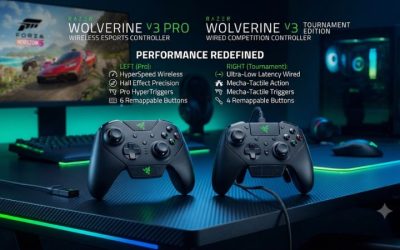
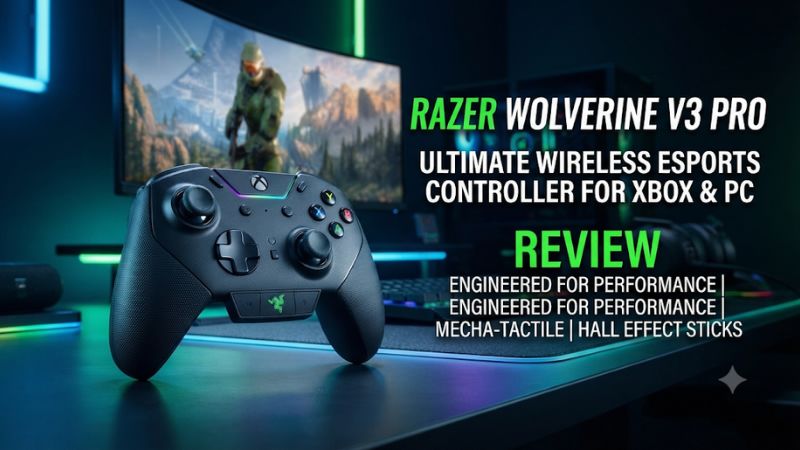
Buy the original Wolverine V3 Pro for six extra controls and wireless Xbox play. Choose the wired Tournament Edition if a cable works for you. This Razer Wolverine V3 Pro Xbox controller review explains who benefits from Hall effect sticks, why 1,000 Hz is a wired PC feature, and what the Pro adds for shooters.
Is the Wolverine V3 Pro worth buying for Xbox?
Buy it for four rear buttons and two extra bumpers
The best reason to buy the Wolverine V3 Pro is the number of actions you can move away from your right thumb. Four clicky rear buttons sit where other fingers can reach them, and the two additional buttons near the shoulders give you another pair of places to map controls. If you aim with the right stick and often interrupt it to jump, crouch, or use equipment, the layout addresses a real problem.
Six extra positions are useful only if you can reach them comfortably. The outer rear pair may suit the fingers that already grip the controller, while the upper extras depend more on how you hold the shoulders and triggers. Try a full aiming motion with your hands in their usual position before assigning an action that needs to work under pressure.
The wireless receiver is the second reason to pay for the Pro. It can spare you a long cable across the room on a supported Xbox. For a PC and Xbox sharing the same desk, the included cable provides a second way to connect when you want to keep playing during a charge or test the receiver.
Check what you gain if you play both Xbox and PC
On Xbox, the receiver and extra controls are the main reasons to move up from a standard pad. Razer reserves the 1,000 Hz setting for wired PC Tournament Mode. On a console, compare the controller with the one you already own at the same seat, in the same game, and with the same display and input settings.
On PC, decide whether a headset plugged into the pad is part of your intended setup. If you change from the normal wired mode to Tournament Mode, test audio as well as input before putting the new profile into regular use. Keep a direct headset connection at the computer available if that makes switching easier.
For a shared setup, evaluate the time it takes to reconnect and identify the active profile. A controller that leaves the right mappings available for an evening match is more convenient than one you constantly have to reconfigure. Reserve the higher report rate for the PC workflow where it is actually available.
Spend less if you only need basic inputs or a cable is fine
A standard Xbox controller still makes sense for someone who rarely uses rear controls or wants a familiar pad for menus, platformers, and occasional multiplayer. The V3 Pro earns its premium through the extras you use in actual play. A different stick sensor and clicky face buttons can make the controller feel different, but neither feature takes the place of a comfortable grip.
The original Wolverine V3 Tournament Edition is the closest value check. It has the six-extra layout and Hall effect sticks on a wired Xbox and PC model. If your desk already gives you a short cable run and you consistently play at one seat, compare the two before paying for the receiver and the rest of the Pro package.
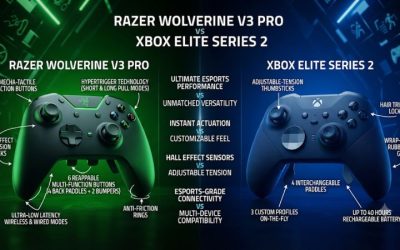
The Xbox Elite Series 2 is also worth comparing if your priorities are adjustable stick tension, removable paddles, or a controller that offers Bluetooth for compatible devices. The Razer favors its own fixed rear-button and extra-bumper arrangement. Your preference will be easier to identify once you decide which actions need a new position and where your fingers can reach.
Verify that the box says Xbox
This review covers the original Xbox and PC Razer Wolverine V3 Pro, model family RZ06-0520. Razer also sells a Wolverine V3 Pro 8K PC with a similar name.
Its sensor, platform support, and performance claims belong to that separate controller. Check the full product name and supported platforms, especially when a retailer groups multiple Wolverine versions in one listing.
| Feature | Original Wolverine V3 Pro for Xbox and PC |
|---|---|
| Thumbsticks | Hall effect; interchangeable caps |
| Extra inputs | Four rear buttons and two extra top bumpers |
| Triggers | Full analog travel or short click mode |
| Connection | Included 2.4 GHz USB receiver or wired USB |
| Compatible platforms | Xbox Series X/S, Xbox One, and supported Windows PCs |
| Polling modes listed by Razer | 250 Hz on wireless and Xbox; up to 1,000 Hz in wired PC Tournament Mode |
| Battery | About 20 hours, according to Razer |
| Headset connection | 3.5 mm analog headset jack |
| Main configuration utility | Razer Controller app |
How do the controls feel and what do they change in a game?
Hall effect sticks make sensor wear less of a concern
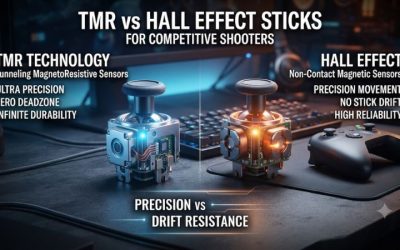
The V3 Pro uses magnets and Hall sensors for analog position sensing, removing the sliding contact used by conventional potentiometer sensors. That removes one common source of signal wear over time. Springs, mechanical centering, calibration, firmware, and game deadzones still affect the movement that reaches the screen.
You can start near the default settings and then look for a repeatable center. Move the stick a little in several directions, release it, and watch the camera in a quiet training area. If it creeps after release, check the game’s deadzone and the controller profile before making a hardware judgment.
Razer includes interchangeable caps, including taller and differently shaped options. A taller aiming cap increases the leverage available for small adjustments and changes how far your thumb moves across the top. Try it with the same sensitivity first so you can identify whether the new cap is improving small corrections or simply taking time to get used to.
The extra buttons make more difference than the sensor label
Start with jump and crouch or slide on the two easiest rear inputs. Run a short tracking drill while using them and see whether your aiming thumb stays on the stick. If the camera moves when you squeeze a rear button, try a different finger or a different assignment before adding four more binds.
The two extra upper controls can be useful for an action such as ping or an equipment slot. Confirm you can press one while holding an ordinary bumper or trigger the way a game requires. If your index finger has to leave the trigger at the wrong time, move that function to a rear control and use the extra bumper during quieter moments.
The extra inputs can take the place of familiar actions through remapping. If a game sees one as A, the controller has added a second physical way to send A.
Check the game’s own options when you need to change what the A command actually does. This distinction matters when a title uses one button for different context-sensitive actions.
Decide whether you like the cushioned click of the face buttons
Razer describes the Mecha-Tactile face buttons as a hybrid using microswitches with rubber-membrane cushioning. The idea is a distinct actuation point with some softness to the press. That construction can appeal if you want audible or tactile feedback from ABXY but prefer a more cushioned stop than a stark mouse-like click.
If you spend a lot of time in action games, try repeated taps and thumb rolls between two adjacent buttons. A sharp actuation point is useful only when your thumb can reach the next input comfortably. Also listen from your playing position if an open microphone sits close to your hands.
The D-pad and face feel are part of the value for a mixed library. If you primarily play fighting games, test diagonals and repeated directional motion as well as the buttons. The controller’s shooter-oriented extra layout may be less important to you than whether you can hit dashes and menu inputs cleanly without changing grip.
Use the trigger travel that matches the action
Razer gives the triggers a normal analog setting and a shorter click setting. The short mode feels more like a discrete button and works for games that use a trigger as a simple fire command. Full analog motion leaves you more control over progression, which matters for throttle and braking in racing games.
Test each trigger in the game after moving the stop. If a command actuates at a different point than expected, inspect the mode and trigger settings first.
A shorter physical pull does not establish a measured input delay on its own. The game and the controller’s processing still contribute to when the action is registered.
If you switch between shooters and driving games, leave the racing trigger settings on full travel and verify them at the start of a session. A profile can alter a mapping, but the physical switches still determine the mode you set with your hands. A quick check saves confusion when the car gets full throttle much earlier than you expect.
What should you expect from the receiver, battery, and PC mode?
Set up the receiver for the Xbox you actually use
The Pro’s wireless connection uses Razer’s USB receiver. Plug it into the console, leave it with a clear path to your seat when possible, and confirm the controller connects after a normal power cycle. You can also use the included USB cable if the controller needs a charge or you want to check which part of the connection is failing.
The receiver matters when the console is behind a television or inside furniture. Test from your usual seat during real gameplay before concluding that it will work in every position.
If inputs occasionally stop over wireless, try another console port or a clearer placement, then compare with wired operation. Keep the controller profile fixed for that comparison.
For a desk shared between Xbox and PC, decide whether you want to move the dongle or leave it on the console and wire the computer. The controller does not offer standard Bluetooth pairing as another connection option. A Bluetooth workflow for mobile devices is a reason to compare a different pad before buying.
Treat 1,000 Hz as a wired PC mode
Razer lists 250 Hz for wireless and Xbox use, with a special 1,000 Hz Tournament Mode for wired play on PC. Those rates describe communication intervals. They measure a different quantity from the total time between your finger moving and a game displaying the result.
For a real comparison, keep the same game, PC, frame rate settings, and stick profile. Try a familiar drill over the receiver and wired with the appropriate mode, then note whether execution changes. A fast poll rate is useful information for PC buyers, but the headline PC mode should not be applied to the Xbox buying decision.
Gamepadla has documented an approximately 4.8 ms average button result on a selected wired PC test with measured polling near 1,000 Hz. This result belongs to that combination of firmware, test tool, computer, and connection. It provides context for the report rate while saying little about Xbox end-to-end latency or the feel of an analog stick entering a game deadzone.
Plan battery life around session length
Razer’s published figure is about 20 hours. GameSpot also reported a maximum around 20 hours in its test experience.
Treat that as a planning reference, since battery age, usage, connection, and other conditions affect how often a unit needs a charge. Frequent players who leave the controller away from its cable should account for that routine.
The included long cable is useful for charging at the couch or keeping the controller ready at a desk. Check its route while sitting in your normal position so it does not need to bend sharply or cross a walkway. If you mainly play plugged in, the value of the Pro’s wireless hardware and included case falls accordingly.
For a used unit, verify that the matching receiver, cable, and preferred cap are present. A controller that powers on briefly can still have weak battery life. Test the wireless session and how the unit behaves while charging before you rely on it in a long match.
How should you set up the controller before judging it?
Build a simple baseline in the Razer Controller app
Use the configuration app for the original Xbox and PC Wolverine family. Update the controller using the documented procedure if the support utility reports an applicable update. Then make one basic profile with the default curves, two useful rear button assignments, and an intended trigger position.
- Verify the normal buttons. Open a game or input viewer and check both sticks, ABXY, triggers, and shoulders before modifying the full layout.
- Test a single extra. Assign one rear button to an obvious action, then press it during gameplay. If the action fails, inspect the active profile and confirm the expected normal button works too.
- Test the grip. Press each extra during a slow aiming sweep. If you hit the wrong one, move the action to a button you reach reliably and repeat the sweep.
- Check the second platform. If your PC setup and Xbox share the controller, reconnect to the other device and verify what the current mapping does there. Confirm the selected profile before trying to diagnose a missing control.
Once the basic profile works, add additional assignments in pairs. This makes it easier to tell whether a bad result comes from a mapping, an awkward reach, or an accidental press. Keep a simple control layout available while building one for each competitive title.
Fix center behavior before changing the response curve
In the game you actually play, let go of the stick and watch the camera. Next, make a small movement in each cardinal direction and release it again. The expected result is a stable center and enough movement at your normal input scale to start a slow tracking motion without a jump.
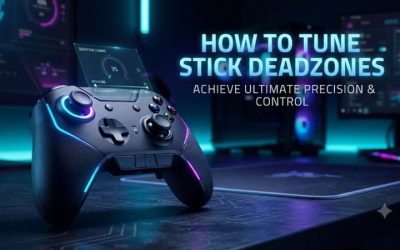
If the camera moves with your hands off, try a small increase to the relevant deadzone and repeat from several return directions. If the camera stays still but starts moving too abruptly, return the curve and deadzone to a baseline individually until you know which setting is responsible. A wide deadzone can hide an issue while also taking away part of the small movement you bought the pad to control.
Use more than one game or a controller test if the behavior stays strange. If the anomaly follows the same stick with standard settings across modes, make a record of the behavior. If it only appears in one title, examine that title’s own deadzone, aim acceleration, or profile first.
Check comfort during a match-length session
Test a quiet training area first, then play long enough for your grip to tighten normally. See whether inner rear switches get hit unintentionally when you pull both triggers, or whether you have to rotate the controller to reach a top button. Record which extra positions you can still use reliably at the end of the session.
A match-length check is particularly useful for someone moving from flat rear paddles or a stock controller. The new buttons can require a different pressure from the middle or ring fingers. Map the easiest pair until your hands settle and consider adding only the positions that still solve a need.
The optional analog headset connection is another practical check if you use voice chat from the pad. Confirm game audio and microphone input on the platform and connection you use. Different problems can look similar when the console changes input devices or another headset is already selected.
Which version or alternative should different players choose?
Couch Xbox players benefit most from the original Pro
Choose the Pro if a cable would regularly be in the way and you need more buttons than a stock controller gives you. Its receiver and four rear buttons plus two upper extras make sense together for a living-room competitive setup. Keep the charging routine and receiver location in mind if you use multiple seats or controllers.
If you are mainly buying for two rear actions, compare how comfortable those controls are on any shorter shortlist. Two well-placed buttons can meet most of the need. Try the Pro’s layout when the extra top pair can keep even more actions in reach without changing how you steer the sticks.
Desk players should compare the wired price
At a stationary desk, the wired Tournament Edition is a reasonable default if you like the layout. Compare the current price of both versions and decide what wireless, battery operation, and the Pro accessories are worth in your specific space. If you play on Xbox, keep the receiver-based original Pro distinct from PC-only Wolverine listings.
For a mixed Xbox and Windows setup, the full version name matters more than a storefront’s polling headline. Simulator and racing players should also check analog trigger travel and grip comfort. The V3 Pro still works well as a mixed-library option if you enjoy the click feel and remember to restore full trigger travel where you need it.
Conclusion
The original Wolverine V3 Pro is worth buying for Xbox players who will use several of its six extra controls and value receiver-based wireless. Hall effect sticks, interchangeable caps, and two trigger modes make it a flexible shooter controller. Pick the original wired Tournament Edition if a cable fits your setup, and compare a different controller if your priorities are adjustable tension, Bluetooth, or a different rear-button shape.