🛒 Best Price Today on Amazon
Prime members get fast, free shipping on everything above, plus member-only deals. New members get a 30-day free trial — cancel anytime.
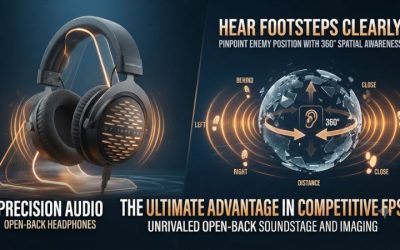
Start with the game’s headphone mix in stereo. Try its built-in HRTF or a supported spatial renderer if you struggle to tell front from rear or above from below. In virtual 7.1 surround vs stereo for competitive FPS, the better mode is the one that gives you fewer wrong calls in a level-matched test on the maps you play.
What changes when you switch from stereo to virtual 7.1?
Stereo gives the headphones left and right signals
A normal headphone has a left channel and a right channel. In a conventional stereo game mix, panning, level, tone, and the game’s acoustic effects help those two channels describe a scene.
A sound can move smoothly from one ear toward the other. A stereo mix can also contain clues about distance, materials, or nearby walls if the game encodes them.
Stereo describes the two-channel format. That same format can carry a binaural render with front, rear, and height cues already built in. The distinction that matters when comparing settings is where positional processing happens.
A Windows sound panel that identifies your headphones as stereo tells you how they receive the final signal. It rarely tells you everything the game did before sending it.
Plain stereo playback gives you a useful starting reference. Game updates, headset presets, and operating system options can all alter what reaches your ears. With a known reference, you can turn features on selectively and judge the cue that changed.
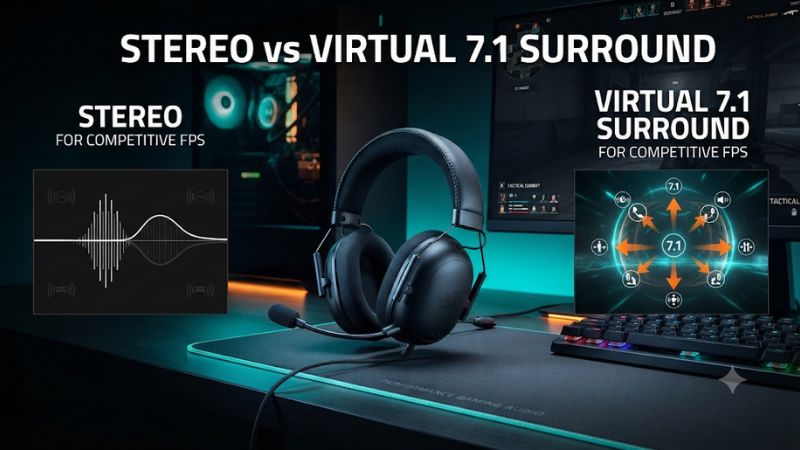
Virtual 7.1 turns multiple speaker directions into a headphone signal
A conventional 7.1 speaker layout includes seven main channels and a low-frequency effects channel. A virtual 7.1 headphone renderer can take that speaker-based mix and simulate the contribution of those speaker positions through two headphone channels.
The headset’s left and right drivers reproduce the processed result. The label is a description of the rendering path or input format.
Many implementations use head-related transfer functions, often shortened to HRTFs. These filters model how a sound from a particular direction changes as it reaches each ear.
Relative timing, level, and frequency changes can help you distinguish a cue behind you from a similar cue in front. Some renderers also add room or distance effects.
If you use generic HRTF filters, their modeled ears and head shape may differ from yours. Front-to-back distinctions improve for some people and become less intuitive for others. A shift in timbre or perceived distance is part of what you should evaluate when comparing modes because it can affect the decision you make under pressure.
An in-game spatial engine has a different starting point
A game can have direct access to a moving sound source’s position, your character’s orientation, and environmental information. A native headphone mode can use that information to render positional cues directly in binaural stereo.
A post-processor receiving a traditional speaker feed usually starts from what that feed contains. Some modern spatial pipelines can instead receive richer platform-supported positional data.
These are reasons to look at the game’s audio options before choosing a headset preset. If the title already renders binaural cues, further processing can change them. If the title supports multichannel or platform spatial output and lacks a suitable built-in headphone renderer, an external option can be worth testing.
A headset’s control panel may call its feature 7.1, surround, 3D, or spatial audio. Those labels do not guarantee that the feature uses the same input as another product or game. Check whether it expects a virtual multichannel endpoint, an operating system spatial option, or a specific setting inside the game.
| Listening mode | What reaches the headphones | Strong use case | What to check |
|---|---|---|---|
| Conventional game stereo | Two-channel game mix | A consistent reference and clear left-right cues | Front-versus-rear errors and speaker preset |
| Native game HRTF | Two-channel binaural render from the game’s audio engine | Titles with explicit headphone positional rendering | Repeatable elevation and rear localization |
| External virtual 7.1 | Two-channel virtualization of a supported multichannel feed | Games that can send a compatible speaker mix | Input channels, extra effects, and double processing |
| Supported platform spatial audio | Headphone render of the feed the game and platform provide | Titles that explicitly support the chosen platform path | Game output mode and active playback endpoint |
Which mode makes footsteps easier to act on?
Use stereo when the cues lead to repeatable calls
Choose stereo if you can reliably identify left and right, and you can use map knowledge or a small camera turn to resolve unclear sectors. It is also a sensible choice if you alternate between titles, use a basic USB interface, or want a predictable setup at different PCs. A repeatable sound is useful when the correct response is already familiar.
A clear stereo mix can help you separate footsteps from reloads, gunfire, abilities, and voice chat. That advantage can come from relative level and masking rather than the format alone. If you pick a surround mode that dulls the same short, high-frequency cue you normally rely on, the scene may sound wider while the information you use gets harder to hear.
Evaluate zoning decisions in the actual game. On a one-level map, you may need a fast left or right call much more often than a precise elevation call.
On a map with a stairwell, balcony, and underground route in the same area, different errors matter. The same ears and headset can reasonably lead to different settings in different games.
Keep a spatial mode if it reduces a specific mistake
A useful spatial mode should help you with a recurring decision, such as identifying a rear approach before you turn or distinguishing the upper floor from a doorway in front of you. A stronger sense of space is a legitimate preference. For competitive play, give extra weight to fewer incorrect calls and shorter hesitation.
Try native HRTF first when the game offers a suitable option. If you instead test a supported external renderer, verify that the game sends the required input and disable other headphone surround or spatial effects during the test. This preserves a single rendering path and gives you a clearer reason for whatever changes you hear.
A spatial mode may improve rear calls while making distance less familiar. Measure both if close-versus-far changes how you respond.
If the rear advantage survives a second session and distance calls recover with practice, the switch may be worthwhile. If the new mode helps on the range and confuses two frequently played routes in matches, the match result deserves more weight.
Keep detection, direction, and distance separate
Detection means you heard something. Localization means you identified where it was.
Distance judgment tells you whether the sound is likely to matter immediately. A mode can make a footstep more audible by boosting its frequency range or changing loudness while making its origin harder to identify.
Distance judgments also depend on the game. Surface type, walls, and an open doorway can all change how the same footsteps sound. A concrete landing and a soft interior floor may differ enough in brightness and level to confuse a test that uses different routes for each mode.
Set a clear goal before swapping settings. If you hear the cue but repeatedly turn the wrong way, count directional errors.
If you know the side but miss the first step during a fight, test how often you detect the cue alongside controlled background sounds. This makes comparisons easier to interpret than a single score for sound quality.
Factor in familiarity, fatigue, and consistency
An unfamiliar mix can sound wrong for several rounds because you have built habits around your current one. Give each candidate some practice before comparing it. Practice should come before the trial, with equally familiar routes available for each condition, so the first timed runs are about localization.
Pay attention to how comfortable the mix feels after a full session. A preset that makes every movement cue unusually sharp or boosts distant noise can become tiring. If calls grow less consistent after an hour, include that in your decision even if the preset sounded impressive in a quick demonstration.
Save a setup you can reproduce with the game profile and headphone you use. Write down the device name and which mode is active. If the game or headset app changes a default after an update, you can restore the configuration without relying on your memory of how a match sounded last week.
How do you set up a fair stereo and spatial comparison?
Establish a clean stereo reference
- Use the same endpoint. Select the same physical headphones or DAC and keep the same cable, fit, and game output. If vendor software requires a different virtual endpoint for spatial mode, confirm which path reaches the same headphones.
- Turn extra processing off. Disable Windows spatial sound and the headset’s surround preset for the reference. Use the game’s ordinary headphone or stereo output and turn off optional game HRTF if you want a plain stereo reference.
- Check the basics. Verify left and right orientation, center balance, and the accessibility mono setting. A reversed headset, an incorrect channel mode, or audio folded to mono can make any comparison misleading.
Leave effects and dialogue balances in the same place for the test. If one mode noticeably changes overall gain, match normal playing loudness with repeatable material. Use a familiar, relatively steady sound, then check a second source so you are less likely to match only a frequency boosted by that preset.
Before scoring, listen to a known center cue and a deliberately left-then-right sound. Both should appear in the intended position.
If the channels are wrong or one is noticeably quieter, correct the basic device configuration. Extra processing makes that diagnosis harder.
Set up one spatial renderer at a time
- For built-in HRTF, enable the option in the game and leave external surround and Windows spatial sound off for this comparison. Use the output mode recommended by the game.
- For operating system spatial sound, choose a supported provider on the selected playback endpoint. In Windows, options can include Windows Sonic for Headphones or installed providers. Follow the game’s instructions for its output configuration.
- For virtual 7.1 software, confirm the game can send the feed that the renderer expects. Use the correct virtual playback device, and check that another vendor preset or the game’s headphone virtualization is off before evaluating the result.
- Run a known moving cue. Listen with the camera fixed, then turn slowly as the sound repeats. If you lose the center or the sound becomes hollow, check for two active processing layers and verify the game’s output format.
VALORANT is an example of why the game setting matters. Riot documented support for third-party spatial audio with Speaker Configuration set to Auto-Detect, and the game can turn its own HRTF off when the external spatial path is active.
Its built-in HRTF is a separate option. Test the path you intend to use rather than changing the game and Windows at random.
Settings vary between titles and can change over time. If a game exposes a perspective, occlusion, or headphone preset without explicitly describing it as virtual 7.1, treat it as its own game option. You can judge this feature by the same repeated cue test even if the game gives you little information about the underlying mix.
Run a map drill with known positions
Use a private lobby or practice map with a friend. Find a repeatable starting point and mark six or more sound origins that exercise the mistakes you actually make. Include left and right as controls, plus front, rear, a position above you, and a position below when the map supports it.
- Control the source. Ask the other player to use the same type of movement and use comparable surfaces where possible. Hide their route from view and give them a randomized order.
- Record your first call. Say the direction before moving your camera. Include height or range when those are part of the trial. Have your helper mark the true position and the call without giving feedback until after the run.
- Repeat both modes. Use the same list of possible locations with a different order. Swap which mode goes first in a second session to spread practice and fatigue across conditions.
- Retest useful cues with background sound. Add a stable amount of voice chat or effects after the clean drill. If one mode only helps in silence, you have some evidence about where its advantage ends.
For a small at-home trial, exact reaction-time software is optional. A helper can record whether you called promptly, paused, or corrected yourself.
Count initial wrong turns separately from later corrections. A correct call after looking around can matter less than the first turn when the opponent is already close.
For instance, imagine stereo leads to four wrong front-versus-rear calls in twelve tries and the spatial mode leads to two. That is a reason to repeat the drill with the order reversed.
Check whether the same pattern survives other positions and whether one mode added elevation mistakes. Those numbers are an illustration of how to read your results, not a benchmark.
Test across the situations where you would use it
Start in the quiet drill to find out which cues you can localize. Next, play a few rounds where the opponents take predictable routes and your teammate can confirm origins after a call. This helps reveal masking and pressure effects that are absent from the clean practice setup.
Use a second map if you regularly play very different layouts. A long corridor can reward a clean left-to-right transition.
A stairwell or overlapping floors put different demands on how the game conveys geometry. A test on a single map can still guide a practical choice when that map represents your usual queue.
Keep the winner for a normal session and record one or two decisions that felt easier and any mistakes that stayed. If you forget which mode is on and the calls hold up, the setup is likely to suit routine play. A single unusually good match is less informative than repeated decisions in locations you can identify afterward.
What should you check if spatial audio makes things sound worse?
Fix the signal path before judging the effect
- Hollow, distant sound everywhere. Check for two spatial layers and turn one off. Recheck the game output preset and the endpoint it is using.
- Footsteps only sound clearer at higher volume. Match familiar loudness and retest. Give both modes the same test material and keep your EQ fixed.
- Front and rear still flip. Try the game’s native headphone mode or return to stereo and repeat with small camera movements. A generic HRTF can produce persistent reversals for an individual listener.
- Side cues disappear when you launch the game. Check for mono audio, an output device switch, or a change in a wireless headset profile when its mic turns on. Test the same device with and without the voice app to isolate the trigger.
If the trouble started after a driver update or a restart, reopen the headset app and confirm the correct game profile loaded. Windows remembers spatial settings by endpoint, so switching between a USB device, onboard audio, and a wireless dongle can put a different setting into effect.
Play a cue that you understand well after each change. If the surround mode gets a different game feed than you expect, changing the equalizer can make the result brighter without restoring the missing directional information. Solve the configuration issue before tuning for taste.
Check whether the missing clue is elevation or occlusion
A sound above you may be easy to find from an open stairwell and difficult to place behind a closed corridor. Run your elevation trial twice, once with an open path and once with a wall or doorway between you and the cue. Keep the height difference comparable so the result reflects the path as closely as the map allows.
If both listening modes produce the same errors through walls, learn the reliable audible landmarks on that route. A door opening or a change in floor material may tell you more than the apparent height of the first step. If one mode preserves the distinction across both paths, keep that result in your session notes.
Separate the game’s mix from the headphone setup
If one title has an issue and two others are fine, compare settings inside that game first. One game may restrict how much information footsteps offer through floors or behind solid walls. Two players at the same geometric distance can also sound different because the route to you passes through different materials or openings.
Listen to a recording of your test if you want to document a failure, but verify how the recording was captured. A capture taken upstream of the headset processing may omit the spatial effect you heard. A recording made after processing can exaggerate problems if its playback system applies another spatial layer.
You can keep two profiles if each works better for a different title. Write down the in-game output choice, the active system option, and whether the headset preset is enabled. A short setup record makes it easier to switch deliberately and restore the exact signal path when needed.
Conclusion
Start with conventional stereo and keep it if your left-right calls, distance judgments, and reaction stay consistent. Test the game’s native HRTF or one supported spatial renderer if you repeatedly miss rear or height cues. Match volume, count wrong first calls on familiar maps, and choose the mode that makes those decisions more reliable during a normal match.