🛒 Best Price Today on Amazon
Prime members get fast, free shipping on everything above, plus member-only deals. New members get a 30-day free trial — cancel anytime.
- Quick Answer
- Move the Extender Closer to the Router
- Retry the WPS Connection
- Use Browser Setup Instead of WPS
- Check Whether the Router Password Changed
- Make Sure You Are Using the Correct Password
- Power Cycle the Network
- Factory Reset the NETGEAR Extender
- Reconfigure the Extender After Reset
- Fix Mywifiext Access Problems
- Update the Extender Firmware
- Check Router Security Compatibility
- Check 2.4GHz and 5GHz Separately
- Troubleshooting Checklist
- FAQ
- Conclusion
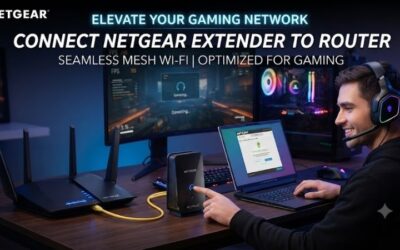
If your NETGEAR extender is not connecting to the router, the problem is usually caused by setup mode, weak signal, changed WiFi credentials, WPS failure, or an extender that needs to be reset. Start with the extender close to the router, confirm the router is online, and then reconnect using WPS or the browser setup method.
Quick Answer
Before changing extender settings, confirm the router itself has a working internet connection. Test a phone or computer directly on the router’s WiFi, or use Ethernet if possible. If the router is offline, the extender cannot provide internet access because it depends on the router as its upstream connection
Move the Extender Closer to the Router
NETGEAR recommends placing the extender in the same room as the router during initial setup. Once the connection is established, move it roughly halfway between the router and the weak-signal area. If it is placed too far away during setup, the extender may repeatedly fail to authenticate or lose the router link.
Retry the WPS Connection
If your router supports WPS, press the WPS button on the extender and then press the router’s WPS button within the required setup window. NETGEAR states that a solid green or blue router-link indicator means the extender has connected successfully. If it does not, repeat the process with the devices closer together.
Use Browser Setup Instead of WPS
When WPS fails or the router does not support it, use the browser setup method instead. Connect your phone or computer to the extender’s default NETGEAR_EXT network, then open the extender setup page. Select the router’s WiFi network, enter the current wireless password, and complete the guided connection process.
Check Whether the Router Password Changed
A changed router password or WiFi name can break an extender that previously worked. The extender continues trying to use the old network credentials until it is reconfigured. NETGEAR also states that replacing the router or gateway normally requires the extender to be set up again for the new network.
Make Sure You Are Using the Correct Password
If the extender repeatedly asks for the WiFi password even when you believe it is correct, move the extender closer to the router and try again. NETGEAR notes that weak signal during setup can cause this behavior. Also verify that you are entering the router’s wireless password rather than the extender’s administrator password.
Power Cycle the Network
Power cycling can clear a temporary connection fault. Turn off the extender, router, and modem if you use a separate modem. Power the modem first, wait for it to establish service, then start the router and finally the extender. Recheck the router-link light before changing additional settings or performing a reset.
Factory Reset the NETGEAR Extender
If setup remains stuck, perform a factory reset. NETGEAR instructs users to keep the extender powered, then press and hold the Reset or Factory Reset button with a paper clip until the Power LED begins blinking. After the unit restarts, all personalized settings are erased and the extender is ready for a fresh installation.
Reconfigure the Extender After Reset
After resetting, reconnect using the setup method supported by your model. If you use the browser method and cannot see NETGEAR_EXT, reset the extender again and wait until the power light becomes stable. During setup, avoid moving the extender or closing the setup page until the router connection has been completed.
Fix Mywifiext Access Problems
If you cannot reach the extender management page, first make sure your device is actually connected to the extender rather than directly to the router. NETGEAR recommends using the extender’s web address or its local IP address when necessary. A different browser can also help if the setup page refuses to load.
Update the Extender Firmware
Firmware can affect stability, compatibility, and connection behavior. NETGEAR recommends keeping extender firmware current because updates can correct known issues and improve performance. Download firmware only for the exact model number, and do not interrupt power while an update is being installed.
Check Router Security Compatibility
Router security settings can also matter. Older extenders may not work correctly with every modern security mode, especially if the router has recently been changed or upgraded. If the extender cannot detect or join the network, check the model’s supported wireless bands and security options before assuming the hardware has failed.
Check 2.4GHz and 5GHz Separately
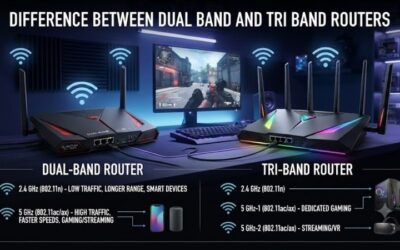
For dual-band extenders, verify both 2.4GHz and 5GHz connections separately. A model may successfully connect on one band while failing on the other because of range, channel conditions, or compatibility. The 2.4GHz band generally reaches farther, while 5GHz can offer higher throughput at shorter distances.
Troubleshooting Checklist
- Confirm the main router has internet access.
- Plug the extender into the same room as the router for setup.
- Verify the correct router WiFi name and password.
- Retry WPS if both devices support it.
- Use browser setup if WPS fails.
- Power cycle the modem, router, and extender.
- Factory-reset the extender if previous settings are stuck.
- Reconfigure after replacing or renaming the router.
- Check the router-link LED before moving the extender.
- Update firmware only for the exact extender model.
FAQ
Why Is My NETGEAR Extender Not Connecting to My Router?
The most common causes are weak signal during setup, incorrect WiFi credentials, outdated configuration after a router change, WPS failure, or an extender that needs recalibration through a reset. Start close to the router, verify the password, and retry setup before assuming either device has a hardware problem.
Why Does My NETGEAR Extender Say Connected but No Internet?
The extender can maintain a wireless link to your device even when its upstream router connection is unavailable. Test internet access directly through the router first, then check the extender’s router-link indicator. If the main router is online, reconnect or reset the extender and repeat the setup process.
Do I Need to Reset My Extender After Changing Routers?
Yes, reconfiguration is normally required when the router or gateway is replaced because the network name, password, or security settings can change. NETGEAR recommends reconnecting the extender through WPS or its setup interface. A factory reset can help when old network settings prevent the new installation from completing.
Where Should I Put My NETGEAR Extender After Setup?
Place it between the router and the area with poor coverage, but keep it inside a location where it still receives a reliable router signal. NETGEAR recommends approximately halfway as a starting point. If the router-link indicator becomes weak or disconnected, move the extender closer to the router rather than farther away.
Conclusion
A NETGEAR extender not connecting to the router is usually recoverable without replacing the hardware. Confirm the router is online, set up the extender close to it, verify the current WiFi password, retry WPS or browser setup, and factory-reset the extender when necessary. After it connects, move it gradually to the final location.