Level up your gaming experience by stepping into the immersive world of dual monitors. Gone are the days of alt-tabbing out of crucial moments or struggling to manage your game, Discord, and streaming software on a single screen. In 2026, a dual-monitor setup is more accessible and beneficial than ever, offering a tangible advantage in both performance and enjoyment. This guide will walk you through everything you need to know to set up your dual gaming rig.
- Watch: How to Set Up Dual Monitors for Gaming — Video Review
- Choosing Your Dual Monitors: Size, Resolution, and Refresh Rate
- Hardware Requirements: Graphics Card and Ports
- Physical Setup: Mounting and Positioning
- Software Configuration: Windows Display Settings
- Tips for Gaming on Dual Monitors
- Frequently Asked Questions
- Conclusion
- Related Articles
From choosing the right displays to configuring your system for optimal performance, we’ll cover the essentials. Whether you’re aiming for a seamless ultrawide-like experience across two screens or simply want dedicated space for your communication and monitoring tools, a dual-monitor setup can revolutionize your gaming.
As an Amazon Associate we earn from qualifying purchases at no extra cost to you.



⚡ Save on Your Next PC — Amazon Prime
Prime members get fast free shipping on the systems above, plus early access to Prime Day & Black Friday PC deals. New members get a 30-day free trial.
Watch: How to Set Up Dual Monitors for Gaming — Video Review
Choosing Your Dual Monitors: Size, Resolution, and Refresh Rate
The first crucial decision is selecting the right monitors. For gaming, consider these key factors:
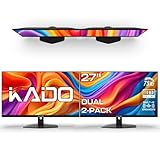
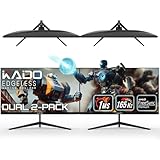
- Size: While personal preference plays a role, 24-inch and 27-inch monitors are popular choices for dual setups. The Kado 2-Pack Dual 24″ Curved 1500R monitors offer a good balance of immersion and desk space, while the Kado Dual Monitor 2-Pack 27″ monitors provide a more expansive view. For those prioritizing compactness, the Kado 2-Pack Dual 22″ Flat Screen monitors are a solid option.
- Resolution: Full HD (1920×1080) is the standard for most gaming setups and is readily available in many dual packs, such as the Kado 2-Pack Dual 27″ Flat Screen monitors. Higher resolutions like 1440p or 4K are fantastic but require significantly more powerful hardware. For a dual setup focused on gaming and utility, FHD is often the sweet spot.
- Refresh Rate: Aim for at least 75Hz for a smoother visual experience. Many Kado dual monitor packs, including the Kado 2-Pack Dual 24″ Curved 1500R and Kado 2-Pack Dual 27″ Curved 1500R, offer 75Hz, which is a noticeable upgrade from standard 60Hz displays. Higher refresh rates (144Hz, 240Hz) are ideal for competitive gaming but come at a higher cost.
- Curved vs. Flat: Curved monitors, like the various Kado curved dual packs, can enhance immersion by drawing you further into the display. Flat screens, such as the Kado 2-Pack Dual 22″ Flat Screen, offer a traditional viewing experience. For a dual setup, the curvature can help reduce perceived bezels and create a more unified visual field.
Hardware Requirements: Graphics Card and Ports
Your PC’s graphics card (GPU) is the engine driving your dual-monitor setup. Ensure it has the necessary capabilities and outputs:
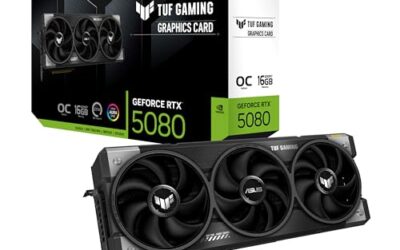
- GPU Power: Running two monitors, especially at higher resolutions or refresh rates, demands more from your GPU. For 1080p gaming across two displays, a mid-range to high-end GPU from the last few years (e.g., NVIDIA GeForce RTX 3060 or AMD Radeon RX 6700 XT equivalent and above) should suffice for most titles. If you plan to game on one monitor while streaming or running other applications on the second, consider a more powerful card.
- Display Outputs: Modern GPUs typically feature multiple DisplayPort and HDMI outputs. Ensure your chosen monitors have compatible ports and that your GPU has enough of them. For example, if your GPU has three DisplayPort outputs and two HDMI, you can easily connect two monitors. It’s generally recommended to use DisplayPort for higher refresh rates and resolutions.
Physical Setup: Mounting and Positioning
Getting the monitors physically set up correctly is vital for comfort and optimal viewing angles:
- Desk Space: Measure your desk to ensure you have enough room for two monitors. Consider their dimensions, including stands. Dual monitor stands, like those often bundled or available separately for Kado dual packs, can save valuable desk real estate and allow for more flexible positioning.
- Ergonomics: Position the monitors so that the tops are roughly at eye level and the distance is comfortable. For a gaming focus, many users place the primary gaming monitor directly in front and the secondary monitor slightly to the side or above. If using curved monitors, the slight inward curve can create a more natural field of view.
- Cable Management: With two monitors, cable clutter can become an issue. Use zip ties, Velcro straps, or cable sleeves to keep your setup tidy and prevent accidental disconnections.
Software Configuration: Windows Display Settings
Once your monitors are physically connected, you’ll need to configure them within your operating system:
- Detect Displays: In Windows, right-click on your desktop and select “Display settings.” Windows should automatically detect both monitors. If not, click “Detect.”
- Extend Desktop: Under the “Multiple displays” dropdown, select “Extend these displays.” This will create one large desktop spanning across both monitors.
- Set Primary Display: You can choose which monitor will be your primary display (where the taskbar and system icons appear by default). Select the desired monitor in the display settings and check the “Make this my main display” box.
- Adjust Resolution and Refresh Rate: For each monitor, ensure the correct resolution (typically 1920×1080 for the Kado FHD monitors) and the highest supported refresh rate (e.g., 75Hz) are selected.
Tips for Gaming on Dual Monitors
- Game on One, Utility on the Other: The most common and practical use is to run your game on the primary monitor and use the secondary for Discord, Twitch chat, system monitoring tools (like MSI Afterburner), or web browsing.
- Utilize Ultrawide Emulation: Some games support ultrawide resolutions. While not true ultrawide, spanning a game across two monitors with a similar aspect ratio (e.g., 3840×1080) can offer a panoramic view. Be aware that this can cause UI stretching or black bars on the inner edges. Check game-specific forums for optimal settings.
- Disable Game Mode for Secondary Screen: If you’re running a game on your primary monitor, ensure any “game mode” or performance enhancements are disabled for the secondary monitor to prevent potential conflicts or performance hits.
- Customize Windows Taskbar: In Windows Display Settings, you can configure taskbar behavior across multiple displays. You can choose to show the taskbar on all screens or just the primary.
Frequently Asked Questions
Can I game effectively on two monitors?
Yes, and often with enhanced productivity. The primary use case is gaming on one monitor while using the second for essential applications like Discord, streaming software, or system monitoring tools. Directly spanning games across two monitors is possible but can lead to visual compromises depending on the game.
Do I need a powerful graphics card for dual monitors?
It depends on what you’re doing. For gaming on one monitor and light use on the other at 1080p, a mid-range GPU is usually sufficient. If you intend to game on both simultaneously or run demanding titles at higher resolutions, a more powerful GPU is necessary.
Will my games run slower with dual monitors?
If you are gaming on only one monitor, the impact on performance should be minimal. If you attempt to run a demanding game across both displays simultaneously, you will likely experience a performance decrease compared to a single monitor setup, as your GPU has to render more pixels.
What is the best way to arrange my dual monitors for gaming?
The most common and effective arrangement is to place your primary gaming monitor directly in front of you and the secondary monitor to the side, slightly angled. This allows for easy glances at secondary information without detracting from the main game view.
Conclusion
Setting up dual monitors for gaming in 2026 is a straightforward yet impactful upgrade. By carefully selecting your hardware, ensuring your PC meets the requirements, and configuring your settings correctly, you can unlock a more immersive, productive, and enjoyable gaming experience. The Kado dual monitor packs offer excellent value and variety, making it easier than ever to embrace the dual-display revolution.