🛒 Best Price Today on Amazon
Prime members get fast, free shipping on everything above, plus member-only deals. New members get a 30-day free trial — cancel anytime.
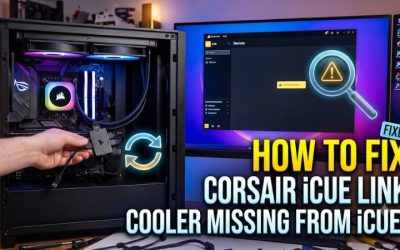
First, check whether the iCUE Link System Hub and any other Link devices appear. If the hub is absent, check power and USB. If only the cooler is missing, test its Link branch. This guide explains how to fix a Corsair iCUE Link cooler missing from iCUE and how to verify pump operation before putting the PC under load.
What should you check first when the cooler disappears?
Before changing software, check whether the whole Link network is missing or only one device. Confirm pump operation and stable low-load CPU temperature before continuing.
| What you see | First check |
|---|---|
| No Link hardware appears | Hub power and direct motherboard USB |
| Other Link devices work | Cooler-side cables and the affected hub port |
| The pump works but the display is missing | The LCD module and its required connections |
| BIOS shows a CPU fan error | CPU_FAN tach connection and actual pump operation |
| The device disappears after sleep | Windows USB detection after wake and stable hub firmware |
Confirm the model and protect the CPU
- What to do Look up the exact cooler model, then check its pump RPM and CPU temperature at light load.
- Expected result A Link model has a System Hub, and a working loop keeps the idle temperature from climbing rapidly.
- If the check fails If the CPU heats up quickly or the pump appears stopped, shut down and check the physical connections before opening iCUE.
Older Corsair liquid coolers can use a different controller. The Nautilus RS and RS ARGB connect to motherboard headers in their stock setup, so a separate iCUE Link tile is not expected.
Identify whether the cooler has ever appeared. A first installation is more likely to benefit from comparing each connection to the quick-start diagram.
A cooler missing after a move, upgrade, or sleep cycle gives you a shorter list of changes to test. Note the available iCUE tiles, any Windows USB errors, and whether BIOS reported a fan warning. These observations help you compare the next boot with the current one.
Disconnect AC before changing any hardware
- What to do Shut down, turn the PSU off, unplug AC, and wait for the standby lights to go out.
- Expected result You can trace and reseat the affected cable with power removed.
- If the check fails If you cannot identify the connector, check the exact model’s wiring diagram before reconnecting it.
Apply the same shutoff procedure before touching the Link, USB, or power connector. The motherboard and PSU manuals identify the headers and compatible cables you need.
Keep the required pump and radiator fans connected during checks at low load. If a controlled test would leave the pump or cooling fans disconnected, keep the system off while you change the wiring and restore the required components before booting. Enter the firmware first if you need to check whether the CPU stays cool.
Change one thing per trial. For example, leave the adapter and cooling branch intact when testing a different USB header.
If the cooler returns, repeat the same boot or sleep event before changing another part. Several swaps may appear to work simply because the hub reset after losing standby power. A repeat test helps show which change actually mattered.
What if the System Hub and all Link devices are missing?
The System Hub has two independent routes to check. A PCIe power lead feeds the hardware, and a USB 2.0 connection allows the computer to communicate with it. Either can fail without producing the same visible symptoms.
Check the hub’s power input
- What to do With power disconnected, seat the hub adapter and connect it to a dedicated compatible PSU PCIe lead.
- Expected result The powered hub can run connected Link hardware while the CPU temperature remains stable at idle.
- If the check fails If the branch remains unpowered, turn the PC off and inspect the adapter, its keying, and the PSU-side connection.
The adapter’s ends and keying matter. Use a cable specified for the exact PSU model, particularly on a modular supply.
Trace the cable end to end. Look for a connection pulled sideways by a tight tie, a cable trapped under a rear panel, or an adapter that was moved while other wiring was installed.
The CPU EPS connector serves a separate purpose. Follow the hub’s PCIe power requirement and the PSU documentation before attempting another boot.
Bypass USB splitters and test a direct motherboard header
- What to do Use the hub’s USB cable to connect directly to a known-good internal motherboard USB 2.0 header.
- Expected result The USB device appears and stays present in Windows Device Manager.
- If the check fails If the connection still drops, power down and test another verified header or compatible cable before changing iCUE.
On a common nine-pin internal USB 2.0 connector, align the covered position with the missing pin. Remove both passive splitters and extensions from the test path.
Boot Windows and open Device Manager. Check whether the USB device list changes or shows an unknown device. Exact names and locations can vary.
A device that appears briefly and drops away is as useful a clue as one that returns under its normal name. Compare the same system after a different compatible, known-good internal USB header if the first one fails and there is a spare. Disconnect power first for each swap.
If a direct header works consistently but a splitter reproduces the fault, keep the direct route or replace the intermediary with hardware verified for the setup. If a stable and proven header still cannot see the hub, a verified compatible USB cable is the next reasonable test. Keep records of the power and USB combination that worked or failed, especially if optional modules use the same internal hub or extension.
Reproduce the fault after sleep
- What to do With cooling stable, monitor the hub in Device Manager and iCUE through the sleep and wake cycle that triggers the issue.
- Expected result A working setup keeps the device visible after Windows resumes.
- If the check fails If Windows loses it too, focus on USB and hub firmware. If only iCUE loses it, check the app or service.
Establish a normal cold boot first. You need that result to tell whether the failure is tied to wake or whether the connection drops at other times too.
Use the exact trigger for verification. If a full restart works but the second wake fails, reproduce two wake cycles before judging a fix.
A system that appears repaired on its first boot may fail later if the original event was resume from sleep. Try the direct header first when a shared USB accessory is involved.
If the hub returns only after standby power has been removed, record that too. A restart and a full power-off reset different parts of the configuration.
Several repeatable results are more helpful than a single report that the cooler randomly disappears. Do not repeatedly reproduce a condition that leaves the pump inactive or makes CPU temperatures rise.
What if the hub appears but the cooler does not?
Other controllable Link devices show that the hub has a working path to the computer. Narrow the test to the branch that carries the cooler. The failed point can be a cable, a connector in an intermediate device, a hub port, or the cooler itself.
Simplify the cooler branch
- What to do With AC disconnected, use the approved layout to test the cooler and its required radiator fans on a verified hub port and cable.
- Expected result iCUE discovers the cooler and reports its pump and fan speeds during a short idle check.
- If the check fails If the fault follows a cable, replace that cable. If the cooler stays missing on a proven path, save the result for support.
Open the installation diagram for the exact Link cooler. With the PC disconnected from AC, compare the order of devices and the direction of the supplied cable routing.
Reseat the Link connector at the cooler and at the upstream device. Look for a compressed or strained connector around the fan frame or behind the side panel.
If possible, keep only the cooler and the radiator fans needed for a safe short test on a known-good hub port. Use a verified Link cable and the model’s supported topology.
Boot at low load and check for a pump reading, cooler tile, and liquid temperature where available. If the short configuration works, add the optional devices back in small groups and repeat the detection check.
If the failure follows one specific cable with otherwise working hardware, replace that cable. If the same branch works consistently on one port but not another, document that distinction for support. If the failure occurs only when you connect a large group of Link devices, check for an overcurrent warning and consult the hub’s model and firmware guidance before expanding the branch again.
Treat the LCD as a separate accessory
- What to do Check whether the pump and fan readings are present, then verify the LCD’s seating and model-specific data connection with power removed.
- Expected result A working LCD has its own screen controls while the cooling channels remain available.
- If the check fails If it disappears after sleep and your hub supports Device Enumeration for that case, run it from the visible hub and retest.
The display’s seating and USB layout can differ by cooler, cap, and kit. Check the guide for the exact combination installed.
Disconnect power and follow the installation guide for that particular module. Confirm its seating and any model-specific cable route.
If iCUE shows the cooler but has no screen controls, note that separately from a display that shows an image but ignores profile changes. An accessory with power can still lose its data connection.
Corsair has documented a case where Device Enumeration in a visible System Hub’s settings can reconnect an LCD lost after sleep. If the option applies to your device and firmware, run it and check which tile returns.
Try another sleep and wake cycle after verifying it. When the hub itself is missing from Windows or iCUE, go back to its power and USB checks first.
Read the BIOS CPU fan warning alongside temperatures
- What to do Trace the hub’s tach lead to CPU_FAN, then check the reported speed and CPU temperature in firmware.
- Expected result A secure tach connection provides a reading where supported, with stable temperatures when the pump operates.
- If the check fails If the CPU heats up quickly, shut down and verify actual cooling before changing any firmware warning settings.
Check the placement on both ends of the tach lead with the PC powered down. Boot to firmware and observe pump tach and CPU temperature where those fields are supported.
A normal low-load temperature with a missing board-side RPM can be a monitoring connection issue. A quickly climbing temperature calls for an immediate shutdown and a physical cooling check.
Verify the exact model’s tach routing rather than assuming every Corsair AIO uses CPU_FAN the same way. For example, a motherboard-controlled cooler may send pump power and RPM through its own four-pin lead, while an iCUE Link hub sends the motherboard a separate tach signal. If the BIOS warning started along with missing pump reporting, establish which connection failed before changing motherboard warning settings.
When should you repair or reinstall iCUE?
A stable USB connection creates a useful baseline for software troubleshooting. Begin with the least disruptive actions and validate detection before importing profiles or changing cooling settings.
Restart iCUE and check for conflicts
- What to do Close iCUE fully, open it again, and temporarily exit other utilities controlling the same hardware.
- Expected result The cooler appears in iCUE with regular readings and a stable Windows USB connection.
- If the check fails If it is still missing, check supported updates and proceed with firmware only while the device is detected and stable.
Exit iCUE fully using its system tray control, or restart its service using an available software control. Start iCUE again and check Home and the affected Cooling view. A restart can restore discovery after Windows has correctly detected the device but the app failed to refresh its device list.
Check for supported iCUE and device firmware updates. Update only when the relevant hardware is visible and the connection is stable.
If the hub repeatedly drops from Windows, restore a reliable data path before starting firmware work. Use reliable power and leave the connection in place while a supported update runs.
Temporarily close other utilities that control or monitor the same hardware if detection became inconsistent after installing one. Test with a single controller application active.
Reopen the other utilities only after you can reproduce a stable working result. If the old symptom returns when you launch a specific program, you have a better explanation than a generic clean-install fix.
Repair iCUE or reset its installation
- What to do Export your profiles, then use the official installer’s repair option where available and reboot.
- Expected result The cooler is detected before you restore old settings.
- If the check fails If repair fails despite stable USB detection, use Corsair’s documented clean reinstall and test the fresh setup before importing profiles.
Compare detection with the same hardware connections and power event used earlier. This makes the repair test comparable to the original failure.
A clean reinstall is useful if the application files or local settings are corrupted. Export your saved profiles or note the settings you want to reproduce.
Corsair offers a removal tool and a documented manual process. Follow the applicable process, restart as directed, and run the supported iCUE installation before restoring any old data.
On the fresh installation, wait for device discovery and confirm the cooler data. Apply a small reversible change to a known radiator fan to test that commands reach the right hardware, and then return it to the normal preset.
Import profiles afterward. If the issue returns only with one profile, record its behavior and test the default setup again.
How do you confirm the cooler is working again?
A cooler that reappears once has established communication. A resolved fault stays fixed through the event that previously caused it, with normal pump operation and a working radiator.
Verify detection and physical cooling together
- What to do Check RPM and temperature at idle, then repeat the cold boot, restart, or sleep event that caused the failure.
- Expected result The cooler appears consistently and its pump and fans operate normally throughout the test.
- If the check fails If detection drops again, record whether Windows lost the hub or iCUE lost one device. Shut down if cooling fails.
If the cooler reports liquid temperature, check that reading alongside pump and fan RPM. Confirm that all required devices are back in place after testing a minimal branch.
Then perform a cold boot. If the original issue followed sleep or a Windows restart, repeat that event.
Watch whether the pump and fans remain functional before the application starts and whether the tile appears when it does. A saved device preset can support startup cooling, but it is still necessary to confirm that the software sees the branch.
Give support the results of the swaps
- What to do Write down the cooler and hub models, firmware where visible, the affected USB header, and which cables or ports you tested.
- Expected result You can describe a reproducible symptom and the smallest setup that still shows it.
- If the check fails If a known-good path gives the same result, provide the findings to Corsair support with the loop assembled.
Include the motherboard model, iCUE version, and whether other Link devices still operate. Tell support whether the problem occurs at startup, after sleep, or under load.
Keep the loop sealed for manufacturer service, and have purchase details and label photos on hand if requested. Once a test has isolated a repeatable hardware failure, additional profile resets add little value. Restore any other parts to known working connections so the rest of the system is ready after the affected component is serviced.
Record the working cable path before closing the case
- What to do Photograph the working connections, close the panels, and repeat the detection check.
- Expected result The original fix holds with the case fully assembled.
- If the check fails If a panel brings back the fault, reopen it with power disconnected and reroute the cable away from the pressure point.
Label the internal USB header and first Link cable. If you bypassed a splitter, record whether it is still out of the working setup.
Check the system again with all panels in place. A tight cable space can press on a connector as the rear panel closes even if the setup works in the open.
Route the wire so the connector sits naturally. Avoid sharp cable bends right at the hub or fan housing, and leave enough slack to remove a panel without pulling a plug.
Keep the powered-off swap results with the photo. If the symptom returns after changing your GPU or cleaning the system, you can compare how the wiring moved before repeating software work. A known working layout also gives the manufacturer a starting point if the fault persists despite a direct header and compatible cable.
Conclusion
For a missing iCUE Link cooler, first establish that the System Hub has power and a stable direct USB path. Then test the cooler branch, its optional LCD, or the iCUE installation as the symptoms indicate. Confirm the repair through the original failure event and verify pump speed and CPU temperature before returning to gaming.