🛒 Best Price Today on Amazon
Prime members get fast, free shipping on everything above, plus member-only deals. New members get a 30-day free trial — cancel anytime.
- Quick Reference: How to Connect a Nintendo Switch Controller to PC by Controller Type
- How to Connect a Switch Controller to PC (2026 Guide)
- How to Connect a Switch Controller to PC With Bluetooth or USB
- How to Connect a Switch Controller to PC With a USB-C Cable
- How to Set Up a Switch Controller for a Computer That Has No Bluetooth
- Switch 2 Pro Controller on PC: What Guides Report
- Steam Input and Windows Detection: Getting the Layout Right
- Can You Connect a Gaming Controller to a Laptop, Switch Controllers Included?
- Can You Connect a Wired Nintendo Switch Controller to a Dell Computer?
- Wireless Game Controllers for Switch That Also Connect to PC
- How to Connect More Switch Controllers to Windows
- Wired vs Bluetooth vs 2.4 GHz Dongle: Which Connection Should You Pick?
- Troubleshooting: Switch Controller Not Detected or Buttons Wrong on PC
- How We Chose These Connection Methods and Accessories
- Best Switch Controllers and Adapters for PC
- Frequently Asked Questions
- Related Articles
- Related Guides
Updated November 2026 — The quickest answer on how to connect switch controller to pc: plug a USB-C data cable into a Nintendo Switch Pro Controller, or pair it or a Joy-Con through Windows Bluetooth, then turn on Steam Input so games read it like a normal gamepad. The Switch 2 Pro Controller is the exception, because guides describe a cable as the dependable route on PC.
Use the table below to pick a method, then jump to the section for your controller. Menu names change between Windows 10, Windows 11 and Steam updates, so treat the labels as a guide and follow your device manual if a screen looks different.
Quick Reference: How to Connect a Nintendo Switch Controller to PC by Controller Type
| Controller | Easiest method | Wireless option | Main limit |
|---|---|---|---|
| Switch Pro Controller (original) | USB-C data cable; Windows detects a gamepad | Bluetooth via the sync button | PC needs Bluetooth or a USB Bluetooth adapter |
| Switch 2 Pro Controller | USB-C data cable, then Steam Input | Reported as unreliable or unsupported on Windows | Setup notes come from third-party guides, not Nintendo or Valve |
| Joy-Con pair | Bluetooth, one Joy-Con at a time | Bluetooth only | Windows sees two separate devices unless Steam Input combines them |
| Wired third-party Switch-style pad | Plug in; many appear as a generic gamepad | Not applicable | Mode and button layout depend on the maker |
| Wireless Switch-compatible pad | 2.4 GHz dongle or Bluetooth, per the maker | Yes | Dongle pairing steps vary by brand |
How to Connect a Switch Controller to PC (2026 Guide)
Yes, you can connect a Switch controller to PC, whether it is the Pro Controller, a pair of Joy-Cons, or a third-party pad. All of them pair over Bluetooth or plug in by USB-C, and Steam recognizes them natively with full remapping and gyro. The one caveat is that the Nintendo button layout is mirrored versus Xbox, so a quick Steam setting keeps prompts correct.

VOYEE Switch Controllers for Switch/Lite/OLED/PC, Pro Controller | Wireless, Programmable, RGB Lightning LED, 10-15H Runtime, One-key Pairing, Turbo, Vibration, 6-Axis Motion Control, Wake-up
Included for 'How to Connect Switch Controller to PC (2026 Guide)' as a representative home product in this roundup; selection reflects the product set returned for this topic.
View on Amazon
8Bitdo Ultimate 2C Wireless Controller for Windows PC and Android, with 1000 Hz Polling Rate, Hall Effect Joysticks and Triggers, and Remappable L4/R4 Bumpers (Green)
Included for 'How to Connect Switch Controller to PC (2026 Guide)' as a representative home product in this roundup; selection reflects the product set returned for this topic.
View on Amazon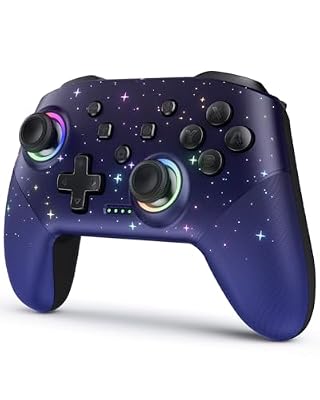
VOYEE Switch Controllers for Switch/Lite/OLED/PC Windows, RGB Star LED | Wireless Pro Controller, Programmable, One-key Pairing, Wake-up, Turbo, Vibration, 6-Axis Gyro Control, 10-15H Runtime
Included for 'How to Connect Switch Controller to PC (2026 Guide)' as a representative home product in this roundup; selection reflects the product set returned for this topic.
View on Amazon
YUYIU Wireless Gaming Controller for PC, Switch, Steam Deck, Android, iOS | Bluetooth Controller with Hall Effect Joystick/RGB/1000Hz/Turbo/Macro/800mAh Battery/6-Axis Gyro/Vibration (Black)
Included for 'How to Connect Switch Controller to PC (2026 Guide)' as a representative home product in this roundup; selection reflects the product set returned for this topic.
View on Amazon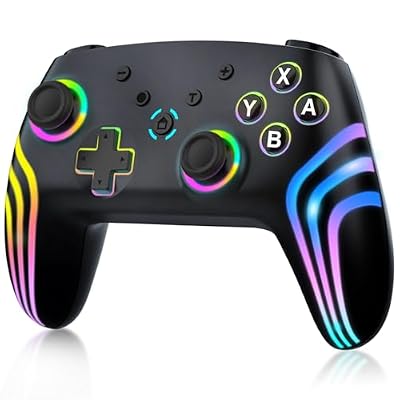
MYSTILUCK Wireless Pro Controller for Switch/Switch 2/Lite/OLED/PC | Gamepad with 7 Color-Changing RGB Lighting/Dual Vibration/6-Axis Gyroscope/Turbo, Ergonomically Designed Precise Joystick
Included for 'How to Connect Switch Controller to PC (2026 Guide)' as a representative home product in this roundup; selection reflects the product set returned for this topic.
View on Amazon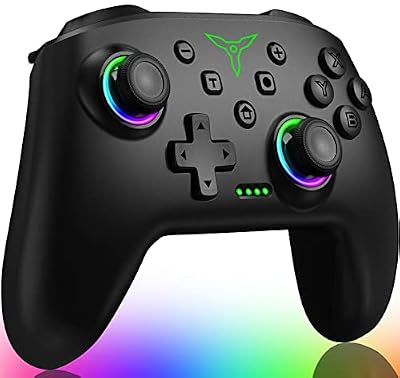
ELISWEEN Switch Controller, Wireless Switch Controller Compatible with Switch Controller 1/Switch 2/Switch Lite/OLED, Wireless Switch Controllers Work with iOS/Android/PC with RGB Light, Programmable
Included for 'How to Connect Switch Controller to PC (2026 Guide)' as a representative home product in this roundup; selection reflects the product set returned for this topic.
View on AmazonThis guide covers how to connect a Switch controller to PC step by step for both the Pro Controller and Joy-Cons, how to fix layout and gyro, and which controllers or adapters give the smoothest experience if you want a dedicated PC pad.
How to Connect a Switch Controller to PC With Bluetooth or USB
The process differs slightly between the Pro Controller and Joy-Cons, but both rely on the sync button and Windows Bluetooth. Steam handles the mapping once paired.
Pro Controller Pairing
- Press the sync button on top of the Pro Controller until the LEDs scroll.
- Open Windows Settings > Bluetooth & devices > Add device.
- Select the Pro Controller to pair, or connect a USB-C data cable for wired use.
- Enable Switch Pro configuration support in Steam’s controller settings.
Joy-Con Pairing
- Hold the small sync button between the SL and SR buttons on a Joy-Con.
- Add it in Windows Bluetooth settings; each Joy-Con pairs individually.
- In Steam, enable Joy-Con support and choose combined or single-pad mode.
If prompts look reversed, Steam Input remaps them instantly. For non-Steam launchers, a mapping tool from our gamepad software guide reorders the buttons.
Fixing Layout, Gyro, and Drift After You Connect a Switch Controller to PC
Nintendo’s A/B and X/Y are swapped compared to Xbox, so many games show the wrong prompts until you enable Steam Input. Steam also unlocks gyro aiming, a big advantage in shooters. If a Joy-Con stick drifts, our stick drift fixes article explains recalibration and hardware options.
How to Connect a Switch Controller to PC With a USB-C Cable
A cable is the simplest route because it skips Bluetooth drivers entirely. Plug a USB-C cable that carries data, not only charge, into the top of the controller and the other end into a USB port on the PC. Guides report that Windows 10 and Windows 11 usually detect the original Pro Controller within seconds as a generic gamepad.
- Use a cable you know transfers data, such as the one from a phone or another controller. Charge-only cables are a common reason nothing appears.
- Plug straight into a rear motherboard port where possible, not an unpowered hub.
- Press the Windows key, type “Set up USB game controllers” and open it to confirm a device is listed.
- Launch a game or Steam. If buttons are wrong or the game ignores the pad, use the Steam Input steps below.
Wired mode also avoids the dropouts some players report on crowded 2.4 GHz networks, so it suits fast competitive games.
How to Set Up a Switch Controller for a Computer That Has No Bluetooth
If the PC has no Bluetooth, use a cable, or add a small USB Bluetooth adapter. Many desktop motherboards now include Wi-Fi and Bluetooth and most laptops do, but older desktops often have neither. When you buy an adapter, check that the listing names Windows 10 or 11 support. Reviewers of Bluetooth adapters often note that a modern adapter helps when you connect several controllers and a headset at once.

TP-Link USB Bluetooth Adapter for PC - Bluetooth 5.4 USB Dongle Receiver | Plug and Play, Nano Design, EDR & BLE, Supports Windows 11/10/8.1/7 for Desktop, Laptop, Keyboard, Mouse, etc (UB500)
Included for 'How to Connect Switch Controller to PC (2026 Guide)' as a representative home product in this roundup; selection reflects the product set returned for this topic.
View on AmazonTP-Link USB Bluetooth Adapter — Best for Adding Bluetooth to an Older Desktop
- USB dongle in a small nano size, plug-and-play on Windows per the listing
- Supports EDR and BLE, so it handles controllers and headsets
- Pairs with the Switch Pro Controller and Joy-Con through the normal Windows Bluetooth screen
Pros: very low cost tier, no cable clutter, works with both gamepads and audio gear. Cons: a rear port can limit range, and it only helps wireless play. Skip it if you only plan to use a cable or a 2.4 GHz dongle.
Switch 2 Pro Controller on PC: What Guides Report
The Switch 2 Pro Controller is the newer model. Third-party guides report that it works on PC over a USB-C data cable through Steam with Steam Input enabled, while Bluetooth is described as limited or unofficial. Because these notes come from guides and not from Nintendo or Valve, read the latest Steam release notes and the Nintendo support page for your controller before relying on wireless play.

Nintendo Switch™ 2 Pro Controller
Included for 'How to Connect Switch Controller to PC (2026 Guide)' as a representative home product in this roundup; selection reflects the product set returned for this topic.
View on AmazonNintendo Switch 2 Pro Controller — Best for Switch 2 Owners Who Also Play on PC
- Official Nintendo pad for Switch 2
- USB-C cable route with Steam Input is the setup guides describe for PC
- Wireless PC support reported as limited, so confirm current status first
Pros: official build, comfortable full-size shape, doubles as your console pad. Cons: higher cost tier than most third-party pads, and PC wireless support is unclear. Skip it if you want a pad that is guaranteed to pair wirelessly with Windows today.
Steam Input and Windows Detection: Getting the Layout Right
Windows can see a Pro Controller as a generic DirectInput gamepad without Steam. Many modern PC games expect an Xbox-style XInput controller, which is why Steam Input matters: it translates the Switch layout into something the game understands.
- Open Steam, then Settings, then Controller, and turn on the option for Switch Pro controller support. Older Steam versions call it Nintendo Switch Pro Configuration Support, and newer versions word it differently.
- For a single game, right-click it in your library, choose Properties, then Controller, and make sure Steam Input is enabled for that title.
- Use the controller settings page to remap buttons and to turn the A/B and X/Y swap on or off so prompts match what you see on the pad.
Steam can also add non-Steam games to your library so the same configuration applies to them, which helps with launchers that have weak controller support.
Can You Connect a Gaming Controller to a Laptop, Switch Controllers Included?
Yes. Any laptop with a USB-C or USB-A port can use a wired Switch controller, and any laptop with Bluetooth can pair a wireless one. Whether you can connect a gaming controller to a laptop depends on the ports and Bluetooth hardware, not the laptop brand. A USB-C laptop port takes a standard USB-C to USB-C cable; a USB-A-only laptop needs a USB-A to USB-C cable.
Laptops add one wrinkle: aggressive power saving can switch off a Bluetooth radio or a USB port. If the controller connects and then disappears, check the Bluetooth adapter and USB power management options in Device Manager and the maker’s power profile.
Can You Connect a Wired Nintendo Switch Controller to a Dell Computer?
Yes. A wired Switch-style controller should work on a Dell desktop or laptop the same way it does on any Windows PC, because Windows handles the USB game controller driver, not the PC maker. Plug it in, open the game controller settings to confirm it appears, then use Steam Input if a game does not recognize it.
Third-party wired pads vary. Some present themselves as an Xbox-style controller and work in nearly every game. Others show up only as a generic HID device and need Steam Input or a mapping tool. A few have a mode switch or button combination that changes the output mode, so the maker’s manual is the place to look. If a Dell machine lists the controller in Device Manager but games ignore it, the usual causes are a charge-only cable, a game that wants XInput, or Steam Input being off.
Wireless Game Controllers for Switch That Also Connect to PC
A wireless game controller for Switch can often connect to a PC too, but how depends on the maker. Many third-party Switch-compatible pads list one or more of these modes in their manuals:
- Bluetooth, paired through the same Windows Bluetooth screen as the Pro Controller.
- A 2.4 GHz USB dongle, usually plug-and-play once you hold a pairing button on both pieces.
- A wired USB-C mode for when the battery is flat.
Before buying, look for the maker’s statement that the pad supports PC, Windows or Steam, not only Switch. Some “Switch” controllers connect to the console in a Nintendo-specific way that Windows does not recognize. Check whether motion controls, vibration and any headphone jack work on PC, since those are the features most often missing.

8Bitdo Pro 2 Bluetooth Controller Hall Effect Joystick (Transparent Green) | for Switch/Switch 2, PC, Android, Apple, Steam Deck & Raspberry Pi, 2 Pro Back Paddle Buttons, Wireless Gaming Controller
Included for 'How to Connect Switch Controller to PC (2026 Guide)' as a representative home product in this roundup; selection reflects the product set returned for this topic.
View on Amazon8BitDo Pro 2 Bluetooth Controller — Best Wireless Switch-Style Pad for PC
- Bluetooth controller with Hall effect joysticks per the listing
- Listed as compatible with Switch, Switch 2, PC, Android and Apple devices
- Back buttons and profile customization through 8BitDo’s software
Pros: works across console and PC, drift-resistant sticks, low cost tier. Cons: shape differs from Nintendo’s own pad, and the software is a separate download. Skip it if you already own a Pro Controller that you are happy with.
How to Connect More Switch Controllers to Windows
To connect more switch controllers to windows, pair or plug in each one in turn. Windows supports multiple Bluetooth gamepads, and Steam Input numbers them in the order they connect.
- Pair the first controller and confirm it works.
- Add the second through the Bluetooth screen, or plug it into another USB port.
- In Steam, open the controller settings and confirm each pad is listed. Use the identify option, where your Steam version offers it, to see which pad is which.
- In the game, choose local multiplayer and assign players. Not every game supports more than two pads, so check the game’s own controller menu.
With many wireless devices at once, a cheap Bluetooth adapter may struggle. A dongle that carries its own radio, such as the 8BitDo USB Wireless Adapter 2 covered below, is a common workaround.
Wired vs Bluetooth vs 2.4 GHz Dongle: Which Connection Should You Pick?
| Method | Setup effort | Best for | Watch out for |
|---|---|---|---|
| USB-C cable | Lowest; plug in | Competitive games, flat batteries, Switch 2 Pro Controller | Charge-only cables; cable length |
| Bluetooth | Medium; pair in Windows | Couch play with a laptop or living-room PC | Driver quirks, power saving, range |
| 2.4 GHz dongle | Medium; pair once | Stable wireless play and several pads | Uses a USB port; steps differ by brand |
Troubleshooting: Switch Controller Not Detected or Buttons Wrong on PC
| Symptom | Common cause | What to try |
|---|---|---|
| Nothing happens when plugged in | Charge-only cable or bad port | Try a data cable and a different rear USB port |
| Bluetooth does not list the controller | Pad not in sync mode, or no Bluetooth hardware | Hold the sync button until the lights cycle; confirm Bluetooth is on in Settings |
| Pairs, then disconnects | Power saving or radio interference | Disable USB or Bluetooth power saving; move the adapter to a front or extension port |
| Game ignores the pad | Game expects XInput | Enable Steam Input for the game |
| A/B and X/Y swapped | Nintendo layout differs from Xbox | Adjust the button swap option in Steam Input |
| Joy-Con shows as two devices | Windows treats each separately | Use Steam Input to combine them |
| Switch 2 Pro Controller silent over Bluetooth | Reported lack of support | Use a USB-C data cable with Steam Input |
If a controller still will not connect, remove it from the Bluetooth device list, restart the PC and pair again. Updating the Bluetooth driver from the PC or motherboard maker sometimes fixes unstable connections. If you suspect a damaged battery or a swollen controller, stop using it and contact the maker, and do not force a damaged USB-C port.
How We Chose These Connection Methods and Accessories
This guide is research-based. We compared the setup steps in Nintendo and Valve documentation where it exists, maker manuals and product listings for the pads and adapters, and walkthroughs from established tech outlets. Where sources disagree, as with Switch 2 Pro Controller wireless support, we say so instead of picking one claim. Product picks use only features the maker lists.
Best Switch Controllers and Adapters for PC
These five picks make connecting to a PC painless, whether you reuse Nintendo hardware or buy a dedicated PC-friendly pad. They mirror the winners in our best PC gamepad roundup.
| Product | Best For | Standout Feature |
|---|---|---|
| Nintendo Switch Pro Controller | Switch and PC dual use | Full-size grip, D-pad and gyro |
| Nintendo Joy-Con Pair | Party and portable play | Split motion controls |
| 8BitDo Ultimate | Dedicated PC pad | Hall-effect sticks; connection options vary by model |
| 8BitDo USB Wireless Adapter 2 | Easy wireless bridge | Pairs supported Switch pads |
| 8BitDo Pro 2 | Retro-friendly layout | Profile customization |
Nintendo Switch Pro Controller: The Obvious Choice
If you own a Pro Controller, it is one of the best pads you can connect to a PC. The comfortable grip, excellent D-pad, and reliable gyro make it great for platformers, fighters, and shooters. Pair it wired or wireless and turn on Steam Input for perfect mapping. It doubles as your Switch pad, so there is no extra hardware to buy.
Nintendo Joy-Con Pair: Flexible but Fiddly
Joy-Cons connect to a PC individually and can act as two mini controllers for party games or combine into one pad. They are small and less comfortable for long sessions, but their motion support is handy for certain titles. Steam’s Joy-Con support has improved, making them a fun secondary option, as covered in our couch co-op controller tips.
8BitDo Ultimate: The Smoothest Dedicated Pad
The 8BitDo Ultimate line is aimed at PC players and uses Hall-effect sticks. Connection options (2.4 GHz dongle or Bluetooth) and whether a dock is included vary by model, so check the listing for the exact version. If you want a Switch-style pad built for PC, it is a strong option and also appears in our drift-free controller guide.
8BitDo USB Wireless Adapter 2: Bridge Any Switch Pad
This dongle links the Pro Controller, Joy-Cons, and other supported pads over a wireless connection and adds remapping through 8BitDo’s app. It can help players whose onboard Bluetooth is unreliable.
Frequently Asked Questions
How do I connect a Switch controller to PC wirelessly?
Hold the sync button on the Pro Controller or Joy-Con until the LEDs flash, then open Windows Bluetooth settings and add the device. After pairing, launch Steam and enable Switch controller support so the buttons, rumble, and gyro map correctly across your PC games.
Can I use Joy-Cons separately on PC?
Yes, each Joy-Con pairs to a PC individually and can function as its own small controller, which is handy for local multiplayer. Steam also lets you combine two Joy-Cons into a single pad. They are less comfortable than the Pro Controller for long sessions but work well for casual games.
Why are my Switch controller buttons in the wrong order on PC?
Nintendo places A/B and X/Y opposite to the Xbox layout most PC games assume, so prompts appear reversed until you enable Steam Input. Steam remaps them automatically, and for non-Steam titles a mapping utility reorders the inputs so on-screen prompts match your physical buttons correctly.
Does gyro aiming work when I connect a Switch controller to PC?
Yes, gyro aiming works when you route the Switch controller through Steam Input, which reads the motion sensors and applies them like a mouse for precise aiming. Many shooters support this hybrid control scheme. Outside Steam, gyro depends on the specific game or a third-party mapping tool being configured.
How do I connect a Nintendo Switch controller to PC the quickest way?
Plug a USB-C data cable into the Pro Controller and the PC. Windows usually detects it as a gamepad within seconds, and if a game ignores it you enable Steam Input in the Steam controller settings.
Can I use a Joy-Con on PC without Steam?
Yes, you can pair a Joy-Con through Windows Bluetooth, but each one appears as a separate device. Steam Input is the common way to combine the pair or remap buttons for games that expect a standard controller.
Does the Switch 2 Pro Controller work on PC?
Third-party guides report that it works over a USB-C data cable with Steam Input enabled. Bluetooth support is described as limited or unofficial, so a cable is the safer choice until the makers publish wireless guidance.
Why does Windows not see my wired Switch-style controller?
The most common cause is a charge-only cable or a faulty port. Try another cable and port, then look for the device in Device Manager. Some third-party pads also need a mode switch set to PC or Xbox, as their manual describes.
Can I connect two or four Switch controllers to one PC?
Windows supports multiple Bluetooth and USB gamepads, and Steam Input numbers each one. The real limit is the game, since some titles support only a set number of local players, and a weak Bluetooth adapter can drop connections.
Do I need a Bluetooth adapter to use a Switch controller on PC?
Only for wireless use. A USB cable works on any PC with a USB port. If the PC has no Bluetooth, a USB Bluetooth adapter adds it, and you should confirm the listing names Windows support.