🛒 Best Price Today on Amazon
Prime members get fast, free shipping on everything above, plus member-only deals. New members get a 30-day free trial — cancel anytime.
Elgato Facecam 4K vs Logitech MX Brio
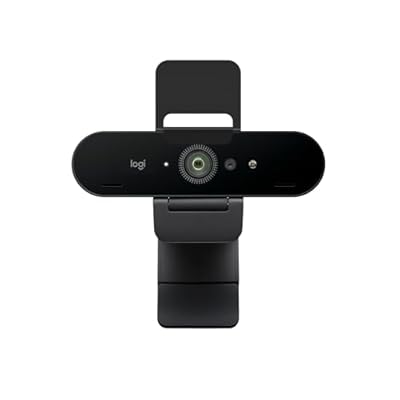
The useful split is workflow, not a declaration that one webcam produces a universally “better” image. Elgato Facecam 4K is the creator-focused fork: 4K at up to 60 fps, fixed focus, no microphone, Camera Hub controls, on-device setting storage, and 49 mm filter support. Logitech MX Brio is the hybrid work-and-stream fork: 4K30 or 1080p60, autofocus, dual microphones, Show Mode, and a built-in privacy shutter.
This comparison concerns the Facecam 4K and consumer MX Brio exactly. It does not describe Facecam, Facecam MK.2, Facecam Pro, the older Logitech Brio 4K, or MX Brio 705 for Business. Similar names hide different specifications.
As an Amazon Associate we earn from qualifying purchases at no extra cost to you.



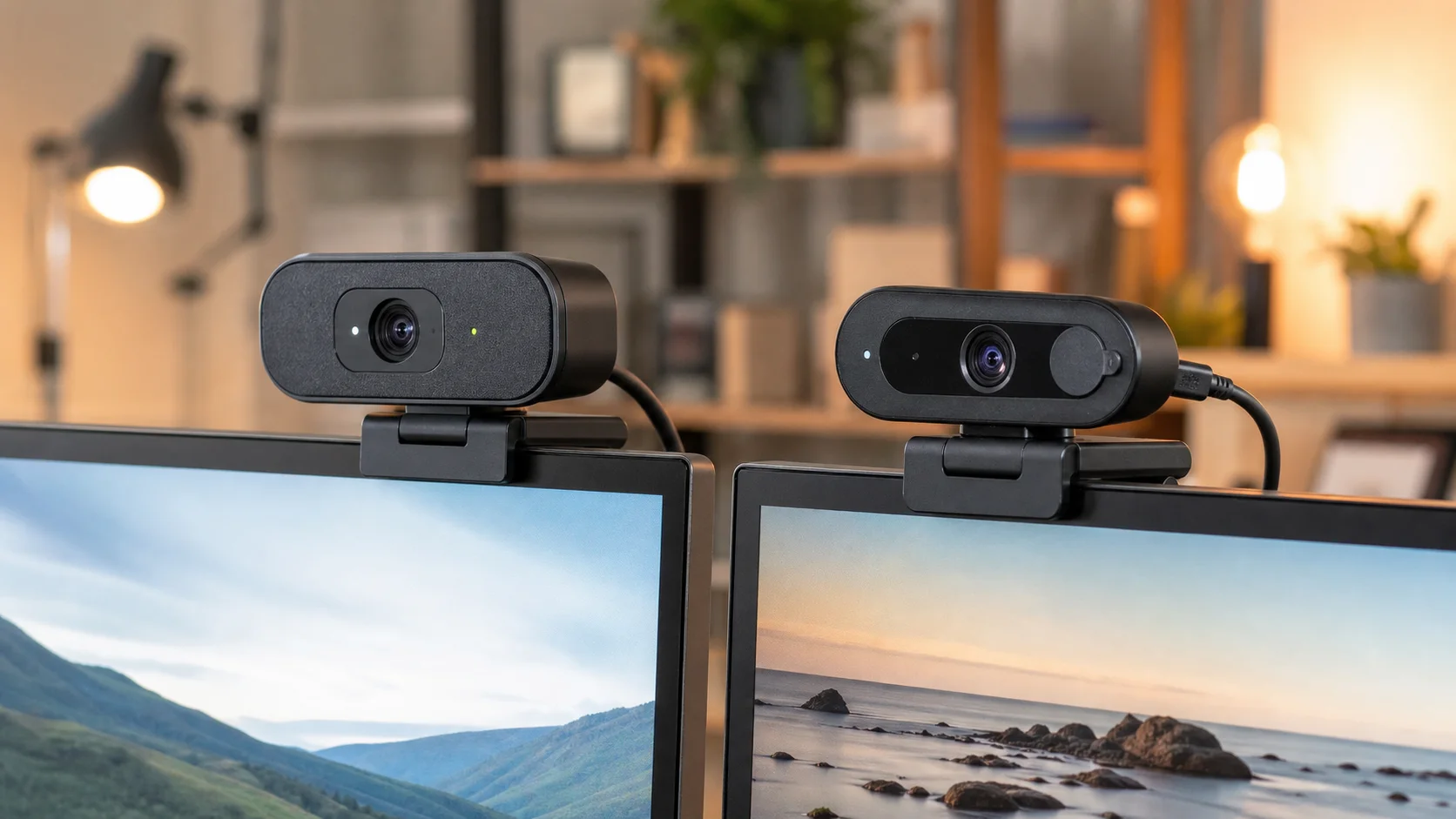
Webcam workflow illustration only; not product photography or image-quality test evidence.
Compact decision matrix
| Need | More direct fit | Reason |
|---|---|---|
| 4K at 60 fps | Facecam 4K | Elgato lists 2160p60 over USB 3.0 using MJPG |
| Frequent near/far movement | MX Brio | Autofocus adapts; Facecam 4K uses fixed focus |
| Locked seated framing | Facecam 4K | Defined fixed-focus working range and saved device settings |
| One cable for camera and speech | MX Brio | Integrated dual beamforming microphones |
| Physical privacy control included | MX Brio | Rotating built-in shutter |
| Desk demonstrations during calls | MX Brio | Show Mode supports a downward-facing view |
| Stream Deck and lens-filter workflow | Facecam 4K | Camera Hub plugin and 49 mm filter thread |
This matrix selects for features, not image-quality superiority. Lighting, framing, app processing, compression, and the chosen output mode can matter as much as the camera body. Start with our broader guide to choosing a webcam for streaming if those variables are not yet fixed.
Exact output modes—and the caveats behind “4K”
The Facecam 4K specifications list 2160p60 as MJPG only. At 2160p30 and 1440p60, Elgato lists NV12 or MJPG; lower listed modes include 1440p30, 1080p60/30, 720p60/30, and 540p60/30. HDR tops out at 30 fps, including 2160p30, 1440p30, 1080p30, 720p30, and 540p30. USB 2.0 drops the listed ceiling to 1080p60 and limits encoding to MJPEG.
The MX Brio product page specifies UHD 4K at 30 fps or 1080p at 60 fps. Do not read “4K webcam” as “every calling or streaming app will transmit 4K.” The application, operating system, service plan, virtual-camera path, and encoder may impose their own cap.
Those mode differences create the central fork. Facecam 4K serves a production path that specifically needs 2160p60 or wants more format choices. MX Brio covers the common 4K30-for-detail and 1080p60-for-motion choices without presenting itself as a 4K60 device.
FOV and focus change how you stage the shot
Both manufacturers list a maximum 90-degree field of view, but a matching headline angle does not guarantee identical framing after software crop, stabilization, aspect-ratio changes, or digital zoom.
Facecam 4K uses fixed focus. Elgato states a 30–120 cm (11.8–47.2 in) focus range at 4K and 25 cm (9.8 in) to infinity at 1080p. That is predictable for a seated presenter whose camera position stays fixed, but it demands deliberate placement. Moving a product very close to the lens is not an autofocus product-demo workflow.
MX Brio uses autofocus, making it the more natural specification match when the subject leans, stands, or brings objects toward the camera. Autofocus is adaptability, not an automatic quality verdict; a locked scene may benefit from manual focus where Logitech software and the active mode expose it.
Controls and software ecosystems
Elgato Camera Hub provides exposure controls, virtual pan/tilt/zoom, LUTs, HDR support, and background effects. Face tracking and AI background effects require a compatible NVIDIA RTX GPU according to Elgato. Facecam 4K also stores settings in onboard flash memory and can work with Stream Deck through the Camera Hub plugin. That makes it coherent in an existing Elgato control surface setup.
Logitech exposes MX Brio controls through Logi Options+ and G Hub. Its page names lighting, white balance, ISO, shutter speed, tint, and vibrance adjustments, alongside an automatic mode. Show Mode is the distinctive collaboration tool: tilt the camera down to share notes or sketches on the desk.
Software availability is platform-dependent. Logitech’s support specifications describe basic UVC operation on ChromeOS and Linux but no Logitech software there; Elgato lists Camera Hub for supported Windows and macOS versions. Check current download pages before buying for a managed PC or a newly released OS.
HDR and exposure: choose a mode first
Facecam 4K’s HDR modes are 30 fps, so enabling HDR means giving up its 60 fps output at the same listed resolution. Manual shutter speed and ISO are available for a controlled-light workflow. MX Brio uses Logitech’s automatic exposure, white balance, noise reduction, and face-based enhancement, while also offering fine controls in supported software.
Neither approach defeats poor lighting. Decide whether the scene needs highlight/shadow management, smooth motion, or a fixed exposure that will not react to a bright monitor. Then confirm that the selected app actually receives the intended HDR or SDR mode. A manufacturer checkbox does not establish end-to-end HDR delivery.
USB bandwidth is part of the build
Facecam 4K ships with a detachable two-meter USB-C-to-C USB 3.0 cable. USB 3.0 is required for its full listed mode and encoding set; a USB-C-to-A adapter is not included. MX Brio’s official support specification calls for a USB-C port supporting USB 3.0 and lists a detachable 1.5-meter C-to-C cable.
Connect either camera directly to an appropriate host port during setup. A connector shaped like USB-C does not by itself guarantee USB 3 bandwidth. Hubs, adapters, docks, capture devices, and other high-data peripherals can share a controller. If you are also planning console input, compare the wider I/O picture in our 2026 capture-card guide or the dedicated Elgato 4K Pro overview.
Mounting and privacy
Both cameras include monitor-mount options and support a 1/4-inch mounting thread. Facecam 4K’s body is listed at 112 g without mount and cable; its privacy cap is an accessory rather than the listed in-box shutter solution. The 49 mm filter thread accommodates compatible photographic filters, though any filter changes the light reaching the sensor.
MX Brio integrates a rotating privacy shutter and includes its mounting clip. Logitech lists 234.3 g including clip and cable. Show Mode depends on the mount and display allowing the camera to tilt toward the desk, so verify monitor thickness and clearance rather than assuming every screen geometry will cooperate.
Setup recipes
Recipe 1: fixed streaming frame
Place Facecam 4K within its stated focus range, connect it to USB 3.0, and select 2160p60 MJPG only if the application and computer can use that path. Otherwise, choose a lower mode deliberately. Set lighting first, then exposure and white balance in Camera Hub. Save stable settings to the device. Add a separate microphone, because Facecam 4K has none.
Recipe 2: meetings plus occasional streams
Connect MX Brio to a USB 3-capable USB-C port, install the relevant Logitech software on Windows or macOS, and choose 4K30 for resolution or 1080p60 for frame rate. Begin with auto exposure, then use fine controls only when the room is consistent. Confirm autofocus behavior at normal seating distance. Test the privacy shutter and Show Mode before the first call.
Recipe 3: crowded streaming I/O
List the webcam, capture card, storage, and audio-interface connections. Put the webcam and capture device on suitable high-bandwidth ports, avoiding an unverified shared hub. Confirm each device independently, then combine them in OBS or the calling app. Lock the final webcam resolution and frame rate instead of relying on “auto.”
Who should buy each webcam?
Buy Facecam 4K if 4K60 is a real production requirement; you maintain a fixed seated composition; you already use Camera Hub or Stream Deck; you want onboard setting storage or 49 mm filters; and a separate microphone and optional privacy cap fit the setup.
Buy MX Brio if one camera must move between meetings and streaming; autofocus is useful; built-in microphones reduce desk hardware; Show Mode supports your work; or an integrated privacy shutter matters more than 4K60 and lens filters.
Buy neither yet if your platform caps video below your target mode, your lighting is unresolved, or the available USB topology cannot support the full rig. Fixing those constraints may change which feature difference matters.
FAQ
Does MX Brio record 4K60?
No. Logitech specifies 4K at 30 fps and 1080p at 60 fps for MX Brio. Facecam 4K lists 2160p60 via MJPG on USB 3.0.
Does Facecam 4K have autofocus or microphones?
No. It has fixed focus and omits a microphone. Its stated focus range changes between 4K and 1080p, so place it for the chosen mode.
Can either webcam use USB 2.0?
Basic UVC behavior may vary by platform, but USB 2.0 is not the full-feature target. Elgato explicitly lists reduced USB 2.0 modes and MJPEG-only encoding; Logitech specifies a USB 3.0-capable USB-C port for MX Brio.
Are specifications identical worldwide?
Do not assume so. Color choices, bundles, model numbers, warranty terms, software availability, and in-box items can vary by region. Firmware and app updates can also add, remove, or rename controls. Verify the exact regional SKU, current support page, firmware, OS compatibility, and application limits before purchase.