Nintendo’s controllers are comfortable, durable, and packed with motion features, so it is no surprise PC players want to use them on their computers. The good news is that connecting a Switch controller to a PC is straightforward in 2026. This guide walks you through the exact steps for Bluetooth and wired connections, plus the software that makes everything work smoothly.
As an Amazon Associate I earn from qualifying purchases.
As an Amazon Associate we earn from qualifying purchases at no extra cost to you.




To use a Switch controller on PC, pair it over Bluetooth by holding the small sync button until the lights flash, then adding it through Windows Bluetooth settings, or connect it via USB-C cable. Once connected, enable Steam Input in Steam’s controller settings, which automatically recognizes the Switch Pro Controller and Joy-Cons and maps them for nearly every game. For titles outside Steam, a free tool like BetterJoy or DS4Windows translates the inputs so any game reads your Switch controller as a standard gamepad.
🛒 Best Price Today on Amazon
Prime members get fast, free shipping on everything above, plus member-only deals. New members get a 30-day free trial — cancel anytime.
Step-by-Step: How to Use a Switch Controller on PC
The process differs slightly depending on whether you go wireless or wired, but both are quick. Below, we break down the full setup so you can get your Switch Pro Controller or Joy-Cons working in minutes. Before you start, make sure your PC has Bluetooth or a spare USB-C port, and that your controller is charged. If you are shopping for a reliable pad, the picks in our table below all work well on both platforms and make great controllers for PC.
| Product | Best For | Standout Feature | Rating |
|---|---|---|---|
| Nintendo Switch Pro Controller | Best overall Switch pad on PC | Great comfort + Steam Input support | 4.7/5 |
| 8BitDo Ultimate 2 Bluetooth | Best value cross-platform pad | Hall effect sticks + easy PC pairing | 4.6/5 |
| Nintendo Joy-Con Pair | Motion-control PC gaming | Gyro aiming via BetterJoy | 4.3/5 |
| GuliKit KingKong 3 Max | Drift-free PC and Switch use | Electromagnetic sticks + dongle mode | 4.6/5 |
| 8BitDo USB Wireless Adapter 2 | Simplest plug-and-play link | One-button pairing for any Switch pad | 4.5/5 |
Connecting a Switch Controller to PC via Bluetooth
Wireless is the most popular way to use a Switch controller on PC. Open Windows Settings, go to Bluetooth and devices, and click Add device. On the controller, press and hold the small round sync button near the USB-C port until the four green lights begin cycling. Select the Pro Controller when it appears in the Bluetooth list, and Windows will pair it within seconds. If the connection ever drops, simply hold the sync button again to reconnect. This same method works for pairing a Switch pad with your wireless controller games library.
Using a Wired USB-C Connection
If you prefer zero latency or your PC lacks Bluetooth, a wired connection is even simpler. Plug a USB-C cable from the Switch Pro Controller directly into your PC. Windows recognizes it immediately as a gamepad, and Steam Input picks it up without any extra steps. Wired mode also charges the controller while you play, so you never have to worry about battery. This approach is ideal for competitive sessions where you want the most consistent input possible, much like serious Rocket League players prefer.
Enabling Steam Input for Full Compatibility
Steam Input is the secret to hassle-free Switch controller use on PC. Open Steam, go to Settings, then Controller, and make sure Nintendo Switch Pro Controller support is enabled. Steam then remaps the buttons correctly, so the A and B positions match Xbox layouts to prevent confusion in prompts. Steam Input works in Big Picture mode and in nearly every game in your library, including non-Steam titles you add as shortcuts. This is by far the easiest path to using your Switch pad across the best controller games for PC.
Playing Non-Steam Games With a Switch Controller
For games launched outside Steam, such as Epic Games Store or Game Pass titles, you may need a translation layer. Free utilities like BetterJoy and DS4Windows read your Switch controller and emulate a standard Xbox gamepad that any game recognizes. BetterJoy is especially useful because it also unlocks Joy-Con gyro aiming on PC. Install the tool, run it, connect your controller, and it handles the rest. With this setup, your Switch pad works everywhere, matching the flexibility of a dedicated PC controller.
Fixing Common Switch Controller PC Problems
If your Switch controller will not connect, first remove it from Windows Bluetooth and re-pair from scratch using the sync button. Make sure Steam is fully updated, since older versions had spotty Switch support. If button mappings feel wrong, toggle Steam Input off and back on, or use the button remapping menu. For persistent drift, a Hall effect pad like the 8BitDo Ultimate 2 eliminates the issue entirely. These quick fixes resolve nearly every problem players face when setting up a Switch 2 Pro controller on PC.
Frequently Asked Questions
How do I use a Switch controller on PC?
To use a Switch controller on PC, pair it via Bluetooth by holding the sync button until the lights flash and adding it in Windows settings, or connect it with a USB-C cable. Then enable Steam Input in Steam’s controller settings, which automatically maps the controller for nearly every game you play.
Does the Switch Pro Controller work with Steam?
Yes, the Switch Pro Controller works excellently with Steam. Once you enable Nintendo Switch Pro Controller support under Steam’s controller settings, Steam Input automatically recognizes the pad, corrects the button layout, and maps it for virtually every game in your library, including non-Steam titles added as shortcuts.
How do I use a Switch controller in non-Steam games?
For non-Steam games, install a free translation tool like BetterJoy or DS4Windows. These utilities read your Switch controller’s inputs and emulate a standard Xbox gamepad that any game recognizes. BetterJoy additionally unlocks Joy-Con gyro aiming, making it the preferred choice for players who want full motion-control support on PC.
Why won’t my Switch controller connect to my PC?
If your Switch controller will not connect, remove it from Windows Bluetooth and re-pair using the sync button near the USB-C port. Ensure Steam is fully updated, since older versions had unreliable Switch support. A wired USB-C connection is a dependable fallback that Windows recognizes instantly without any pairing steps.
Top picks from this guide
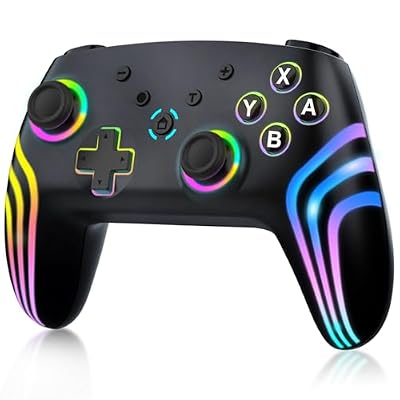 MYSTILUCKMYSTILUCK Wireless Pro Controller for Switch/Switch 2/Lite/OLED/PC | Gamepad with…
 Logitech GLogitech G F310 Wired Gamepad Controller Console - Blue/Black |…
 ManbaManbaOne Interactive Screen Wireless Gaming Controller (Black) | for PC/Switch1/2/iOS/Android,Hall…
 8Bitdo8Bitdo Ultimate 2C Wireless Controller for Windows PC and Android,…