🛒 Best Price Today on Amazon
Prime members get fast, free shipping on everything above, plus member-only deals. New members get a 30-day free trial — cancel anytime.
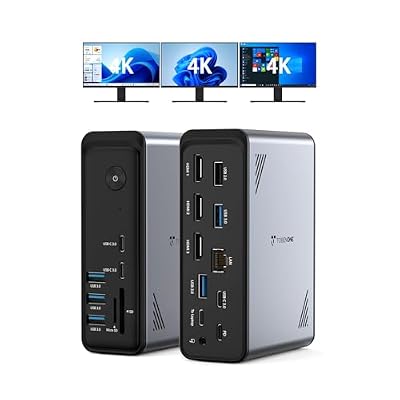
TobenONE 18 in 1 Laptop Docking Station 3 Monitors,Triple 4K HDMI,9 USB C/A | Docking Station with 3HDMI,Ethernet,PD 3.0,Fits Triple Monitor Office Work,for Windows/Dell/Lenovo Laptops (No Power Adapter)
Included for 'Best Computer Docking Stations for Laptops 2026' because the listing specifies Triple 4K HDMI and 9 USB C/A, details this guide uses to compare options.
View on Amazon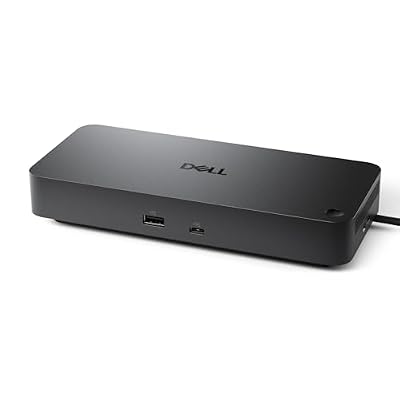
Dell Pro Laptop Docking Station WD25, USB-C, 100W, DisplayPort, HDMI | Universal Dock, Ethernet, USB-A Ports, USB-C Ports, Power Delivery Charging, Quad Display, Plug and Play, Office Ready, WD25
Included for 'Best Computer Docking Stations for Laptops 2026' because the listing specifies USB-C and 100W, details this guide uses to compare options.
View on AmazonThe best computer docking stations for laptops can turn one USB-C or Thunderbolt connection into a complete desktop workstation. A good dock should provide enough charging power, monitor outputs, fast USB ports, Ethernet, and storage connectivity without creating compatibility problems. These five options cover Windows laptops, MacBooks, business systems, creators, and multi-monitor offices.
Quick Comparison
| Docking Station | Best For | Laptop Charging | Displays | Ethernet |
|---|---|---|---|---|
| CalDigit TS4 | Best Overall | Up to 98W | Multi-display, host dependent | 2.5GbE |
| Plugable TBT4-UDZ | Best Multi-Monitor | Up to 100W | Up to 4 x 4K on supported Windows PCs | 2.5GbE |
| Anker 778 Thunderbolt 4 Dock | Best Port Selection | Up to 100W | Up to 4 displays | Gigabit |
| Dell WD22TB4 | Best Dell Laptop Dock | Up to 130W on supported Dell systems | Up to 4 | Gigabit |
| Lenovo Universal Thunderbolt 4 Dock | Best Business Dock | Up to 100W | Up to 4 x 4K60 | Gigabit |
CalDigit TS4
Best For: Premium all-around laptop docking
Key Features:
- 18 total ports
- Three Thunderbolt 4 ports
- Three 10Gbps USB-C ports
- Five 10Gbps USB-A ports
- DisplayPort 1.4
- SD UHS-II reader
- microSD UHS-II reader
- 2.5 Gigabit Ethernet
- Up to 98W laptop charging
- Front and rear audio connections
The CalDigit TS4 remains one of the most complete Thunderbolt 4 docking stations for users who want to build a permanent workstation around a laptop. CalDigit provides 18 ports, including Thunderbolt 4, several high-speed USB ports, memory-card readers, DisplayPort, 2.5GbE, and multiple audio connections.
Charging reaches up to 98W through the host Thunderbolt 4 or USB4 port. That is enough for many premium productivity laptops and MacBooks, although large mobile workstations or gaming laptops may still require their original power adapters when running at full performance.
The USB layout is one of the TS4’s strongest features. Three downstream Thunderbolt 4 connections are joined by three 10Gbps USB-C ports and five 10Gbps USB-A ports. This makes the dock especially useful for users with external SSDs, audio interfaces, input devices, webcams, and other accessories connected permanently.
Creators also get separate UHS-II SD and microSD readers. This avoids using an additional card reader when transferring files from cameras, drones, or other recording devices. CalDigit also includes 2.5GbE rather than the Gigabit Ethernet commonly found on business docking stations.
Display support depends on the connected computer and operating system. Thunderbolt and USB4 hosts can offer significantly more display functionality than basic USB-C systems, so buyers should check the capabilities of the laptop rather than assuming every TS4 connection works identically across all computers.
What Makes It Different: The TS4 focuses on providing a large number of genuinely useful high-speed ports rather than padding the total with several slow USB 2.0 connections. It also combines creator features and 2.5GbE with strong host charging.
Pros:
- 18 ports
- Up to 98W host charging
- Three downstream Thunderbolt 4 ports
- Eight additional USB connections
- 2.5GbE
- SD and microSD UHS-II
- DisplayPort 1.4
- Excellent creator connectivity
Cons:
- Premium price
- Large 230W power supply
- Display support depends heavily on host
- No built-in HDMI port
Use Case: Premium home offices, video editing, photography, software development, external SSD workflows, and permanent laptop-based workstations.
Who It’s For: Users who want one dock with enough ports to replace several adapters and USB hubs.
Plugable TBT4-UDZ
Best For: Multi-monitor Windows workstations
Key Features:
- Thunderbolt 4 connectivity
- Dual HDMI 2.0
- Dual DisplayPort 1.2
- Up to four 4K60 displays on supported Windows systems
- 100W-class laptop charging
- Flexible Windows and Mac display configurations
- Designed for desktop-style multi-monitor setups
The Plugable TBT4-UDZ is especially compelling for users who need several external monitors. Plugable equips it with two HDMI outputs and two DisplayPort outputs, making it possible to connect displays directly without adding multiple USB-C video adapters.
On supported Thunderbolt 4 or USB4 Windows systems with the required DisplayPort capabilities, Plugable states that the dock can drive up to four extended 4K displays at 60Hz. This is a major advantage for financial workstations, development, analytics, control rooms, and other environments where screen count matters more than maximum gaming refresh rate.
Mac support requires more attention. Apple systems do not support DisplayPort MST in the same way as Windows PCs, so display count varies by processor. M1 and M2 base-model Macs can be limited to one extended display, while Pro and Max variants can support more depending on the system.
This is why the TBT4-UDZ should not be purchased solely based on its four physical video ports. The laptop GPU, Thunderbolt implementation, operating system, and processor determine how many screens can actually operate independently.
The direct HDMI and DisplayPort connections are still convenient because offices often already own monitors using those standards. Users do not need to convert everything to USB-C displays or buy several active adapters.
What Makes It Different: It is optimized around flexible conventional display outputs rather than assuming every monitor has USB-C or Thunderbolt. That makes it one of the better options for large existing multi-monitor setups.
Pros:
- Four dedicated monitor outputs
- Up to four 4K60 displays on supported Windows hosts
- HDMI and DisplayPort included
- Thunderbolt 4 connectivity
- Good for business multi-monitor use
- Broad display flexibility
Cons:
- Mac display support varies significantly
- High-refresh gaming displays are not its focus
- 8K and adaptive-sync use are not officially supported
- Host capabilities must be checked carefully
Use Case: Stock trading, data analysis, coding, business dashboards, financial work, and office setups using three or four monitors.
Who It’s For: Windows laptop users who prioritize monitor count over compact dock size.
Anker 778 Thunderbolt Docking Station
Best For: Broad port selection and display flexibility
Key Features:
- 12-in-1 design
- Thunderbolt 4 upstream
- Thunderbolt 4 downstream
- HDMI 2.1
- Two DisplayPort outputs
- Two 10Gbps USB-C ports
- Two 5Gbps USB-A ports
- Two USB 2.0 ports
- Gigabit Ethernet
- Up to 100W laptop charging
Anker’s 778 is a 12-in-1 Thunderbolt 4 dock built around users who need several video outputs and strong charging. Its port selection includes HDMI 2.1, two DisplayPort connections, a downstream Thunderbolt 4 port, USB-C, USB-A, and Gigabit Ethernet.
Laptop charging reaches up to 100W through the upstream Thunderbolt 4 connection under normal conditions. Two front USB-C ports can each provide up to 30W to phones, tablets, or other compatible devices. Anker notes that maximum laptop charging can fall to 65W when both 30W USB-C charging outputs are being used simultaneously.
Video is a major strength. Anker supports up to a single 8K30 display or several 4K monitors depending on the host. Windows systems can support multiple display combinations, while exact results depend on the laptop’s graphics and Thunderbolt implementation.
Compatibility is also the main caution. Anker specifically notes restrictions with some MacBook models and certain AMD-based ASUS laptops. Anyone buying the dock for a Mac should verify the exact processor generation before assuming multiple-display support.
The dock uses a 180W external power adapter, which provides enough total power for the laptop, dock electronics, and peripheral charging. A Kensington NanoSaver security slot also makes it better suited to semi-permanent office installations.
What Makes It Different: The Anker 778 combines three dedicated conventional display outputs with a Thunderbolt downstream connection and dual 30W USB-C charging ports, making it useful for workstations with many devices.
Pros:
- 12 total connections
- 100W laptop charging
- Dual 30W USB-C outputs
- HDMI 2.1
- Two DisplayPort outputs
- Thunderbolt 4 downstream
- Up to four displays on compatible systems
- Kensington lock slot
Cons:
- Only Gigabit Ethernet
- Some ports are USB 2.0
- Mac compatibility limitations
- Large external power adapter
Use Case: Multi-monitor offices, creative work, productivity setups, and users charging several devices from the same dock.
Who It’s For: Buyers who want a wide variety of display and charging ports rather than maximum Ethernet speed.
Dell WD22TB4
Best For: Dell Latitude, Precision, and Dell Pro laptops
Key Features:
- Thunderbolt 4
- Two DisplayPort 1.4 ports
- HDMI 2.0
- USB-C with DisplayPort 1.4
- Two downstream Thunderbolt 4 ports
- Three USB-A ports
- Gigabit Ethernet
- Up to four external monitors
- Up to 130W charging for supported Dell laptops
- 90W charging for non-Dell systems
The Dell WD22TB4 is the better choice when a Dell business laptop sits at the center of the workstation. Dell uses a Thunderbolt 4 module combined with multiple DisplayPort, HDMI, USB-C, USB-A, and Ethernet connections, supporting up to four external displays depending on the laptop.
Its biggest advantage is Dell-specific power delivery. When paired with compatible Dell systems and the included 180W adapter, the dock can provide up to 130W to the laptop. Non-Dell systems receive up to 90W instead. This proprietary higher-power behavior can reduce the need for a second charger with performance-oriented Dell notebooks.
Display connectivity includes two DisplayPort 1.4 outputs, HDMI 2.0, and a USB-C connection supporting DisplayPort Alt Mode. Two additional USB-C ports operate as Thunderbolt 4 connections when the host supports Thunderbolt.
Gigabit Ethernet is adequate for most business networks but falls behind the 2.5GbE connection on CalDigit TS4. The dock also supports Dell enterprise functions such as Wake-on-LAN and MAC address pass-through with compatible systems, which makes it more useful in managed IT deployments.
One interesting feature of Dell’s docking ecosystem is its modular design philosophy. The Thunderbolt module can be serviced separately from parts of the dock platform, giving Dell organizations a more standardized accessory ecosystem across compatible business notebooks.
What Makes It Different: The 130W Dell-specific charging capability and enterprise management features make WD22TB4 particularly valuable for Latitude and Precision users.
Pros:
- Up to 130W charging on supported Dell laptops
- Four-display capability
- Two DisplayPort outputs
- HDMI
- Two downstream Thunderbolt 4 ports
- Enterprise management features
- Strong Dell compatibility
Cons:
- Non-Dell charging limited to 90W
- Only Gigabit Ethernet
- Best features favor Dell systems
- Mac users have better alternatives
Use Case: Corporate Dell laptop deployments, Dell Precision mobile workstations, hot desks, and enterprise offices.
Who It’s For: Dell users who want charging and system-management features that generic Thunderbolt docks cannot fully reproduce.
Lenovo ThinkPad Universal Thunderbolt 4 Dock
Best For: Business and ThinkPad environments
Key Features:
- Thunderbolt 4 host connection
- Thunderbolt 4 downstream
- Two DisplayPort 1.4 outputs
- HDMI 2.1
- Four USB ports
- USB-C
- Gigabit Ethernet
- Up to four external monitors
- Up to 100W power delivery
- Security lock support
Lenovo’s ThinkPad Universal Thunderbolt 4 Dock is designed as a business docking solution for ThinkPad systems while also supporting selected non-Lenovo computers. Lenovo provides two DisplayPort 1.4 connections, HDMI 2.1, a downstream Thunderbolt port, USB expansion, audio, and Gigabit Ethernet.
Display support reaches up to four external monitors, with Lenovo listing up to four 4K60 displays in supported configurations. A single display can reach up to 8K30 through HDMI 2.1 under appropriate host conditions.
Laptop charging reaches up to 100W using Lenovo’s dynamic power delivery system. The dock is supplied with a 135W power adapter, leaving enough capacity to run the docking electronics and connected USB devices while charging the laptop.
Enterprise features include PXE boot, Wake-on-LAN, and MAC address pass-through on compatible systems. Lenovo also provides both NanoSaver and MicroSaver lock slots, giving IT departments more physical-security options for shared offices and hot-desking environments.
The dock is wider and flatter than the tower-style CalDigit TS4. This traditional horizontal form can work well when mounted underneath a desk or positioned behind a laptop stand, although it takes more horizontal surface space if kept directly on the desktop.
What Makes It Different: Lenovo combines four-monitor capability and 100W charging with business deployment features, making this more than a basic consumer USB-C hub.
Pros:
- Up to four 4K60 displays
- Up to 100W charging
- HDMI 2.1
- Dual DisplayPort 1.4
- Thunderbolt 4 downstream
- Business network features
- Dual security-lock support
- Works with selected non-Lenovo systems
Cons:
- Gigabit rather than 2.5GbE
- Large horizontal footprint
- Best enterprise features favor supported laptops
- Display support remains host dependent
Use Case: ThinkPad offices, corporate desks, hybrid workstations, finance, development, and multi-monitor productivity.
Who It’s For: Businesses and ThinkPad owners who want standardized Thunderbolt docking with strong display support.
How to Choose a Computer Docking Station for a Laptop
Check the Laptop Port First
A USB-C connector does not guarantee Thunderbolt functionality. Some USB-C ports support only charging and data, while others provide DisplayPort Alt Mode, USB4, Thunderbolt 4, or Thunderbolt 5. The dock cannot add display bandwidth or capabilities that the host laptop does not provide.
Compare Charging Power
A 65W ultrabook can usually run comfortably from a 90W or 100W dock. High-performance workstations may need 130W or more. Dell’s WD22TB4 is particularly useful for supported Dell laptops because it can deliver up to 130W, while generic laptops receive less power.
Check Multi-Monitor Limits
Physical monitor ports do not guarantee independent displays. Windows laptops often support more external screens through DisplayPort MST, while many Mac models have processor-specific external-display limits. Always verify the exact laptop model before buying a four-monitor dock.
Choose the Right Video Ports
HDMI is convenient for televisions and mainstream monitors, while DisplayPort is common on business and high-resolution desktop displays. Thunderbolt outputs provide greater flexibility but may require USB-C-to-HDMI or USB-C-to-DisplayPort cables.
Consider Ethernet Speed
Gigabit Ethernet is enough for most internet connections and corporate networks. 2.5GbE becomes useful when transferring large files to a NAS, working with local media storage, or using internet service faster than one gigabit. CalDigit TS4 includes 2.5GbE.
Look at USB Speed
Not every USB port on a docking station operates at the same speed. Some expensive docks still include USB 2.0 ports intended for keyboards and mice. External SSDs should be connected to 10Gbps USB-C, 10Gbps USB-A, or Thunderbolt ports rather than slow peripheral connections.
Check SD Card Support
Photographers and video creators may benefit from a dock with integrated UHS-II card readers. CalDigit TS4 includes separate SD and microSD UHS-II slots, reducing the number of adapters required on a creator workstation.
Think About Future Laptops
A Thunderbolt 4 dock can remain useful across several laptop upgrades because it works with many Thunderbolt 3, Thunderbolt 4, USB4, and some USB-C devices, though functionality varies. Buying a dock with enough charging power and faster Ethernet can delay the need for another upgrade.
FAQ
What Is the Best Docking Station for a Laptop?
CalDigit TS4 is the best all-around option in this roundup because it combines 18 ports, 98W charging, multiple Thunderbolt and USB connections, 2.5GbE, DisplayPort, and UHS-II SD and microSD readers.
Can Any USB-C Laptop Use a Docking Station?
Many can, but capabilities vary. The USB-C port may need DisplayPort Alt Mode for monitor output and USB Power Delivery for charging. Thunderbolt docking stations may also operate with some USB-C systems while losing advanced features.
Can a Docking Station Charge a Laptop?
Yes. Powered docking stations can send electricity back through USB-C or Thunderbolt. Charging ranges from around 65W to 100W on many universal docks, while proprietary solutions such as Dell WD22TB4 can reach 130W with supported Dell systems.
Can One Dock Run Four Monitors?
Some can. Plugable TBT4-UDZ can support up to four 4K60 extended displays on compatible Thunderbolt 4 or USB4 Windows systems, while Lenovo and Dell also support up to four displays in certain configurations. Host GPU and operating-system limits still apply.
Is Thunderbolt 4 Better Than USB-C?
Thunderbolt 4 uses the USB-C connector but guarantees a stronger minimum feature set, including 40Gbps bandwidth and stricter requirements. Ordinary USB-C ports vary widely, so a Thunderbolt 4 laptop generally gives a premium dock more predictable capabilities.
Conclusion
The best computer docking stations for laptops depend on your computer and workflow. CalDigit TS4 is the strongest all-around pick, Plugable TBT4-UDZ excels with multiple monitors, Anker 778 provides broad expansion, Dell WD22TB4 is ideal for Dell laptops, and Lenovo Universal Thunderbolt 4 Dock is a strong business and ThinkPad solution.