🛒 Best Price Today on Amazon
Prime members get fast, free shipping on everything above, plus member-only deals. New members get a 30-day free trial — cancel anytime.
Bios Update Guide insights prevent severe hardware headaches when builders encounter unbootable systems, incompatible modern processors, or sudden black screens after installing new components. This detailed walkthrough simplifies the entire firmware flashing process, highlights reliable motherboards, and protects your computer rig.
How to Choose Motherboards for BIOS Updates
Selecting a suitable motherboard requires evaluating how simple the firmware maintenance workflow remains during unexpected technical glitches. Following an accurate Bios Update Guide ensures you identify circuit boards with dependable rescue functions, resilient power distribution, and transparent software updates for your daily desktop setup.
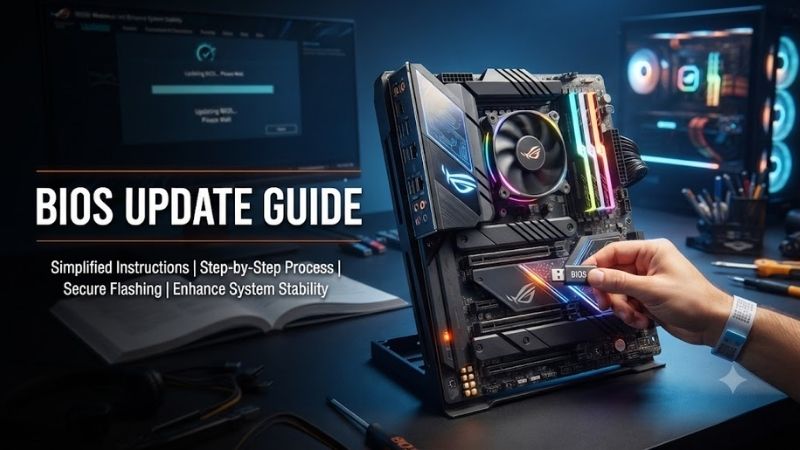
Dedicated USB BIOS Flashback Capability
A dedicated rear flashback button represents one of the most critical safeguards when assembling any custom desktop computer. This specialized physical control allows builders to rewrite firmware directly from an external flash drive without needing an installed graphics card, system memory modules, or an operational central processing unit.
Buyers purchasing brand new chipsets frequently face startup errors because older factory revisions cannot recognize newer silicon. Motherboards equipped with independent hardware flashback solve this dilemma instantly, turning an otherwise frustrating return procedure into a brief five-minute administrative task done right at home.
Dual BIOS Chips and Crash-Free Protection
Incorporating redundancy into primary motherboard architecture provides immense peace of mind during intricate software installations. Consulting our Bios Update Guide helps shoppers discover boards that feature secondary recovery chips, which automatically restore corrupted system microcode whenever unexpected power drops interrupt execution.
Without dual firmware chips or proprietary recovery mechanisms, sudden electrical spikes or accidental restarts can render motherboards permanently inert. Investing in dependable hardware platforms with automated secondary switching ensures that sudden flashing errors never force you into filing costly warranty replacements.
Stable Power Delivery and Diagnostic LEDs
Clean electrical delivery remains an underestimated factor in maintaining uninterrupted system firmware transfers. Motherboards designed with robust voltage regulator modules supply consistent, noise-free current across the entire board, preventing instantaneous reboots while delicate microcode rewrites finish writing to storage.
Onboard diagnostic light emitting diodes also take the guesswork out of troubleshooting initialization failures. These tiny illuminated indicators signal precisely whether your machine stalls at the processor, system memory, graphics adapter, or boot device phase, which isolates installation faults in mere seconds.
Clear Manufacturer Firmware Support Lifecycle
Long-term customer satisfaction relies heavily on the frequency and transparency of vendor firmware distributions. Leading component brands regularly issue security patches, memory compatibility upgrades, and performance optimizations that keep your investment running smoothly through multiple generations of computing hardware.
Before finalizing your cart, always inspect the manufacturer web page for detailed changelogs and documented release notes. Transparent companies clearly outline known stability fixes, beta testing caveats, and installation prerequisites so that enthusiasts never install an unvetted firmware build blindly into their primary computer.
Top Picks for Seamless Firmware Flashing
Finding the right motherboard simplifies assembly and eliminates firmware headaches during complex hardware upgrades. This practical Bios Update Guide reviews outstanding options that combine user-friendly flashing tools, excellent hardware reliability, and rock-solid compatibility for both modern gaming and intensive productivity tasks.
ASUS ROG Strix B650E-F Gaming WiFi
The ASUS ROG Strix B650E-F Gaming WiFi is ideal for performance enthusiasts who demand premium overclocking headroom and simplified setup. It features a dedicated rear USB Flashback button and Q-LED diagnostic indicators that allow users to update system code without inserting any processor or memory cards onto the circuit board.
Genuine real-world testing proves that the EZ Flash utility provides an intuitive interface, making routine updates seamless and fast. The only notable drawback is the slightly elevated retail pricing compared to entry level alternatives, but its superior build quality and software safeguards justify the investment for serious gamers.
MSI MAG B650 Tomahawk WiFi
Our thorough Bios Update Guide recommends the MSI MAG B650 Tomahawk WiFi for value-conscious builders desiring industrial-grade reliability. The rear input panel hosts a standalone Flash BIOS button that rewrites storage tables effortlessly, letting first-time builders configure system firmware without encountering setup anxiety.
On the positive side, it delivers exceptional VRM thermal performance and an accessible M-Flash tool that guides you through storage navigation. However, the initial boot duration can take longer than normal following a firmware flash, requiring patience during memory retraining before displaying an output on monitor screens.
Gigabyte Z790 AORUS Elite AX
The Gigabyte Z790 AORUS Elite AX serves power users and creative professionals who run Intel platforms and require dependable firmware maintenance. Utilizing Gigabyte proprietary Q-Flash Plus technology, users can refresh their microcode with only an ordinary flash drive and connected power cables directly from the wall outlet.
This board boasts expansive high-speed storage connectors and resilient construction, shielding your primary rig against accidental operating failures. Conversely, the graphical setup interface contains dense nested menus that feel somewhat overwhelming for novices who only need to locate the single firmware recovery menu quickly.
ASRock B650 Steel Legend WiFi
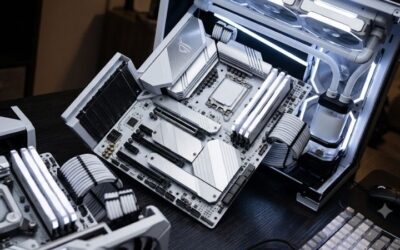
The ASRock B650 Steel Legend WiFi caters to budget-conscious PC builders who refuse to sacrifice contemporary connectivity and visual appeal. It includes an integrated rear BIOS Flashback switch alongside multi-color status lights, creating an inviting environment for enthusiasts who prioritize pain-free firmware installation.
Strengths encompass stellar thermal dissipation over the voltage regulators and remarkably consistent memory profile stability. On the other hand, the documentation included inside the retail packaging is relatively sparse, requiring builders to download supplementary manuals from the internet to execute recovery steps properly.
| Motherboard Model | Target Audience | Key Firmware Feature | Primary Strength | Main Consideration |
|---|---|---|---|---|
| ASUS ROG Strix B650E-F | Gamers and Overclockers | Dedicated USB Flashback Button | Robust Power Delivery | Higher Price Point |
| MSI MAG B650 Tomahawk | Value-Focused Builders | Standalone Flash BIOS Button | Excellent Thermal Control | Longer Initial Boot Time |
| Gigabyte Z790 AORUS Elite | Content Creators | Proprietary Q-Flash Plus Port | Expansive M.2 Storage Slots | Complex BIOS Menu Layout |
| ASRock B650 Steel Legend | Budget Enthusiasts | Rear Hardware Recovery Switch | Distinctive White Aesthetics | Minimal Packaged Manuals |
Reviewing the summary table above alongside our Bios Update Guide enables buyers to balance flashing safety features against their individual budget limitations.
Frequently Asked Questions About Motherboard Firmware
Understanding the operational mechanics of hardware maintenance helps users perform updates safely and resolve common boot difficulties. This Bios Update Guide provides clear explanations for pressing community inquiries, dispelling pervasive myths and ensuring your computer setup maintains long-term computing reliability.
Can an Interrupted BIOS Update Permanently Damage a Motherboard?
An interrupted firmware flashing sequence represents a genuine hazard for older desktop systems that lack modern recovery functions. When an unexpected outage halts data writing prematurely, the incomplete binary code leaves the system control chip incapable of completing its basic hardware startup diagnostic sequence properly.
Fortunately, modern motherboards mitigate this hazard by deploying segregated backup storage or dedicated hardware flashback controllers. These independent recovery microcontrollers can reflash raw binary images directly from a storage drive even after a total power interruption corrupts the primary operating partition.
Do You Need an Installed CPU to Flash Modern Motherboard Firmware?
Following our comprehensive Bios Update Guide reveals that you no longer require an operational central processor to flash updated microcode. Premium and mid-range motherboards incorporate autonomous hardware logic that executes firmware reading routines independently of the primary processing unit or system memory sticks.
To execute this standalone flashing routine, you merely connect standard motherboard power cables, insert a formatted flash drive, and press the designated button. The embedded circuit handles the entire data transfer, which proves extraordinarily beneficial when preparing motherboards for freshly released processor architectures.
How Often Should You Perform a Routine Motherboard Firmware Update?
Unlike routine operating system patches, firmware distributions should only be installed when targeting specific system improvements. If your gaming computer operates stably and exhibits zero technical errors, continually updating system microcode simply exposes your desktop platform to unnecessary configuration disruption.
You should prioritize updating whenever you install a newer generation central processing unit, encounter memory overclocking crashes, or receive vital security alerts. Examining manufacturer changelogs ensures you only perform installations that offer tangible benefits for your current hardware configuration.
What USB Drive Format Is Required for Hardware Flashing Tools?
Hardware recovery utilities demand an external storage drive formatted precisely with the legacy FAT32 file structure. Modern formats like NTFS or exFAT cannot be parsed by low-level motherboard recovery controllers, which causes the hardware controller to fail to recognize the binary firmware files completely.
For guaranteed compatibility, select a modest thumb drive under thirty-two gigabytes, format the partition using Master Boot Record scheme, and place the unzipped firmware binary into the primary root directory. This straightforward preparation eliminates recognition errors and guarantees a fluid installation cycle.
View more products:
Final Thoughts and Recommendations
Equipping your personal computer with a dependable motherboard ensures effortless maintenance throughout years of hardware evolutions. By applying this comprehensive Bios Update Guide, you can confidently invest in feature-rich boards that minimize downtime, prevent system corruption, and safeguard your desktop investment indefinitely.