🛒 Best Price Today on Amazon
Prime members get fast, free shipping on everything above, plus member-only deals. New members get a 30-day free trial — cancel anytime.
- What streaming demands that video calls do not
- Best streaming webcams for Twitch and YouTube: the short list
- Are RGB webcams and pan-tilt cameras worth it?
- Framing a facecam over one, two or three monitors
- Background removal without a green screen
- Lighting is the biggest single upgrade
- When to graduate to a mirrorless camera and capture card
- OBS settings that actually matter
- Frequently Asked Questions
A webcam that looks fine on a video call can fall apart on stream. Twitch and YouTube compress your facecam hard, RGB key lights keep shifting the white balance, and a 30fps camera turns every lean-back-and-laugh into a smear. For live streaming the short list is narrow: 1080p60, a sensor that holds up in a dark gaming room, manual exposure control, and a USB connection that survives a six-hour session.
What streaming demands that video calls do not
Zoom downscales you to a thumbnail, smooths the image, and nobody watches you for four hours. A facecam sits in a fixed box while chat stares at it, and the encoder spends real bitrate on whatever it sees. Four things separate a streaming webcam from an office one:
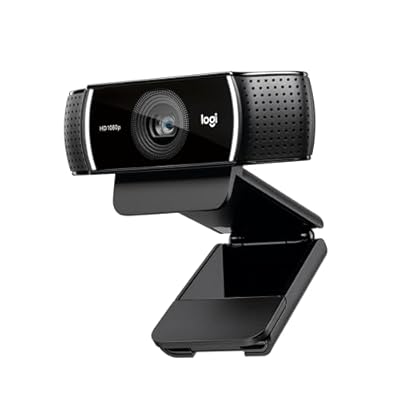
Logitech C922x HD Pro PC Webcam, Full HD 1080p/30fps or 720p/60fps Video, HD Light Correction, Works with Microsoft Teams, Google Meet, Zoom, Nintendo Switch 2’s new GameChat mode, Mac/Tablet- Black
Included for 'Best Streaming Webcams for Twitch and YouTube' because the listing specifies Full HD 1080p/30fps or 720p/60fps Video and HD Light Correction, details this guide uses to compare options.
View on Amazon- 1080p60, not 1080p30. Streams are 60fps end to end. A 30fps facecam composited into a 60fps canvas judders on every head turn and looks cheaper than the gameplay beside it.
- Consistent exposure. Auto-exposure is the biggest reason cheap webcams look bad live. Explosions on your monitor, an RGB strip cycling behind you, or a bright game scene make the camera hunt, and your face pumps brighter and darker every few seconds. You want software that lets you lock exposure, white balance and gain.
- Low-light behaviour. Most people game in a dim room. Small sensors respond by cranking gain, producing grain that compression turns into crawling blocks. Larger sensors — the STARVIS-class part in Elgato’s Facecam line, the 1/1.5-inch sensor in an OBSBOT Tiny 2 — degrade far more gracefully than the 1/4-inch parts in budget cameras.
- USB reliability. A camera that drops off the bus at hour three is worse than one that looks mediocre. Use a rear motherboard port, not an unpowered hub.
Best streaming webcams for Twitch and YouTube: the short list
Each pick is defined by the job it does best; live pricing and ratings render in the cards above.
| Camera | Best for | Max smooth mode | Low light | Moves? | Main trade-off |
|---|---|---|---|---|---|
| Elgato Facecam MK.2 | The default serious facecam | 1080p60 | Strong | No | Fixed focus, no built-in mic |
| Logitech StreamCam | All-rounder with autofocus | 1080p60 | Average | No | USB-C only; auto-exposure needs taming |
| Razer Kiyo Pro | Dark rooms, mixed lighting | 1080p60 | Strong; HDR only at 30fps | No | Wide default FOV shows the whole room |
| Logitech C920 / C922 | Budget webcam for streaming | 1080p30 (720p60 on C922) | Weak | No | You pick sharp or smooth, not both |
| OBSBOT Tiny 2 | Pan and tilt, standing or moving | 4K, downsampled to 1080p | Good | Yes — motorised gimbal | Tracking wanders; more to go wrong |
| Insta360 Link 2 | Gimbal camera, tighter framing | 4K, downsampled to 1080p | Good | Yes — motorised gimbal | Overkill for a seated solo streamer |
| Elgato Facecam Pro | Full-screen “just chatting” segments | 4K60 | Good | No | Heavy USB bandwidth and CPU cost |
If you buy one thing: a 1080p60 camera with a decent sensor and manual controls — the Facecam MK.2, StreamCam or Kiyo Pro tier — plus a real light. Buying 4K instead of a light is the most common mistake.
Below that tier you are not getting a worse version of the same thing, you are getting a different compromise. The C920 is sharp at 1080p but 30fps only; the C922 unlocks 60fps by dropping to 720p. Either works in a small facecam box if you light yourself properly. Our roundup of webcams under $100 compares that tier on general-purpose terms; this guide assumes you need it to survive a live 60fps encode.
Are RGB webcams and pan-tilt cameras worth it?
RGB webcams — a coloured ring light around the lens, or a software-tinted one — photograph well and do little. The ring is a few centimetres across and sits on the lens axis, so it is a small, hard, flat source: it flattens your face, reflects visibly in glasses, and is nowhere near strong enough to beat a monitor at full brightness. Coloured light also wrecks skin tones and gives auto white balance something new to chase. Put RGB behind you where it reads as atmosphere, and light your face with neutral white from the front. The original Razer Kiyo’s built-in ring is the honest version of this idea and still no substitute for a key light.
Which webcams can pan up and down? Normal ones cannot. The “PTZ” in most webcam software is digital — it crops into the sensor and throws away resolution. Genuine motorised movement is a small group: the OBSBOT Tiny series and Insta360 Link series use a physical gimbal, and conference PTZ units like the OBSBOT Tail Air or PTZOptics cameras have true motorised heads, usually over HDMI or NDI rather than plain USB.
For a solo streamer in a chair, a gimbal solves a problem you do not have. It earns its keep if you stand up, run fitness, craft or music streams, move between a desk and a whiteboard, or want a second angle on your hands. If you sit and talk, the same money spent on lighting and a better microphone buys a bigger visible upgrade. Never buy tracking to fix framing you could fix by moving the camera once.
Framing a facecam over one, two or three monitors
Where the camera sits matters more than which model it is. Mount it just above the monitor you actually look at, at or slightly above eye level, angled down a few degrees, so your gaze lands near the lens.
- Single monitor: the top-centre clip is fine. Crop in so head and shoulders fill the frame — most webcams are far too wide by default.
- Ultrawide: gameplay lives in the centre, so a top-centre camera means you are permanently looking down and to one side. Mount it on an arm directly above your gameplay window, or look at the lens deliberately during chat segments. Our notes on ultrawide gaming setups cover the ergonomics.
- Triple monitor: use a desk arm or light stand above the centre screen. Clamping to an angled side panel gives you that unflattering low three-quarter angle.
Background removal without a green screen
AI keying — in OBS, NVIDIA Broadcast, or a webcam’s own app — guesses which pixels are you. Fine for a small circular facecam, bad at full size: hair edges shimmer, headset arms get chewed off, quick hand movements ghost. Compression makes it worse, because a flickering edge eats bitrate.
- Separate yourself from the background. Stand a metre off the wall and avoid lighting the wall right behind your head; contrast is what the model keys on.
- Keep the cutout small. A 320px circle hides artifacts that a half-screen cutout advertises.
- Use a collapsible green screen if keying really matters. Evenly lit chroma key still beats every AI model, which is why the green screen approach has not died.
If neither appeals, just show your room. A tidy, deliberately lit background is more watchable than a bad key.
Lighting is the biggest single upgrade
A $60 light improves your stream more than a $200 camera. Every webcam limitation — noise, mushy detail, hunting exposure — is a response to insufficient light. The minimum viable setup is one soft key roughly 45 degrees off-centre and slightly above eye level, at 5000-5600K, with your ambient room light as fill. A cheap panel with a diffuser beats an expensive bare LED. Then lock exposure and white balance so RGB strips and bright game scenes stop moving the image around.
When to graduate to a mirrorless camera and capture card
A mirrorless body with a fast lens gives shallow depth of field and clean low-light image quality no webcam matches. It is a system, not a camera:
| Item | Why it is required | Typical outlay |
|---|---|---|
| Body with clean HDMI out | Overlay-free, unrestricted video signal | Bulk of the budget |
| Fast prime or bright zoom | Blurred background; low-light headroom | Often as much as the body |
| Capture card (1080p60 is enough) | Turns HDMI into an OBS source | Mid two figures and up |
| Dummy battery / AC adapter | Batteries die mid-stream; not optional | Low two figures |
| Micro-HDMI cable and mount | Fragile port, awkward placement | Low two figures |
Add recording limits and overheating on some bodies and the real total is several times a good webcam. Make the jump when your face is the product — talking-head YouTube, IRL content, sponsorships — not because the webcam annoys you at 2am. Read up on choosing a capture card first; a card that cannot pass 1080p60 defeats the point.
OBS settings that actually matter
- Set device resolution and FPS explicitly. In the video capture device properties choose 1920×1080 at 60fps and the right format — MJPEG or similar is usually required for 60fps over USB, while YUY2 typically caps you at 30fps at 1080p. “Device Default” is why many people silently stream a 30fps facecam.
- Turn deinterlacing off. Webcams are progressive; deinterlacing softens the image and adds artifacts for nothing.
- Watch encoder load. A 4K60 source scaled down costs CPU or GPU before it reaches the encoder — fine on NVENC, painful on x264.
- Do not upscale. A 720p60 camera stretched to a 1080p canvas looks worse than the same camera in a correctly sized box.
- Lock exposure, gain and white balance and leave them. Consistency reads as quality. Our OBS configuration notes cover bitrate and encoder choice.
Get those right and a mid-priced 1080p60 webcam with one good light will out-perform a far costlier camera running on defaults.
Frequently Asked Questions
Is 1080p60 or 4K30 better for streaming?
1080p60, almost always. Twitch caps most channels around 1080p60 and downscales anything larger, so the extra 4K detail is thrown away — while 60fps motion is preserved and visible every time you move. A 4K camera only helps if you use the extra pixels to crop in tightly and still output 1080p, and even then you pay in USB bandwidth and encoding overhead on your streaming PC.
Do I need a webcam with an RGB or ring light built in?
No. A built-in ring light is small, harsh and mounted on the lens axis, so it flattens your features and reflects visibly in glasses. It is also far too weak to overcome a bright monitor. A single separate softbox or diffused LED panel placed off to one side costs about the same and produces a dramatically better image. Use coloured RGB lighting behind you for atmosphere, and keep neutral white on your face.
Which webcams can actually pan up and down?
Only cameras with a physical motorised gimbal or PTZ head — the OBSBOT Tiny series, Insta360 Link series, and dedicated conference PTZ units. Everything else labelled PTZ in webcam software performs a digital crop, which loses resolution rather than moving the lens. For a seated solo streamer this rarely matters; motorised tracking earns its price when you stand, move around the room, or stream activities away from the desk.
Why does my webcam look grainy when I game in the dark?
The sensor is short of light, so the camera raises gain to compensate and amplifies noise along with the image. Streaming compression then struggles with that moving grain and turns it into blocky mush. The fix is light, not a new camera: one diffused key light at roughly 45 degrees removes most of the noise instantly. After that, lock the exposure so bright scenes stop making your face pulse.
Can my webcam replace a microphone for streaming?
It should not. Webcam microphones sit a metre away, pick up keyboard clatter and room echo, and offer no gain or noise control. Audio is the thing viewers tolerate least, and most streamers see a bigger retention improvement from a decent USB or XLR microphone than from any camera upgrade. Treat the webcam mic strictly as a backup and disable it in OBS so it is never accidentally mixed in.