Table of Contents
- 0.1 🛒 Best Price Today on Amazon
- 1 Best Monitors for Mac Gaming Compared
- 2 How We Chose the Best Mac Gaming Monitors
- 3 MSI MPG 321URX QD-OLED — Best Overall
- 3.1 Key Features
- 3.2 What Makes It Different
- 3.3 Pros
- 3.4 Cons
- 4 ASUS ROG Swift OLED PG32UCDM — Best Premium OLED
- 4.1 Key Features
- 4.2 What Makes It Different
- 4.3 Pros
- 4.4 Cons
- 5 BenQ MOBIUZ EX321UX — Best Mini LED for Mac Gaming
- 5.1 Key Features
- 5.2 What Makes It Different
- 5.3 Pros
- 5.4 Cons
- 6 Gigabyte M32U — Best Practical 4K IPS Pick
- 6.1 Key Features
- 6.2 What Makes It Different
- 6.3 Pros
- 6.4 Cons
- 7 Which Mac Gaming Monitor Should You Choose?
- 8 Buying Guide for a Mac Gaming Monitor
- 8.1 Check Your Mac’s Maximum Display Output
- 8.2 Choose 144Hz or 240Hz Based on Your Games
- 8.3 Prioritize USB-C for a MacBook Setup
- 8.4 Decide Between OLED, Mini LED, and IPS
- 8.5 Think About KVM Support
- 9 FAQ
- 9.1 Do Gaming Monitors Work With Macs?
- 9.2 Is 4K Worth It for Mac Gaming?
- 9.3 Is a 240Hz Monitor Worth It for a Mac?
- 9.4 Is OLED Good for Mac Gaming?
- 9.5 Does macOS Support Adaptive Sync?
- 10 Conclusion
🛒 Best Price Today on Amazon
Prime members get fast, free shipping on everything above, plus member-only deals. New members get a 30-day free trial — cancel anytime.
- Best Monitors for Mac Gaming Compared
- How We Chose the Best Mac Gaming Monitors
- MSI MPG 321URX QD-OLED — Best Overall
- ASUS ROG Swift OLED PG32UCDM — Best Premium OLED
- BenQ MOBIUZ EX321UX — Best Mini LED for Mac Gaming
- Gigabyte M32U — Best Practical 4K IPS Pick
- Which Mac Gaming Monitor Should You Choose?
- Buying Guide for a Mac Gaming Monitor
- FAQ
- Conclusion
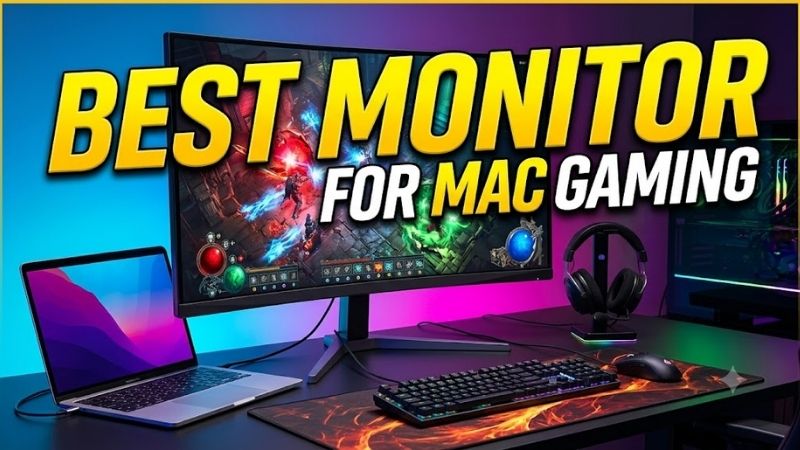
The best monitor for Mac gaming should combine sharp macOS scaling, high refresh rates, low latency, and simple USB-C or HDMI connectivity. Our picks focus on 4K gaming displays that suit MacBook Pro, Mac mini, and Mac Studio users who want smoother play without giving up the crisp desktop experience Macs are known for.
Quick answer: For most people in 2026, the best monitor for mac gaming is the MSI MPG 321URX QD-OLED — our #1 rated choice. See the full ranked comparison, alternatives and buying advice below.
Best Monitors for Mac Gaming Compared
| Monitor | Panel | Resolution | Max Refresh Rate | USB-C Power Delivery | Best For |
|---|---|---|---|---|---|
| MSI MPG 321URX QD-OLED | QD-OLED | 3840 × 2160 | 240Hz | 90W | Best overall |
| ASUS ROG Swift OLED PG32UCDM | QD-OLED | 3840 × 2160 | 240Hz | Up to 90W | Premium multi-device setups |
| BenQ MOBIUZ EX321UX | Mini LED IPS | 3840 × 2160 | 144Hz | 65W | HDR and mixed work |
| Gigabyte M32U | IPS | 3840 × 2160 | 144Hz | Up to 18W | Practical 4K gaming |
For most Mac gamers, a 32-inch 4K panel is the sweet spot because it offers plenty of desktop space while keeping games sharp. High-refresh OLED models target fast action, while Mini LED and IPS options favor sustained brightness, text clarity, and mixed work-and-play use. Your Mac model still determines the maximum output mode.

LG 27GR83Q-B 27-inch Ultragear QHD (2560x1440) IPS Gaming Monitor, 240Hz, 1ms, DisplayHDR 400, G-Sync AMD FreeSync Premium, HDMI 2.1 DisplayPort, 4-Pole HP Out DTS GP:X, Tilt/Height/Pivot Stand, Black
Included for 'Best Monitor for Mac Gaming: 5 Top Picks for Smooth Play' because the listing specifies 240Hz and 1ms, details this guide uses to compare options.
View on Amazon →
LG 27G640A-B 27-inch Ultragear QHD (2560 x 1440) IPS Gaming Monitor, 300Hz, 1ms, NVIDIA G-Sync, AMD FreeSync Premium, VESA DisplayHDR 400, HDMI 2.1, USB Type-C, Tilt/Height/Swivel/Pivot Stand, Black
Included for 'Best Monitor for Mac Gaming: 5 Top Picks for Smooth Play' because the listing specifies 300Hz and 1ms, details this guide uses to compare options.
View on Amazon →
LG 27GS93QE 27-inch Ultragear OLED Gaming Monitor QHD 1440p 240Hz 0.03ms DisplayHDR True Black 400 AMD FreeSync Premium Pro NVIDIA G-Sync HDMI 2.1 DisplayPort Tilt/Height/Pivot Stand Black
Included for 'Best Monitor for Mac Gaming: 5 Top Picks for Smooth Play' as a relevant option in this category; details come from the product listing.
View on Amazon →How We Chose the Best Mac Gaming Monitors
We prioritized monitors that combine 4K resolution with refresh rates above 60Hz and connections that make sense for modern Macs. USB-C video input, useful power delivery, HDMI 2.1, KVM support, and panel behavior all influenced the shortlist. We excluded displays whose strengths were mainly office use rather than gaming.
MSI MPG 321URX QD-OLED — Best Overall
Best For: Mac gamers wanting 4K, 240Hz, OLED contrast, and one-cable MacBook connectivity.
Key Features
- 31.5-inch QD-OLED panel
- 3840 × 2160 resolution
- 240Hz refresh rate
- 0.03ms GtG response time
- USB-C with DisplayPort Alt Mode
- Up to 90W USB-C power delivery
- 2 × HDMI 2.1
- DisplayPort 1.4a
- KVM functionality
- VESA DisplayHDR True Black 400
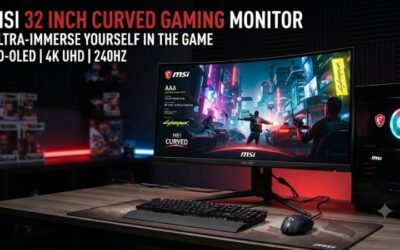
The MSI MPG 321URX QD-OLED pairs a 31.5-inch 4K panel with a 240Hz refresh rate, 0.03ms GtG response time, USB-C DisplayPort Alt Mode, and up to 90W power delivery. That combination suits a MacBook desk where one cable can carry video and charge the laptop, while OLED contrast makes dark games look especially punchy.
What Makes It Different
What separates the MSI from many 4K gaming monitors is its mix of QD-OLED speed and Mac-friendly USB-C charging. HDMI 2.1 and DisplayPort 1.4a provide additional inputs, while the built-in KVM helps if you share the display between a Mac and another computer. The trade-off is the usual OLED concern around long static desktop elements.
Pros
- 4K and 240Hz in one display
- Extremely fast QD-OLED pixel response
- 90W USB-C charging simplifies MacBook desks
- KVM helps with Mac-and-PC setups
- HDMI 2.1 adds console flexibility
Cons
- OLED needs more care with persistent desktop elements
- 240Hz is useful only when the Mac and game can supply high frame rates
- No built-in speakers
Use Case: Gaming at night on the same MacBook setup used for productivity during the day.
Who It’s For: MacBook Pro, Mac mini, or Mac Studio users who prioritize motion clarity and OLED image quality.
ASUS ROG Swift OLED PG32UCDM — Best Premium OLED
Best For: Mac gamers who want a premium 4K OLED display connected to several systems.
Key Features
- 31.5-inch 4K QD-OLED panel
- 3840 × 2160 resolution
- 240Hz maximum refresh rate
- 0.03ms response time
- USB-C with DisplayPort Alt Mode
- Up to 90W USB-C power delivery
- 2 × HDMI 2.1
- DisplayPort 1.4 DSC
- Built-in KVM
- Dolby Vision support
The ASUS ROG Swift OLED PG32UCDM is another 31.5-inch 4K QD-OLED option built around a 240Hz refresh rate and 0.03ms response time. It adds USB-C with DisplayPort Alt Mode and up to 90W power delivery, plus two HDMI 2.1 ports and a KVM switch, making it flexible for a Mac gaming setup with multiple connected systems.
What Makes It Different
Its main appeal is versatility: the PG32UCDM combines deep OLED blacks, fast pixel response, Dolby Vision support, and extensive connectivity in one display. It is especially useful for Mac owners who also connect a console or PC. Like other OLED monitors, however, it requires sensible care when displaying static macOS UI for long periods.
Pros
- 4K QD-OLED with 240Hz refresh rate
- 90W-capable USB-C charging
- KVM for sharing peripherals
- HDMI 2.1 for additional gaming hardware
- Dolby Vision support
Cons
- Premium feature set may be excessive for casual gaming
- Static desktop use remains a consideration with OLED
- No integrated speakers
Use Case: A high-end workstation where a Mac shares one display with a gaming PC or console.
Who It’s For: Users who want an OLED gaming monitor without sacrificing USB-C, KVM, or broad input flexibility.
BenQ MOBIUZ EX321UX — Best Mini LED for Mac Gaming
Best For: Gamers who want HDR brightness and high refresh without choosing OLED.
Key Features
- 31.5-inch IPS panel
- 1,152-zone Mini LED backlight
- 3840 × 2160 resolution
- 144Hz refresh rate
- 1ms GtG response time
- 1,000-nit specified HDR peak brightness
- VESA DisplayHDR 1000
- USB-C with 65W power delivery
- HDMI 2.1
- DisplayPort 2.1
- Built-in KVM
The BenQ MOBIUZ EX321UX takes a different route with a 31.5-inch 4K IPS panel, 144Hz refresh rate, and 1,152-zone Mini LED backlight. USB-C supports DisplayPort Alt Mode, data, and 65W power delivery, while HDMI 2.1, DisplayPort 2.1, and a KVM switch make it a strong fit for a multi-device Mac gaming desk.
What Makes It Different
Mini LED gives the EX321UX higher sustained brightness behavior than OLED and avoids OLED burn-in concerns, which matters if the same monitor spends long hours showing menus, browsers, and productivity apps. Its 144Hz ceiling is lower than the 240Hz OLED choices, but it remains a major step above a conventional 60Hz Mac display.
Pros
- 1,152-zone Mini LED backlight
- Strong HDR-oriented specifications
- 144Hz refresh is well suited to mixed gaming
- USB-C handles video, data, and 65W charging
- KVM supports multi-computer desks
Cons
- 144Hz is below the 240Hz OLED models
- IPS cannot match OLED at the pixel level for black depth
- 65W charging may not cover every MacBook workload
Use Case: Long work sessions followed by HDR games without worrying about persistent desktop interface elements.
Who It’s For: Mac users who value brightness, HDR, productivity durability, and high refresh more than OLED-level blacks.
Gigabyte M32U — Best Practical 4K IPS Pick
Best For: Mac owners seeking 4K 144Hz gaming, KVM support, and IPS without paying for OLED.
Key Features
- 31.5-inch SuperSpeed IPS panel
- 3840 × 2160 resolution
- 144Hz maximum refresh rate
- HDMI 2.1
- DisplayPort 1.4 with DSC
- USB Type-C video input
- KVM
- Built-in 3W × 2 speakers
- USB-C power delivery up to 18W
The Gigabyte M32U remains a practical 31.5-inch 4K IPS choice for Mac users who want 144Hz gaming without moving to OLED. It includes USB-C video input, HDMI 2.1, DisplayPort 1.4 with DSC, a KVM switch, and built-in speakers. USB-C power delivery is limited to 18W, so most MacBooks still need their normal charger.
What Makes It Different
The M32U makes sense when you prioritize 4K sharpness, high refresh, and broad connectivity over premium HDR or OLED black levels. Its KVM can switch peripherals between systems, which is useful in a Mac-plus-PC setup. The biggest compromise is USB-C charging, because 18W is far below what performance-oriented MacBooks typically need.
Pros
- 4K resolution at up to 144Hz
- IPS panel suits long desktop sessions
- Built-in KVM
- USB-C video connectivity
- Integrated speakers
Cons
- Only 18W USB-C power delivery
- HDR hardware is less ambitious than Mini LED
- Black levels cannot match OLED
Use Case: A Mac productivity monitor that also handles high-refresh gaming without OLED maintenance concerns.
Who It’s For: Buyers who care more about practical connectivity and 4K 144Hz performance than premium HDR.
Which Mac Gaming Monitor Should You Choose?
| Priority | Monitor to Consider | Main Reason |
|---|---|---|
| 4K 240Hz plus USB-C charging | MSI MPG 321URX QD-OLED | QD-OLED, 240Hz, 90W USB-C |
| Premium OLED connectivity | ASUS PG32UCDM | 240Hz, KVM, USB-C, HDMI 2.1 |
| HDR and productivity | BenQ EX321UX | Mini LED, 144Hz, 65W USB-C |
| Straightforward 4K IPS gaming | Gigabyte M32U | 144Hz, KVM, USB-C video |
Mac compatibility is not identical across every Apple computer. Recent models can support very high-refresh 4K output, while older systems may top out lower or support fewer external displays. Apple also notes that Adaptive Sync requires macOS Monterey 12 or later and a supported Mac, so hardware and software both matter.
Buying Guide for a Mac Gaming Monitor
Check Your Mac’s Maximum Display Output
Start with your Mac’s display-output limits before choosing a monitor. Apple silicon Macs support different maximum resolutions, refresh rates, and display counts depending on the chip and model. A monitor rated for 4K at 240Hz cannot force an older Mac to output that mode, so check Apple’s specifications for your exact machine first.
For example, Apple’s specifications for the 2024 14-inch MacBook Pro with M4 Pro or M4 Max list support for one external display at up to 4K and 240Hz through HDMI. Newer Mac generations may have different limits, so treat the specification page for your own Mac—not the monitor’s maximum refresh rate—as the final compatibility reference.
Choose 144Hz or 240Hz Based on Your Games
For gaming, refresh rate matters more than extreme pixel density once you reach 4K at 32 inches. A 144Hz panel already feels much smoother than 60Hz for camera movement, racing, and action games, while 240Hz benefits players chasing maximum motion clarity. The trade-off is higher cost and greater GPU demand at native 4K resolution.
Prioritize USB-C for a MacBook Setup
USB-C is especially valuable with a MacBook because one cable can carry video while also delivering power, but wattage varies by monitor. Models offering 65W to 90W can simplify many desk setups, while low-power USB-C ports may only slow battery drain. For Adaptive Sync on Mac, Apple recommends a Thunderbolt or DisplayPort-enabled connection.
Decide Between OLED, Mini LED, and IPS
Panel type changes the experience as much as refresh rate. QD-OLED delivers near-black blacks and extremely fast pixel response, making dark scenes and motion look striking. Mini LED IPS offers strong HDR brightness and avoids OLED image-retention concerns, while standard IPS is usually the safer choice for long mixed-use sessions and static UI.
Think About KVM Support
A KVM is particularly useful when the same monitor serves a Mac and another computer. Compatible monitors can route attached keyboard and mouse peripherals between two systems rather than requiring separate accessories. MSI, ASUS, BenQ, and Gigabyte all include KVM functionality on the specific models covered in this roundup.
FAQ
Do Gaming Monitors Work With Macs?
Yes, many gaming monitors work well with Macs as long as the Mac can output the monitor’s target resolution and refresh rate through a supported connection. USB-C with DisplayPort Alt Mode is usually the simplest route for MacBooks, while HDMI can also work on compatible Macs. Always verify the limits of your exact Mac model.
Is 4K Worth It for Mac Gaming?
A 4K monitor is usually the best fit for Mac gaming if you also use the display for work, because macOS benefits from high pixel density for text and interface elements. The trade-off is gaming performance: native 4K requires more graphics power than 1440p, so demanding games may need lower settings, upscaling, or a reduced resolution.
Is a 240Hz Monitor Worth It for a Mac?
A 240Hz monitor can be worthwhile on a Mac when your specific Mac supports the required output mode and the games you play can render at very high frame rates. It matters most for fast competitive titles and less for slower games. For many Mac users, 144Hz is already a substantial upgrade from a 60Hz productivity display.
Is OLED Good for Mac Gaming?
OLED is a strong choice for Mac gaming because its rapid pixel response and deep blacks suit fast action, dark scenes, and HDR content. The main drawback is long-term image-retention risk from static interface elements such as menu bars and app chrome. Users who keep the same desktop layout visible all day may prefer Mini LED or IPS.
Does macOS Support Adaptive Sync?
Yes, supported Macs can use Adaptive Sync with macOS Monterey 12 or later. Apple lists all Apple silicon Macs among supported systems and recommends connecting an Adaptive Sync display through Thunderbolt, USB-C, or another DisplayPort-enabled cable rather than HDMI. The available refresh range still depends on the display and Mac.
Conclusion
The best monitor for Mac gaming depends on whether you value OLED speed, Mini LED brightness, or practical IPS value. The MSI MPG 321URX and ASUS PG32UCDM target 4K 240Hz play, the BenQ EX321UX favors bright mixed use, and the Gigabyte M32U offers a simpler 4K 144Hz route. Match the display to your Mac’s output limits first.
Ready to decide? Our #1 pick for 2026 is the MSI MPG 321URX QD-OLED.
Live price & availability on Amazon.