🛒 Best Price Today on Amazon
Prime members get fast, free shipping on everything above, plus member-only deals. New members get a 30-day free trial — cancel anytime.
- Best Monitors for Game Development Compared
- Dell UltraSharp U3225QE — Best Overall for Game Development
- BenQ PD3225U — Best for Game Artists and UI Designers
- ASUS ProArt PA32UCXR — Best for HDR Game Development
- Apple Studio Display — Best for Mac Game Development
- LG DualUp 28MQ780-B — Best for Coding and Multitasking
- How to Choose the Best Monitor for Game Development
- Which Monitor Fits Each Game Development Role?
- FAQ
- Conclusion

Dell UltraSharp U4025QW 40" Class 5K2K WUHD Curved Screen LED Monitor - 21:9
Included for 'Best Monitor for Game Development: 5 Top Displays Compared' because the listing specifies 21:9, details this guide uses to compare options.
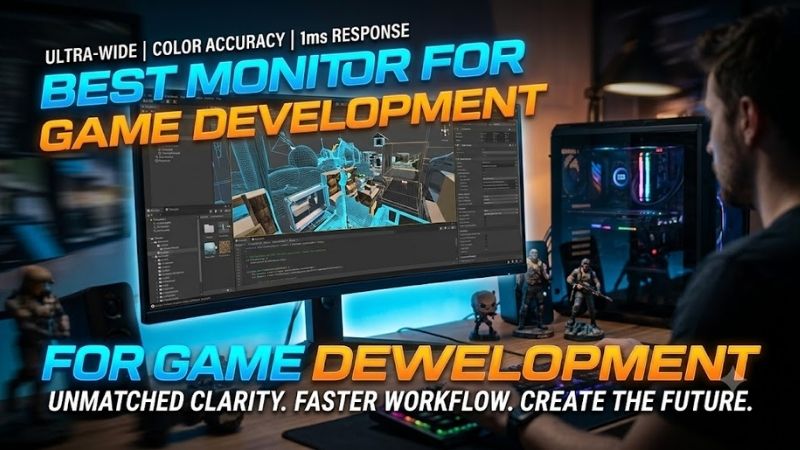
View on AmazonThe best monitor for game development should make code readable, art dependable, and engine previews easy to inspect without forcing constant window switching. For most developers, a 27- to 32-inch high-resolution IPS-class display works best, while color-critical artists, HDR creators, and multitaskers may need more specialized panels. Game development mixes programming, level editing, UI design, texture work, animation, testing, documentation, and communication. That makes screen space and text clarity more important than extreme esports refresh rates. A strong development monitor should also offer useful ports, ergonomic adjustment, and color performance that fits your role.
Quick answer: For most people in 2026, the best monitor for game development is the Dell UltraSharp U3225QE — our #1 rated choice. See the full ranked comparison, alternatives and buying advice below.
Best Monitors for Game Development Compared
| Monitor | Best For | Resolution | Refresh Rate | Key Strength |
|---|---|---|---|---|
| Dell UltraSharp U3225QE | Best overall | 3840 × 2160 | 120Hz | Balanced 4K workspace and connectivity |
| BenQ PD3225U | Game artists and UI designers | 3840 × 2160 | 60Hz | Wide-gamut creative workflow |
| ASUS ProArt PA32UCXR | HDR game production | 3840 × 2160 | 60Hz | Mini LED HDR reference features |
| Apple Studio Display | Mac game developers | 5120 × 2880 | 60Hz | High-density 5K macOS workspace |
| LG DualUp 28MQ780-B | Coding and multitasking | 2560 × 2880 | 60Hz | Tall 16:18 productivity layout |
Dell UltraSharp U3225QE — Best Overall for Game Development
Best For: Developers using Unity, Unreal Engine, IDEs, debugging tools, and mixed creative applications.
Key Features:
- 31.5-inch 4K UHD display
- 3840 × 2160 resolution
- IPS Black panel technology
- Up to 120Hz refresh rate
- 99% DCI-P3 and 100% sRGB listed by Dell
- VESA DisplayHDR 600
- Height, tilt, swivel, and pivot adjustment
- Thunderbolt-focused hub connectivity
Dell’s UltraSharp U3225QE is a practical fit for developers who want one large 4K workspace for Unreal Engine, Unity, Visual Studio, source control, and browser tools. Its 31.5-inch canvas leaves room for several panels at once, while the 120Hz refresh rate makes scrolling, viewport movement, and general desktop interaction feel smoother.
What Makes It Different: The U3225QE combines the productivity characteristics of a professional UltraSharp display with a refresh rate normally associated with faster general-purpose monitors. That combination is useful when your workday moves between static code, complex engine interfaces, 3D viewport navigation, and actual gameplay testing.
Its main advantage is balance rather than one specialist feature. Developers can use the 4K resolution for dense interfaces, the IPS Black panel for stronger contrast than conventional IPS designs, and the integrated hub to reduce cable clutter. It suits mixed coding, design, and testing workflows where a single monitor must cover many tasks.
Pros:
- 4K resolution provides ample development workspace
- 120Hz refresh rate suits both productivity and gameplay testing
- Wide color coverage helps creative workflows
- Flexible stand adjustments
- Strong connectivity for laptop and desktop setups
Cons:
- More display capability than basic coding workflows require
- 32-inch 4K may still need interface scaling for some users
Use Case: Keep Unreal Engine or Unity open beside code, documentation, profiling tools, or asset browsers while retaining enough resolution for detailed viewport inspection.
Who It’s For: Developers wanting one monitor that can cover programming, engine work, art review, productivity, and higher-refresh testing without moving to a gaming-first display.
BenQ PD3225U — Best for Game Artists and UI Designers
Best For: Game artists, UI designers, environment artists, technical artists, and Mac-based creative workflows.
Key Features:
- 32-inch 4K display
- 3840 × 2160 resolution
- IPS Black panel
- 98% P3 listed by BenQ
- 100% sRGB and 100% Rec.709
- Thunderbolt 3 connectivity
- 60Hz refresh rate
- Creator-oriented color modes and Hotkey Puck controls
The BenQ PD3225U is aimed at creators who care about color consistency as much as workspace. Its 32-inch 4K panel supports wide-gamut work and includes creator-focused display modes, making it useful for game artists, UI designers, and developers reviewing assets. Thunderbolt connectivity also fits laptop-centered production desks.
What Makes It Different: BenQ positions the PD series around professional creative work rather than gaming specifications. Developers working between Photoshop, Blender, Maya, Substance tools, engine editors, and UI software therefore get features aimed at maintaining consistent presentation across applications instead of maximizing refresh rate.
What separates the PD3225U from a general office display is its emphasis on predictable creative output. That matters when textures, interface colors, promotional images, and cinematic assets move between applications. Its 60Hz ceiling is less appealing for high-refresh playtesting, so it is better for production accuracy than motion-focused QA.
Pros:
- 32-inch 4K workspace fits complex creative interfaces
- Wide P3, Rec.709, and sRGB coverage
- Thunderbolt connectivity suits modern laptops
- Creator-oriented controls and display modes
Cons:
- 60Hz limits high-refresh gameplay evaluation
- Creative features may be unnecessary for code-only roles
Use Case: Build or review textures, UI elements, environments, characters, cinematics, and visual assets while keeping engine tools and reference applications available on the same screen.
Who It’s For: Developers whose responsibilities include visual production, especially artists and designers who value color workflow more than high-refresh gaming performance.
ASUS ProArt PA32UCXR — Best for HDR Game Development
Best For: HDR artists, lighting teams, cinematic developers, colorists, and studios producing HDR game content.
Key Features:
- 32-inch 4K IPS panel
- Mini LED backlighting
- 3840 × 2160 resolution
- 1,600 cd/m² listed HDR peak brightness
- 100% sRGB
- 99% Adobe RGB
- 97% DCI-P3
- Dolby Vision, HDR10, and HLG support
- 60Hz refresh rate
The ASUS ProArt PA32UCXR is the specialist choice for HDR pipelines. Its 32-inch 4K Mini LED panel, high peak HDR brightness, wide color support, and professional HDR formats make it relevant to teams creating HDR cinematics, environments, and grading passes. It is far more display than a typical programmer needs, but that is the point.
What Makes It Different: Mini LED backlighting and support for multiple professional HDR formats separate the PA32UCXR from standard productivity monitors. Those capabilities matter when developers need to examine bright effects, dark environments, cinematic lighting, HDR tone mapping, or content intended for displays with a wider dynamic range.
For artists and technical directors, the benefit is being able to inspect highlights, shadows, color transitions, and HDR presentation on a monitor built for reference-oriented work. The trade-off is a 60Hz refresh rate and a feature set focused on image fidelity rather than fast gameplay. It makes sense when HDR authoring is part of the job.
Pros:
- Mini LED backlighting designed for demanding HDR work
- High listed HDR peak brightness
- Broad professional color-space coverage
- Supports Dolby Vision, HDR10, and HLG
Cons:
- 60Hz is not ideal for high-refresh gameplay testing
- Professional HDR features are excessive for programming-only roles
Use Case: Review lighting, cinematic sequences, HDR effects, dark environments, bright particle effects, and tone-mapped scenes during an HDR production pipeline.
Who It’s For: Studios and creators who actively author HDR content rather than developers simply looking for a larger coding monitor.
Apple Studio Display — Best for Mac Game Development
Best For: macOS and Apple-platform developers using Xcode, Metal tools, Unity, or other Mac development software.
Key Features:
- 27-inch 5K Retina display
- 5120 × 2880 resolution
- 218 pixels per inch
- 600 nits brightness
- 60Hz refresh rate
- Wide color P3
- Reference modes including sRGB and digital cinema options
- Thunderbolt 5 and USB-C connectivity on the 2026 model
- Built-in camera, speakers, and microphones
Apple Studio Display is a strong option for macOS developers who value high pixel density and native integration. Its 27-inch 5K resolution renders text, Xcode interfaces, documentation, and UI assets with sharp detail, while P3 color support helps visual work. The built-in camera, microphones, speakers, and hub also simplify a Mac desk.
What Makes It Different: Its 5120 × 2880 panel provides substantially more pixel density than a typical 27-inch 4K monitor. That is valuable when reading code, checking UI assets, inspecting typography, or arranging multiple development windows while retaining the scaling behavior commonly used across Apple desktop environments.
The limitation is its 60Hz refresh rate, so it is not designed for evaluating high-frame-rate gameplay. It also makes the most sense inside Apple’s ecosystem rather than as a universal cross-platform choice. For developers building macOS, iOS, or Apple-platform games, however, the combination of 5K clarity and integrated hardware is compelling.
Pros:
- Very high 218-PPI pixel density
- 5K resolution is useful for code and detailed UI work
- Wide P3 color support
- Integrated speakers, camera, microphone, and connectivity
Cons:
- Limited to 60Hz
- Less attractive for Windows-focused or high-refresh test systems
Use Case: Run Xcode, debugging tools, documentation, game engines, asset windows, and communication apps within a sharp macOS-focused desktop environment.
Who It’s For: Developers primarily targeting Apple platforms or using a Mac as their main game-development workstation.
LG DualUp 28MQ780-B — Best for Coding and Multitasking
Best For: Programmers, tools engineers, debugging-heavy workflows, and developers who prefer vertically organized applications.
Key Features:
- 27.6-inch Nano IPS display
- 2560 × 2880 resolution
- 16:18 aspect ratio
- DCI-P3 98% typical coverage
- HDR10 support
- USB-C with power delivery
- HDMI and DisplayPort connectivity
- Ergo stand with desk clamp
LG’s DualUp 28MQ780-B takes a different approach: it prioritizes vertical workspace instead of a wider canvas. Its 2560 x 2880, 16:18 panel is useful for stacking code, logs, documentation, chat, profiler windows, or reference material. The tall format can replace two vertically stacked windows without the bezel break of a dual-monitor setup.
What Makes It Different: The nearly square 16:18 format creates more vertical room than conventional 16:9 monitors. Developers can stack an IDE above a terminal, place documentation beneath debugging output, or dedicate separate vertical sections to profiling and logs without turning their head between two side-by-side displays.
This layout is useful for programmers and tools engineers who spend more time reading than previewing full-screen gameplay. It is less natural for conventional 16:9 testing, so many developers may pair it with a second display. As a productivity monitor, its unusual shape can make long code and debugging sessions easier to organize.
Pros:
- Excellent vertical space for code and logs
- Distinctive 2560 × 2880 workspace
- Ergo stand offers flexible positioning
- USB-C connectivity suits laptop workstations
Cons:
- Unusual aspect ratio is poor for native 16:9 gameplay testing
- Often works better as a productivity or secondary display
Use Case: Stack source code, debugging consoles, profiling data, documentation, Slack, task boards, and terminal windows in a tall workspace.
Who It’s For: Programmers who prioritize reading, debugging, and multitasking over full-screen game previewing.
How to Choose the Best Monitor for Game Development
Resolution and Screen Size
Resolution should be your first filter. At 27 to 32 inches, 4K gives development tools room for inspectors, timelines, consoles, asset browsers, and code without making text look coarse. Higher pixel density also helps UI work and long coding sessions, although scaling may be needed to keep interface elements comfortable.
For a single-monitor workstation, 32-inch 4K is particularly useful because game engines can contain a viewport, hierarchy, inspector, content browser, console, and toolbar simultaneously. A 27-inch 4K or 5K display instead favors higher pixel density, which can make code, icons, typography, and detailed interface assets appear sharper.
Refresh Rate
Refresh rate matters differently for developers than for competitive players. A 120Hz desktop feels smoother when scrolling code, moving windows, and navigating 3D viewports, while 60Hz remains workable for programming and color-critical work. If you test high-frame-rate gameplay, a faster panel can reveal motion behavior a 60Hz screen cannot show.
A game-development monitor therefore does not automatically need 240Hz or 360Hz. Those refresh rates make more sense for competitive-game QA or developers specifically analyzing motion and latency. For general Unity or Unreal production, additional resolution, connectivity, screen area, and dependable color reproduction often provide more day-to-day value.
Color Accuracy and Gamut
Color coverage matters most for artists, lighting teams, UI designers, and anyone preparing cinematic assets. Wide-gamut support is useful when the workflow is color-managed, so programmers should not overpay for reference features they rarely use. HDR development raises the bar because peak brightness and local dimming also become important.
Texture artists and designers should consider displays supporting relevant spaces such as sRGB, Rec.709, Display P3, or DCI-P3 depending on their pipeline. Programmers working mostly with code can prioritize resolution and ergonomics instead. The appropriate monitor depends on whether visual judgment is an occasional task or part of your daily responsibilities.
Connectivity
Connectivity can change daily workflow. USB-C or Thunderbolt can carry video, data, and laptop charging through one cable, while integrated USB hubs reduce dependence on docks. Desktop developers should still check for DisplayPort and HDMI, especially when switching among a workstation, test PC, console hardware, or capture equipment.
Laptop developers benefit most from one-cable docks because keyboards, storage, networking, and displays can remain connected at the desk. Console-focused developers may place greater value on multiple video inputs. Always confirm that the selected input supports the resolution and refresh rate you intend to use with each connected system.
Ergonomics
Ergonomics are easy to overlook during purchase but matter during long production days. Height, tilt, swivel, and pivot adjustment help keep the display aligned with your seating position and secondary screens. A VESA-compatible arm can also free desk space for speakers, controllers, tablets, and other development hardware.
Screen size also changes how far the display should sit from you. A 32-inch screen provides useful workspace but can feel overwhelming on a shallow desk, while a 27-inch panel is easier to position close to the keyboard. Developers planning dual monitors should consider stand width, arm compatibility, and whether both displays can be aligned comfortably.
Which Monitor Fits Each Game Development Role?
| Development Role | Most Useful Monitor Traits |
|---|---|
| Gameplay programmer | 4K, 120Hz+, strong text clarity |
| Engine or tools programmer | High resolution, vertical workspace, USB hub |
| Environment or character artist | 4K, wide color gamut, 27–32 inches |
| UI designer | High pixel density, accurate sRGB/P3 output |
| HDR artist or colorist | Mini LED or suitable HDR display, high brightness |
| Mac developer | High-density Retina-style scaling and Thunderbolt |
| QA or high-FPS testing | Higher refresh rate and appropriate game inputs |
FAQ
Is 4K worth it for game development?
For most game developers, 4K is the most practical resolution because it provides enough workspace for engines, code editors, art tools, and documentation on one screen. It is especially useful at 27 to 32 inches. Lower resolutions can work, but they provide less room for dense interfaces and may require more window switching.
Do I need a 144Hz monitor for game development?
A 144Hz monitor is not mandatory for development, but higher refresh rates are useful when testing fast gameplay or simply improving desktop motion. Programmers and artists can work effectively at 60Hz, while gameplay programmers and QA staff may benefit more from 120Hz or above because it better reflects high-frame-rate behavior.
Is OLED good for game development?
OLED can be useful for game development because it offers strong contrast, fast pixel response, and convincing dark-scene presentation. However, development interfaces often contain static panels, toolbars, and code windows for many hours. Developers considering OLED should weigh that use against the panel’s image-retention management features.
Is one 4K monitor better than two monitors for development?
One large 4K monitor is simpler and keeps engine panels, code, and reference windows in a continuous workspace. Dual monitors are better when you want permanent separation, such as the game engine on one screen and documentation or debugging tools on another. The right setup depends more on workflow than on total pixel count alone.
What monitor size is best for Unity or Unreal Engine?
A 27- to 32-inch display is practical for Unity and Unreal Engine because both interfaces contain multiple docked panels surrounding the viewport. A 32-inch 4K screen gives those panels more physical room, while 27-inch 4K or 5K offers higher pixel density. Desk depth, scaling preference, and secondary displays should guide the final size.
Conclusion
The best monitor for game development depends on what you build each day. Dell’s U3225QE offers a strong all-around 4K and 120Hz workspace, BenQ and ASUS serve color-focused production, Studio Display fits Mac development, and LG DualUp favors code-heavy multitasking. Match resolution, refresh rate, color, and ports to your actual pipeline.
Ready to decide? Our #1 pick for 2026 is the Dell UltraSharp U3225QE.
Live price & availability on Amazon.