🛒 Best Price Today on Amazon
Prime members get fast, free shipping on everything above, plus member-only deals. New members get a 30-day free trial — cancel anytime.
- Best Monitors for Architecture Students Compared
- ASUS ProArt PA279CRV — Best Overall
- Dell UltraSharp U2723QE — Best for Connectivity
- BenQ PD2705U — Best for CAD and BIM
- BenQ PD3205U — Best 32-Inch Monitor
- ASUS ProArt PA278QV — Best QHD Alternative
- How to Choose a Monitor for Architecture School
- FAQ
- Conclusion

Geometry Set Drawing Tools & Drafting Kits for Students Divider Architecture Compass Set( with Iron Box Packaging) Drawing Tool(A)
Included for 'Best Monitor for Architecture Students: Top Studio Picks' as a relevant option in this category; details come from the product listing.
View on Amazon
Geometry Set Math Compasses for Geometry Students with Protractor Set for School Circle Drawing Tool and Architecture with Storage Case Drawing Tool(A)
Included for 'Best Monitor for Architecture Students: Top Studio Picks' as a relevant option in this category; details come from the product listing.
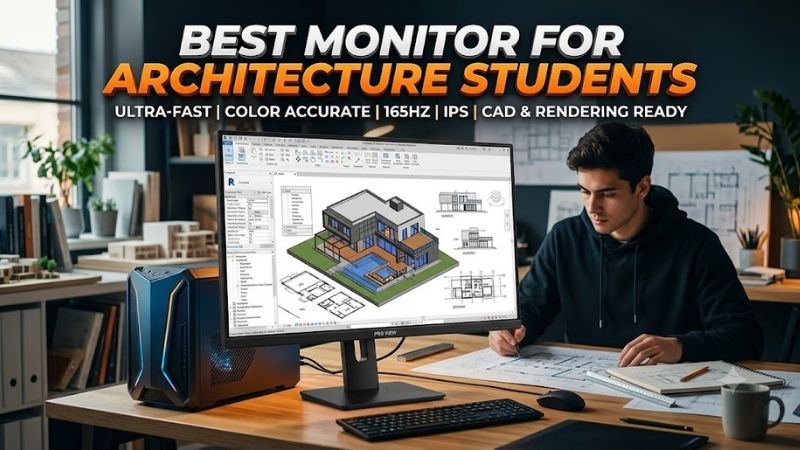
View on AmazonThe best monitor for architecture students should make drawings, renders, photos, and long CAD sessions easier to manage without wasting desk space. For most students, a 27-inch 4K IPS display is the sweet spot, while 32-inch models suit larger studios. Color accuracy, USB-C, ergonomics, and sharp text matter most.
Quick answer: For most people in 2026, the best monitor for architecture students is the ASUS ProArt PA279CRV — our #1 rated choice. See the full ranked comparison, alternatives and buying advice below.
Best Monitors for Architecture Students Compared
Architecture work mixes precise line drawings, BIM interfaces, image editing, presentations, and occasional rendering. That makes resolution and screen size more important than extreme refresh rates. A good student monitor should also handle multiple windows cleanly, connect easily to a laptop, and remain comfortable through long studio sessions.
| Monitor | Screen | Resolution | Color Coverage | USB-C Power | Best For |
|---|---|---|---|---|---|
| ASUS ProArt PA279CRV | 27-inch IPS | 3840 x 2160 | 99% DCI-P3, 99% Adobe RGB | 96W | Best overall |
| Dell UltraSharp U2723QE | 27-inch IPS Black | 3840 x 2160 | 100% sRGB, 98% DCI-P3 | 90W | Laptop desk hub |
| BenQ PD2705U | 27-inch IPS | 3840 x 2160 | 99% sRGB, 99% Rec.709 | 65W | CAD and BIM |
| BenQ PD3205U | 32-inch IPS | 3840 x 2160 | 99% sRGB, 99% Rec.709 | 90W | Large workspace |
| ASUS ProArt PA278QV | 27-inch IPS | 2560 x 1440 | 100% sRGB, 100% Rec.709 | No | QHD alternative |
ASUS ProArt PA279CRV — Best Overall
The ASUS ProArt PA279CRV is the strongest all-round fit because its 27-inch 4K IPS panel combines high pixel density with wide-gamut color. ASUS lists 99% DCI-P3, 99% Adobe RGB, Calman verification, and factory calibration to Delta E below 2, which suits drawings, presentation boards, and visual work.
Its USB-C port carries DisplayPort video, data, and up to 96W of power, so many compatible laptops can run through one cable. DisplayPort daisy chaining, HDMI, a USB hub, and a fully adjustable stand add practical value. The main trade-off is a 60Hz ceiling, which is fine for CAD but not aimed at high-refresh gaming.
Best For: Students balancing CAD, BIM, rendering, Adobe work, and presentations.
Key Features:
- 27-inch 4K UHD IPS panel
- 99% DCI-P3
- 99% Adobe RGB
- Delta E < 2
- Calman Verified
- USB-C with 96W Power Delivery
- DisplayPort daisy chaining
- Height, tilt, swivel, and pivot adjustment
What Makes It Different: Wide Adobe RGB and DCI-P3 coverage combined with 96W USB-C charging.
Pros:
- Sharp 4K workspace
- Strong color specifications
- High-power USB-C
- Flexible ergonomic stand
- Useful multi-monitor connectivity
Cons:
- Limited to 60Hz
- Creative-work features may be unnecessary for basic drafting
Use Case: Revit or AutoCAD beside reference material, Photoshop presentation boards, Rhino modeling, and architectural visualization.
Who It’s For: Architecture students wanting one monitor that can cover most coursework without specializing too heavily in one application.
Dell UltraSharp U2723QE — Best for Connectivity
The Dell UltraSharp U2723QE is especially useful for students who want one monitor to act as a desk hub. Its 27-inch 4K IPS Black panel runs at 60Hz and Dell specifies 100% sRGB, 100% Rec. 709, and 98% DCI-P3 coverage. The 2000:1 rated contrast also helps dark interfaces look less washed out than many standard IPS screens.
Connectivity is the U2723QE’s biggest advantage. It supports USB-C with up to 90W power delivery, DisplayPort output, HDMI, and a broad USB hub, making it easier to connect storage, keyboards, and other desk devices. That is useful in dorms or studios where a laptop replaces a desktop, though the monitor has no built-in speakers.
Best For: Students building a clean single-cable laptop workstation.
Key Features:
- 27-inch 4K IPS Black panel
- 163.18 PPI
- 2000:1 rated contrast
- 100% sRGB
- 98% DCI-P3
- USB-C with 90W Power Delivery
- DisplayPort output
- Integrated USB hub
What Makes It Different: Extensive docking-style connectivity combined with an IPS Black panel.
Pros:
- Strong connectivity
- High pixel density
- Useful USB-C charging
- Higher specified contrast than conventional IPS options
- Good fit for multi-device desks
Cons:
- No built-in speakers
- 60Hz refresh rate
Use Case: Connecting a laptop, storage devices, keyboard, mouse, and external accessories while keeping CAD and documentation on one 4K desktop.
Who It’s For: Students who regularly move a laptop between campus and home and want the monitor to replace a separate dock.
BenQ PD2705U — Best for CAD and BIM
The BenQ PD2705U is a focused 27-inch 4K option for architecture students who spend much of their time in CAD, BIM, and design software. BenQ lists a 3840 x 2160 IPS panel, 99% sRGB and 99% Rec.709 coverage, plus dedicated CAD/CAM, Animation, Darkroom, sRGB, and Rec.709 display modes for varied project work.
Its workflow features separate it from more general office monitors. The PD2705U includes a KVM switch, DualView, PIP/PBP, Hotkey Puck G2, and USB-C carrying video, data, and up to 65W power. That makes switching between a laptop and another computer convenient, but 65W may be insufficient for some performance laptops under heavy load.
Best For: CAD-heavy architecture courses and multi-computer workflows.
Key Features:
- 27-inch 4K IPS panel
- 99% sRGB
- 99% Rec.709
- CAD/CAM mode
- DualView
- KVM switch
- PIP/PBP
- USB-C with 65W Power Delivery
- Hotkey Puck G2
What Makes It Different: Dedicated CAD/CAM and workflow modes designed around creative and technical software.
Pros:
- Architecture-relevant display modes
- Sharp 4K resolution
- Built-in KVM
- Flexible input management
- USB-C connectivity
Cons:
- 65W charging offers less headroom than 90W or 96W models
- 60Hz refresh rate
Use Case: AutoCAD drawings, BIM models, technical diagrams, Photoshop layouts, and switching between a personal laptop and studio workstation.
Who It’s For: Students who care more about CAD-focused workflow tools than wide-gamut photographic color.
BenQ PD3205U — Best 32-Inch Monitor
The BenQ PD3205U is the 32-inch choice for students who want more physical workspace for floor plans, elevations, tool palettes, and references. It keeps 4K resolution but spreads it across a larger panel, so interface elements appear larger at the same scaling. BenQ also includes CAD/CAM mode, DualView, KVM, and PIP/PBP.
USB-C supports DisplayPort Alt Mode, data, and up to 90W power delivery, which fits many mobile workstations and creator laptops. The stand supports height, tilt, swivel, and pivot adjustments, while the Hotkey Puck G2 speeds mode changes. The trade-off is desk footprint: a 32-inch display needs more viewing distance than a 27-inch model.
Best For: Large floor plans, BIM interfaces, and students with spacious desks.
Key Features:
- 32-inch 4K display
- 99% sRGB
- 99% Rec.709
- CAD/CAM mode
- KVM switch
- DualView
- PIP/PBP
- USB-C with 90W Power Delivery
- Height-adjustable stand
What Makes It Different: A larger 32-inch canvas without abandoning the design-oriented features of BenQ’s PD series.
Pros:
- Large physical workspace
- CAD/CAM display mode
- 90W USB-C
- KVM and multi-view features
- Strong ergonomic adjustment
Cons:
- Requires more desk depth
- Lower pixel density than 27-inch 4K
- More difficult to fit in compact dorm setups
Use Case: Viewing large architectural sheets while keeping properties panels, layers, references, or rendering controls visible.
Who It’s For: Students with enough desk space who prefer larger interface elements and less frequent window switching.
ASUS ProArt PA278QV — Best QHD Alternative
The ASUS ProArt PA278QV is a sensible QHD option when 4K is not essential. Its 27-inch IPS panel uses 2560 x 1440 resolution, covers 100% sRGB and 100% Rec.709, and is factory calibrated to Delta E below 2 according to ASUS. At 109 pixels per inch, text is less dense than 27-inch 4K but still sharper than 1080p.
It also reaches 75Hz and supports Adaptive-Sync from 48 to 75Hz, giving scrolling and light gaming a slightly smoother feel than the 60Hz 4K options here. The stand offers height, tilt, swivel, and pivot adjustment. Its main limitation for modern laptop desks is the lack of USB-C video and charging, so a separate charger or dock is usually needed.
Best For: Students who prefer QHD resolution or do not need USB-C docking.
Key Features:
- 27-inch QHD IPS panel
- 2560 x 1440 resolution
- 100% sRGB
- 100% Rec.709
- Delta E < 2
- 75Hz refresh rate
- Adaptive-Sync
- Ergonomic stand
What Makes It Different: A design-focused QHD panel with slightly higher refresh than most 4K productivity models.
Pros:
- Accurate stated color coverage
- 75Hz refresh rate
- Lower graphics workload than 4K
- Fully adjustable stand
- Broad legacy and modern display connectivity
Cons:
- No USB-C video or charging
- Less workspace density than 4K
Use Case: AutoCAD, SketchUp, Adobe applications, research, documentation, and occasional gaming on the same computer.
Who It’s For: Students whose laptop handles QHD more comfortably than 4K or who already use a separate dock and charger.
How to Choose a Monitor for Architecture School
Resolution: 4K vs QHD
For architecture coursework, 4K is most useful when you keep toolbars, drawings, PDFs, and reference images open together. On a 27-inch screen, 3840 x 2160 produces very fine text and line detail, although Windows or macOS scaling is often needed. QHD remains workable if budget or GPU load matters more than maximum desktop density.
27-Inch vs 32-Inch
A 27-inch monitor is easier to place on a small desk and keeps a comfortable viewing distance in dorm rooms or shared studios. A 32-inch panel gives plans and 3D views more physical room, which can reduce constant zooming. The trade-off is space: larger screens need a deeper desk and may feel oversized when viewed from too close.
Color Accuracy and Gamut
Architecture students do not always need a print-proofing display, but reliable color still matters for renders, diagrams, photography, and presentation boards. Look for stated sRGB coverage and factory calibration when available. Wider DCI-P3 or Adobe RGB coverage is useful for visual work, but only if your software workflow supports it.
USB-C Power Delivery
USB-C can simplify a student desk by carrying video, data, and laptop charging through one cable, but the power rating matters. A 65W monitor may keep thin laptops charged yet fall short of some mobile workstations during rendering. Models offering 90W or 96W provide more headroom, though you should still check your laptop’s charging requirement.
Ergonomics and VESA Support
Long studio sessions make ergonomics more important than cosmetic design. Height adjustment helps place the top of the screen near eye level, while tilt and swivel make shared reviews easier. Pivot can be useful for tall drawings or documents. If the included stand is limited, VESA support lets you add an arm later and reclaim desk space.
FAQ
What monitor size is best for architecture students?
For most architecture students, 27-inch 4K is the most balanced choice because it provides sharp linework, dense workspace, and manageable desk size. It gives more room for AutoCAD, Revit, Rhino, SketchUp, Adobe apps, and browser references without making the monitor dominate a compact study area or shared desk.
Do architecture students need a gaming monitor?
You do not need a gaming monitor for architecture school unless gaming is also a major use case. CAD and BIM benefit more from resolution, color consistency, screen size, and connectivity than from 144Hz or higher refresh rates. A 60Hz or 75Hz IPS monitor is usually enough for design work, presentations, and general productivity.
Is a 4K monitor worth it for architecture students?
A 4K monitor is helpful for architecture students, especially when working with detailed drawings, large interfaces, and multiple windows, but it is not mandatory. QHD on a 27-inch screen remains practical and can reduce cost and graphics load. The better choice depends on desk size, laptop performance, scaling preference, and budget.
Is USB-C important on an architecture monitor?
USB-C is worth prioritizing if you use a compatible laptop and want fewer cables on your desk. One connection can carry the display signal, USB data, and power, depending on the monitor. Check the wattage before buying: 90W or 96W is more suitable for demanding laptops than 65W, although some workstations still require their own charger.
Conclusion
The best monitor for architecture students depends on desk space and workflow, but the ASUS ProArt PA279CRV offers the most complete 27-inch package here with 4K detail, wide-gamut color, strong calibration, USB-C power, and flexible ergonomics. Choose the Dell for hub features, BenQ for CAD tools, or the PA278QV if QHD is enough.
Ready to decide? Our #1 pick for 2026 is the ASUS ProArt PA279CRV.
Live price & availability on Amazon.