🛒 Best Price Today on Amazon
Prime members get fast, free shipping on everything above, plus member-only deals. New members get a 30-day free trial — cancel anytime.
A desktop VR headset is not really a choice about the headset alone. It is a choice about how the headset talks to your PC, how much work it asks of your graphics card, and whether your room can hold the tracking setup it needs. A wired DisplayPort headset gives you a clean, low-latency image but ties you to your desk, while a wireless headset frees you from the cable and leans on your home network instead. Get that trade-off wrong and even a sharp headset will feel like a compromise every time you put it on.

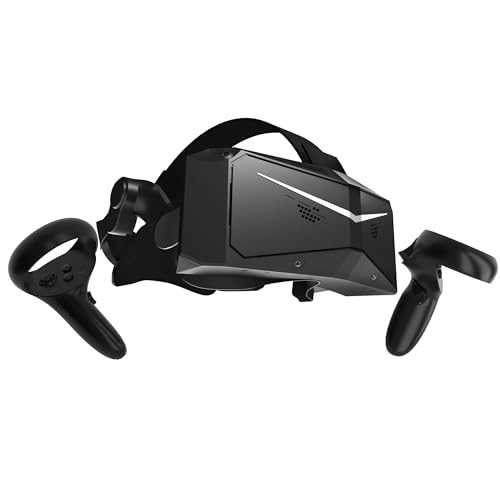
This guide is for PC gamers, flight and racing sim drivers, and anyone building a VR setup around a desktop they already own. Every headset below connects to a Windows desktop for PC VR, and each one was picked from the name and specifications shown on its Amazon listing, with the connection method spelled out so you know exactly what else your desk needs before you buy.
Quick Picks
As an Amazon Associate we earn from qualifying purchases
| Product | Best for | Key spec from title |
|---|---|---|
| Meta Quest 3 512GB | First desktop VR headset and mixed standalone plus PC use | 4K+ Infinite Display, pancake lens, Snapdragon XR2 Gen 2 |
| HTC Vive Pro 2 Full Kit | Room-scale SteamVR with external tracking | 5K resolution, 2448 x 2448 per eye, up to 120 Hz |
| Pimax Crystal Light | Seated simulators where image sharpness matters most | 2880 x 2880 per eye, 8K QLED display with local dimming |
How to Choose
Wired DisplayPort or wireless streaming
The connection decides how your headset behaves more than any single specification on the box. A native DisplayPort connection, like the one on the Vive Pro 2 and the Crystal Light, sends the image straight from your graphics card to the headset, which keeps latency low and the picture stable. A wireless headset such as the Quest 3 connects through a USB-C Link cable or over Wi-Fi with Air Link, so you trade a cable for freedom of movement and a reliance on your router. Before you choose, look at the back of your PC for a free DisplayPort output and check whether your router sits in the same room as your play space.
Resolution, lenses and field of view
Resolution per eye decides whether distant objects and cockpit instruments stay readable, and it matters far more in VR than on a flat monitor because the panel sits centimetres from your eyes. The headsets in this guide range from the Quest 3 with its 4K+ Infinite Display to the Crystal Light at 2880 x 2880 pixels per eye, and the gap shows up first in text, gauges and faraway scenery. Lenses matter just as much: pancake lenses give a wider clear area than older Fresnel designs, so you spend less time hunting for the sharp spot. Field of view sets how much of the world you see without turning your head, and a wider view suits driving and flight sims.
Tracking: inside-out cameras or external base stations
Tracking decides how much hardware your room has to hold and how reliably the headset follows your hands. Inside-out tracking uses cameras built into the headset, so the Quest 3 and the Crystal Light need nothing mounted on your walls and set up in minutes, which suits a shared room. External base station tracking, used by the Vive Pro 2 full kit, places sensors around the room and follows the headset and controllers with fewer blind spots, which helps when you reach behind your back. The trade is permanence: base stations need power outlets and a clear line of sight, while inside-out tracking can briefly lose a controller when your hands leave the cameras’ view.
Match the headset to your graphics card and your head
Every headset in this guide asks your graphics card to render two high-resolution images at once, and the sharper the headset, the heavier that job becomes. A headset at 2880 x 2880 pixels per eye needs a far stronger card than one running at lower resolution, so check the recommended graphics card on the listing and compare it honestly with the card already in your desktop before you order. Comfort is the second half of the same decision: a front-heavy headset presses on your forehead during long sessions, and glasses wearers need room inside the facial interface. Read the listing for the included strap, the weight and the glasses spacer before you buy.
The 3 Best Options
Meta Quest 3 512GB
The Quest 3 is the easiest way into desktop VR because it works two ways: on its own as a standalone headset, and connected to your PC through a USB-C Link cable or wirelessly over Air Link. That flexibility suits a first buyer who is not ready to commit their whole setup to one tracking system or one store, since the same headset runs standalone titles in the living room and SteamVR titles from the desktop. Its pancake lenses keep the image clear across more of the view than older lens designs, and the 512GB of storage leaves room for a large standalone library alongside PC titles.
Specs
- 4K+ Infinite Display with pancake lenses
- Snapdragon XR2 Gen 2 processor
- 512GB storage
- Touch Plus controllers included
- Connects to PC via Quest Link cable or Air Link wireless streaming
Best for: First-time desktop VR buyers who also want standalone use without extra tracking hardware.
Watch out for: The Link cable is a separate purchase, and wireless PC VR depends on a strong router in the same room, so check both before you count on cable-free play.
HTC Vive Pro 2 Full Kit
The Vive Pro 2 full kit is the room-scale option for buyers who want SteamVR tracking done properly and are willing to mount hardware to get it. The box holds the headset, two controllers and two base stations, so nothing else is needed to start, and the external tracking follows your hands through reaches and crouches that inside-out cameras can miss. Its dual LCD panels run at 2448 x 2448 pixels per eye with a refresh rate up to 120 Hz, which keeps fast head movement smooth, and the wired DisplayPort connection keeps the image steady without leaning on your network at all.
Specs
- 2448 x 2448 pixels per eye, dual LCD panels
- Refresh rate up to 120 Hz
- 120-degree field of view
- SteamVR base station tracking with two base stations included
- Wired DisplayPort and USB connection to the PC
- Built-in Hi-Res headphones with 3D spatial sound
Best for: Dedicated VR rooms and SteamVR players who want the most reliable controller tracking.
Watch out for: The base stations need wall or shelf mounts and power outlets, and the headset needs a free DisplayPort output on your graphics card, so measure your room and check your ports first.
Pimax Crystal Light
The Crystal Light is built for seated play where reading the image matters more than walking around a room, which is why flight sim and racing sim drivers keep coming back to it. Its 2880 x 2880 pixels per eye QLED display with local dimming renders cockpit dials, dashboard text and distant track details with a clarity the other headsets here cannot match, and the DisplayPort connection feeds that image straight from your graphics card. Inside-out tracking means there are no base stations to mount, so the setup stays simple even though the image quality sits at the top of this guide.
Specs
- 2880 x 2880 pixels per eye, 8K QLED display with local dimming
- Refresh rate up to 120 Hz
- Inside-out tracking, no base stations required
- Wired DisplayPort connection to the PC
- SteamVR platform compatibility
- Glass aspheric lenses
Best for: Flight and racing sim drivers who sit at a desk and want the sharpest cockpit image.
Watch out for: That resolution demands a strong graphics card, and the headset is heavier than the others here, so confirm your card and try the fit with your glasses before long sessions.
Which One Fits Your Situation
You are buying your first desktop VR headset
Pick the Meta Quest 3 512GB. It needs no base stations, sets up in minutes, and lets you play standalone titles as well as PC VR through the Link cable or Air Link. That flexibility matters when you are still learning which kind of VR you actually play, and the 512GB model leaves room to grow without managing storage from day one.
You mostly fly or drive in simulators
Pick the Pimax Crystal Light. Seated sims reward resolution above everything else, and its 2880 x 2880 per-eye display makes instruments and distant scenery readable in a way the other headsets here do not match. The wired DisplayPort connection keeps the image stable through long sessions, and inside-out tracking is all a seated setup needs.
You have a dedicated VR room and play SteamVR
Pick the HTC Vive Pro 2 Full Kit. The two base stations track the headset and controllers across the whole room with fewer blind spots than camera-based tracking, and the full kit arrives complete with everything the room needs. The 120 Hz refresh rate and wired connection suit fast room-scale games where tracking dropouts break the experience.
You want one headset for standalone play and the desktop
Pick the Meta Quest 3 512GB. It is the only headset in this guide that runs on its own without a PC, then connects to the desktop when you want the bigger SteamVR library. Keep a Link cable and a good router on hand so both connection methods are ready, and you will not need a second headset for the two jobs.
Common Mistakes
- Buying a DisplayPort headset without checking for a free DisplayPort output on your graphics card, then discovering the only spare port is HDMI.
- Choosing the sharpest headset in the guide while running a graphics card that cannot hold its native resolution, which forces blurry downscaling.
- Mounting base stations in a room with mirrors, glass doors or bright windows in their line of sight, then blaming the headset for tracking jumps.
- Expecting wireless PC VR to work well through walls or on a router two rooms away from the play space.
- Skipping the glasses spacer or fit check, then finding the lenses press on your frames during every session.
Frequently Asked Questions
Can a standalone headset work as a desktop VR headset?
Yes, if it supports a PC connection. The Quest 3 in this guide connects to a desktop through a USB-C Link cable or wirelessly with Air Link, which lets it run SteamVR titles from your PC. A standalone-only headset with no PC mode would not belong in a desktop setup, so confirm the connection method on the listing before you buy.
Do I need base stations for desktop VR?
Not always. Headsets with inside-out tracking, such as the Quest 3 and the Crystal Light, use cameras on the headset itself and need nothing mounted in the room. Base stations, included with the Vive Pro 2 full kit, give more reliable tracking across a large room but need mounts, power outlets and a clear line of sight.
What graphics card do I need for PC VR?
It depends on the headset’s resolution, and the sharper the display, the stronger the card it needs. Check the recommended graphics card on the listing for the headset you want, then compare it with the card in your desktop. A card below the recommendation will still run VR, but it will lower resolution and detail to keep the frame rate steady.
Is a wired or wireless connection better for desktop VR?
A wired DisplayPort connection gives the most stable image with the lowest latency, which suits simulators and fast games. Wireless streaming through a Link cable or Wi-Fi gives freedom of movement but depends on cable quality or router strength. If your desk and play space are in the same room, wired is the safer default, while wireless suits buyers who move around a lot.