🛒 Best Price Today on Amazon
Prime members get fast, free shipping on everything above, plus member-only deals. New members get a 30-day free trial — cancel anytime.
- Where should you start when people cannot hear you?
- How do you restore the receiver or headset connection?
- How do you fix permissions, apps, and poor microphone quality?
- How do you diagnose a microphone that works only part of the time?
- What can you do if the problem survives the basic checks?
- Conclusion
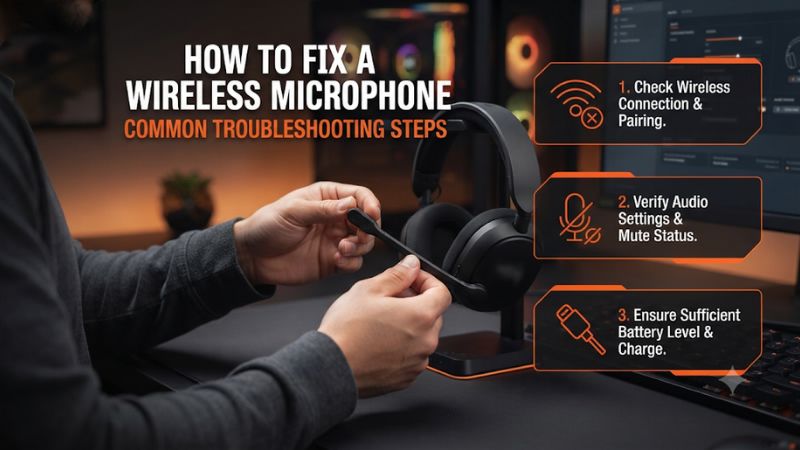
Start by unmuting the headset and selecting the BlackShark microphone under Input in Windows Sound settings. The fastest way to learn how to fix a Razer BlackShark wireless microphone is to watch the input meter while you talk. A moving meter points to the app or its settings. A silent or missing meter calls for a hardware and connection check.
Where should you start when people cannot hear you?
Check physical mute and the microphone connection
Press the headset’s microphone mute control once if it is muted. Locate the control using the guide for your exact model, since indicator behavior varies.
Disconnect and firmly reinsert a detachable boom, aligning it as indicated by the manufacturer. If the boom is fixed, leave it installed and verify its position and the mute button.
Put the headset on and turn the inward-facing side of the boom toward the corner of your mouth. A loose or reversed microphone can be difficult to diagnose from the receiving end. Speak at an ordinary level instead of shouting into it while you test.
If you are running a BlackShark V3 Pro, Razer recommends the mic symbol face your mouth and sit roughly an inch away. Use the guidance for the version you own when the connector or boom markings differ. A compatible microphone from the correct model is the sensible substitution if you later suspect a faulty boom.
Select the headset as Windows input and start a test
In Windows 11, open Settings, then System, then Sound, and find Input. Select the microphone that belongs to the BlackShark receiver or current connection.
Open its properties and use the microphone test if available. Watch the main input meter as you speak and play the recorded sample when the test interface offers one.
- Find a moving meter. Speak for several seconds. If the meter reacts to full words at your normal level, make a short recording to establish that Windows is receiving audio.
- Check which device is moving. Tap near the headset boom, then move away from the webcam or laptop microphone and try again. This helps confirm the meter is responding to the BlackShark you selected.
- Separate a missing device from quiet input. Scan the input list for the headset. A listed device with a silent meter needs a different check from a device that never appears.
- Confirm the app device. If Windows hears you, choose the same microphone inside your call or game. Test it there before changing drivers or reconnecting hardware.
On Windows 10, find the input device and its test under Settings and Sound. Interface names can vary with Windows updates, so use the device name and the live level as your anchors. If two similarly named routes appear, reconnect the receiver and observe which entry returns.
Decide whether silence affects one app or the whole PC
If a local recording is clear, stop changing the hardware and focus on the application that fails. A game, Discord, OBS, or a browser can each use its own input setting. A virtual microphone from mixing or noise removal software can also become the selected input while listening to the wrong underlying device.
If the Windows recording is silent too, establish direct headset input first. Close applications running microphone tests or aggressive processing, unmute the headset, and move to receiver checks. Avoid changing several settings at once, since a later recovery will be harder to reproduce.
| What you observe | First thing to verify | Useful confirmation |
|---|---|---|
| Windows input is missing | Receiver, power, mode, and correct model | Input appears after reconnecting |
| Input exists but the meter stays flat | Mute, boom seating, input level, and permissions | Live meter reacts to normal speech |
| Windows records but Discord stays silent | Selected Discord device, mute, and voice activation | Discord mic test plays your voice |
| Original speech is clear but processed speech cuts out | Gate, suppression, or virtual input | Direct-device recording stays intact |
| Game audio or mic drops when a phone call starts | Simultaneous audio and mic routing | Test again with Bluetooth disconnected |
| Voice and playback cut out at the same time | Receiver placement and connection stability | Both remain steady on a direct USB port |
How do you restore the receiver or headset connection?
Identify the exact BlackShark and its supported modes
Read the model label and note whether the headset is a BlackShark V2 Pro, V2 HyperSpeed, V3, V3 Pro, or another wireless variant. Check for an Xbox, PlayStation, or PC version where the family offers one. Model identity matters because some receivers and firmware tools differ, and Bluetooth is not present on every older unit.
Start with the supplied 2.4 GHz receiver for PC gaming if your model uses one. Establish one connection without a phone call running.
Turn Bluetooth off temporarily if you are not using it to test. The point is to see whether the receiver path reliably carries the microphone before bringing another source into the setup.
If the receiver has a platform selector, use the position documented for PC or for the console attached to it. A USB dongle fitting a physical port is not proof that the console supports its audio or its microphone. Verify compatibility before treating silence as a headset defect.
Reconnect from a direct USB port
- Charge and power on the headset. Wait for it to connect normally. Confirm that any playback you hear belongs to the receiver rather than a paired phone.
- Use a direct port for the test. Unplug the receiver from a hub, dock, or extension, then try a direct computer port. Allow a moment for Windows to enumerate the audio device.
- Watch the input list. If the BlackShark input reappears, test it immediately with a recording and leave the port configuration in place for a longer call.
- Check the link when devices blink or drop. Bring the headset closer to the receiver and test again. Use an included extension where supported to move the receiver into a clearer position if the direct link worked only at short range.
A working output device and a missing input are different findings. Go to both the Windows output list and the input list after reconnecting. If the output appears but the microphone does not, confirm that you are on a mode that offers capture and that the headset is still connected via the intended receiver.
If the device never appears in either list on two ports, try a second supported computer before removing drivers on the first. Test over the supplied receiver there as well. A successful result on the second machine narrows the problem to the first machine’s port, Windows setup, or software.
Test Bluetooth and other supported modes separately
If the model supports Bluetooth, test its microphone in a short call with the headset selected as the call device. Bluetooth music playback working by itself only confirms a playback path. A computer may change to a hands-free audio profile when the mic opens, which can change how the game or call sounds.
If your V3 Pro is using simultaneous 2.4 GHz and Bluetooth, end the phone call and retest the game mic on the receiver alone. Razer documents that incoming Bluetooth calls can take microphone priority when simultaneous audio is in use. If the mic returns after ending the call, investigate the routing behavior before reinstalling anything.
Some versions also offer USB audio or an analog headset connection. Use those for comparison only if the exact model supports audio and microphone on that path.
A USB charging cable can supply power on a headset without providing an audio connection. A separate headphone-only jack will not capture the boom.
How do you fix permissions, apps, and poor microphone quality?
Allow the microphone in Windows and in the app
In Windows 11, open Settings, then Privacy & security, then Microphone. Confirm microphone access is on, allow apps to access the microphone, and check desktop app access when using software such as Discord or a browser. If you use a Store app with an individual switch, verify its own permission.
Allow the site to use the microphone if you are joining through a browser. Open its site permissions and confirm the intended input in the calling app after refreshing. A successful Windows test and a silent browser call often point to one of those two settings.
Managed PCs can restrict access to microphone settings. If a switch cannot be changed on a work device, verify the headset on another supported machine or use the approved administrator process. If a school or work browser selection is locked, check whether the device works in an approved desktop call or in the operating system’s test.
Fix Discord, OBS, or game chat one at a time
In Discord, open Voice & Video, set Input Device to the BlackShark microphone, and run the microphone test. Check that you are unmuted and understand whether Voice Activity or Push to Talk is active. If the test works and a channel fails, check channel, server, or push-to-talk conditions before changing the Windows input.
In OBS, watch the meter for the specific mic source. If the source is silent but Windows works, check the selected input or replace an outdated device selection in settings. If the meter moves and your recording still has no voice, verify source mute, output-track assignment, and the track your player is listening to.
A game can use system default communications settings or a manually chosen device. Select the intended mic, restart the game’s voice session if needed, and ask someone to confirm a full sentence. If a local test works and only team chat fails, check push-to-talk, party privacy, and voice chat permissions.
Raise speech level before adding aggressive processing
Record your ordinary speaking voice close to the boom. If the signal is too quiet, check the device’s input volume and any mic level setting exposed in Synapse for your model.
Adjust in small increments. Exaggerated gain can make room noise obvious and can distort louder speech before the application has a chance to correct it.
- For words that disappear, temporarily lower a voice activation threshold or disable a noise gate. Repeat the same phrase slowly and quickly.
- For distorted peaks, lower the input level and recheck boom position. Compare with a recording made without extra app effects.
- For buzzing or interruptions, test directly through the receiver and then compare a different port. If playback and capture fail together, look at the wireless link first.
- For doubled or delayed speech in your ears, check Synapse mic monitoring and any recording software monitoring. Disable one monitoring path and see whether teammates still hear a clean direct signal.
Sidetone is the sound of your own voice played back into the headset. It can help you speak naturally, and it does not prove your friends receive that same signal. Use a local recording or ask someone in a call to verify the outgoing audio separately.
Compare direct input with Synapse and virtual routes
Open the model’s supported Razer utility and check any microphone level, mute, or processing controls it exposes. Record one sample with your usual processing and another with a simpler configuration. Check the source selected in Windows and the app each time so the comparison follows the same device.
If you use a virtual microphone, first prove the BlackShark itself works as a direct input. Then point the virtual device to it and confirm the virtual route in a second recording. Virtual devices can persist across hardware changes while retaining an expired input assignment.
Keep the smallest set of adjustments that solves the problem. If a particular setting causes clipped words only in games, restore the stable baseline and test the app’s own controls. Save the settings that actually improved the input so a later update or default-device change is easier to recover from.
How do you diagnose a microphone that works only part of the time?
Reproduce the problem after sleep or a device change
Record a sentence before putting the headset or computer to sleep. Wake both normally and record the same sentence again.
If the second recording is silent, open Windows Sound and check whether the selected input has shifted to a webcam or another device. Then look at the app’s input selector because it can remember an earlier endpoint even after Windows has chosen the headset again.
If the system keeps the wrong default, choose the BlackShark explicitly in your most important applications. Open and close each app once around a normal receiver reconnect.
If Windows sees the headset as soon as it wakes but the app does not, restarting that app may restore capture without resetting the headset. Keep the result as a clue when you check for updates.
A problem that appears after docking a laptop also deserves a connection test. Run one session with the receiver directly connected before attaching the dock.
Then repeat in your usual configuration. If an input vanishes only when the dock goes to sleep, moving the receiver can be a lasting fix.
Separate a wireless dropout from speech clipping
Start a local recording and speak in an ordinary voice for about a minute, leaving a few pauses. At the same time, play a familiar sound through the headset.
Note whether playback drops along with your spoken audio. A simultaneous interruption points toward the receiver or connection, while a present playback signal and lost syllables can point to capture or processing.
If the ends of your words disappear, turn off voice gating temporarily and record again. If both recordings contain the full words and only the call fails, compare the call software’s input mode and suppression. If a syllable disappears in every direct recording and you can also hear a wireless interruption, retest from a closer position and a direct port.
Repeat with phone Bluetooth disconnected if you sometimes hear a call notification at the same time. A short test without the second source can isolate routing from reception. Add the second source back after the headset is stable.
Rebuild a voice profile after the direct microphone works
Once the direct signal is clear, restore tools such as equalization, automatic gain, or background suppression one at a time. Capture the same sentence after each change and keep its level roughly consistent. A voice that sounds louder may seem clearer in a quick comparison even when its consonants are less intelligible.
If a feature drops softer words, back off its threshold or remove that processing layer. Use one noise reduction path initially when Synapse and the voice app each offer one.
Retest while typing or while a friend speaks through the headset. A profile that only sounds good in silence can fail when you return to a busy call.
Save the working input names and note the receiver port. If Windows or an app renames the input after an update, you can identify the right microphone with a live recording and restore the profile without taking the headset apart.
What can you do if the problem survives the basic checks?
Update or pair the correct model only when indicated
Check Razer support for firmware and pairing instructions for your exact headset and receiver. If an update applies, follow its documented power and connection requirements.
Some updaters expect the receiver and headset to be connected in a particular order. Reopen the Windows test when the process completes.
Use a supported pairing utility if the headset will not reconnect to the matching receiver and the model guide recommends it. Pairing concerns the link between the headset and its dongle. It will not repair an application that has the wrong input selected after Windows is already recording clearly.
If the failure began after a Windows update, repeat the simplest setup first. Check microphone permissions, default input, and whether the exact device appears after a restart. Remove or reinstall a driver only after following model guidance or troubleshooting a reproducible Windows-side issue.
Confirm the console path if it is the only failing device
On a supported PS5, open the microphone settings and select the headset input. Check console mute and adjust the microphone level with your party disconnected if necessary.
Verify the controller mute control has not silenced your chat path. If a local input meter moves, test inside a party before assuming the headset fails.
On Xbox, use the connection documented for the Xbox-compatible edition, including the correct receiver mode if applicable. Verify party or game chat and account privacy settings separately. A compatible headset that works in party chat and fails only in a particular title points to the title or its permissions.
For either console, reproduce the issue with Bluetooth disconnected if you normally pair a phone. That lets you evaluate one route cleanly. Once you have a working session, restore the phone connection and see whether a call changes microphone priority.
Document a fault before replacing a boom or headset
If the same microphone fails on two supported devices with a sound receiver link, hardware mute off, and the boom seated, record which paths you tested. Note the full model, receiver behavior, firmware, and what the input meter showed. A support request with that evidence is easier to assess than a report that the headset is silent.
Use warranty support or a known-compatible replacement boom when the evidence points to a detachable microphone fault. If sound output also drops or the headset never appears over its receiver, suspect the link or power before buying a replacement boom. A short test with another supported method can help separate those cases.
After a fix, restart the machine or reconnect from sleep and repeat the recording once. Open the application you usually use and verify that it retains the device selection. The result you want is a working microphone after an ordinary session starts, with no special settings ritual each time.
Conclusion
Unmute the BlackShark, check the boom and intended wireless route, and test the correct Windows input. A clear local recording tells you to check the failing app, while a missing or silent input sends you back to the receiver, capture permissions, or hardware. When the fault follows the headset across supported devices, document the tests and use firmware, pairing, or warranty guidance for the exact model.