🛒 Best Price Today on Amazon
Prime members get fast, free shipping on everything above, plus member-only deals. New members get a 30-day free trial — cancel anytime.
Learn how to change mic sidetone on Corsair HS80 Max by connecting the USB receiver to your PC, lowering the mic boom, and opening the headset in iCUE. Adjust the Sidetone slider while you speak. If it stays grayed out with the mic unmuted, turn off Spatial sound for the headset output and test again.
Change HS80 Max sidetone in iCUE
Sidetone feeds a little of the headset microphone back into the earcups. Use it to hear your own voice over closed-back cups and judge how loudly you are speaking. The quickest way to change it on the HS80 Max is to use the headset’s controls in iCUE with the USB receiver connected to a Windows PC and the boom lowered.
Connect the headset through its USB receiver
Plug the matching HS80 Max USB receiver into a data port on the PC. Turn the headset on and use its RF wireless mode. On the original HS80 Max, a quick press of the power button switches between receiver and Bluetooth modes. If the headset has been in Bluetooth mode for phone music, return it to the receiver route before opening iCUE.
Select the receiver-based HS80 Max as your output and microphone in Windows when testing. In Settings > System > Sound, look under Output and Input separately. A PC can remember a Bluetooth connection and still show the gaming receiver as a separate device. Choosing the same route for both parts of this test makes the result easier to interpret.
If the headset is charging, leave the receiver connected. The original HS80 Max uses its included cable for charging. The cable alone cannot replace the receiver for this setup. You can usually confirm the audio route quickly by playing a familiar sound from Windows and checking which selected output controls it.
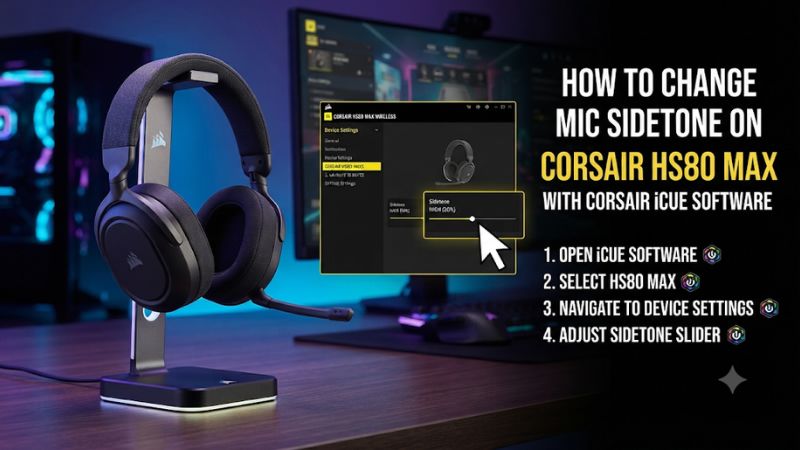
Open the headset panel and raise the Sidetone slider
- Open Corsair iCUE 5 and select the HS80 Max headset tile.
- Lower the boom until it reaches its unmuted position.
- Check the headset panel for the Sidetone slider, usually near the microphone controls at the bottom left. The layout can vary by iCUE release.
- Confirm that the microphone is also unmuted in iCUE.
- Speak at a normal level and bring Sidetone up gradually.
- Stop when you can hear your voice without it competing with the game or chat.
Use the headset tile for this step. A separate receiver tile can show connection or firmware settings. The sidetone slider belongs to the supported headset controls. If you see the receiver but cannot find the headset, confirm the headset is powered on, connected in the right mode, and within range.
If your iCUE layout differs from a screenshot you are following, look for the label Sidetone beside the headset’s microphone controls. Avoid guessing from the position of a slider alone. Changing microphone level while you mean to change local monitoring may make your teammates hear an unexpectedly loud or soft signal.
Set the level with typical game audio playing
Start with a low sidetone setting and speak in an empty room or with your usual background noise. Say a full sentence as you would in a call. Raise the level until your voice sounds natural. Then play a game at the level you actually use and repeat. A useful setting lets you judge your speaking volume while leaving room for the game and other people’s voices.
If keyboard clicks or breathing sound too loud, lower the sidetone first. Then check the boom’s position. A mic directly in front of your mouth can pick up breath more readily. Moving it to the corner of your mouth can improve both the sound you monitor and the signal heard by others. Try a short adjustment before changing any software gain.
To turn monitoring off, return the Sidetone slider to its minimum. Keep the mic unmuted if you still want to talk. Join a call or use a recording test to confirm that the microphone still sends your voice. The ability to hear yourself is separate from the microphone working as an input.
Check microphone gain and monitoring independently
The microphone volume setting changes the signal used by Windows and your voice apps. Sidetone changes how much of the mic you hear locally. If your voice sounds quiet to other people, first verify that they are hearing the HS80 Max microphone rather than a webcam or laptop mic. Then set and test the input level for that device.
A quick way to separate the controls is to record a sentence while sidetone is at minimum. Play it back, raise only sidetone, and record another sentence with the same mic position and speaking level. You should hear more local feedback while speaking with the higher setting. The recording should still use the same input gain.
If your voice app runs automatic gain control or strong suppression, its recording can vary independently of iCUE. Use the Windows input test as a baseline, then compare the app you use. Changing one place at a time helps you identify which control solved the complaint.
Fix a grayed-out or unresponsive Sidetone slider
| Symptom | First check | What the result tells you |
|---|---|---|
| Slider is gray and boom is raised | Lower the boom and check iCUE mute | The sidetone control needs an active headset microphone |
| Boom is down, but Windows gets no mic signal | Check the selected input and Windows mute | Local boom position can differ from the Windows device state |
| Slider is gray even with live mic input | Turn off Spatial sound on the HS80 Max output temporarily | Tests the conflict Corsair documents |
| Slider moves, but voice sounds delayed or doubled | Disable Windows or app monitoring while testing | Helps isolate a second monitoring route |
| No headset tile in iCUE | Check receiver, RF mode, and USB connection | iCUE needs to see the receiver-connected headset |
| Sidetone is missing on PS5 | Check where you are setting it | Corsair documents this adjustment for iCUE on PC |
Unmute the boom, iCUE, and Windows
Lower the boom and see whether the headset panel reports the microphone as active. If iCUE still shows mute, unmute it there. A working game output is not enough to establish that the mic is active. The microphone is a separate endpoint with its own selection and mute state.
Corsair documents an HS80 Max issue where Windows can retain a system-wide mute if iCUE closes or crashes while the mic is muted. That explains why lowering the boom can leave you with no input. Reopen iCUE and toggle the microphone to unmuted. If the Windows endpoint stays muted, open the selected HS80 Max input properties and unmute it there.
Speak into the boom with Settings > System > Sound open and verify the input meter moves. If another input meter responds instead, select the HS80 Max. If there is still no signal, check that the headset and receiver are paired and that the boom is fully down. Return to the sidetone slider only after you have confirmed live input.
Turn off Spatial sound on the headset output
Corsair lists Windows Spatial sound as a possible cause of an unusable sidetone control even when the mic is active. In Windows 11, open Settings > System > Sound, select the HS80 Max under Output, and set Spatial sound to Off. On Windows 10, open the selected playback device’s properties and check its Spatial sound setting.
Return to iCUE and test the slider again while speaking. If you use Bluetooth on the same PC, be sure the change applies to the receiver-based output. Turning Spatial sound off on a monitor, speaker, or Bluetooth endpoint will leave the actual headset route unchanged.
If this restores the slider, decide which setting you prefer for that Windows output. You can compare stereo and your usual spatial mode using the same game scene, then check whether the sidetone control remains available in each. Write down the combination that works so a later driver or application change is easier to identify.
Reconnect the receiver and restart iCUE if the tile is missing
Close apps that are holding a microphone test open and exit iCUE from its notification area icon. Unplug the USB receiver and plug it into a known working data port. Turn the headset off and back on in RF mode, then open iCUE and check its device list. Use a direct port when possible for this test, especially if the original connection went through a hub or monitor.
When the headset tile returns, check the mic by speaking before moving the slider again. If playback works but the tile still fails to appear, test on a second compatible USB port or Windows PC if available. This helps distinguish a local software problem from a receiver or headset issue.
If iCUE identifies a firmware update for your exact model, follow the app’s instructions. Use a stable USB port and keep the headset charged. Corsair may request a cable connection for part of the update. Use the receiver again when returning to the sidetone test, and check the active profile after the update.
Remove a second monitoring route if your voice echoes
It is possible to monitor the same microphone in iCUE and in another app. Windows’ Listen to this device setting, an OBS monitoring assignment, or an open voice app mic test can play another copy of your voice. That copy may come back later than the headset sidetone and sound like an echo.
Set iCUE sidetone to minimum and speak. If you still hear your voice electronically, review those other routes before expecting the slider to change all monitoring. Disable the unwanted monitor, then raise iCUE sidetone again. If the echo only occurs in a call, ask the other participant to mute briefly. Sound returning through another person’s speakers requires a different fix.
Check the difference between your natural voice and an electronic return. With the headset on, you will still hear your own voice through the room and your body, even with monitoring off. Compare minimum sidetone with a clearly higher level in a quiet room to see whether the electronic signal changes.
Test a clean profile before editing anything
If the microphone works and the slider still behaves oddly, test a clean or default iCUE profile. Record your current EQ, mic level, sidetone, and spatial audio setting so you can get back to them. Close the game or executable associated with your usual profile if it automatically reactivates that profile during our research.
If sidetone works in the clean profile, recreate the relevant settings in small steps. Start with the microphone and monitoring level, then add your preferred EQ and other changes. Launch the problem application and see whether it selects a different profile. A setting that disappears on game launch can point to a profile switch rather than a dead microphone.
Corsair also publishes an advanced HS80 and Void profile-file workaround for an unresponsive sidetone setting. Follow that procedure only after a live mic test, a Spatial sound comparison, and a clean profile. Back up the affected profile first. Corsair’s procedure can make a profile file read-only, so remove that flag or restore the backup if normal profile edits stop saving.
Check the platform and confirm the fix
PS5 and Bluetooth have different support
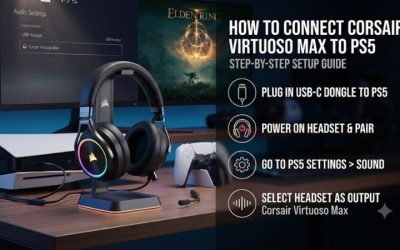
Corsair documents HS80 Max sidetone through iCUE on PC. A PS5 can use the receiver for game and chat audio on a compatible HS80 Max, but the console does not run iCUE. If your goal is adjusting how loudly other players hear you, use Settings > Sound > Microphone and adjust the console’s microphone input level. That setting controls the outgoing signal rather than the local sidetone mix.
Some PlayStation audio menus can show a sidetone control for supported headsets. The presence of that option for a different headset does not establish support for the HS80 Max. Consult the device-specific documentation for the exact console and headset version rather than carrying over instructions for another product.
For Bluetooth playback, return the HS80 Max to its receiver connection before making or verifying the iCUE adjustment. If the headset is paired to Windows over Bluetooth and you also have its receiver inserted, make sure you are testing the same headset endpoint that iCUE is controlling.
Keep the setting stable across the apps you use
After choosing a level, close any diagnostic recording app and open your usual game and chat client. Speak normally and confirm you can hear enough of your voice without hearing it twice. Make sure the other party reports a normal voice level. If the local volume is right but their signal is weak, make a small mic level change in the correct input path and compare again.
Restart iCUE or the PC if the issue originally appeared after waking or closing the app. Recheck the headset’s selected endpoint and profile. If you switch between two devices, test once after returning from Bluetooth to the receiver so you know whether you must manually choose the audio route again.
If the same issue persists, save the headset model, connection type, Windows version, iCUE version, device firmware, and whether the input meter works. Include whether Spatial sound was enabled and whether the problem also occurs in a clean profile. Those facts tell support which part of the path is working and which control still needs attention.
Conclusion
Connect the Corsair HS80 Max through its USB receiver, lower and unmute the boom, and move Sidetone in the iCUE headset panel until your own voice sounds natural while you play. If the slider stays gray, verify that Windows receives microphone input and temporarily turn off Spatial sound for the headset output. If you hear yourself at minimum sidetone, check for a second monitoring path in Windows or an app.