🛒 Best Price Today on Amazon
Prime members get fast, free shipping on everything above, plus member-only deals. New members get a 30-day free trial — cancel anytime.
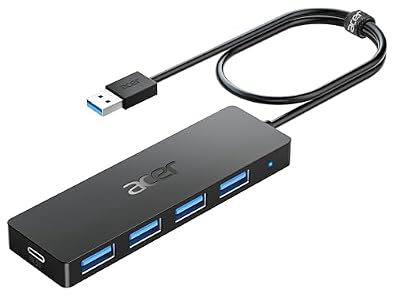
Acer USB Hub 4 Ports, Multiple USB 3.0 Hub, USBA Splitter for Laptop/PC 2FT
Included for 'Best External USB Hub: 6 Options for PCs and Laptops' because the listing specifies Multiple USB 3.0 Hub and USBA Splitter for Laptop/PC 2FT, details this guide uses to compare options.
View on Amazon
Anker USB Hub, 4-in-1 USB Splitter, 4 USB-A Ports with 5Gbps Data Transfer
Included for 'Best External USB Hub: 6 Options for PCs and Laptops' because the listing specifies 4-in-1 USB Splitter and 4 USB-A Ports with 5Gbps Data Transfer, details this guide uses to compare options.
View on Amazon
Powered USB Hub, Wenter 11-Port USB Splitter Hub (10 Faster Data Transfer Ports+ 1 Smart Charging Port) with Individual LED On/Off Switches, USB Hub 3.0 Powered with Power Adapter for Mac, PC
Included for 'Best External USB Hub: 6 Options for PCs and Laptops' because the listing specifies USB Hub 3.0 Powered with Power Adapter for Mac, details this guide uses to compare options.
View on Amazon
USB Hub 7 Port, USB Splitter with Individual On/Off Switches and Lights.
Included for 'Best External USB Hub: 6 Options for PCs and Laptops' because the listing specifies USB Splitter with Individual On/Off Switches and Lights., details this guide uses to compare options.
View on AmazonAn external USB hub makes it easier to connect keyboards, mice, flash drives, external SSDs, and other accessories when your computer has limited ports. Choosing the right model involves more than counting connections. This guide compares practical USB-A and USB-C hubs based on speed, power delivery, compatibility, and daily usability.
Quick Comparison: Best External USB Hubs
Different USB hubs solve different connectivity problems. A compact four-port adapter is useful for travel, while a powered seven-port hub works better for a permanent desktop setup. USB-C multiport hubs can additionally provide HDMI, Ethernet, and memory card connectivity when supported by the host computer.
| Product | Best For | Main Features | Main Limitation |
|---|---|---|---|
| Anker 555 USB-C Hub 8-in-1 | Best overall USB-C hub | 10Gbps data, 4K 60Hz HDMI, Ethernet | Requires compatible USB-C host |
| TP-Link UH720 | Multiple desktop accessories | Seven USB 3.0 ports, two charging ports | Requires external power |
| Sabrent HB-UM43 | Budget USB expansion | Four USB 3.0 ports, individual switches | Not ideal for power-hungry drives |
| Anker 341 USB-C Hub 7-in-1 | Laptop connectivity | HDMI, card readers, USB-A, USB-C | HDMI limited to 4K 30Hz |
| TP-Link UH700 | Powered desktop USB expansion | Seven USB 3.0 data ports | No HDMI or Ethernet |
| Sabrent 7-Port 48W Powered USB-C Hub | USB-C peripheral expansion | Seven USB-C ports, powered design | No built-in video outputs |
Best External USB Hubs Reviewed
1. Anker 555 USB-C Hub 8-in-1 — Best Overall for Laptop Connectivity
Best For: Laptop users who need data connections, an external monitor, wired networking, and charging from one compact accessory.
The Anker 555 USB-C Hub, model A8383, offers eight expansion functions through one USB-C connection. It combines two USB-A data ports, one USB-C data port, HDMI, Gigabit Ethernet, SD and microSD readers, and a USB-C Power Delivery input. This makes it especially useful for laptops with limited built-in connectivity.
Key Specifications:
| Feature | Specification |
|---|---|
| Host connection | USB-C |
| USB-A ports | 2 × 10Gbps |
| USB-C data ports | 1 × 10Gbps |
| HDMI output | Up to 4K at 60Hz |
| Ethernet | Gigabit Ethernet |
| Card readers | SD and microSD, UHS-I |
| Power Delivery | Up to 85W to host laptop |
| Model | A8383 |
What Makes It Different
The Anker 555 stands out because its data ports support up to 10Gbps, double the nominal signaling rate of conventional 5Gbps USB 3.0 hubs. That extra bandwidth can be useful when connecting an external SSD or transferring large files between a computer and attached storage devices.
Performance and Practical Use
Its HDMI port supports up to 4K at 60Hz when the host computer provides the required video capabilities. This is particularly useful for office monitors, productivity displays, and general multimedia use. The Ethernet port also offers a convenient wired network connection for laptops without built-in Ethernet.
The Power Delivery input accepts up to 100W, with up to 85W available for the host laptop. However, the external USB-C charger is separate, and the host’s USB-C port must support the required charging and video functions. The hub’s downstream USB-C data port does not provide video output.
Pros:
-
10Gbps USB-A and USB-C data connections.
-
HDMI output supports up to 4K at 60Hz.
-
Gigabit Ethernet connection.
-
Integrated SD and microSD card readers.
-
Laptop charging passthrough.
Cons:
-
Not suitable for computers with only USB-A ports.
-
Full display functionality depends on host compatibility.
-
No second HDMI connection.
Who Should Buy It
The Anker 555 is an excellent fit for laptop users seeking a versatile expansion solution. It makes the most sense when a single USB-C hub must handle storage, display output, networking, and laptop charging without requiring several separate adapters.
2. TP-Link UH720 — Best for Multiple USB Devices and Charging
Best For: Desktop users who need numerous USB-A connections along with dedicated charging ports for mobile devices.
The TP-Link UH720 offers seven USB 3.0 data ports and two additional charging ports. Unlike compact bus-powered adapters, it includes an external power supply, making it particularly suitable for a stationary workstation with several accessories connected throughout the day.
Key Specifications:
| Feature | Specification |
|---|---|
| Host connection | USB 3.0 Micro-B |
| Data ports | 7 × USB-A 3.0 |
| Charging ports | 2 × USB-A |
| Maximum data signaling | 5Gbps |
| Charging output | Up to 5V/2.4A per charging port |
| Included power adapter | 12V/3.3A |
| USB compatibility | USB 2.0 and USB 1.1 backward compatibility |
What Makes It Different
The UH720 separates data connectivity from its two dedicated charging outputs. This arrangement helps users keep computer peripherals connected while also charging compatible mobile accessories. The external adapter provides an independent power source instead of relying exclusively on the computer’s USB connection.
Performance and Practical Use
Seven USB 3.0 ports allow keyboards, mice, flash drives, external storage, printers, and other compatible peripherals to remain connected. The advertised 5Gbps specification describes the USB 3.0 signaling rate, not a guaranteed transfer speed for every attached device operating simultaneously.
For gaming setups, the additional ports can accommodate controllers, headsets, wireless receivers, and other accessories. However, the hub does not increase the computer’s overall USB bandwidth. Devices attached to the same upstream connection share available resources.
Pros:
-
Seven USB-A data ports.
-
Two separate charging ports.
-
Included external power adapter.
-
Suitable for permanent desktop installations.
-
Supports USB 2.0 accessories.
Cons:
-
Requires a power outlet.
-
No USB-C downstream data ports.
-
Charging ports are separate from the seven data ports.
-
Less convenient for frequent travel.
Who Should Buy It
The TP-Link UH720 is ideal for users who routinely connect numerous USB-A peripherals and want separate device-charging connections. Its powered design makes more sense for fixed workstations than for ultralight laptop bags.
3. Sabrent HB-UM43 — Best Budget External USB Hub
Best For: Users who need inexpensive USB port expansion for everyday desktop accessories.
The Sabrent HB-UM43 provides four USB 3.0 ports, each with an individual power switch and LED indicator. Its straightforward design focuses on convenient peripheral access rather than display connectivity, laptop charging, or complex docking-station features.
Key Specifications:
| Feature | Specification |
|---|---|
| Host connection | USB-A |
| Data ports | 4 × USB-A 3.0 |
| Maximum signaling rate | 5Gbps |
| Individual switches | Yes |
| Status indicators | Blue LEDs |
| Installation | Plug-and-play |
| Model | HB-UM43 |
What Makes It Different
The individually controlled ports are the main advantage of this hub. Instead of physically disconnecting an accessory, users can switch its port off when it is not needed. This is convenient for selected peripherals, although the switches should not replace safely ejecting removable storage devices.
Performance and Practical Use
The USB 3.0 connection is suitable for keyboards, mice, flash drives, and many standard USB accessories. For basic tasks, there is usually little need to pay for more sophisticated expansion hardware when four accessible ports provide all the required connectivity.
Because the hub relies on the host connection for power, it is less appropriate for several devices with demanding power requirements. External hard drives, particularly those without separate power supplies, can require more power than a small bus-powered hub can reliably distribute.
Pros:
-
Four USB 3.0 ports.
-
Individual on/off switches.
-
Clear LED power indicators.
-
Compact and straightforward design.
-
Suitable for inexpensive peripheral expansion.
Cons:
-
No dedicated external power adapter.
-
Only four downstream ports.
-
No USB-C, HDMI, or Ethernet.
-
Limited suitability for multiple high-power devices.
Who Should Buy It
Choose the Sabrent HB-UM43 when your main objective is connecting several ordinary USB-A accessories. It is especially useful for a desk with frequently used flash drives or peripherals that benefit from individually controlled connections.
4. Anker 341 USB-C Hub 7-in-1 — Best for Everyday USB-C Laptops
Best For: Students, office workers, and laptop owners who want useful connectivity without paying for higher-end docking features.
The Anker 341 USB-C Hub, model A8346, adds seven functions through one USB-C connection. It includes two USB-A ports, a USB-C data port, HDMI, an SD reader, a microSD reader, and a dedicated USB-C Power Delivery input.
Key Specifications:
| Feature | Specification |
|---|---|
| Host connection | USB-C |
| USB-A ports | 2 × 5Gbps |
| USB-C data | 1 port |
| HDMI | Up to 4K at 30Hz |
| Card readers | SD and microSD |
| Power Delivery input | Up to 100W |
| Maximum laptop charging output | 85W |
| Model | A8346 |
What Makes It Different
The Anker 341 offers a simpler alternative to the Anker 555. Both provide useful laptop expansion and Power Delivery passthrough, but the 341 lacks Ethernet and supports a lower maximum HDMI refresh rate. Its capabilities are generally more appropriate for everyday office connections than higher-demand external displays.
Performance and Practical Use
Two USB-A ports provide convenient connections for older peripherals, while its memory card readers help photographers, students, and office users transfer files without carrying separate adapters. The HDMI connection can support presentations and productivity displays when the laptop supports DisplayPort Alt Mode.
Its 4K 30Hz HDMI limitation deserves attention. A 30Hz display can feel noticeably less responsive than a 60Hz display during pointer movement and window scrolling. Users planning to connect a 4K monitor for daily work should consider whether a higher-refresh-capable hub is worth the difference.
Pros:
-
Seven useful expansion functions.
-
USB-C laptop charging passthrough.
-
Built-in memory card readers.
-
HDMI display connectivity.
-
Portable design.
Cons:
-
HDMI is limited to 4K at 30Hz.
-
No Ethernet port.
-
No dedicated second monitor output.
-
USB-C display compatibility depends on the laptop.
Who Should Buy It
The Anker 341 makes sense for portable productivity setups where basic external display connectivity, legacy USB-A peripherals, and memory card access matter most. Users wanting 4K at 60Hz should consider a more capable model.
5. TP-Link UH700 — Best Seven-Port Powered USB Hub
Best For: Users who want seven USB-A data connections but do not need separate dedicated charging ports.
The TP-Link UH700 is a powered seven-port USB 3.0 hub designed to expand the number of available USB-A connections on compatible computers. Its supplied power adapter makes it more appropriate for multiple connected peripherals than a compact bus-powered adapter.
Key Specifications:
| Feature | Specification |
|---|---|
| Host connection | USB 3.0 Micro-B |
| Downstream ports | 7 × USB-A 3.0 |
| Maximum data signaling | 5Gbps |
| Power adapter | 12V/2A |
| Included USB cable | 1 meter |
| Compatible systems | Windows, macOS, Linux |
| USB compatibility | USB 2.0 and 1.1 |
What Makes It Different
Unlike the UH720, the UH700 focuses on seven USB data connections without providing two additional dedicated charging ports. Its separate power supply makes it a practical option for keyboards, controllers, printers, storage devices, and other desktop accessories.
Performance and Practical Use
A powered hub can reduce the risk of insufficient peripheral power compared with a hub that relies entirely on the computer’s USB port. However, total available power remains limited, and users should check the requirements of demanding external drives or other accessories before connecting them.
The UH700 uses USB 3.0 with a maximum 5Gbps signaling rate. This is appropriate for numerous everyday peripherals, but connecting several high-speed storage devices simultaneously can create bandwidth contention because they share one upstream connection.
Pros:
-
Seven USB-A data ports.
-
Includes external power.
-
Plug-and-play operation on supported systems.
-
USB 2.0 backward compatibility.
-
Suitable for permanent workstation setups.
Cons:
-
No USB-C ports.
-
No HDMI or Ethernet connectivity.
-
Requires an additional power outlet.
-
Seven devices share one upstream USB connection.
Who Should Buy It
The UH700 is a sensible choice for a desktop computer with limited accessible USB ports. It particularly suits people who want to leave peripherals connected rather than repeatedly reaching behind a computer case to change accessories.
6. Sabrent 7-Port 48W Powered USB-C Hub — Best for Multiple USB-C Peripherals
Best For: Users who need several USB-C peripheral connections without replacing their computer or purchasing a full docking station.
The Sabrent seven-port powered USB-C hub is intended for expanding USB-C device connectivity at a stationary workstation. Its defining advantage is a combination of multiple USB-C connections and an external power source rather than HDMI, Ethernet, or memory card expansion.
Key Features:
-
Seven USB-C downstream connections.
-
Powered design with a rated 48W power supply.
-
Designed for USB-C peripheral expansion.
-
Suitable for a fixed desk setup.
-
Connectivity focused on USB devices rather than monitors.
What Makes It Different
Many inexpensive USB-C hubs emphasize HDMI, USB-A, and card readers while offering only one USB-C data connection. A hub with multiple USB-C downstream ports serves a different purpose: connecting several modern USB-C accessories to one computer.
Performance and Practical Use
A USB-C hub can be useful for portable SSDs, USB-C accessories, and other compatible devices. However, USB-C is a connector shape, not a guarantee of high-speed data, video output, or Power Delivery capabilities. Buyers should verify the exact product model and its supported data rates.
The powered design can support connected peripherals without relying entirely on the host computer’s power budget. Nevertheless, 48W describes the available adapter power rating, not a guarantee that every connected device receives the same amount of power.
Pros:
-
Seven USB-C connections.
-
External power supply.
-
Useful for modern USB-C peripherals.
-
Less reliance on USB-A adapters.
-
Convenient for stationary workspaces.
Cons:
-
No integrated HDMI or Ethernet.
-
Specific transfer rates depend on the product revision.
-
Not a replacement for a Thunderbolt docking station.
-
Buyers must verify device power requirements.
Who Should Buy It
Consider this Sabrent model when USB-C port quantity is more important than display or networking features. Before ordering, confirm the exact listing, supported transfer speeds, and per-port power specifications to ensure compatibility with your accessories.
How to Choose the Best External USB Hub
USB-A vs USB-C: Which Connection Do You Need?
The first consideration is your computer’s available ports. USB-A remains common on desktop PCs, gaming machines, printers, keyboards, and older peripherals. A USB-A hub is often the simplest solution when the objective is merely adding more connections to an existing computer.
USB-C hubs provide greater flexibility on compatible laptops because the connection may support data, charging, and display functions. However, these capabilities are not universal. A USB-C port may support only USB data, so checking the computer’s specifications is essential before purchasing a multiport adapter.
Understand USB Transfer Speeds
USB hubs are available with different data signaling rates, and those rates directly affect their suitability for external storage. A hub advertised at 5Gbps is sufficient for many conventional accessories, while a 10Gbps connection is more attractive for fast portable SSDs.
| USB signaling rate | Common description | Suitable Uses |
|---|---|---|
| 480Mbps | USB 2.0 | Keyboards, mice, basic accessories |
| 5Gbps | USB 3.0 / USB 3.2 Gen 1 | Flash drives, external storage |
| 10Gbps | USB 3.2 Gen 2 | Faster portable SSDs |
| 20Gbps | USB 3.2 Gen 2×2 | Compatible high-speed storage |
These figures represent nominal signaling rates rather than real file-copy speeds. Actual performance depends on protocol overhead, storage hardware, cable quality, host capabilities, and how many devices share the hub’s upstream connection.
Powered vs Unpowered USB Hubs
Bus-powered USB hubs draw their operating power from the host computer. They are convenient for travel and lightweight accessories, especially when only keyboards, mice, and occasional flash drives need connections. Their main disadvantage is the limited power available to attached devices.
Powered USB hubs use external adapters to supplement the computer’s USB power. They are often preferable for multiple external drives, frequently connected accessories, and permanent workstations. However, the adapter’s total output and the hub’s per-port limits still determine which devices it can support.
Number of Ports and Physical Layout
A four-port USB hub may be sufficient for basic expansion, while seven-port models are better suited to accessory-heavy workstations. Choosing more ports than necessary can add cost and clutter without providing a meaningful advantage for everyday use.
Port placement also matters. Closely spaced connections can make oversized USB flash drives difficult to attach simultaneously. Hubs with accessible top-facing ports may be easier to use on a desk, while compact side-facing designs can be more convenient for travel.
HDMI and External Monitor Compatibility
A USB-C hub with HDMI can simplify connecting a laptop to an external monitor, but the computer must support the relevant video-output protocol. Many USB-C hubs depend on DisplayPort Alternate Mode, and a USB-C data-only connection cannot automatically provide HDMI output.
Display specifications should also be checked carefully. A hub supporting 4K at 30Hz is different from one supporting 4K at 60Hz, particularly for desktop responsiveness. Gamers using high-refresh-rate monitors may need a more capable direct display connection.
Power Delivery and Laptop Charging
Some multiport USB-C hubs allow a laptop charger to connect through the hub instead of directly to the computer. This feature is commonly called Power Delivery passthrough and can reduce cable clutter when connecting a laptop to several desk accessories.
Charging capacity depends on the charger, cable, hub, and computer. For example, a hub accepting 100W but reserving 15W for internal use may deliver up to 85W to the laptop. Users with high-performance gaming laptops should verify whether this capacity meets their requirements.
Build Quality and Cable Management
An external USB hub is often connected and disconnected repeatedly, making connector quality, cable strain relief, and housing construction relevant. A stable hub reduces the inconvenience of loose connections, while sensible cable routing prevents tension on laptop ports.
For permanent installations, consider the location of the upstream cable and external power adapter. A hub with a very short integrated cable may suit a laptop but be inconvenient when connected to a desktop tower positioned beneath a desk.
Common External USB Hub Problems and Solutions
USB Devices Disconnect Randomly
Unexpected disconnections can result from insufficient power, faulty cables, unstable connections, or incompatible devices. First, test the affected accessory directly on the computer. If it operates normally, reconnect it through the hub with other accessories temporarily removed.
If the issue disappears when fewer devices are attached, insufficient power or shared-resource contention may be involved. A compatible powered hub can help when power is the limitation, but it will not resolve faulty device drivers or a defective USB controller.
External Hard Drive Is Not Recognized
An external hard drive may fail to appear when it cannot receive sufficient power or maintain a reliable connection. This is particularly relevant to portable mechanical drives that draw all their power through USB rather than using a separate adapter.
Try connecting the drive directly to the computer before troubleshooting the hub. Check the operating system’s disk management utility and verify that the drive itself works correctly. Avoid initializing or formatting a drive containing important data without confirming the underlying issue.
USB-C Hub Does Not Display an Image
An HDMI connection on a USB-C hub may fail when the host computer does not support the required DisplayPort Alternate Mode. A USB-C connector alone does not confirm display compatibility, even if the hub itself includes an HDMI socket.
Check the computer’s USB-C port specifications, monitor input settings, and display cable. If supported, test a lower resolution or refresh rate. For incompatible USB-C data-only ports, a different type of display adapter may be required.
External SSD Transfers Are Slower Than Expected
A fast SSD connected through a USB hub may operate below its maximum capability when the hub’s upstream connection is slower than the storage device. Other attached devices can also compete for bandwidth during simultaneous transfers.
Use a compatible high-speed port and cable, and check whether the SSD performs better when connected directly to the computer. Remember that a 10Gbps hub does not guarantee 10Gbps of actual file throughput after protocol overhead and other limitations.
Frequently Asked Questions
Can an external USB hub slow down connected devices?
An external USB hub can reduce available bandwidth when multiple high-speed devices transfer data through the same upstream connection. Basic peripherals such as keyboards and mice generally require very little bandwidth, while external SSDs can create substantial demand. Choosing a suitable USB speed helps minimize this limitation.
Is a powered USB hub better than an unpowered hub?
A powered USB hub is generally preferable when connecting several devices with significant power requirements. It uses an external adapter rather than relying entirely on the computer’s USB port. However, an unpowered model can be more convenient for travel or connecting low-power accessories such as keyboards and mice.
Can I connect a gaming mouse and keyboard through a USB hub?
Yes, most standard USB keyboards and gaming mice can operate through compatible USB hubs. These devices typically consume relatively little bandwidth compared with external storage. For troubleshooting or latency-sensitive setups, connecting directly to the computer can help eliminate potential hub-related connection issues.
Do external USB hubs work with Windows and Mac?
Many conventional USB data hubs support Windows and macOS without additional drivers. However, specialized functions such as video output, networking, and power delivery depend on the hub model and the host computer’s capabilities. Verify compatibility with the exact operating system and hardware before purchasing.
Can an external USB hub charge a laptop?
Some USB-C multiport hubs support laptop charging through USB Power Delivery passthrough. The hub must receive power from a compatible external charger, and the host computer must support charging through its USB-C port. Conventional USB-A hubs generally do not provide the functionality needed to charge a laptop.
How many USB devices can I connect to one hub?
The number of connected devices depends on the hub’s available downstream ports, power capacity, and USB controller limitations. A seven-port hub provides seven physical connections, but attaching several high-speed or high-power devices can create constraints. Additional hubs may be appropriate for larger workstation configurations.
Conclusion
The best external USB hub depends on your computer’s ports and connected accessories. The Anker 555 offers versatile USB-C expansion, the TP-Link UH720 suits powered desktop setups, and the Sabrent HB-UM43 provides simple USB-A connectivity. Prioritize compatible ports, sufficient power, and appropriate data speeds before choosing.